If you have a Deezer subscription, you can download songs and listen offline. However, this does not mean that you can download these tracks as native music files or set them as your ringtones on a smartphone. There is no official solution yet. This can be tricky if you have a specific song that you like a lot and wish to set it as a ringtone. Take it easy. Please read the complete guide below to discover how to set Deezer Music as a ringtone for your iPhone or Android phone.
Part 1. Best Tool to Download Deezer Music for Making as Ringtone
As indicated above, the downloaded Deezer songs are not available to set as ringtones. But you can choose to download Deezer Music as common formats like MP3 so that you can set the audio from Deezer as a ringtone for your phone. Converting Deezer Music to MP3 is quite simple. Macsome Deezer Music Converter is such a tool that can help you.
This program is a comprehensive music converter for Deezer Music subscribers. With it, you are able to download tracks, playlists, albums, and podcasts from Deezer. Moreover, you can also convert Deezer Music to MP3, AAC, WAV, FLAC, AIFF, and ALAC with Hi-Fi output sound quality. Therefore, you can set Deezer tunes as your ringtone on your iPhone or Android phone.
Guide: How to Convert Deezer Music to MP3 as Ringtone
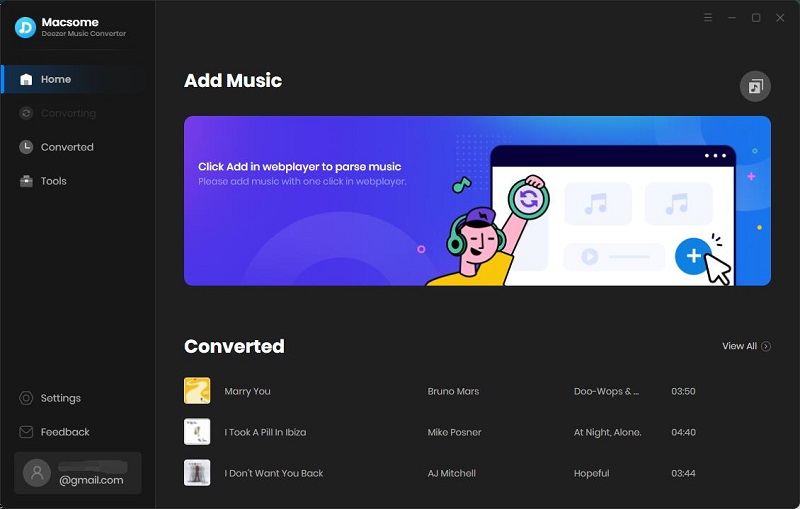
Here is a simple step-by-step guide on how to convert Deezer Music to MP3 as a ringtone by using Macsome Deezer Music Converter. Before starting, please make sure you have downloaded the latest version of the program on your computer.
Step 1. Login Deezer Music Web Player
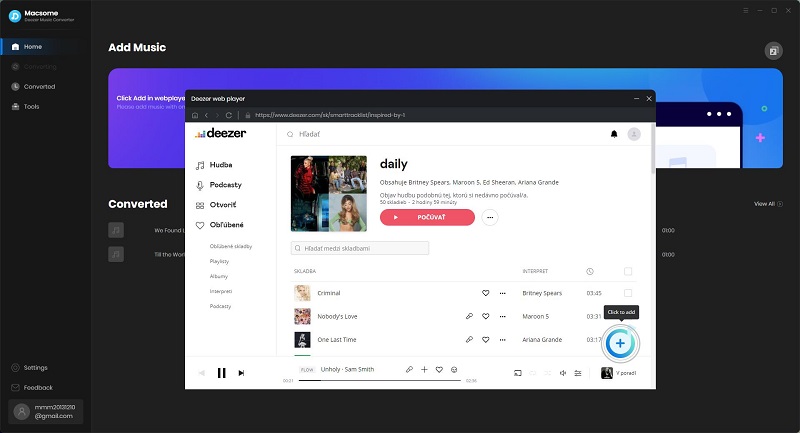
Launch the program, click the "Open Deezer Web Player" button on the main interface. Tap the "LOG IN" button, and use your account to log in Deezer Music web player to get access to your music library. If you do not have an existing account, you can as well create one. Either Deezer Premium or HiFi is OK.
Step 2. Set the Output Formats and Output Parameters
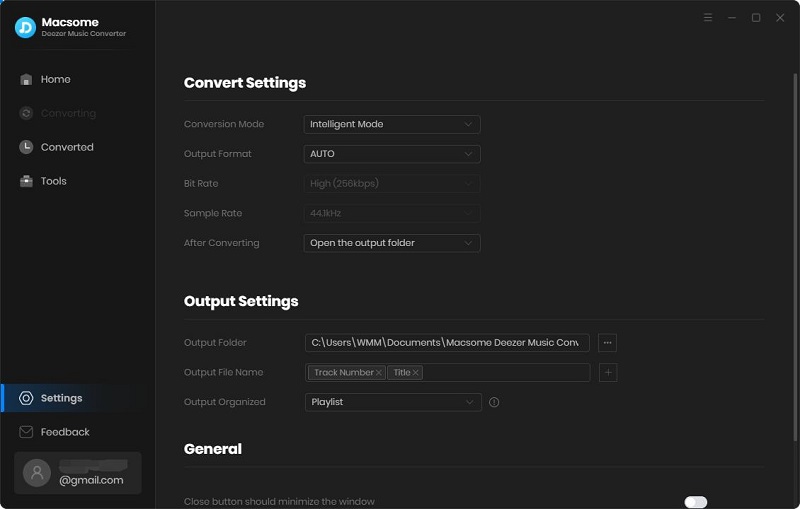
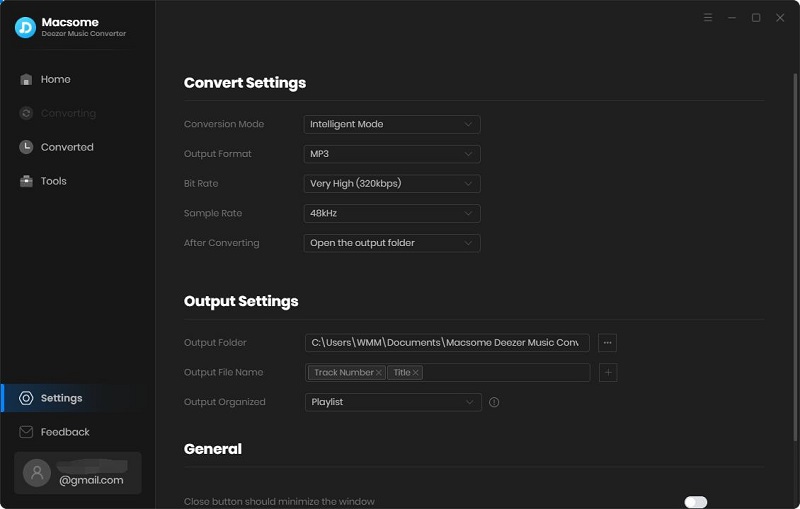
Click on the icon in the top right corner of the interface to customize the output settings. In the pop-up Settings window, you are allowed to set the output format as MP3, AAC, WAV, FLAC, AIFF, and ALAC. To set Deezer songs as ringtones, we suggest you choose MP3 as the output format, as MP3 is the most common audio file, and it works on most devices.
Step 3. Add Deezer Music and Playlists You'd Like to Download
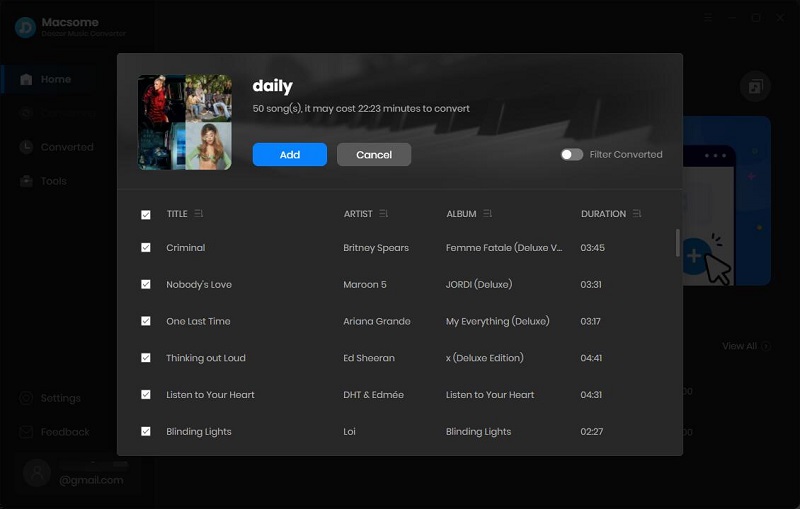
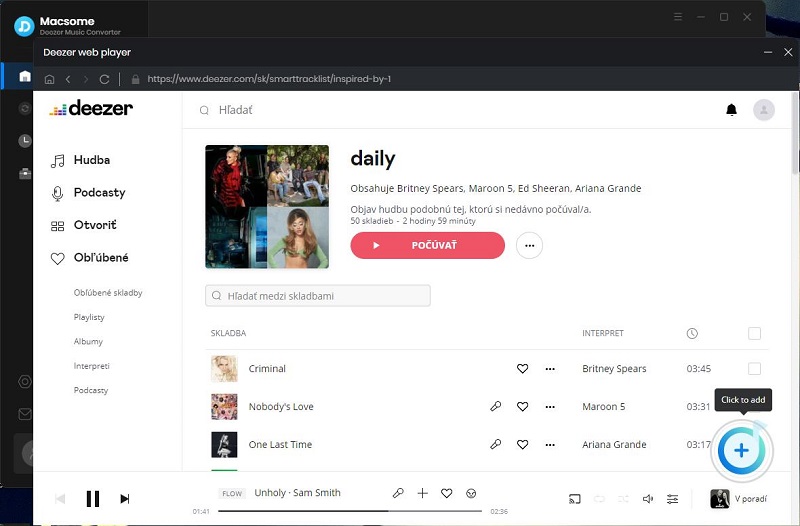
Navigate and open a playlist, then you will see the blue "Add to list" button. Click it, and all the selected songs will be selected.
Step 4. Start to Convert Deezer Music to MP3
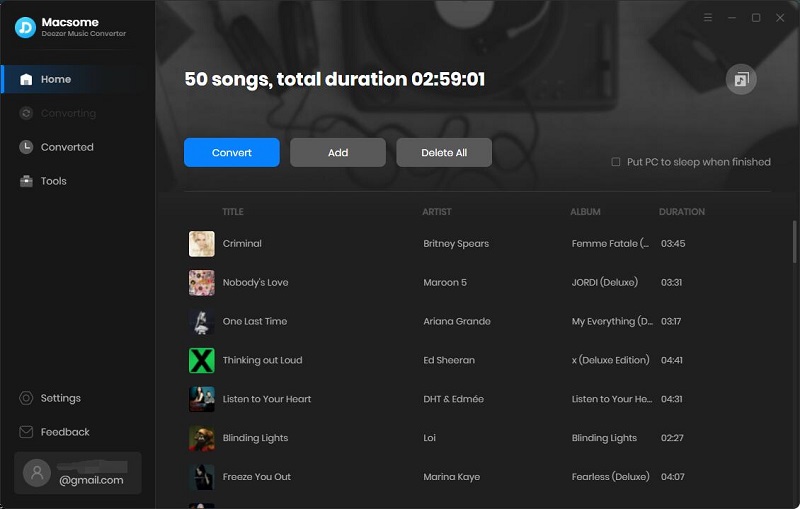
After you have selected your songs, click the "Convert" button to start converting Deezer to MP3 process.
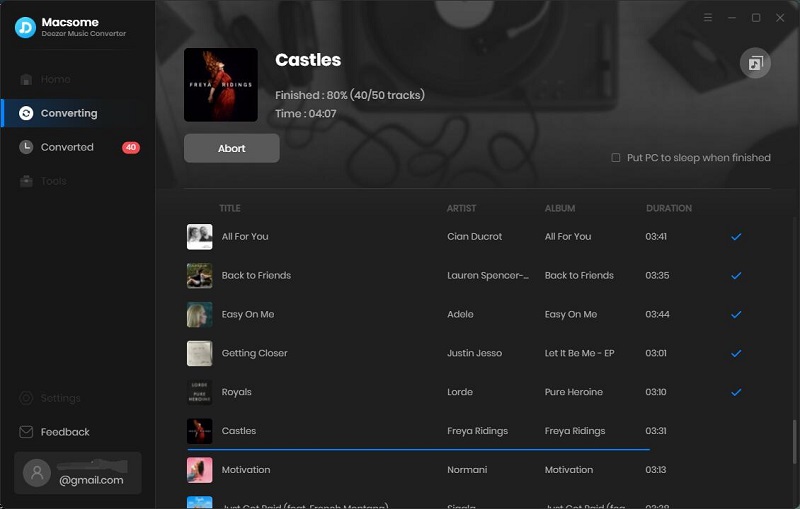
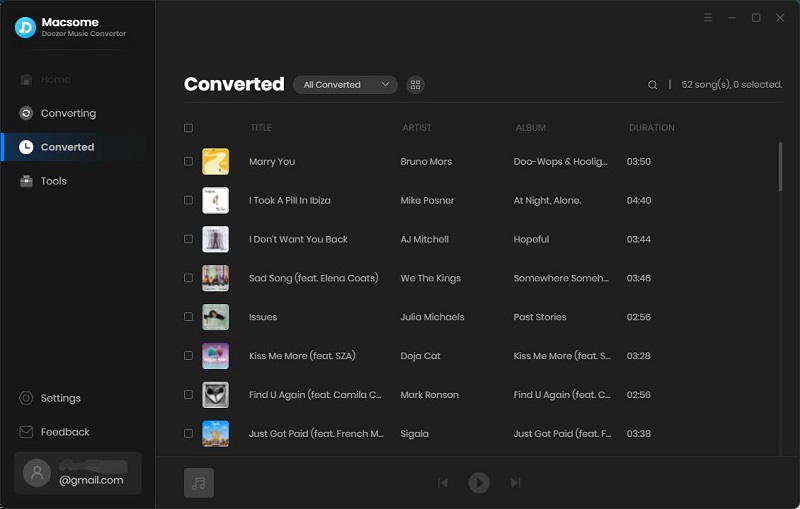
When the conversion is done, you can click the history icon on the top of the interface, then hit the folder icon, you will find all the converted tracks on your computer. Now it would be easier to set Deezer Music song as a ringtone on your phone.
Part 2. Make Your Ringtone from Deezer Music on iPhone
Since you have downloaded Deezer Music on your local computer, here are two ways to set a song from Deezer music as a ringtone for your iPhone.
1. Set a Deezer Track as iPhone Ringtone with Syncios Mobile Manager
There are several free ringtone apps that can do this, but for this tutorial, we'll be using an all-in-one free iPhone Ringtone Maker- Syncios Mobile Manager. With it, you can cut a select segment from your favorite Deezer track and make it into an iPhone ringtone. There is no need to buy ringtones for iPhones, and now you can turn a Deezer song into a ringtone for iPhone via the following step-by-step tutorial.
Step 1. First, download, install and start Syncios on your computer (Mac version). Then connect your iPhone via USB cable to your PC. Click the Toolkit menu on the top of the window, and you will find Ringtone Maker on the left.
Step 2. Click on the "Choose" button, then add the Deezer track you would like to use as a ringtone from the local folder. Or drag and drop the converted Deezer music file to the panel directly.
Step 3. Choose a specific part of the Deezer track and make it your iPhone ringtone. Just start playing the track, then click "Set start" button and "Set End" button to adjust the tone length.
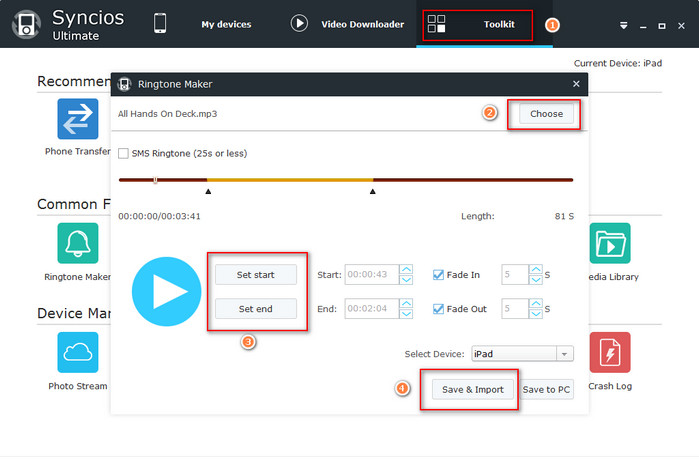
Step 4. You can export the track segment to your iPhone directly by clicking the "Save & Import" button.
Step 5. When it's done, you can head into the settings and select the Deezer track to make it a ringtone for your iPhone. On your iPhone, click "Settings" - "Sounds" - "Ringtone", then you would find the ringtone file you currently imported and set it as your ringtone.
2. Create Deezer Music as an iPhone Ringtone using iTunes
To create a Deezer track as a ringtone for iPhone using iTunes, you need to import the converted Deezer music files to iTunes or Apple Music first, then you can set it as your own iPhone ringtone. First, please make sure that you have installed the latest version of iTunes or Apple Music. Now let's get started.
Step 1. Import the converted Deezer music to iTunes.
Launch iTunes on your PC, choose "File" - "Add File to Library" or "Add Folder to Library". Locate the converted Deezer music files, then click "Open".
Step 2. Shorten the song within 30 seconds.
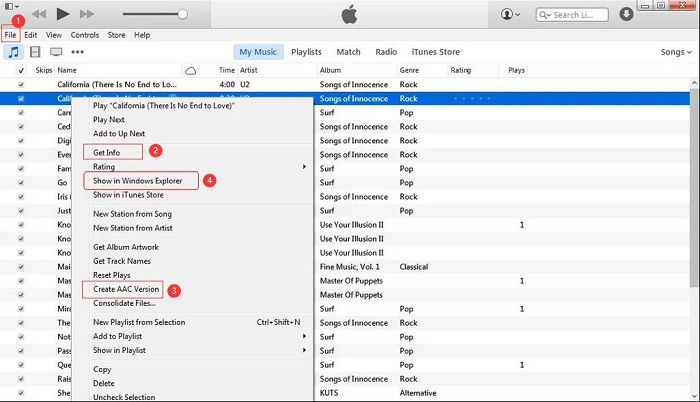
Pick the song you want to use as your new iPhone ringtone, right-click it and select "Song info". Turn the "Options" tab on the pop-up window. Now you can adjust the "start time" and "finish time" of the song. Keep it under 30 seconds. You can play it back to make sure it's the part of the song you want. Then click "OK" at the right bottom.
Step 3. Create AAC version.
Select the song again by clicking once on it. Then go to the "File" menu, choose "Convert", then select "Create AAC Version" in the drop-down menu. iTunes will immediately convert the 30-second audio clip you just chose to create.
Step 4. Find the AAC version in the iTunes folder.
After creating the AAC version of the song, you will find the songs you created in the iTunes library. Right-click the song and choose "Show in Windows Explorer".
Step 5. Change the track extension into .m4r.
After locating the file in the iTunes folder, you will find that the song is an M4A file. You should right-click the file and rename the file extension into .m4r.
Step 6. Import and sync the ringtone to iPhone.
Connect your iPhone to your computer with its USB cable, you will see your iPhone in the left-hand column under "Devices". Click on it and the list should expand, so you can see a Tones section. Click on that and you'll see any custom tones appear on the right. Click "Sync" at the right bottom.
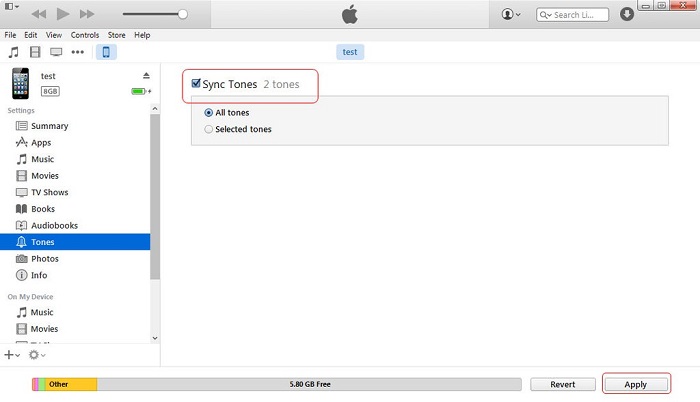
Now that the new tone is on your phone, open the "Settings" app on your iPhone, then tap "Sounds" (also called "Sounds & Haptics"), then "Ringtone". Your new added tones will appear at the top of the list, above the default Ringtones. Just tap on one to make it your ringtone.
Part 3. How to Set a Song from Deezer as a Ringtone on an Android
Changing your ringtone on Android phones is particularly easy. Now you can refer to the detailed guide to use a song from Deezer Music as a custom ringtone on your Android phone. The steps will vary according to what your manufacturer pre-loads onto your phone model.
Step 1. Connect your Android to your PC using a USB cable. Select the converted Deezer music files from your computer. Drag the files into the Music or ringtone folder on your Android phone.
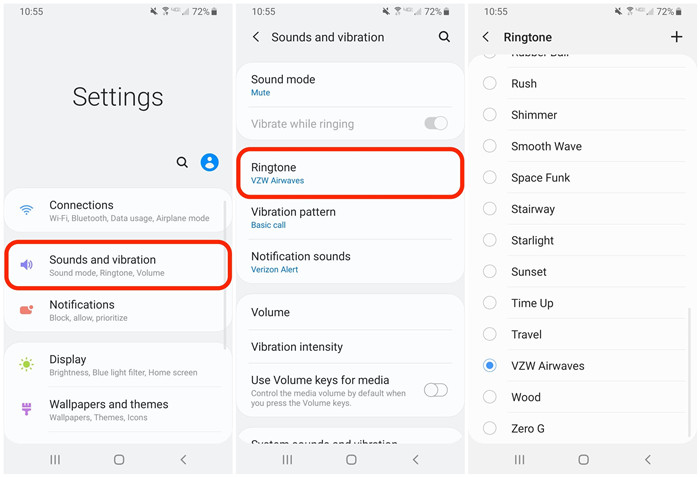
Step 2. Open the Settings app on your Android mobile phone. Tap on "Sounds and vibration."
Step 3. Tab the "Ringtone" option. From here, you will see a list of ringtones or a list of ringtone categories available on your phone.
Step 4. Scroll down to the bottom and tap on "Add Ringtone" or tap on the "+" plus icon. Then you can select the converted Deezer track to use as the default ringtone on your phone. Your new ringtone will be saved as soon as you exit the Settings app.