Thursday, November 19, 2020

Thanksgiving Day & Black Friday offers – Get Macsome Products Up to 50% Off

 To celebrate the Thanksgiving Day, Macsome Inc. official announced their 2020 Black Friday Big sales with up to 50% on the Macsome media converter products to customers worldwide. The event is going to begin in Nov. 24th, 2020 and expires at Nov. 30th, 2020.   

As the holidays approach, The Thanksgiving Day & Black Friday special promotion from Macsome Inc. will start from Nov. 24th 2020 to Nov. 30th, 2020. Anyone can get all Macsome featured programs with big discounts from 20% to 50%, including the newly launched Macsome Amazon Music Downloader, Macsome Tidal Music Downloader and Macsome Any Audiobook Converter. The popular Spotify Downloader and iTunes Converter. 



Main Functions of Macsome New Programs 


Macsome Amazon Music Downloader was newly launched last month. It is specially developed to download Amazon Music Unlimited & Prime Music without Amazon Music application installed. Besides, it can also convert Amazon music to MP3, FLAC, WAV and AAC with ID3 tags kept. 


Another featured new program available in the sales promotion is Macsome Tidal Music Downloader. It is a powerful Tidal Music Converter, which is able to download Tidal Music, playlist and albums to MP3, AAC, WAV and FLAC with hi-fi output quality. 


Macsome Audiobook Converter can convert Audible audiobooks to MP3, M4A and M4B at up to 60x faster speed. It you set the M4A as the output format, you can also keep the primary chapter information for the output files. 


Currently all of Macsome streaming music converters are fully compatible with macOS 10.15 Catalina and Windows 10. And all of them have a free trial version, which let you download it for free and have a trial.  


The following listed the lowest discounted prices for all Macsome programs for sale for 2020 Thanksgiving Day as well as Black Friday for your reference: 


Macsome Amazon Music Downloader for Win                50% off             $9.95 (Original $19.95) 

Macsome Tidal Music Downloader (Mac/Windows)   50% Off    $9.95 (Original $19.95) 

Macsome Audiobook Converter (Mac/Windows)       50% Off    $9.95 (Original $19.95) 

Macsome iTunes Converter (Mac/Windows)   20% Off    $14.95 (Original $19.95) 

Macsome Spotify Downloader (Mac/Windows)       20% Off   $14.95 (Original $19.95) 


Pricing and Availability 


2020 has been difficult for everyone. And Macsome Inc. want to make the holiday special. Regardless of how the people plan to celebrate Thanksgiving, Macsome Inc is committed to ensuring their customers can find what they want, all at affordable prices.  


This promotion is valid from Nov 24th, 2020 until Nov 30th, 2020. Anyone who visit Macsome official website can enjoy the special discount.  For more details about Macsome 2020 Thanksgiving Day and Black Friday sales, please visit the official promotion page from: http://macsome.com/promotion/thanksgiving-day-special-sales-offer.html 


About Macsome Inc 

Macsome Inc is a software development company which established in 2008. It is devoted to providing ultimte multimedia solutions to customers worldwide. Main products include Spotify Downloader, Amazon Music Downloader, Tidal Music Downloader, Audiobook Converter, and iTunes Converter. 


Press Contact 

Name: Leo Fan 

Email: market@macsome.com 

Website: http://www.macsome.com 

Facebook: https://www.facebook.com/Macsome-349755292112722/  


Friday, June 12, 2020

How to Play Spotify Music on PS4


'How do I listen to Spotify music while playing PS4 games?' It is well-known that Spotify app is available on PS4 now. So, you can play Spotify music on PS4 using Spotify application on your PlayStation 4 and PlayStation 3. With the Spotify Premium subscription, you can stream songs from Spotify to PS4 for offline listening.
In the following we will provide two methods to enable you use Spotify songs on PS4. On one hand, you can stream Spotify music to PS4 through Spotify with PlayStation Music. On the other hand, you can also try to transfer music from Spotify to PS4 by connecting a USB drive. Here's how to play Spotify songs on your PS4 in two different methods.
use spotify on ps4

PART 1. PLAY SPOTIFY MUSIC ON PS4 USING SPOTIFY APPLICATION

As PlayStation Music cooperated with Spotify, it is convenient to use Spotify app on your PlayStation game console. Firstly, fire up your PS4.
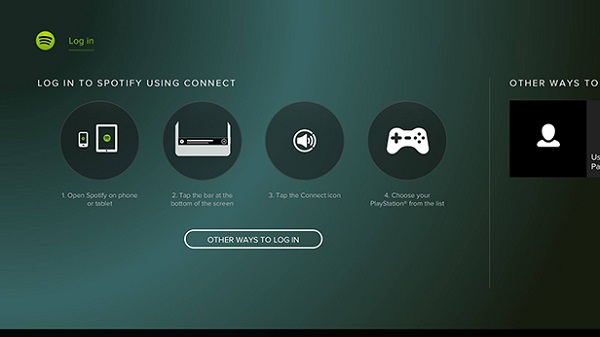
1. Click the PlayStation button from the center of your controller. Scroll on the home page, download and install the "PlayStation Music" app, just click start then either sign up or sign in.
2. When clicking on the "PlayStation Music" app, the system will ask you to create or log into your Spotify profile.
connect spotify with ps4
3. Once you've linked your Spotify account to your PlayStation Network account, you can now play music on Spotify through your PS4 like you would on any other device.

PART 2. DOWNLOAD MUSIC FROM SPOTIFY TO PS4 VIA A USB DRIVE

As we all know, Spotify is a music streaming service. No matter you are free or Premium users, you can only listen to Spotify content within Spotify app. If you are using a Spotify free account, you can only play the songs online with annoying ads. Especially it might low the internet connection speed while you are playing PS4 games.
Instead, we simply offer an alternative solution to the above problems. Owing to PS4 can play common music files from a USB storage device, we can transfer Spotify music to a USB drive. However, Spotify songs are in the protected Ogg Vorbis format, which prevents you copying music from Spotify to other devices like USB.
Take it easy, Macsome Spotify Downloader is recommended for you. It allows you to download Spotify songs, albums and playlist for offline playing without Premium subscription. Furthermore, you can also convert Spotify music to common audio formats, including MP3, AAC, FLAC and WAV. Thus, you can transfer Spotify music to USB easily so that you can listen to Spotify music via USB drive.
Follow the quick tutorial below to play Spotify music on a PS4 through a USB drive using Macsome Spotify Downloader. It works for both Spotify Premium and Spotify Free users. Before started, please make sure you have Macsome downloaded on your computer. Once you do, you'll be able to download music from Spotify to PS4 for playback through the USB drive.
Step 1. Add Spotify Music you want to play to the program.
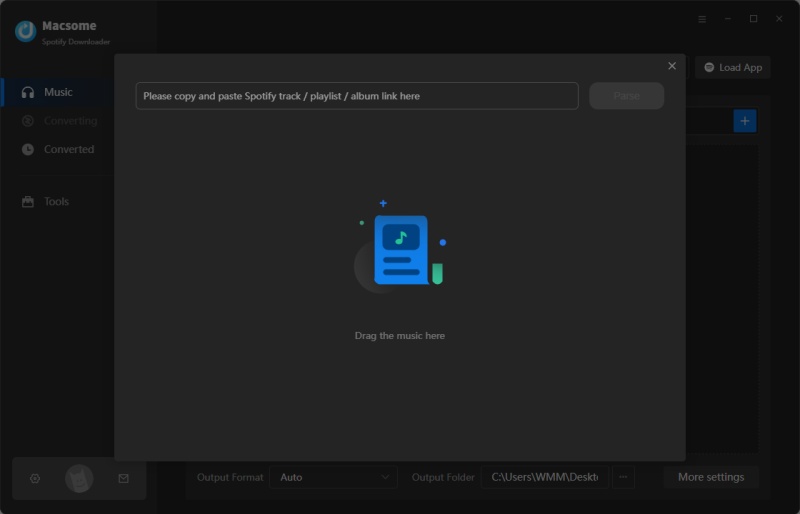
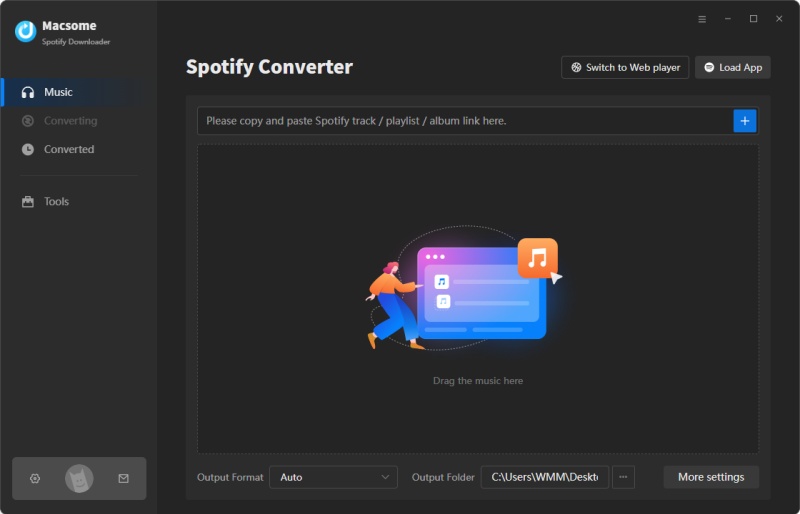
Install and run Macsome Spotify Downloader on your computer. It lets you import music from Spotify in two ways. You can copy the link of the songs and then press "+" button. In addition, you can drag and drop the songs, albums, playlists from the Spotify app to the main screen.
Add Spotify songs to convert
Step 2. Choose output format for PS4.
Because PS4 music player can support MP3 or AAC (M4A) formats. Click the setting button, you can set MP3 or AAC as output format.
set mp3 as output format
Step 3. Start to download Spotify to PS4.
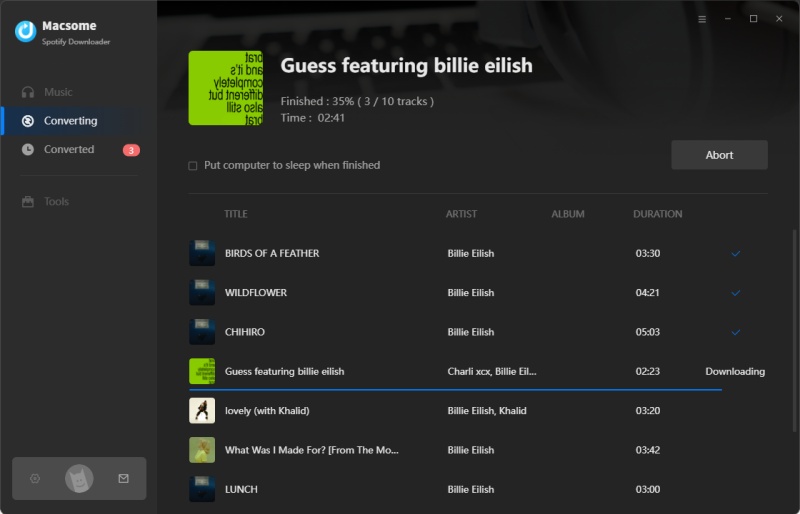
When everything is ready, you can click "Convert" button to start Spotify music conversion process.
After the conversion completed, you can find the downloaded Spotify in the "Converted" panel. Now you can transfer the converted Spotify songs to PS4.
start downloading Spotify playlist to mp3
Step 4. Transfer Spotify Music to PS4 via a USB Drive.
Firstly, connect your USB drive to the computer. Create a "Music" folder on your USB drive,then you can copy and paste the converted Spotify songs on it. Last, plug the USB drive into the USB port on your PS4, the PS4 media player will appear, you can click on your Music folder and listen to Spotify music in the background without interrupting games.

Tuesday, April 7, 2020

How to Transfer Music from Spotify to iPod


'Q: Can't transfer music from Spotify to ipod'. Why is it that I'm unable to transfer music files from Spotify to my ipod? I'm okay with iphone, and ipad. But ipod is the problem. I'm getting ready to give up on this Spotify deal.
Henya asked on the Spotify Community.
The problem usually arises when one wants to transfer Spotify music to iPod. How to solve this kind of tricky problems? Take it easy, we will offer a brilliant solution to enable you to play any Spotify songs on your iPod without any limitations.
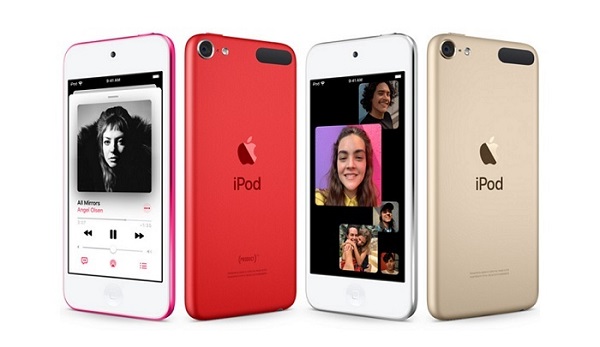
The iPod is a small, light hand-held music-playing device produced by Apple and sold across the world. It's the best-known family of MP3 players and comes in a variety of models, including iPod Touch, iPod Shuffle, iPod Nano and iPod Classic.
play spotify music on ipod
Spotify is one of the most popular audio streaming services that allows you to play millions of songs and podcasts for free. When you upgrade to Spotify Premium, you can simply download and enjoy Spotify playlist and album using offline mode within Spotify application.

WHY CAN'T TRANSFER MUSIC FROM SPOTIFY TO IPOD

If Spotify is your preferred or only music service, it might be much more convenient for you to download Spotify songs to iPod. But you can't. Partly because iPod Nano, Classic and Shuffle doesn't support the Spotify application. If you are running iPod touch 6th generation with iOS 10 or above, you can use Spotify on it. The premise is that you have to get a Premium subscription.
Also, it is worth noting that you cannot transfer music from the Spotify to iPods. That's because Spotify music is streamed in Ogg Vorbis. As iPod is simply an MP3 player, you can't play Spotify songs on iPod or other non-approved devices.
Don't worry, Macsome Spotify Downloader can help you out. With it, you can download music from Spotify and convert them as MP3 or other audio formats with excellent quality output, no matter you are subscribing to Spotify Free or Premium.
Why Macsome Spotify Downloader is Recommended
  • Download Spotify tracks, Playlists and albums.
  • Convert Spotify songs to MP3, AAC, FLAC or WAV format.
  • Transfer Music from Spotify to iPod, iPhone, PS4 and more.
  • Keep ID3 tags and preserve lossless audio quality.
  • Upload & Share Spotify music to Google Drive and One Drive.

PART 1. SIMPLE GUIDE TO CONVERT SPOTIFY MUSIC TO IPOD

At first, please download the latest version of Macsome Spotify Downloader on your computer according to the system you have. It is available on both Windows and Mac computers. The following tutorial is taken the Windows for an example. Here we go.
Step 1. Import Spotify Songs to Macsome.
Install and run Spotify Downloader on your computer, and the Spotify will open at the same time.
Interface of Spotify Downloader
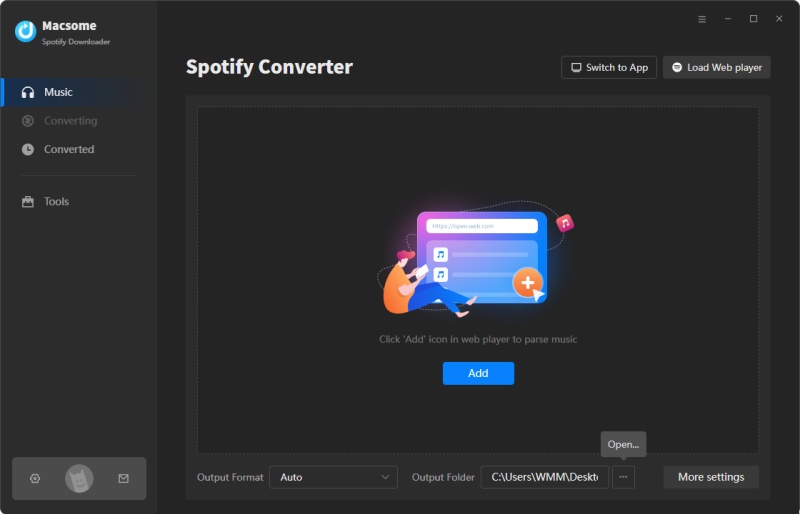
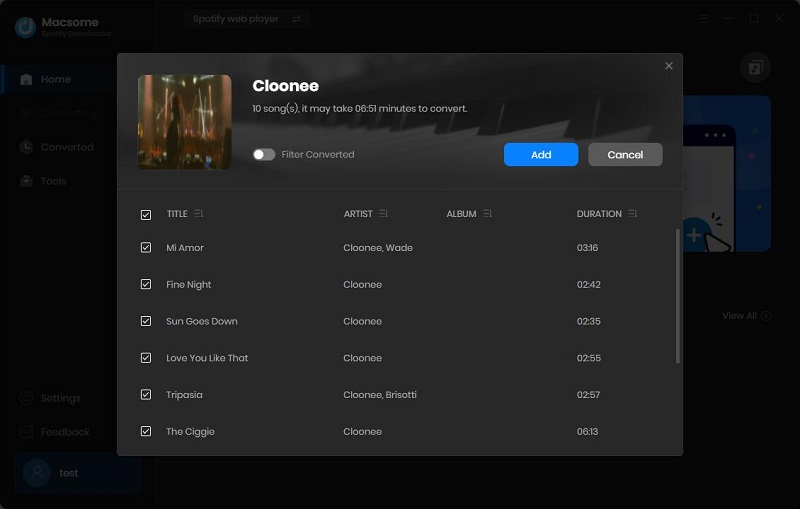
Now you can copy and paste the Spotify music or playlist link to the program. Alternatively, you can also drag and drop the tracks from Spotify to the program directly. Click "OK" button, all the songs will be added to the main window.
add Spotify songs to the program
Step 2. Set MP3 as the Output Format.
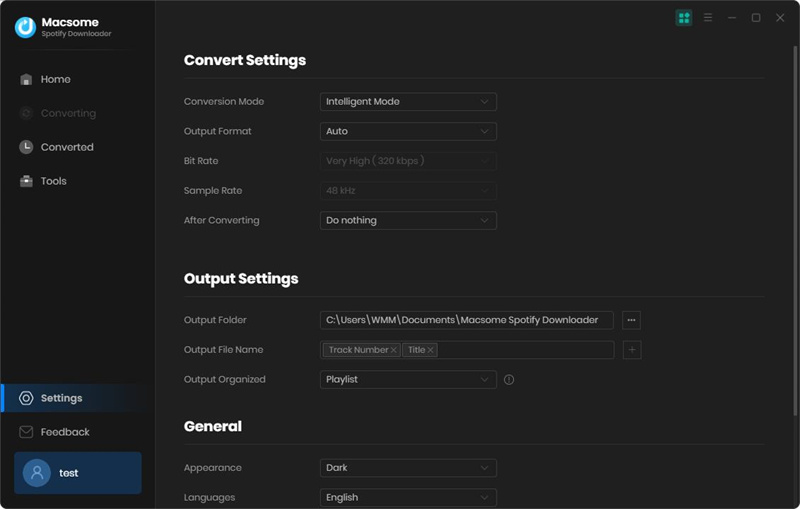
Click on the Settings button on the top right corner of the user interface, please select MP3 as the output format. And you can also select the Output Quality among 320kbps, 256kbps, 192kbps and 128kbps. Plus, you can also set the Output Path to save the downloaded Spotify files if you need.
Set the output format for iPod
Step 3. Start to Convert Spotify Music to MP3.
After all these settings, you can click the "Convert" button to start to download Spotify music process.
start to convert Spotify to MP3
When the whole conversion process finished, you can find the converted Spotify music files you can find in your target folder.

PART 2. HOW TO TRANSFER SPOTIFY MUSIC TO IPOD FOR PLAYBACK

As you have converted Spotify songs to the common MP3 files, it is much easier to sync Spotify songs to your iPods. Now you can import the converted Spotify music to iPod easily, you'll learn how to do it here.
Step 1. Connect iPod to your computer via USB cable. Go to Start -Settings - Control Panel on your computer, double click on \"Folder Options\".
Step 2. Double click on the drive titled \"iPod\" and find the folder within it titled \"Music\".
Step 3. Select all the converted Spotify songs you want to transfer; you can copy and paste or drag all the songs from the Music folder to the iPod's Music folder.
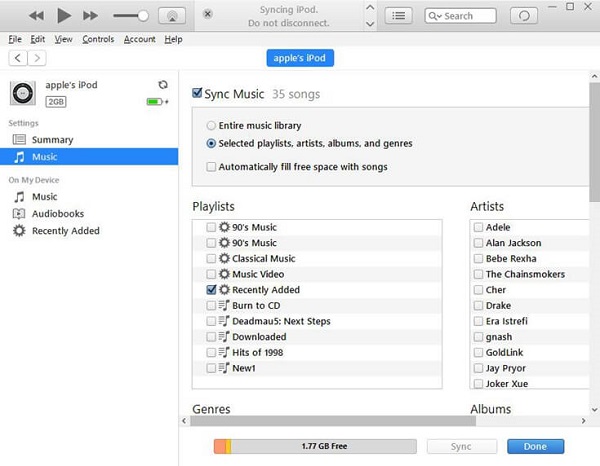
What's more, you can also move Spotify songs to iPod with iTunes, just import the converted Spotify songs to iTunes, and then plug iPod into your computer. Click "Music" tab - "Sync Music" - "selected playlists, artists, albums, and genres". Under "Playlists", check "Recently added" where the downloaded Spotify songs are saved. Then click the "Apply" button in the lower right-hand corner and the Spotify tracks will be automatically synced to your iPod as expected.
sync spotify music to ipod
Once the transferring done, unplug the iPod. Power it up and you should see all your music there. Now you can listen to Spotify songs on your iPod freely.