Friday, June 12, 2020

How to Play Spotify Music on PS4


'How do I listen to Spotify music while playing PS4 games?' It is well-known that Spotify app is available on PS4 now. So, you can play Spotify music on PS4 using Spotify application on your PlayStation 4 and PlayStation 3. With the Spotify Premium subscription, you can stream songs from Spotify to PS4 for offline listening.
In the following we will provide two methods to enable you use Spotify songs on PS4. On one hand, you can stream Spotify music to PS4 through Spotify with PlayStation Music. On the other hand, you can also try to transfer music from Spotify to PS4 by connecting a USB drive. Here's how to play Spotify songs on your PS4 in two different methods.
use spotify on ps4

PART 1. PLAY SPOTIFY MUSIC ON PS4 USING SPOTIFY APPLICATION

As PlayStation Music cooperated with Spotify, it is convenient to use Spotify app on your PlayStation game console. Firstly, fire up your PS4.
1. Click the PlayStation button from the center of your controller. Scroll on the home page, download and install the "PlayStation Music" app, just click start then either sign up or sign in.
2. When clicking on the "PlayStation Music" app, the system will ask you to create or log into your Spotify profile.
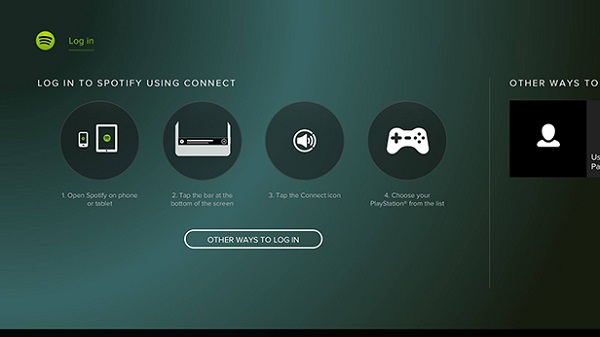
connect spotify with ps4
3. Once you've linked your Spotify account to your PlayStation Network account, you can now play music on Spotify through your PS4 like you would on any other device.

PART 2. DOWNLOAD MUSIC FROM SPOTIFY TO PS4 VIA A USB DRIVE

As we all know, Spotify is a music streaming service. No matter you are free or Premium users, you can only listen to Spotify content within Spotify app. If you are using a Spotify free account, you can only play the songs online with annoying ads. Especially it might low the internet connection speed while you are playing PS4 games.
Instead, we simply offer an alternative solution to the above problems. Owing to PS4 can play common music files from a USB storage device, we can transfer Spotify music to a USB drive. However, Spotify songs are in the protected Ogg Vorbis format, which prevents you copying music from Spotify to other devices like USB.
Take it easy, Macsome Spotify Downloader is recommended for you. It allows you to download Spotify songs, albums and playlist for offline playing without Premium subscription. Furthermore, you can also convert Spotify music to common audio formats, including MP3, AAC, FLAC and WAV. Thus, you can transfer Spotify music to USB easily so that you can listen to Spotify music via USB drive.
Follow the quick tutorial below to play Spotify music on a PS4 through a USB drive using Macsome Spotify Downloader. It works for both Spotify Premium and Spotify Free users. Before started, please make sure you have Macsome downloaded on your computer. Once you do, you'll be able to download music from Spotify to PS4 for playback through the USB drive.
Step 1. Add Spotify Music you want to play to the program.
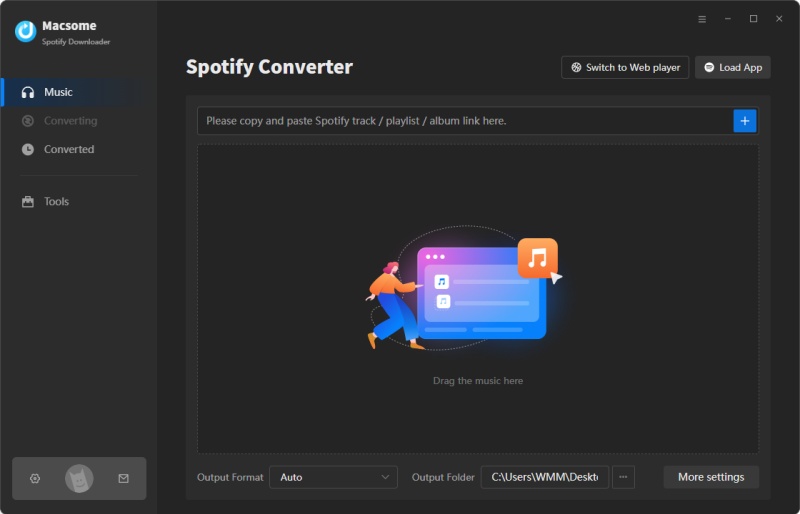
Install and run Macsome Spotify Downloader on your computer. It lets you import music from Spotify in two ways. You can copy the link of the songs and then press "+" button. In addition, you can drag and drop the songs, albums, playlists from the Spotify app to the main screen.
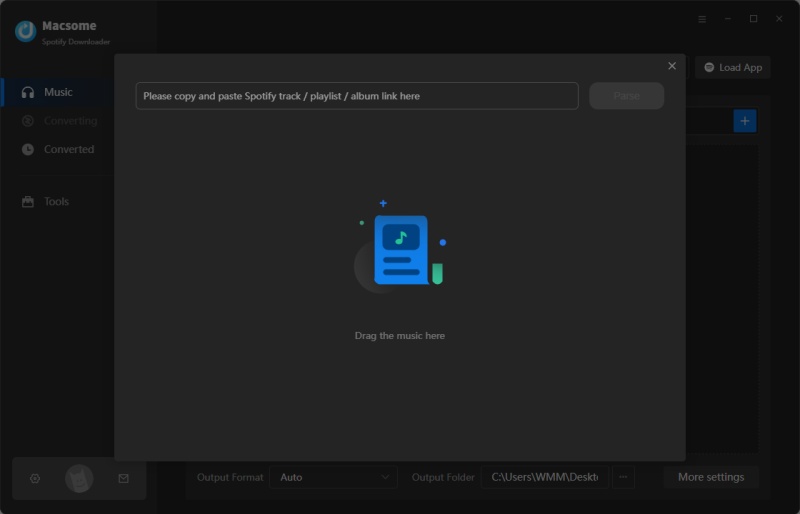
Add Spotify songs to convert
Step 2. Choose output format for PS4.
Because PS4 music player can support MP3 or AAC (M4A) formats. Click the setting button, you can set MP3 or AAC as output format.
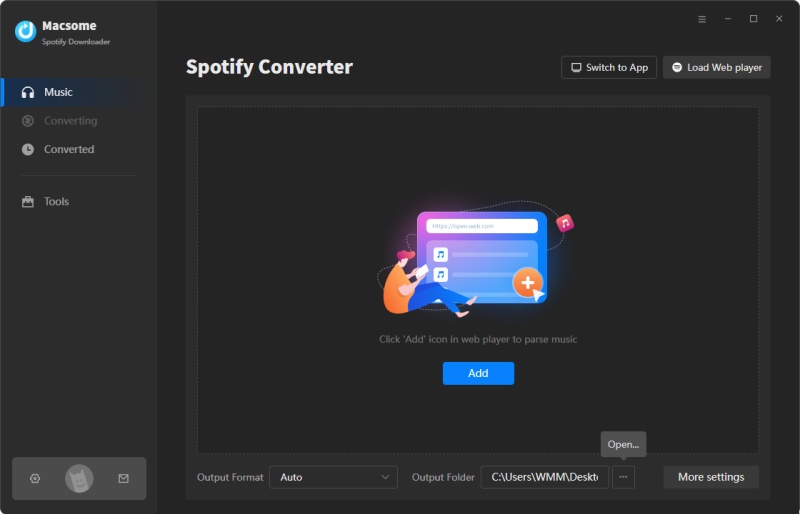
set mp3 as output format
Step 3. Start to download Spotify to PS4.
When everything is ready, you can click "Convert" button to start Spotify music conversion process.
After the conversion completed, you can find the downloaded Spotify in the "Converted" panel. Now you can transfer the converted Spotify songs to PS4.
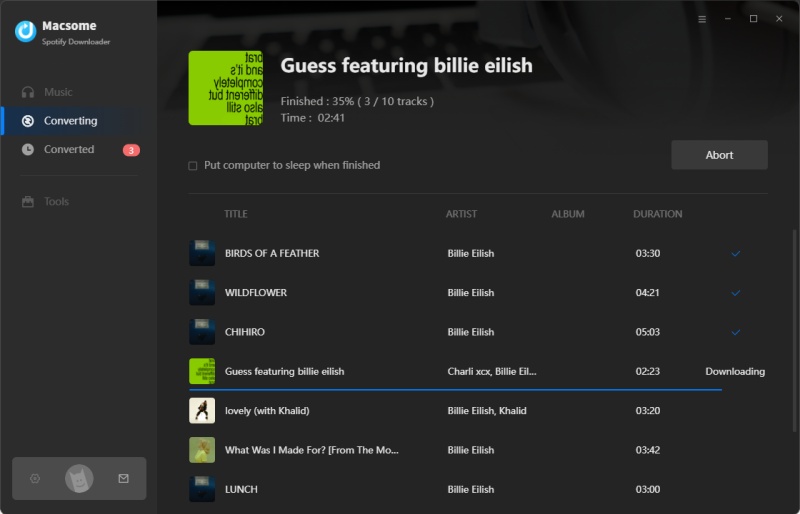
start downloading Spotify playlist to mp3
Step 4. Transfer Spotify Music to PS4 via a USB Drive.
Firstly, connect your USB drive to the computer. Create a "Music" folder on your USB drive,then you can copy and paste the converted Spotify songs on it. Last, plug the USB drive into the USB port on your PS4, the PS4 media player will appear, you can click on your Music folder and listen to Spotify music in the background without interrupting games.

Tuesday, April 7, 2020

How to Transfer Music from Spotify to iPod


'Q: Can't transfer music from Spotify to ipod'. Why is it that I'm unable to transfer music files from Spotify to my ipod? I'm okay with iphone, and ipad. But ipod is the problem. I'm getting ready to give up on this Spotify deal.
Henya asked on the Spotify Community.
The problem usually arises when one wants to transfer Spotify music to iPod. How to solve this kind of tricky problems? Take it easy, we will offer a brilliant solution to enable you to play any Spotify songs on your iPod without any limitations.
The iPod is a small, light hand-held music-playing device produced by Apple and sold across the world. It's the best-known family of MP3 players and comes in a variety of models, including iPod Touch, iPod Shuffle, iPod Nano and iPod Classic.
play spotify music on ipod
Spotify is one of the most popular audio streaming services that allows you to play millions of songs and podcasts for free. When you upgrade to Spotify Premium, you can simply download and enjoy Spotify playlist and album using offline mode within Spotify application.

WHY CAN'T TRANSFER MUSIC FROM SPOTIFY TO IPOD

If Spotify is your preferred or only music service, it might be much more convenient for you to download Spotify songs to iPod. But you can't. Partly because iPod Nano, Classic and Shuffle doesn't support the Spotify application. If you are running iPod touch 6th generation with iOS 10 or above, you can use Spotify on it. The premise is that you have to get a Premium subscription.
Also, it is worth noting that you cannot transfer music from the Spotify to iPods. That's because Spotify music is streamed in Ogg Vorbis. As iPod is simply an MP3 player, you can't play Spotify songs on iPod or other non-approved devices.
Don't worry, Macsome Spotify Downloader can help you out. With it, you can download music from Spotify and convert them as MP3 or other audio formats with excellent quality output, no matter you are subscribing to Spotify Free or Premium.
Why Macsome Spotify Downloader is Recommended
  • Download Spotify tracks, Playlists and albums.
  • Convert Spotify songs to MP3, AAC, FLAC or WAV format.
  • Transfer Music from Spotify to iPod, iPhone, PS4 and more.
  • Keep ID3 tags and preserve lossless audio quality.
  • Upload & Share Spotify music to Google Drive and One Drive.

PART 1. SIMPLE GUIDE TO CONVERT SPOTIFY MUSIC TO IPOD

At first, please download the latest version of Macsome Spotify Downloader on your computer according to the system you have. It is available on both Windows and Mac computers. The following tutorial is taken the Windows for an example. Here we go.
Step 1. Import Spotify Songs to Macsome.
Install and run Spotify Downloader on your computer, and the Spotify will open at the same time.
Interface of Spotify Downloader
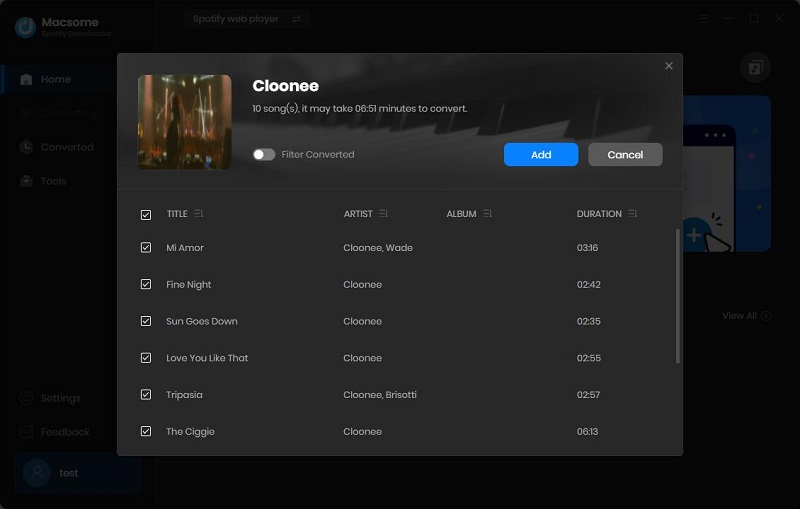
Now you can copy and paste the Spotify music or playlist link to the program. Alternatively, you can also drag and drop the tracks from Spotify to the program directly. Click "OK" button, all the songs will be added to the main window.
add Spotify songs to the program
Step 2. Set MP3 as the Output Format.
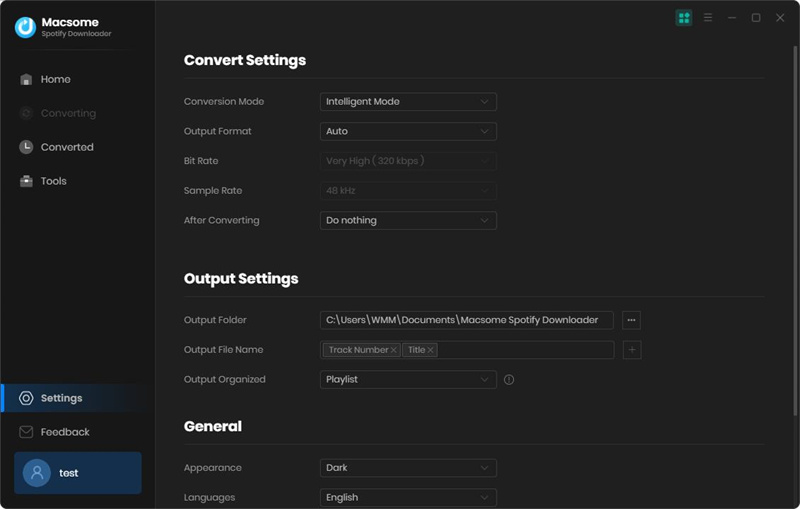
Click on the Settings button on the top right corner of the user interface, please select MP3 as the output format. And you can also select the Output Quality among 320kbps, 256kbps, 192kbps and 128kbps. Plus, you can also set the Output Path to save the downloaded Spotify files if you need.
Set the output format for iPod
Step 3. Start to Convert Spotify Music to MP3.
After all these settings, you can click the "Convert" button to start to download Spotify music process.
start to convert Spotify to MP3
When the whole conversion process finished, you can find the converted Spotify music files you can find in your target folder.

PART 2. HOW TO TRANSFER SPOTIFY MUSIC TO IPOD FOR PLAYBACK

As you have converted Spotify songs to the common MP3 files, it is much easier to sync Spotify songs to your iPods. Now you can import the converted Spotify music to iPod easily, you'll learn how to do it here.
Step 1. Connect iPod to your computer via USB cable. Go to Start -Settings - Control Panel on your computer, double click on \"Folder Options\".
Step 2. Double click on the drive titled \"iPod\" and find the folder within it titled \"Music\".
Step 3. Select all the converted Spotify songs you want to transfer; you can copy and paste or drag all the songs from the Music folder to the iPod's Music folder.
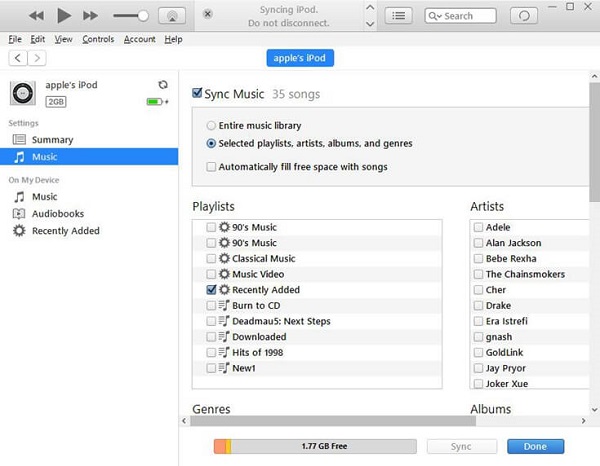
What's more, you can also move Spotify songs to iPod with iTunes, just import the converted Spotify songs to iTunes, and then plug iPod into your computer. Click "Music" tab - "Sync Music" - "selected playlists, artists, albums, and genres". Under "Playlists", check "Recently added" where the downloaded Spotify songs are saved. Then click the "Apply" button in the lower right-hand corner and the Spotify tracks will be automatically synced to your iPod as expected.
sync spotify music to ipod
Once the transferring done, unplug the iPod. Power it up and you should see all your music there. Now you can listen to Spotify songs on your iPod freely.

Thursday, March 26, 2020

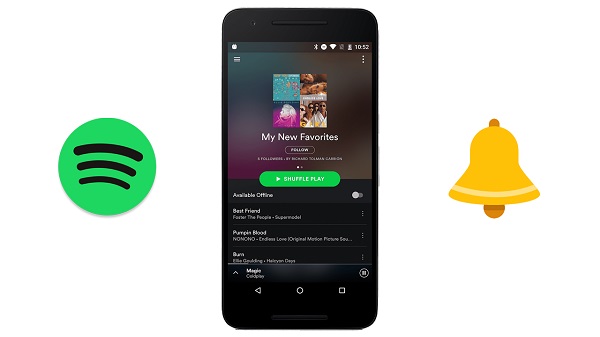
How to Create Spotify Songs as Ringtone for iPhone or Android


Can you use Spotify songs as ringtones? How do I make a Spotify song my ringtone on iPhone? How do I download music from Spotify for ringtones on Android?
Macsome Spotify Downloader can solve all the problems.
Spotify is one of the best music streaming services for most people. There are over 50 million songs in the Spotify library. People prefer to set Spotify music as ringtone and add it to iPhone or Android phone. However, the downloaded Spotify music are cached files. And Spotify uses Ogg Vorbis as their streaming format, so that they can't be used to make ringtones.
make Spotify music for ringtone
While Spotify content has many restrictions, you can still want to set Spotify track as iPhone ringtone or Android ringtone. Only if you turn to a third-party tool like Macsome Spotify Download, you can easily convert Spotify music to ringtone audio format like MP3 or AAC. In the following article, we will clearly illustrate this method on how to use Spotify songs for making ringtone to your iPhone or Android phone.

DOWNLOAD SPOTIFY MUSIC SONGS TO RINGTONE AUDIO FORMAT

Macsome Spotify Downloader is such a speedy, reliable, and multi-function Spotify Converter for you. With it, both Spotify free and Premium users can convert Spotify songs, albums and playlists to plain audio formats supported by iPhone or Android devices, such as MP3, AAC, FLAC and WAV. Now you can refer to the method shown below to use Spotify songs as your phone ringtone with Macsome Spotify Downloader.
Step 1. Download Macsome Spotify Downloader on your computer.
If you are a Mac user, please download the Spotify Downloader for Mac version.
screenshot of macsome spotify downloader
Step 2. Add Spotify Music and Playlist to Macsome.
You can copy and paste the link of Spotify songs to the program. Besides, you can also drag and drop the Spotify songs or playlist to the main panel.
Add Spotify songs to convert
Step 3. Set Output Format and Output Path.
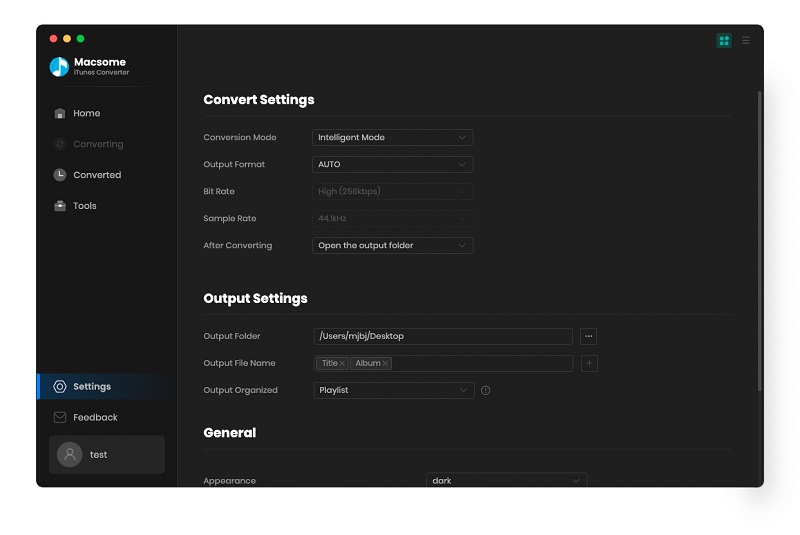
Press the Settings button, you can set the output format, output quality, output folder and other parameters according to your own needs.
set mp3 as output format
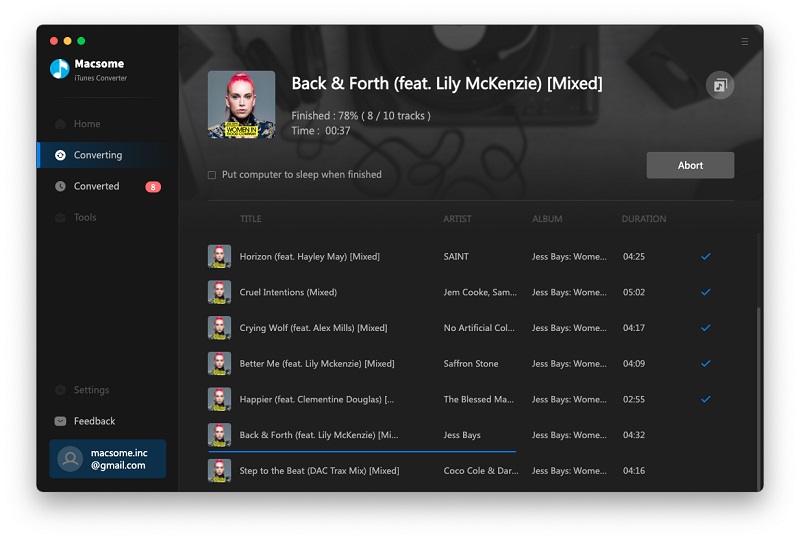
Step 4. Start to Convert Spotify Music Process.
In the end, hit the "Convert" button, you will find the Spotify music conversion process will begin automatically.
start downloading Spotify music
After the conversion is finished, you will find the converted Spotify songs in the output folder you set before.
Step 5. Set the Spotify Music as Ringtone for Your Phone.
1. For Android users: First, copy the converted Spotify music to your Android. Go to Settings - Sound - Device ringtone, you will see a list of the ringtones available on your device. Select the converted Spotify songs and press OK to save the selection.
This image has an empty alt attribute; its file name is android-ringtone.jpg
2. For iPhone users: On your PC, you can import the converted Spotify songs to iTunes, and then cut it to the maximum of 40 seconds long. Then go up to File at the top of the screen and select Convert - Create AAC version. And change the extension to .m4r. Return to iTunes and delete the short version of the track. Drag it to iTunes and you will find it on the Tones panel.
This image has an empty alt attribute; its file name is set-music-as_iphone_ringtone.jpg
Connect your iPhone to iTunes, you can sync the tone to your iPhone. Once inside, click Sync Tones - Selected tones, then the track you've created. Finally go to the bottom right hand corner and click Apply.

CONCLUSION

With Macsome Spotify Downloader, you can make Spotify song as Ringtone for your phone easily. What's more, it is also an all-in-one Spotify Music Converter, which can convert Spotify music to other common audio formats like MP3. In this way, you can transfer music from Spotify to other programs or devices.
What are you waiting for? Now you can download it and have a free trial https://macsome.com/macsome-spotify-downloader.exe

Sunday, March 15, 2020

How to Download Spotify Music and Playlist for free

'How do I play my Spotify playlist without premium? How do I listen to Spotify offline without premium? Can you download music on Spotify free? How to download music in Spotify without the premium account??'

As we all known, Spotify is one of the most popular music streaming platforms right now. If you have a subscription to Spotify Premium, you can download music from Spotify so that listen to them without an internet connection.


How much does Spotify Premium cost? Spotify Premium is $9.99 per month for an individual plan, $4.99 per month for a student plan, and $14.99 per month for a family plan. Spotify Premium account allows you to download up to 10,000 tracks on up to six accounts.

Downloading music on one device won't make it available on the other — you'll need to download music from the Spotify app on every individual device you want to use.

If you want to cancel your Spotify Premium, all the downloaded music are not available any more.  If you change your mind, Spotify saves your playlists and settings for three months after you cancel your Premium subscription, so you can pick up where you left off. After three months you can still upgrade to a Premium subscription through your Spotify account, but you won't have any of your old settings saved.

Is It Possible to Download Music from Spotify without Premium???

If only we could download Spotify music for free! In this way, you can listen to any music from Spotify offline, they will also remove the annoying ads and listen to any song on demand.

But there is no need to worry. Here we will introduce you a powerful Spotify playlist Downloader which allows you to easily download Spotify songs, albums and playlists without Spotify Premium.

Macsome Spotify Downloader is such a tool highly recommended for you. With it, you can not only download single track, full album, playlist and podcast easily, but also convert any Spotify songs to common MP3 format. This program applies to both Spotify Premium and free users. That's to say, you can use it to download Spotify music easily as long as you have a Spotify account.

The following tutorial will show how to use Macsome Spotify Music Converter to download music from Spotify step by step.

PERMANENT SOLUTION ON HOW TO DOWNLOAD SPOTIFY MUSIC FOR FREE

Step 1. Download, install and launch Macsome Spotify Downloader on your PC.
If you are a Mac user, please download the Spotify Downloader for Mac version.

Interface of Macsome Spotify Downloader

Step 2. Import the song or playlist from Spotify to the program.

Click "+" button, then you will see a pop-up window which indicates you to drag and drop the songs or playlist here. Open Spotify application, check the songs or playlist you would like to convert, then drag and drop them to add window.

Plus, you can also directly copy and paste the link of a song or playlist to the clipboard.

Add Spotify songs to convert

Step 3. Set MP3 as the Output Format.

Now move to the upper right corner of the interface and click the settings button. Now you can customize your output parameters as you like. Here we choose MP3 as the output format.

set mp3 as output format

Step 4. Start to download Spotify Music for free.
Finally, you can click "Convert" button to start converting Spotify music process.

start downloading Spotify playlist to mp3
When the conversion completed, you can find the downloaded Spotify files in "Converted" panel.


 Now you have downloaded Spotify songs for free. You can listen to Spotify music without Spotify Premium at will.

More info you can find https://macsome.com/guide/download-spotify-playlist-to-mp3-free.html

Sunday, July 7, 2019

How to play Audible Audiobook on MP3 player

We know that Kindle Audiobook are purchased from Audible.com, and people can use Audible.com to download audiobooks to your iPhone, Android, Windows Phone, Kindle or other listening device and listen to Audible audiobooks by best-selling authors anytime.
After you paid the Audiobook, you can listen to the Audiobook after you authorize the device, for the DRM limits you.
Would you like to get rid of the DRM from the paid Audiobook?
Here Macsome iTunes Converter can help you, which supports converting audiobooks and apple music even on the latest iTunes and supports saving audiobook's chapters when you convert to AAC format. But it don't support the split function.
All the steps to get rid of the DRM are quite simple, and no additional app to install.
First, free download the software according to your computer system, and install it on your computer.
Windows Version Download
Mac Version Download
Then run the iTunes Music Converter, and choose the Audio book files you want to convert from the iTunes Books library.
Please make sure that you have authorized the purchased Audiobooks to the device or the computer so as to play them normally.
And now click Profile button and select the required profile in Output File Format drop-down list.
Preferences output Settings
You can also click the software menu and select Preferences to customize the Output Settings by clicking Choose... to set the destination.
Finally, click the Convert button to start the conversion. Meanwhile the paid Audiobook's DRM is removed as well.
Converting Audio books to MP3
After the conversion is done, you can play the purchased Kindle Audiobook on any MP3 or other audio player as you like without DRM any more.

Tuesday, July 2, 2019

Apple Music brings Up Next Live to global cities this summer

Apple_Apple-Music-Up-Next-Live_King-Princess_070119_carousel.jpg.large

Apple today announced Up Next Live, a series of intimate performances from past and present Apple Music Up Next artists including Bad Bunny, Daniel Caesar, Khalid, Ashley McBryde, King Princess, Lewis Capaldi and Jessie Reyez. Each artist will perform for fans in one city, for one night only.
Apple Music Up Next is a monthly program showcasing the best new artists in the world. Each month, Apple Music tastemakers and editors identify one artist to feature, then utilize the power of the platform to raise awareness of that artist to Apple Music's growing audience of music fans. Apple Music Up Next also includes a deeply curated companion playlistfull of incredible new artists across genres from all over the world.
Each artist on the diverse Up Next Live roster has been featured as an Apple Music Up Next artist in the monthly program or through the playlist. All shows will be hosted after hours in local Apple stores in Milan, San Francisco, Brooklyn, Paris, London, Chicago and Washington, D.C. Apple stores frequently offer free creative sessions through Today at Apple and serve as the place where the local creative community can come together and share ideas, making them the perfect backdrop for Up Next Live. Performances kick off July 9 with global sensation Bad Bunny at Apple Piazza Liberty in Milan.
“The impact [of being part of Up Next] can be seen in everything, in numbers, in plays, in shows,” said Bad Bunny. “There are a lot of fans that, when I go out in the street in the US, people who do not speak Spanish, I think they will not know me and they stop me, they ask me for pictures and they sing my songs. It helped me very much to make myself known in a market different from mine, not only the USA, but in places where Spanish is not spoken or where perhaps Latin music does not dominate, exposing my music and giving people the opportunity to get to know what I do.”
 
More Apple Music Tips you may want to know:

Wednesday, June 12, 2019

Spotify is building shared-queue Social Listening

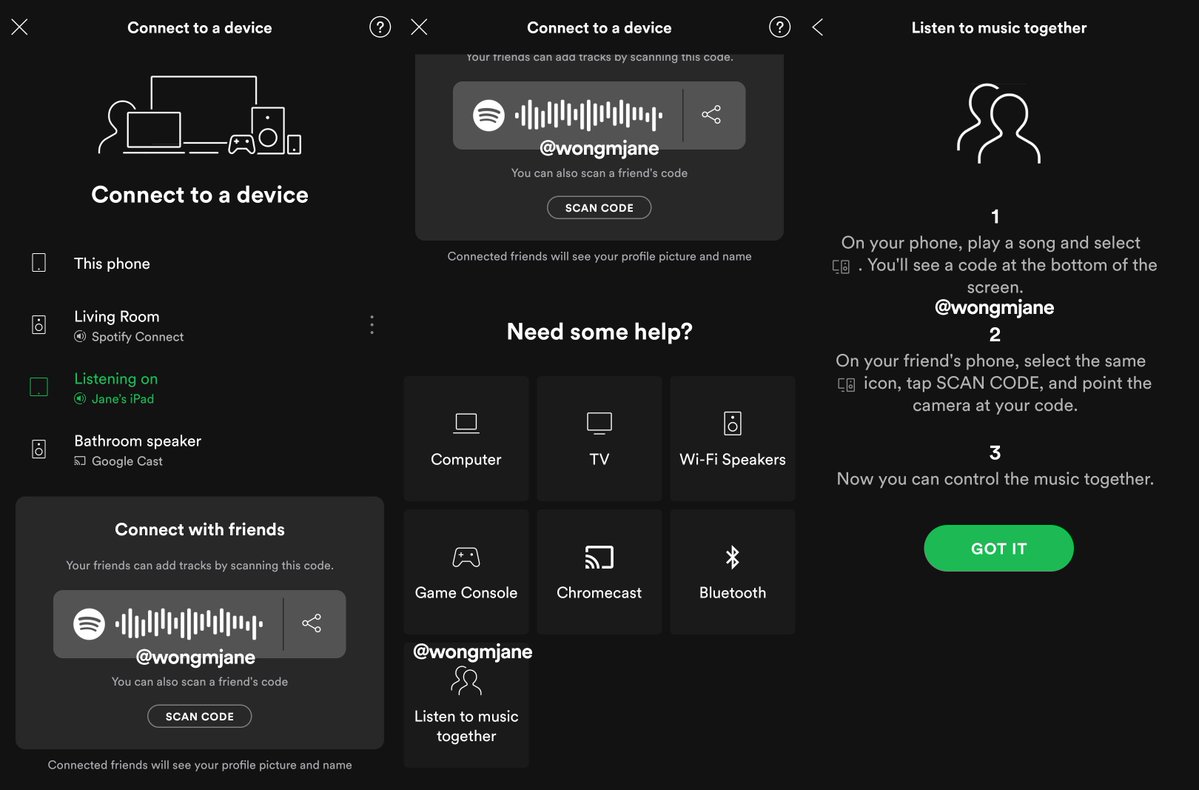
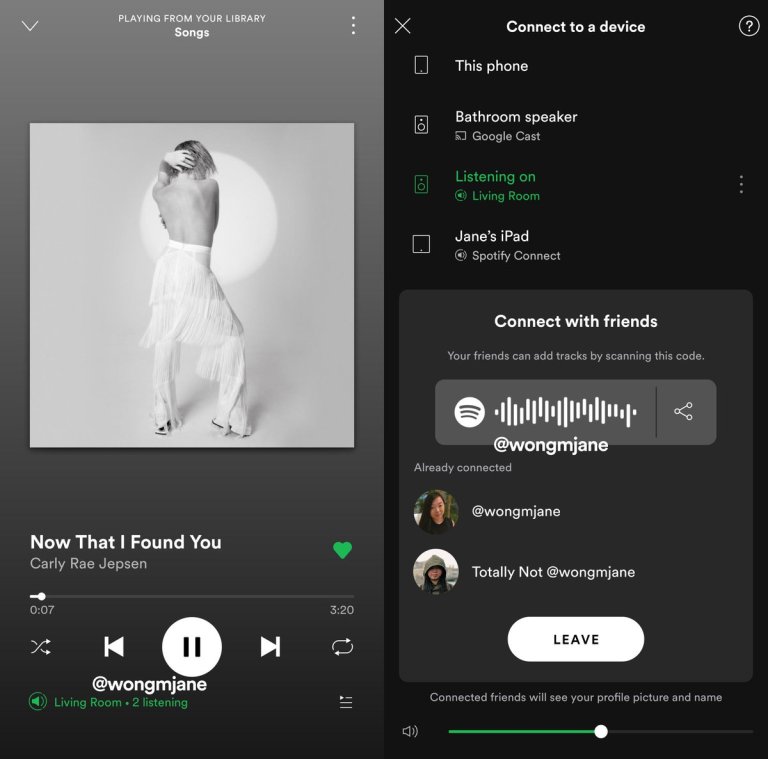
Spotify appears to be testing a "Social Listening" feature that lets friends control the music together. This is similar-ish to its collaborative playlist feature, but it contains a real-time component. The idea is that collaborators are listening to the same songs, together — whether physically in the same room, or apart.
Software engineer Jane Manchun Wong, who is known for discovering unreleased app features by digging through code, recently spotted the feature and posted about it on Twitter. Manchun Wong found the feature buried in Spotify's Android app code, which she combs through for "clues" of what the company is working on.
While Manchun Wong has found her way in, Social Listening is currently only available to Spotify employees. You can see screenshots of the feature in her tweets below.
Spotify-Social-Listening
A help screen describes Social Listening as “Listen to music together. 1. On your phone, play a song and select (Connected Devices). You’ll see a code at the bottom of the screen. 2. On your friend’s phone, select the same (Connected Devices) icon, tap SCAN CODE, and point the camera at your code. 3. Now you can control the music together.” You’ll then see friends who are part of your Social Listening session listed in the Connected Devices menu. Users can also copy and share a link to join their Social Listening session that starts with the URL prefix https://open.spotify.com/socialsession/. Note that Spotify never explicitly says that playback will be synchronized.
Spotify-Listen-With-Friends
With streaming apps largely having the same music catalog and similar $9.99 per month premium pricing, they have to compete on discovery and user experience. Spotify has long been in the lead here with its algorithmically personalized Discover Weekly playlists, which were promptly copied by Apple and SoundCloud.
More Spotify Tips: