Showing posts with label Music. Show all posts

Thursday, July 13, 2023

Macsome Announces New User Interface for Its Music Streaming Tools

 Macomse brings a new user interface for its music streaming tools, making them easier to use,  more intuitive, and visually pleasing. 

Macsome announced new user Interface for its music streaming tools. The company's flagship product, a series of two products: the web player series and the comprehensive series. The web player series let you download streaming music from web player, including Amazon Music, Tidal, Deezer, YouTube Music, and Pandora. And the comprehensive series supports downloading from the app and web player, such as Apple Music and Spotify.

And after the new upgrade of this version, Macsome not only brings a new look to the products but new features as well, including Format Converter, CD Burner, and the ability to edit important ID3 tags within the tool (already available within the comprehensive series for a long time).


Each product offers a free trial version, which let you download 1 minute of each track.

How to Download Streaming Music from Web Player

Macsome web player series included Macsome Tidal Music Downloader, Macsome YouTube Music Downloader, Macsome Deezer Music Converter, and Macsome Pandora Music Downloader. Here we will take Macsome You Music as an example to show how it works.

Step 1. Login YouTube Music Web Player

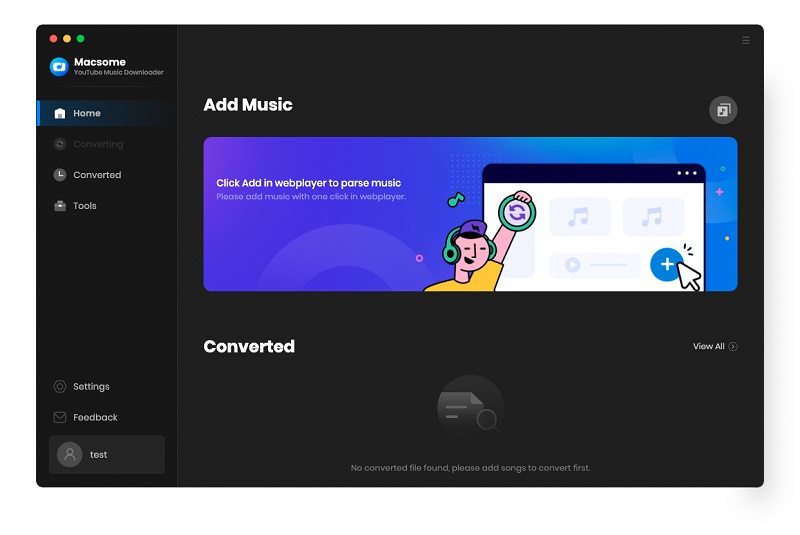
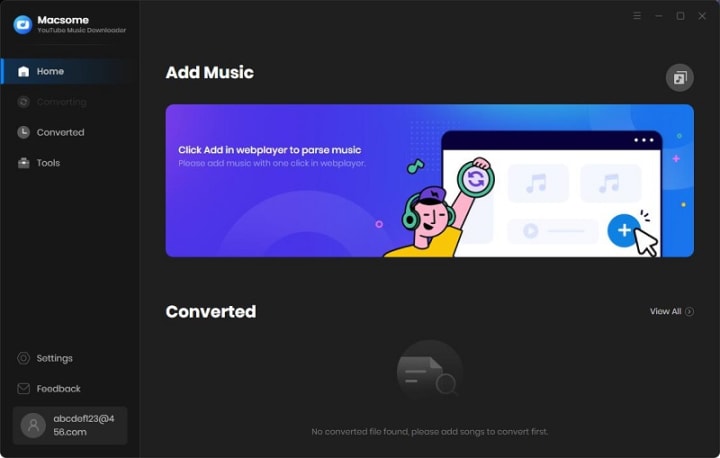
Start Macsome YouTube Music Downloader on your PC, and the YouTube Music web player will open simultaneously. Then log in to your account, the YouTube Music free account is also available.

If the web player doesn't appear automatically, you can manually open it by clicking on the blue section of the main interface or using the "Open the webplayer window" button.
Add a caption (optional)

Step 2. Set the Output Formats and Other Parameters

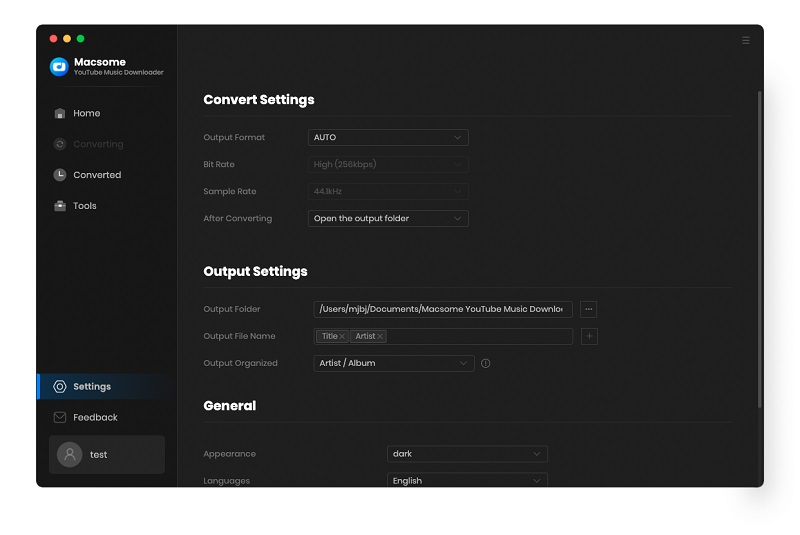
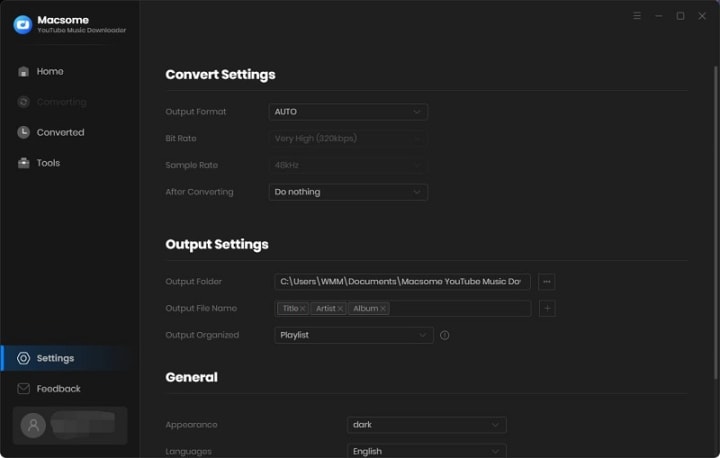
Click on the "Settings" icon on the left, or select the "Settings" option from the drop-down list. Now you can choose the output format, output quality, or output folder as you need.

For better organization of your downloaded YouTube Music files, you can save the output audio files into folders sorted out by artist, album, or playlist. In addition, Macsome allows you to customize the name of the output files and save the output audio files in the same order as the original playlist.
Add a caption (optional)

Step 3. Add Music, Playlists, or Albums from YouTube to Macsome

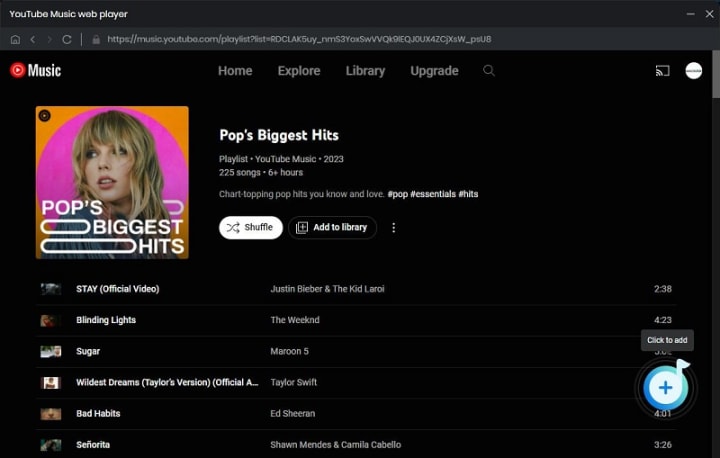
Open a track, album, or playlist, then you can click the "Click to add" button to add the music you want to convert.
Add a caption (optional)

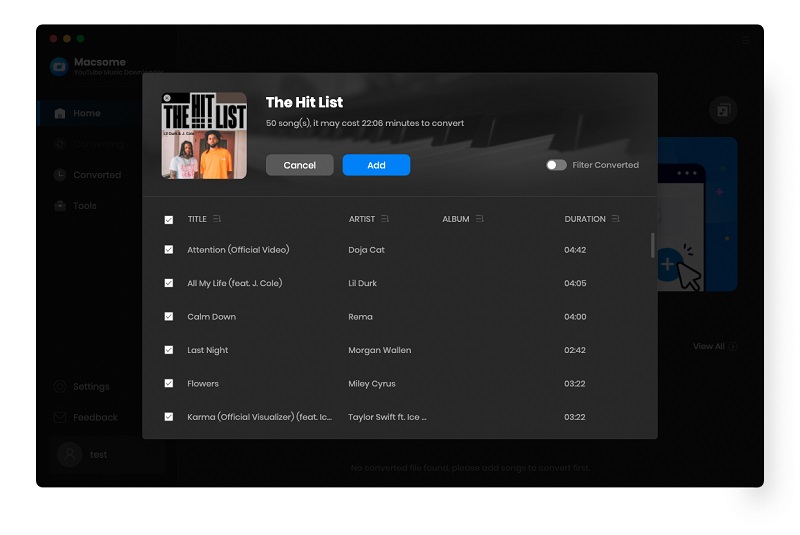
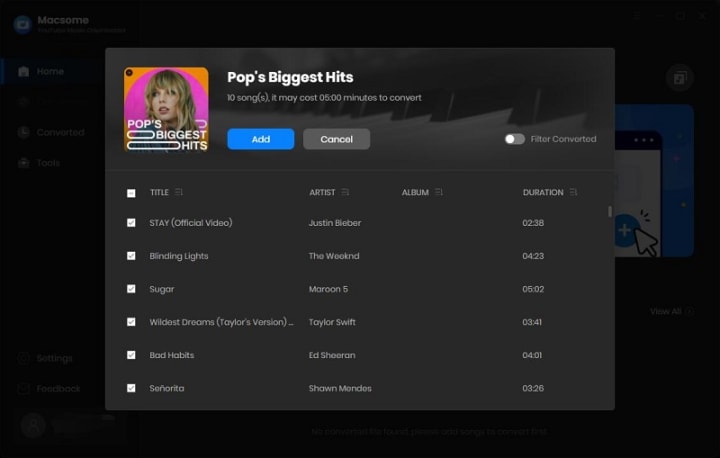
Macsome YouTube Music Downloader will parse the selected playlist and display them in a pop-up window. By default, all items are selected, but you can manually select the songs you want.
Add a caption (optional)

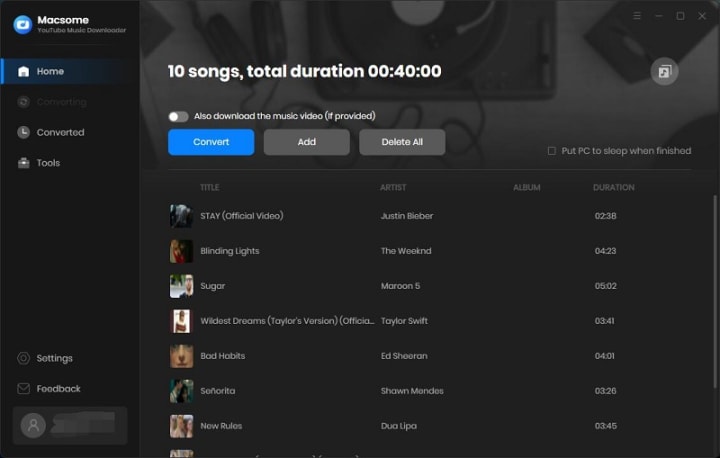
Then, click the "Add" button, all the songs will be listed on the main window. You can click the "Add" button to continue choosing songs from other playlists or albums.
Add a caption (optional)

Tips to Download YouTube Music videos: If YouTube Music includes the Music video, please switch on the "Also download the music video (If provided)" option, and then the YouTube Music tracks as well as the Music videos will be downloaded together.

Step 4. Start to Download YouTube Music

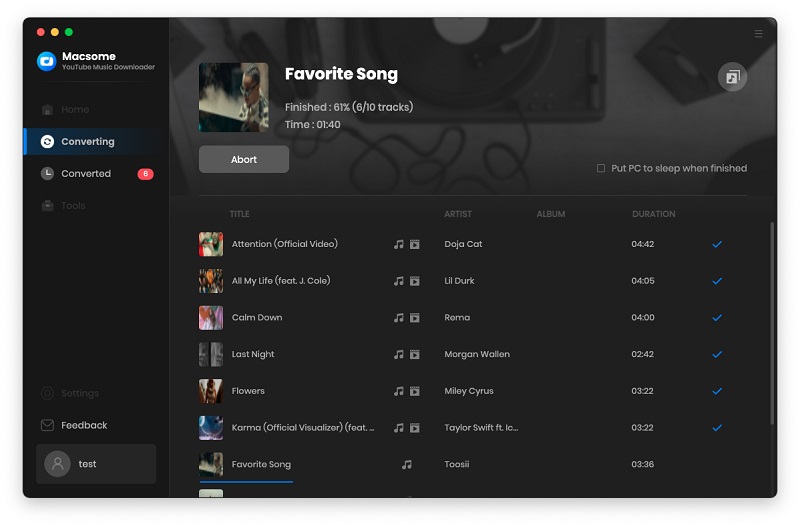
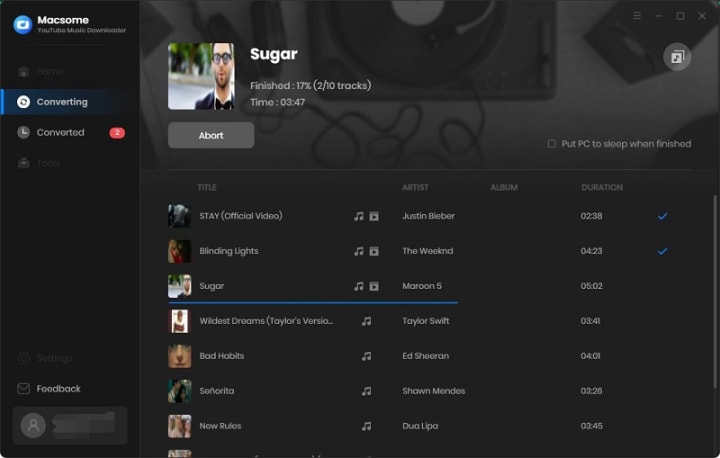
Click the "Convert" button to start downloading music from YouTube.
Add a caption (optional)

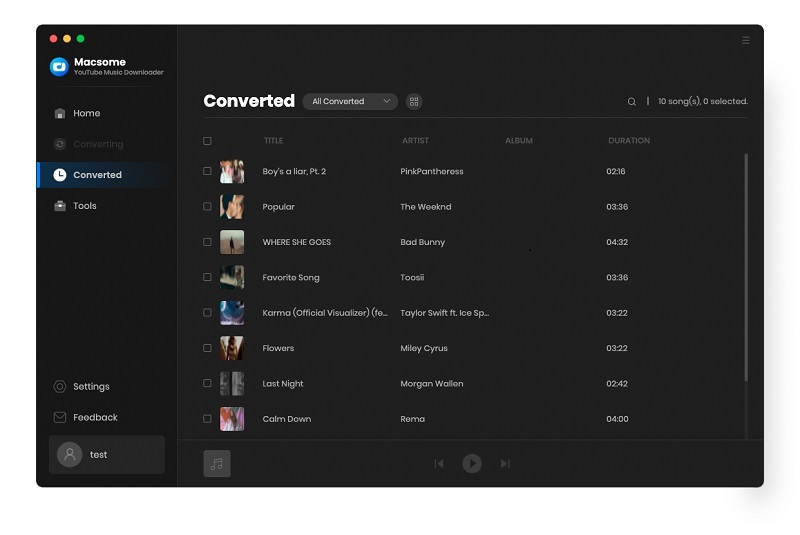
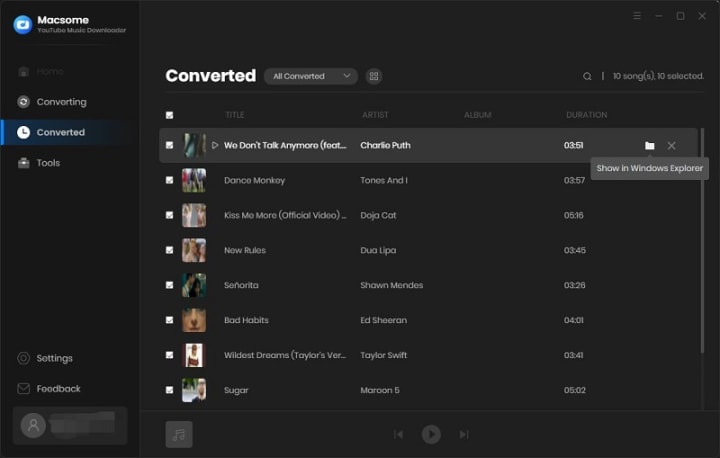
After the conversion, you can find the downloading history from the "Converted" tab, hover the mouse over the folder icon, you will find the downloaded YouTube Music files in your local folder. If YouTube Music provided the video, turn on the tab, music videos are downloaded along with the tracks.
Add a caption (optional)

Select all the downloaded songs, you can directly export the downloaded YouTube Music songs to Apple Music, burn YouTube Music to CD, or edit tag information with one click.

How to Download Streaming Music from Web Player and App

Macsome iTunes Music Converter and Macsome Spotify Downloader are comprehensive products, which support downloading Apple Music and Spotify music from the app and web player. We'll show you how it works using Macsome Spotify Downloader.

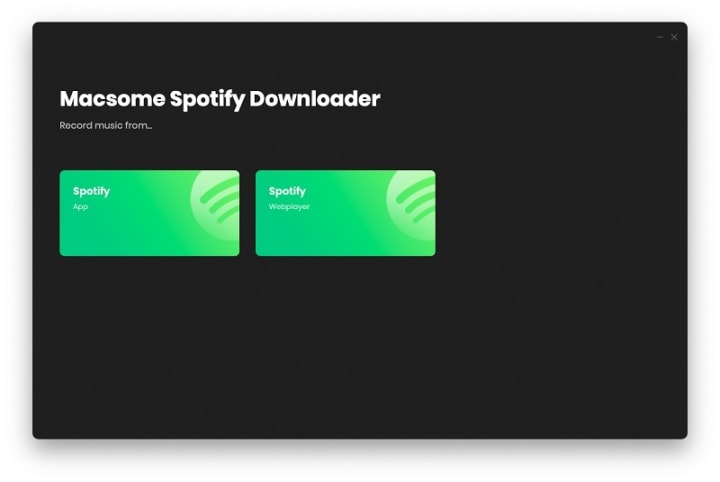
Step 1. Launch Macsome Spotify Downloader on Mac.
Add a caption (optional)

Step 2. Choose to Record Spotify Music from App or Web Player.

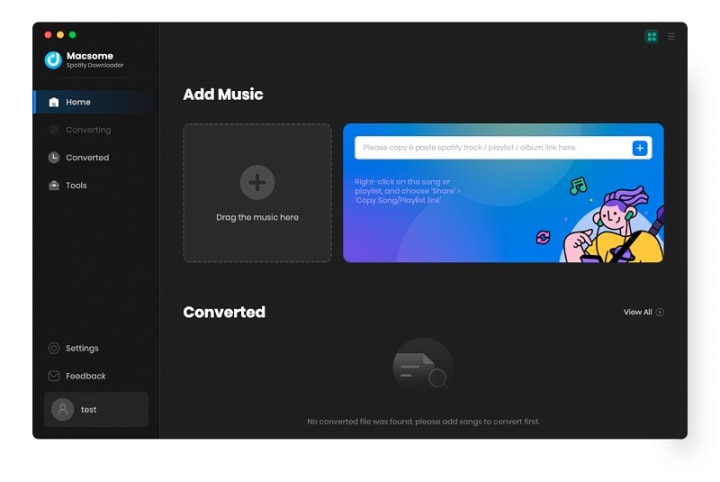
If you select the Spotify App, please make sure you have installed the latest version of Spotify app. When you choose the Spotify App, the Spotify app will open at the same time. Now you can drag the playlist you want to download to the dotted box directly. Plus, you can also copy the link of the playlist to the blue banner, and Macsome will parse the link.
Add a caption (optional)

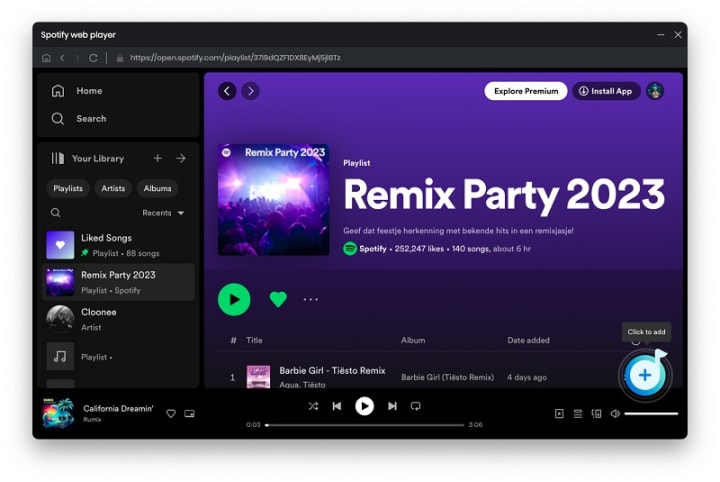
If you choose to record music from the Spotify web player, the web player will start simultaneously. Please use your Spotify account to log in to the Spotify web player.

Please Note: You'll need to log into your Spotify account before conversion, but don't worry, we won't gain access to your account information other than the songs.
Add a caption (optional)

You can directly open a playlist, an album, or an artist, and tap the "Click to add" icon.

Step 3. Select Spotify Songs to the Macsome.

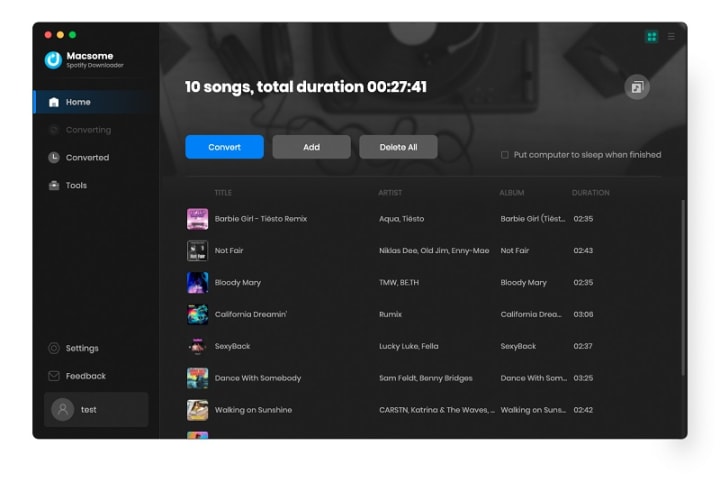
Then the selected playlist will be recognized and shown in a new window.

Select the songs you want, then click the "Add" button, all the selected songs will be listed in the panel.
Add a caption (optional)

Step 4. Choose Output Format or Other Parameters.

Click on the Setting in the bottom-left corner, you can choose the Output Format (AUTO / MP3 / AAC / FLAC / WAV / AIFF / ALAC), the Bit Rate (320kbps, 256kbps, 192kbps, 128kbps), Sample Rate and the Output Folder. For better organizing your music library, you can save the output audio files into organized folder like Playlist, Artist, Album, Artist/Album, Album/Artist, Playlist/Artist, or Playlist/Album.
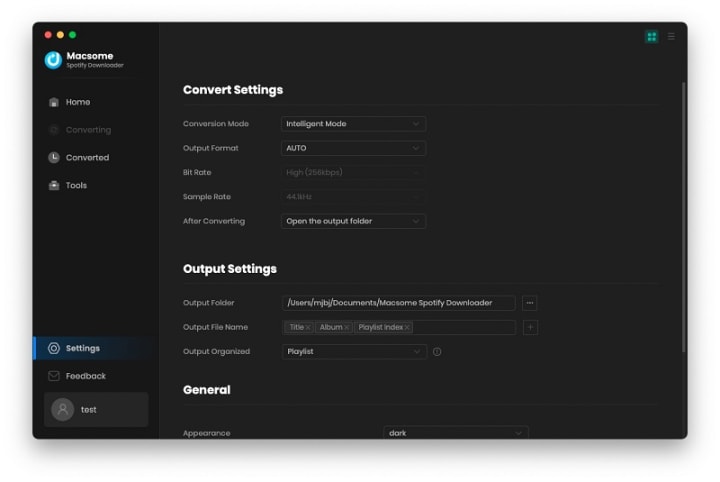
Add a caption (optional)

Step 5. Start to Download Spotify Music and Playlists.

After all the settings, you can click on the "Convert" button to start downloading the Spotify songs to the common format you have chosen.
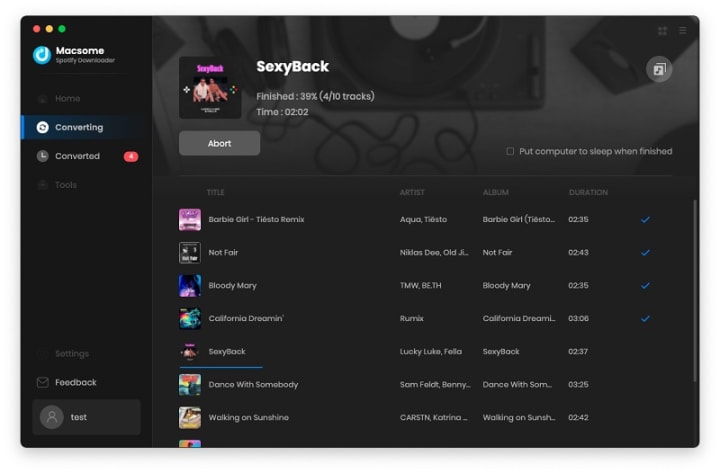
Add a caption (optional)

When the downloading is complete, you can click the "Converted" panel to find the downloaded history. Select the converted songs, you can choose to export Spotify music to iTunes directly.
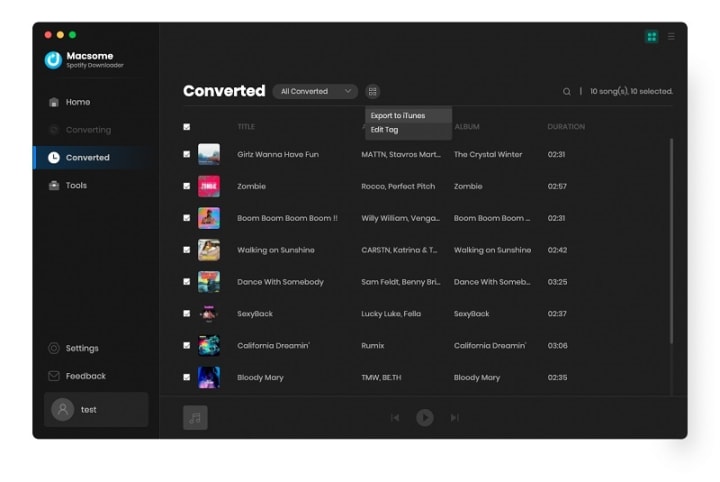
Add a caption (optional)

Hovering over the music list, and click the "folder" icon, you'll find the downloaded Spotify songs in your local folder.
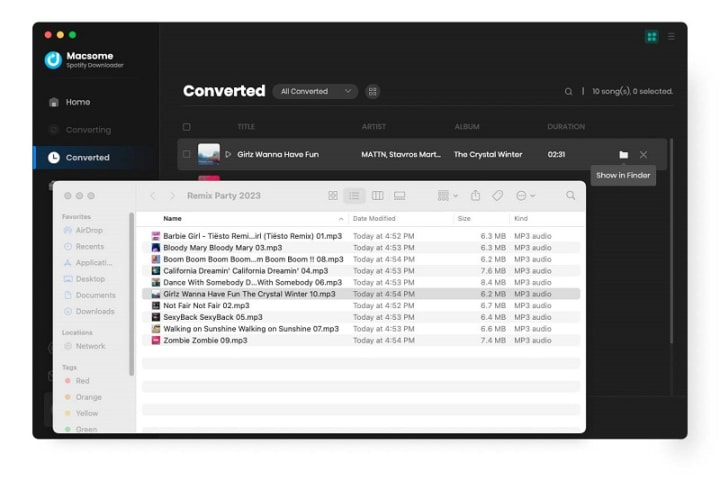
Add a caption (optional)

Tuesday, April 18, 2023

How to Download Music from YouTube to Mac for Free

YouTube Music does not have an official YouTube Music application for Mac or Windows. So you cannot play YouTube Music within the app on your computer, let alone download songs from YouTube Music on your Mac for offline listening. 

In this article, we have found an effective workaround to download YouTube Music on Mac so that you can play them on Mac or other portable devices without limitations. 

Best YouTube Music Downloader for Mac to Download YouTube Music on Mac

While there is no dedicated client for Mac, you can still enjoy it offline on your desktop. The best tool to download YouTube Music on your Mac is by using Macsome YouTube Music Downloader. It is an all-in-one YouTube Music Downloader, which is designed and innovated to get YouTube Music from its built-in web player downloaded to your Mac computer. Additionally, you can convert YouTube Music to MP3AAC, or other plain audio formats with original quality.

It will run at a 10x faster speed to download YouTube Music songs, albums, and playlists on Mac with ID3 tags preserved, such as song title, album, etc. All you need to do is an account and get a free trial version of this program. Macsome is suitable for both YouTube Music Premiums and Free users. That's to say, you are able to download YouTube Music to your Mac for offline playback with a YouTube Music Free account

How to Download YouTube Music on Mac

In the next part, we provide step-by-step instructions to download YouTube Music songs on your Mac by using Macsome YouTube Music Downloader. To get started, please download, install, and launch the program on your Mac.

Step 1. Access to YouTube Music Web Player

Once the program is opened, sign in to your YouTube Music account to access the library.

The interface of Macsome YouTube Music Downloader

Step 2. Set Output Format and Output Path

Click on the Settings icon in the top right, and you can customize the output parameters as you need. You can set MP3, AAC, WAV, FLAC, AIFF, or ALAC as the output format. Besides, you can also customize the output quality parameters like the bit rate and sample rate. If you don't like the default output folder, you can also change the output path by clicking the three dots icon.

Note: You can also download YouTube Music videos on your Mac. Switch on the "Download Video" option, and you can download the YouTube Music track as well as the music video (if provided) together.

Set the output format

Step 3. Add YouTube Music to Download

Browse your library, select a playlist and open it, click on the "Add to list" button, all the songs will be loaded. Check the tracks you want to download.

Extra tips: Macsome YouTube Music Downloader supports downloading multiple playlists at the same time. Click on the "Save to list" button, and the selected songs will be added to the task list. Next, open another playlist and repeat the same step. Finally, you can click the "task list" icon after all the songs you need are added to the task list.

Add YouTube Music from other playlists

Step 4. Start to Download YouTube Music to Mac

When everything is ready, click on the "Convert Now" button, and Macsome will start to download YouTube Music songs to Mac. The downloading process will need time depending on the number of tracks in the queue and your network.

Start to Download YouTube Music on Mac

Step 5. Locate Downloaded YouTube Music on Mac

After the downloading is finished, you'll find the downloaded YouTube Music songs by clicking on the history option. Hover over a track in this list, click it, and you can open the output folder you set before that consists of YouTube Music audio files. 

Now all the well-downloaded YouTube Music songs are saved on your local Mac, then you can listen to YouTube Music songs on your Mac anytime.

find the downloaded YouTube Music

All in all, Macsome YouTube Music Downloader is a powerful YouTube Music Downloader tool for your Mac and PC, which allows you to download YouTube Music songs on your computer and convert YouTube Music songs to MP3 or other audio formats without any quality loss. 


Monday, November 21, 2022

Black Friday Deals & Thanksgiving Day Sales – Get Macsome Products Up to 35% Off

Macsome Inc. launched 2022 Black Friday as well as Thanksgiving Day special sales. You can save up to 35% off on Macsome featured programs, including Spotify Downloader, iTunes Converter, Amazon Music Converter, Tidal Music Downloader, Deezer Music Converter, and Audiobook Converter. This promotion is valid till 30, Nov 2022.

More Details of Macsome Black Friday Sale at http://bit.ly/3Ew9pbI

Get 35% Off on Macsome Streaming Music Tools:

Macsome Spotify Music Downloader (1-MONTH PLAN)

Was: $14.95

Black Friday Price: $9.95

Macsome Spotify Downloader is well designed for Spotify users to batch download Spotify tracks, playlists, albums, radios, and podcasts to lossless MP3, AAC, WAV, AIFF, FLAC, and ALAC formats at 10X speed, and with ID3 tags. Besides, it applies to Spotify Premium and Free users, who can download music from Spotify to their local computer for playback offline by using this tool. 

Macsome iTunes Converter (1-MONTH PLAN)

Was: $14.95

Black Friday Price: $9.95

Macsome iTunes Converter is specially developed to record Apple Music streams while converting the songs from M4P to MP3, FLAC, AAC, AIFF, WAV, or ALAC format at 10X speed. Plus, it is capable of downloading Apple Music tracks without damaging the original streaming audio quality.  

Macsome Amazon Music Downloader(1-MONTH PLAN)

Was: $14.95

Black Friday Price: $9.95

Macsome Amazon Music Downloader is a brilliant yet easy-to-use tool to download songs, playlists, albums, and podcasts from Amazon Music Unlimited & Prime Music with the highest output quality at faster speeds. And it supports most generic output formats, including MP3, AAC, FLAC, WAV, AIFF, and ALAC. 

Macsome Tidal Music Downloader(1-MONTH PLAN)

Was: $14.95

Black Friday Price: $9.95

Macsome Tidal Music Downloader is dedicated to downloading Tidal music, album, and playlist to plain MP3, AAC, FLAC, WAV, AIFF, and ALAC formats, while preserving 100% original HiFi/MQA sound quality output. Of course, it also has built-in valuable tools, like an ID3 tags editor, music format converter, etc. 

Macsome Deezer Music Converter(1-MONTH PLAN)

Was: $14.95

Black Friday Price: $9.95

Macsome Deezer Music Converter works perfectly in converting and downloading songs, playlists, albums, or podcasts from Deezer to lossless audio formats, including MP3, AAC, WAV, FLAC, AIFF, and ALAC. Additionally, there is no need to install an extra Deezer Music app. You can easily download music from Deezer in batches with the embedded Deezer Web Player. 

Macsome Audiobook Converter(1-MONTH PLAN)

Was: $19.95

Black Friday Price: $12.96

Macsome Audiobook Converter enables users to download Audible AA/AAX audiobooks to Mac with keeping lossless streaming music quality. It also performs almost 60X faster in converting audiobooks to MP3, M4A, and M4B. Of course, free technical support and software upgrades are also provided, as other music converters do. 

Note: Macsome.com has the best Black Friday deal on streaming tools. However, please keep in mind the expiration date. The Black Friday Sale at Macsome is valid from November 22 to November 30. Cherish this chance, and grab your preferred tool with the best price now! 

Macsome 2022 Black Friday Deals Promotion Page: http://bit.ly/3Ew9pbI

About Macsome Inc

Macsome Inc is a software development company which established in 2008. It is devoted to providing ultimate multimedia solutions to customers worldwide. Main products include Spotify Downloader, Amazon Music Downloader, Tidal Music Downloader, Audiobook Converter, Apple Music Converter, and the newly launched Deezer Music Converter. 

Email: support@macsome.com

Promotion Page: https://www.macsome.com/promotion/2022-black-friday-deals.html