Showing posts with label youtube music. Show all posts

Tuesday, February 27, 2024

How to Download YouTube Music to MP3?

Downloading YouTube Music to MP3 format can be a convenient way to enjoy your favorite songs offline, without relying on an internet connection. While YouTube offers a wide range of music and content, it does not provide a direct option to download music in MP3 format. 

However, there are several methods and tools available that allow users to download YouTube music to MP3 for offline listening. In this article, we will explore some of the most popular and effective ways to download YouTube Music to MP3 format.

In this way, you can also play YouTube Music on MP3 player, old iPod, or other common media players. 


1. Third-party YouTube Music to MP3 Desktop Software:

There are numerous third-party YouTube Music to MP3 downloading tools that offer the ability to convert YouTube music to MP3 format.  Among them, Macsome YouTube Music Downloader is highly recommended for you. It is a professional YouTube to MP3 Converter, which is specially designed to help users to download tracks, albums, and playlists from YouTube Music to MP3 with high quality up to 320kbps. Apart from MP3, it can also convert songs from YouTube to AAC, WAV, FLAC, AIFF, and ALAC with up to 10x faster speed.

It often offers additional features such as batch downloading, file management, and audio customization options.

Download YouTube Music to MP3 with Macsome

Step 1. Login YouTube Music Web Player

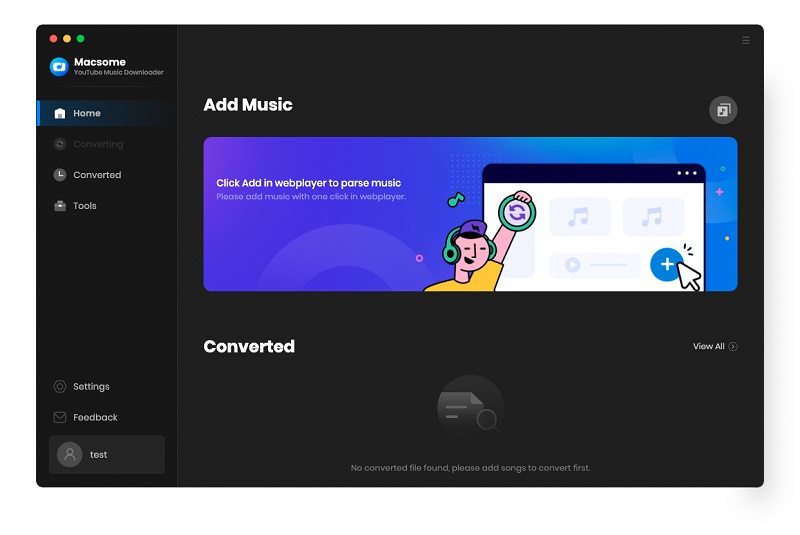
With a built-in YouTube Music Web Player, all you need to do is log in to YouTube Music Web Player using your Google account. You can also create a new account right now.
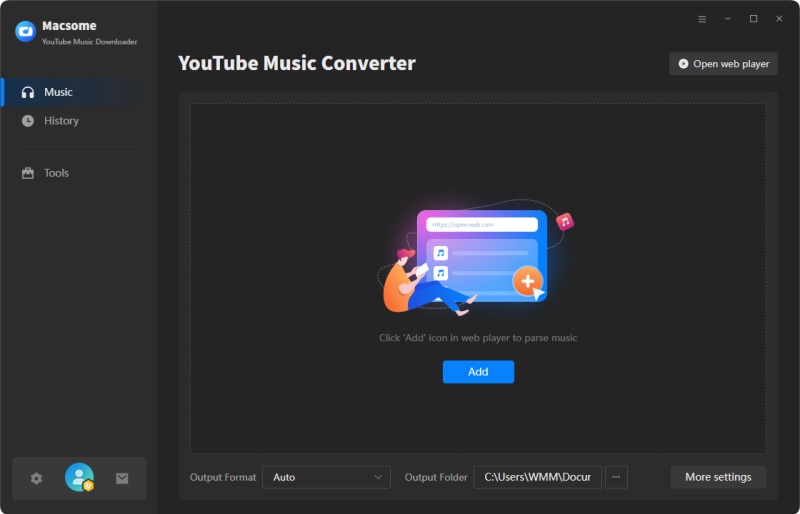
The interface of Macsome YouTube Music Downloader

Step 2. Set MP3 as the Output Format

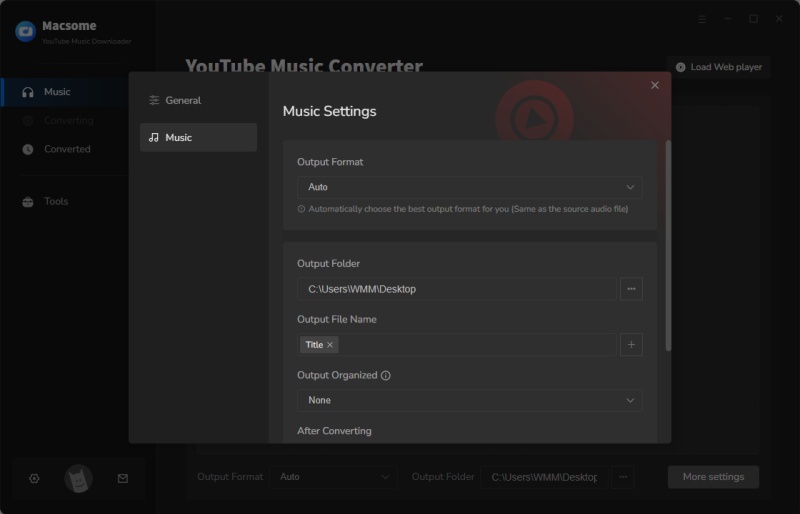
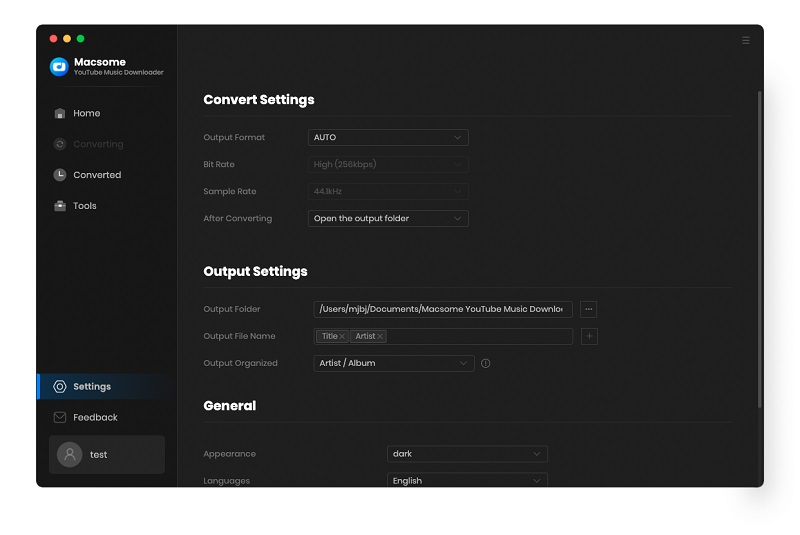
Click on the  icon in the bottom left corner. In the pop-up window, tap the "Output Format" drop-down list, and then select MP3 as the output format. Macsome also offers the audio quality settings (128kbps, 192kbps, 256kbps, 320kbps), you can adjust the bit rate to get the high audio quality you need.
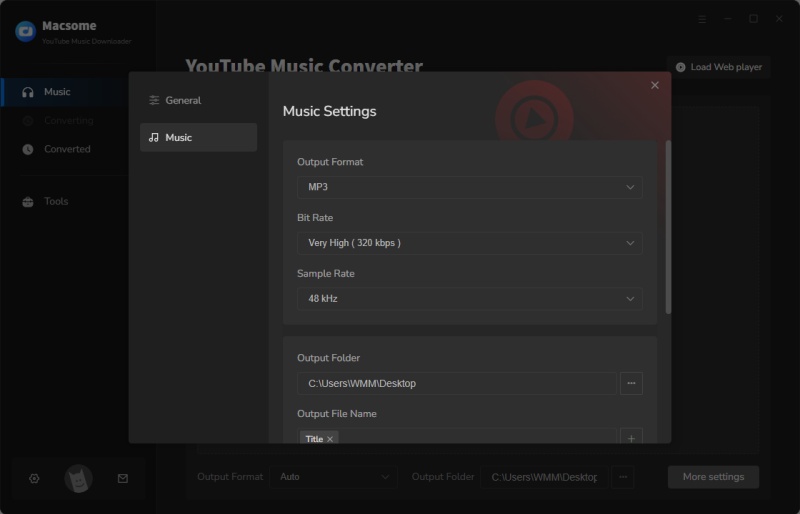
Set MP3 as the output format

Step 3. Select YouTube Music Tracks and Playlists to Convert

Browse an album or a playlist in the YouTube Music web player, then you will see the blue "Click to add" button.
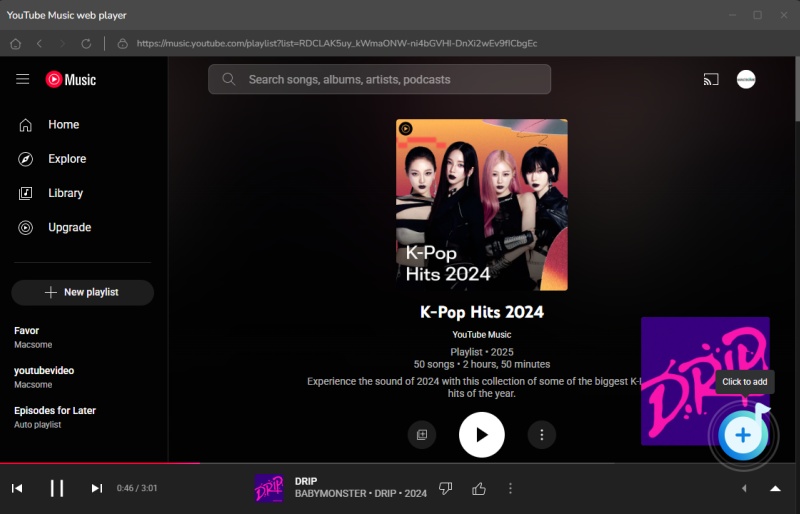
Add YouTube music

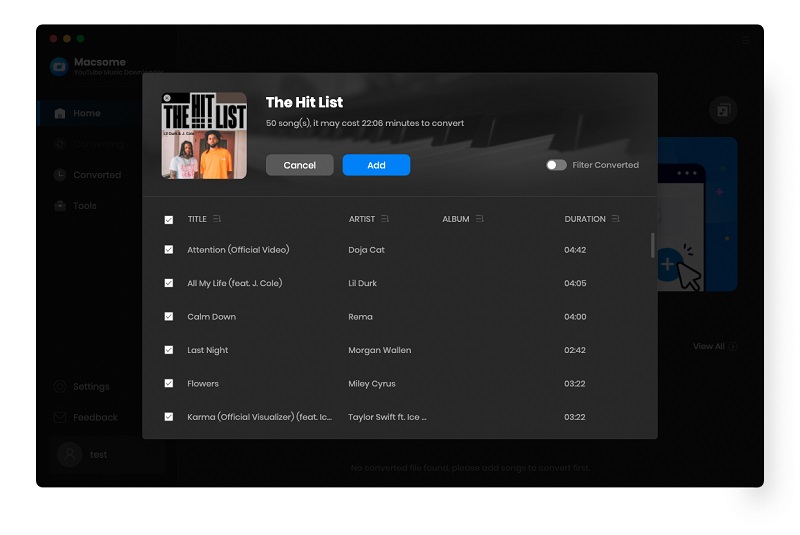
Click it, and all the selected songs will be loaded. Tick off the songs you'd like to convert. Then press the "Add" button.
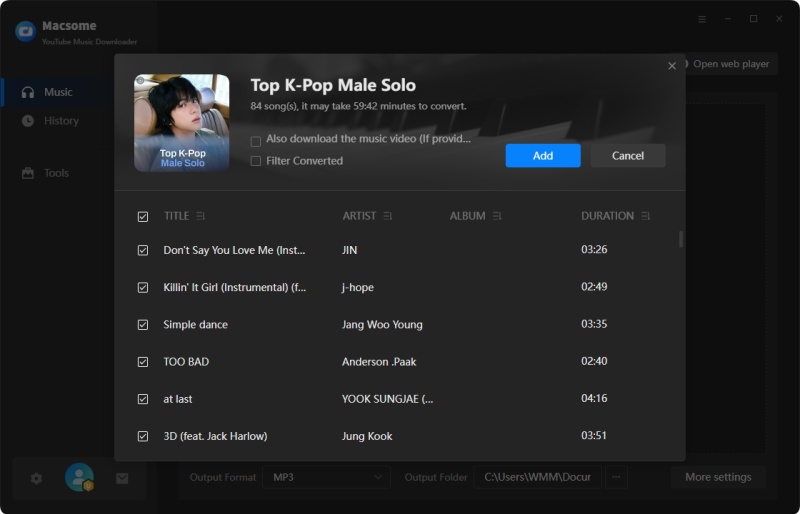
Add YouTube music from other playlists

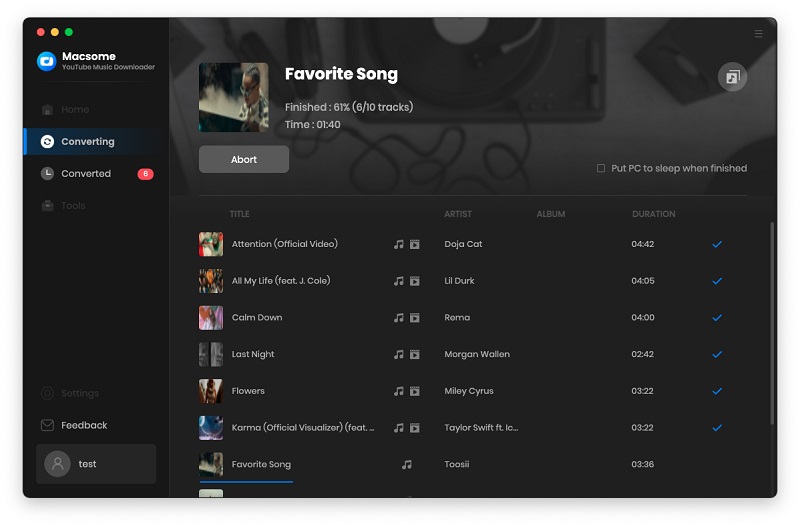
Step 4. Start to Convert YouTube Music to MP3

Simply hit on the "Convert" button, YouTube Music to MP3 conversion process will begin automatically.
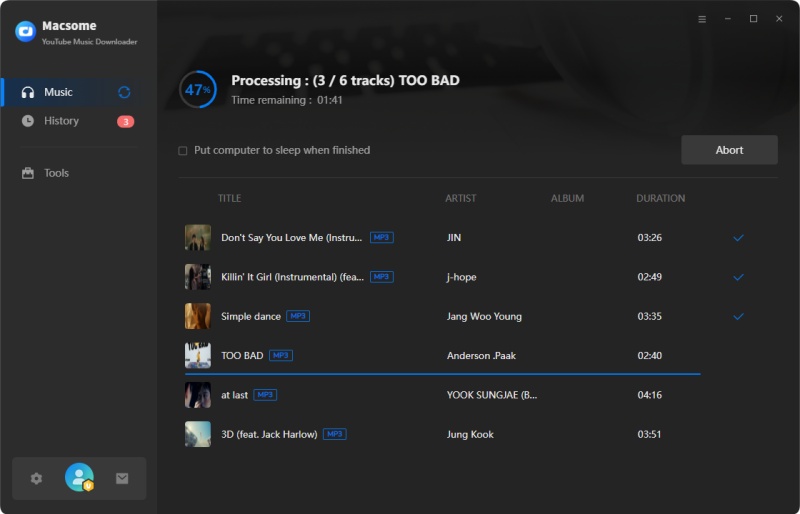
Start to Convert YouTube Music to mp3

2. Online Converters:

Another option for converting YouTube music to MP3 is to use online tools and websites that offer the ability to convert YouTube music to MP3 format. These platforms typically work by allowing users to paste the URL of the YouTube video containing the desired music, and then converting it to an MP3 file that can be downloaded to their device. 

Here are some YouTube to MP3 conversion free sites you can choose, such as Onlymp3.to,  YTMP3.cc, Y2Mate, ToMP3.cc, OnlineVideoConverter.pro,  ListenVid.net and Yt2mp3.info. 

3. Browser Extensions:

Certain web browsers support extensions or add-ons that enable users to download and convert YouTube music directly from their browser interface. These extensions typically add a download button or option to YouTube videos, allowing users to save the content in MP3 format with a single click. While convenient, users should be cautious when installing browser extensions from third-party sources, as they may compromise the security of the browser or device.

Conclusion

Downloading YouTube Music to MP3 format can be a convenient way to enjoy music offline, and there are several methods available to achieve this. Whether using online converters, Macsome YouTube Music Downloader, browser extensions, users should prioritize safety when engaging in the process of converting YouTube music to MP3.

Macsome YouTube Music Downloader is the best YouTube to MP3 Converter recommended. It is specially designed to download tracks, playlists, and albums from YouTube Music. Besides, it can also download music videos on your computer. As a professional YouTube Converter, you are able to convert YouTube Music to MP3, AAC, WAV, FLAC, AIFF, or ALAC without quality loss. The biggest highlight of this software is the ability to save the lyrics in a text file. Have a free trial now. 

Wednesday, December 20, 2023

YouTube to Spotify - How to Convert YouTube Music to Spotify

Transferring your favorite music from YouTube to Spotify can be a convenient way to streamline your music collection and enjoy all your tracks in one place. While there isn't a direct way to transfer music from YouTube to Spotify, there are several methods you can use to achieve this. In this article, we'll explore different ways to transfer your YouTube Music to Spotify, so you can seamlessly enjoy your favorite tunes on the go.

1. Use a Third-Party Converter - Macsome YouTube Music Downloader

There are several third-party playlist converters that can help you transfer your YouTube Music to Spotify. These tools allow you to import your YouTube playlist and convert it into a format that can be easily imported into Spotify. 

Macsome YouTube Music Downloader is one of the best YouTube Music Converter you can choose. With it, you can download YouTube Music songs, albums, playlists, and music videos to your local folder. Besides, it can also convert YouTube Music to MP3, AAC, WAV, FLAC, AIFF, and ALAC with original output quality, so that you can upload the downloaded YouTube Music files to Spotify.

Detailed Steps to Convert YouTube Music to Spotify

In this section, you will learn how easy it would be to download YouTube Music to MP3 and upload local YouTube Music songs to Spotify without having to use YouTube Premium.

Step 1. Launch Macsome YouTube Music Downloader

Download, install, and launch Macsome YouTube Music Downloader on your computer, and the built-in YouTube Music web player will start at the same time. Then sign in to your free YouTube Music account.


Step 2. Choose MP3 as the Output Format

Click on the Settings icon in the lower-left corner of the window to choose the output format, output quality, output folder, and more output parameters. 


Step 3. Add YouTube Music Tracks and Playlists

In the YouTube Music web player, you can browse the music library to select songs or directly open playlists that you want to download. Then, you can tap the "Click to add" button on the right side to import the desired songs. Click the "Add" button, Macsome will list the selected songs for you.


Step 4. Start to Download YouTube Music to MP3

Finally, simply click the "Convert" button to start downloading YouTube Music with your YouTube Music Free account.


Step 5. Upload YouTube Music to Spotify

Now that your favorite YouTube Music playlist has been downloaded and saved in your local folder, you can transfer your YouTube Music playlist to Spotify.

Open the Spotify desktop app on your Windows PC or Mac and sign into your account. Click the drop-down menu next to your account name and choose Settings. Scroll down the Settings screen to the Local Files section, and toggle the Show Local Files switch.

Select Show songs from Downloads or Music Library (or both). Select Add a source and upload the local folder where your YouTube Music playlist is stored. Now you can listen to the uploaded YouTube Music songs with the Spotify desktop app. All the songs stored in the chosen local folder will appear in the Local Files folder on Spotify.

 2. Convert YouTube Music to Spotify Using Soundiiz

Soundiiz is a popular online platform that allows you to transfer music playlists between different streaming services, including YouTube and Spotify. 

Simply create an account on Soundiiz, connect your YouTube and Spotify accounts, and use the platform's intuitive interface to transfer your music playlists with ease.

The similar products include Tune My Music and Free Your Music.

Conclusion

In conclusion, while there isn't a direct method for transferring music from YouTube to Spotify, there are several effective ways to achieve this. Whether you choose to use third-party tools, manual methods, or automation platforms, transferring your favorite YouTube Music to Spotify can enhance your listening experience and simplify access to your favorite tracks. By following these methods and considering copyright implications, you can enjoy a seamless transition of your music collection from YouTube to Spotify.

Tuesday, April 18, 2023

How to Download Music from YouTube to Mac for Free

YouTube Music does not have an official YouTube Music application for Mac or Windows. So you cannot play YouTube Music within the app on your computer, let alone download songs from YouTube Music on your Mac for offline listening. 

In this article, we have found an effective workaround to download YouTube Music on Mac so that you can play them on Mac or other portable devices without limitations. 

Best YouTube Music Downloader for Mac to Download YouTube Music on Mac

While there is no dedicated client for Mac, you can still enjoy it offline on your desktop. The best tool to download YouTube Music on your Mac is by using Macsome YouTube Music Downloader. It is an all-in-one YouTube Music Downloader, which is designed and innovated to get YouTube Music from its built-in web player downloaded to your Mac computer. Additionally, you can convert YouTube Music to MP3AAC, or other plain audio formats with original quality.

It will run at a 10x faster speed to download YouTube Music songs, albums, and playlists on Mac with ID3 tags preserved, such as song title, album, etc. All you need to do is an account and get a free trial version of this program. Macsome is suitable for both YouTube Music Premiums and Free users. That's to say, you are able to download YouTube Music to your Mac for offline playback with a YouTube Music Free account

How to Download YouTube Music on Mac

In the next part, we provide step-by-step instructions to download YouTube Music songs on your Mac by using Macsome YouTube Music Downloader. To get started, please download, install, and launch the program on your Mac.

Step 1. Access to YouTube Music Web Player

Once the program is opened, sign in to your YouTube Music account to access the library.

The interface of Macsome YouTube Music Downloader

Step 2. Set Output Format and Output Path

Click on the Settings icon in the top right, and you can customize the output parameters as you need. You can set MP3, AAC, WAV, FLAC, AIFF, or ALAC as the output format. Besides, you can also customize the output quality parameters like the bit rate and sample rate. If you don't like the default output folder, you can also change the output path by clicking the three dots icon.

Note: You can also download YouTube Music videos on your Mac. Switch on the "Download Video" option, and you can download the YouTube Music track as well as the music video (if provided) together.

Set the output format

Step 3. Add YouTube Music to Download

Browse your library, select a playlist and open it, click on the "Add to list" button, all the songs will be loaded. Check the tracks you want to download.

Extra tips: Macsome YouTube Music Downloader supports downloading multiple playlists at the same time. Click on the "Save to list" button, and the selected songs will be added to the task list. Next, open another playlist and repeat the same step. Finally, you can click the "task list" icon after all the songs you need are added to the task list.

Add YouTube Music from other playlists

Step 4. Start to Download YouTube Music to Mac

When everything is ready, click on the "Convert Now" button, and Macsome will start to download YouTube Music songs to Mac. The downloading process will need time depending on the number of tracks in the queue and your network.

Start to Download YouTube Music on Mac

Step 5. Locate Downloaded YouTube Music on Mac

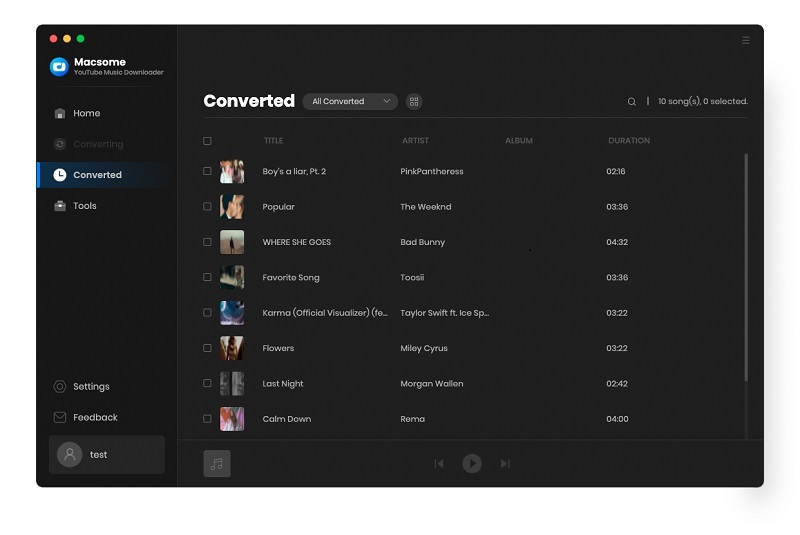
After the downloading is finished, you'll find the downloaded YouTube Music songs by clicking on the history option. Hover over a track in this list, click it, and you can open the output folder you set before that consists of YouTube Music audio files. 

Now all the well-downloaded YouTube Music songs are saved on your local Mac, then you can listen to YouTube Music songs on your Mac anytime.

find the downloaded YouTube Music

All in all, Macsome YouTube Music Downloader is a powerful YouTube Music Downloader tool for your Mac and PC, which allows you to download YouTube Music songs on your computer and convert YouTube Music songs to MP3 or other audio formats without any quality loss. 


Wednesday, January 18, 2023

How to Play YouTube Music on iPod

 Can you download YouTube Music to iPod? Due to the popularity of mobile devices, Apple has discontinued the iPod brand, the iPod doesn't integrate YouTube Music, so you can not download and play YouTube Music directly with your iPod.

Don't worry about it. In this post, we will guide you on how to play YouTube Music on iPod. Please follow the steps below and learn how to download and sync YouTube Music to iPod easily and effectively, regardless of the iPod type you have.

You can't transfer YouTube Music to your iPod directly. To get YouTube Music on an iPod, the best method is to try Macsome YouTube Music Downloader. It enables you to convert YouTube Music to MP3, AAC, or other common audio formats with 100% original quality.

It is specially designed for both YouTube Music Free users and Premium subscribers and lets them download songs, playlists, and albums from YouTube Music to iPod supported formats. Then you can move the downloaded YouTube Music songs to iPod and any other devices without any limit.

Before you begin, just click the Download button above to get the latest version of Macsome YouTube Music Downloader.

Step 1. Access the YouTube Music Library

Install and launch Macsome YouTube Music Downloader on your computer, hit on the "Open YouTube Music Web Player" button on the main interface, you will be directed to the login page, and sign in to your YouTube Music account to access the YouTube Music library.

The interface of Macsome YouTube Music Downloader

Step 2. Set MP3 or AAC as the Output Format for iPod

Click on the Settings  icon in the top-right menu bar. From the pop-up window, you can select MP3 or AAC from the Output Format drop-down list.

Besides, you could personalize the audio parameters, like bit rate and sample rate, as you like. If you want to arrange files in a better way, you can customize the output file name and output organized way.

Set the output format for iPod

Step 3. Add YouTube Music Playlists

Navigate to the music library, then select and open a playlist, tap the "Add to list" button to load all the songs of this playlist to the conversion pane. Tick off the tracks you want to download.

Note: Macsome YouTube Music Downloader supports batch conversion, and you can download multiple playlists simultaneously. To do that, you can click on the "Save to list" button, and the selected songs will be added to the task list. Then open another playlist and repeat the same step. After that, you can check all the songs you need from the "Task list" pane.

Add YouTube music from other playlists

Step 4. Start to Download YouTube Music

Press the "Convert" button to start the YouTube Music to iPod supported audio format. Once done, you'll get the YouTube Music tracks with the same ID3 tags as the original files. You can find offline songs by clicking the history folder.

Start to Download YouTube Music to iPod

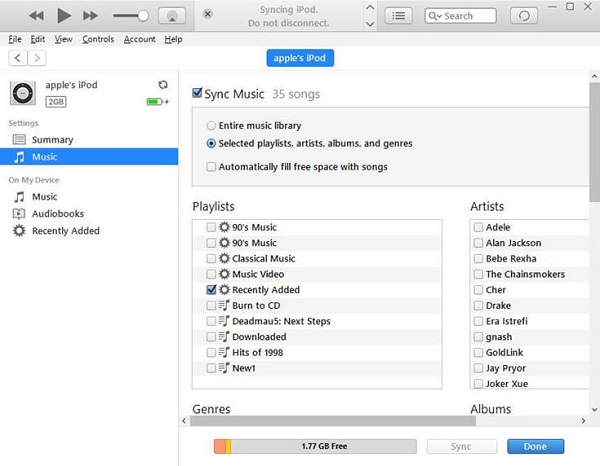
After downloading YouTube Music songs locally, you can sync YouTube Music songs to your iPod using iTunes by following these simple steps.

Step 1. Open iTunes on your computer, and import the downloaded YouTube Music songs into iTunes library by clicking the top menu File - Add File to Library.

Step 2. Connect your iPod to your computer with a USB cable. Then click the iPod icon in the upper-left corner of the iTunes window to load the info of your iPod model.

Step 3. From the list under Settings on the left side of the iTunes window, go to Music, select the checkbox next to Sync Music, and choose Selected playlists, artists, albums, and genres.

sync YouTube Music to iPod

Step 4. Under Playlists, check Recently Added where your uploaded YouTube Music songs are saved. Then click the Apply button in the lower-right corner of the window and YouTube Music tracks will be automatically synced to your iPod successfully.

Now you can listen to YouTube Music tracks on iPod Touch, iPod Nano, and any other iPod models at will.

Detailed Tips you can find: http://bit.ly/3kr1NBf

Sunday, July 17, 2022

How to Play YouTube Music on PS5 While Playing Games

YouTube Music doesn't integrate with Sony PS5. This is why you can't play YouTube Music on PS5 directly. Luckily, PS5 lets you listen to music from a USB drive. Therefore, if you can convert YouTube Music to PS5-compatible formats like MP3, AAC, or FLAC, then you can import YouTube Music to a USB drive for PS5.

Macsome YouTube Music Downloader is strongly recommended for you. It is specially designed for both YouTube Music free users and Premium subscribers and lets them download songs, playlists, and albums from YouTube Music.

In addition to the above, it is a professional YouTube Music Converter, which can convert songs from YouTube Music to MP3, AAC, WAV, FLAC, AIFF, and ALAC with original quality. So, you can play the converted YouTube Music songs on PS5 from the USB drive easily.


Detailed Tips to Download YouTube Music for Playback on PS5

Thanks to Macsome YouTube Music Downloader, you can download YouTube Music to PS5-compatible audio formats. Below, we will show you how to use it to download songs from YouTube Music. After that, you can listen to YouTube Music via USB on PlayStation 5. Please go right ahead.

Step 1. Access the YouTube Music Library

First, download, install and launch Macsome YouTube Music Downloader on your computer. When the application has started, hit on the "Open YouTube Music Web Player" button on the main interface, you will be directed to the login page, and sign in to your YouTube Music account to access the YouTube Music library.

The interface of Macsome YouTube Music Downloader

Step 2. Set the Output Formats for PS5

Click on the Settings icon in the top-right menu bar. From the pop-up window, you can select the output format available for PS5. If you want to play music from USB drives on PS5, you can select the PS5 console-supported file formats, like MP3, AAC, and FLAC from the Output Format drop-down list.

Besides, you could personalize the audio parameters, like bit rate and sample rate, as you like. If you want to arrange files in a better way, you can customize the output file name and output organized way.

Set the output format for PS5

Step 3. Add YouTube Music Playlists

Navigate to the music library, then select and open a playlist you'd like to play on PS5. Tap the "Add to list" button to load all the songs of this playlist to the conversion pane. Tick off the tracks you want to download.

Note: Macsome YouTube Music Downloader supports batch conversion, and you can download multiple playlists simultaneously. To do that, you can click on the "Save to list" button, and the selected songs will be added to the task list. Then open another playlist and repeat the same step. After that, you can check all the songs you need from the "Task list" pane.

Add YouTube music from other playlists

Step 4. Start to Download YouTube Music for PS5

Press the "Convert" button to start the YouTube Music to PS5 downloading process.

Start to Download YouTube Music to PS5

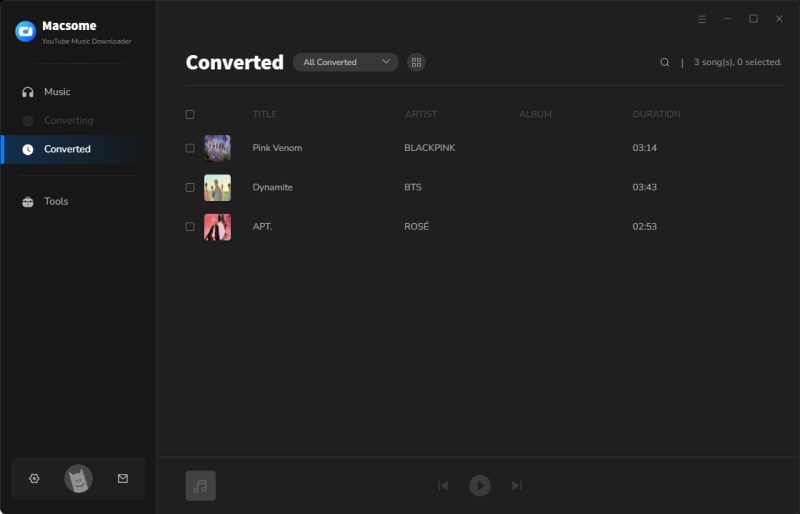
Once the downloading is finished, all the downloaded YouTube Music files will be saved to your computer locally. You can locate them from the history folder.

find the downloaded YouTube music

Play YouTube Music from a USB Drive on PS5

Since you have downloaded YouTube Music to PS5-supported file types on your computer. Now you can transfer YouTube Music to a USB drive, then you can listen to the music from a USB drive on PS5 consoles.

Step 1. Plug a USB drive into your computer, and create a folder called "Music" on the USB. Then copy the downloaded YouTube Music files to the "Music" folder.

Step 2. Connect the USB drive to your PS5 console. Select Music in the control center. USB Drive appears in your playlist.

Step 3. Select USB Drive. Now you can select a YouTube Music track to play it.

Conclusion

In short, you learned how to get songs from YouTube Music to PS5 with the above tutorial. As YouTube Music is not available on the PS5, you can download songs from YouTube Music by using Macsome YouTube Music Downloader. Then you have the ability to move the downloaded YouTube Music files to a USB drive so that you can listen to the YouTube Music from a USB flash drive in the background without interrupting games on PS5 consoles.