Showing posts with label game console. Show all posts

Monday, March 20, 2023

How to Play YouTube Music in Background on Xbox One

 There is only a YouTube app for Xbox, but you can't play YouTube Music in the background when playing games. And the YouTube Music app is not available across Xbox consoles, you don't have the ability to play YouTube Music while playing Xbox One games.

In this tutorial, we will introduce an alternative way to allow you to play YouTube Music on your Xbox One in the background while playing a game, even if there is no official YouTube Music for Xbox app.

How to Download YouTube Music for Playing on Xbox One

Now the following guide will show you how to download YouTube Music for playing on Xbox One by using Macsome YouTube Music Downloader.

Step 1. Access the YouTube Music Library

First, download, install, and launch Macsome YouTube Music Downloader on your computer. Hit on the "Open YouTube Music Web Player" button on the main interface, you will be directed to the login page, and sign in with your YouTube Music account to access the YouTube Music library.
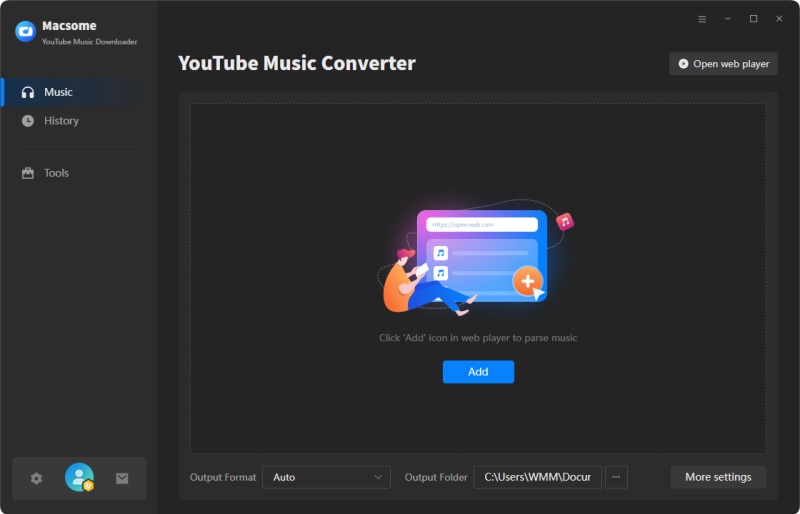
The interface of Macsome YouTube Music Downloader

Step 2. Set MP3 as the Output Format for Xbox One

Click on the Settings icon in the top-right menu bar. From the pop-up window, you can select MP3 from the Output Format drop-down list. Besides, you could personalize the audio parameters, like bit rate and sample rate, as you like. If you want to arrange files in a better way, you can customize the output file name and output organized way.
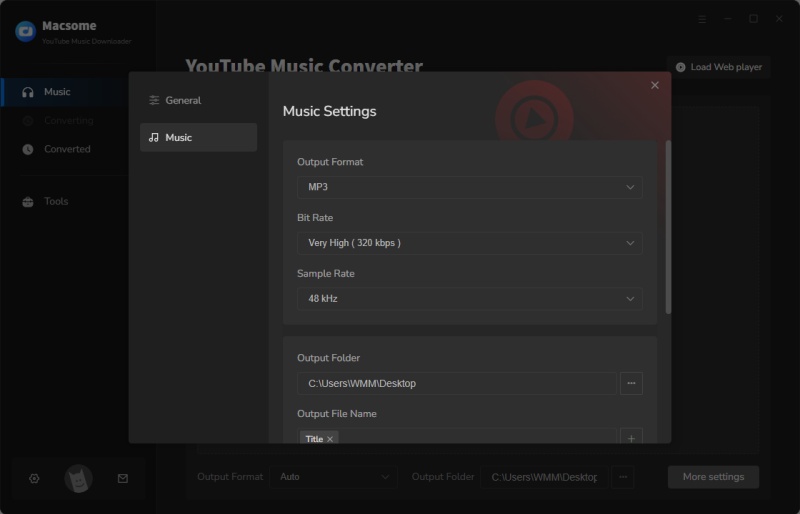
Set MP3 as the output format for Xbox One

Step 3. Import Your Favorite YouTube Music Playlist to Macsome

Select your favorite playlist from the library, and tap the "Add to list" button, this playlist will be loaded to the conversion panel. Tick off the tracks you want to download.

Note: Macsome YouTube Music Downloader supports batch conversion, and you can download multiple playlists simultaneously. To do that, you can click on the "Save to list" button, and the selected songs will be added to the task list. Then open another playlist and repeat the same step. After that, you can check all the songs you need from the "Task list" pane.

Add YouTube music from other playlists

Step 4. Start Downloading YouTube Music to MP3 for Xbox One

Now click the "Convert" button to start downloading YouTube Music to MP3.

Start to Download YouTube Music to MP3

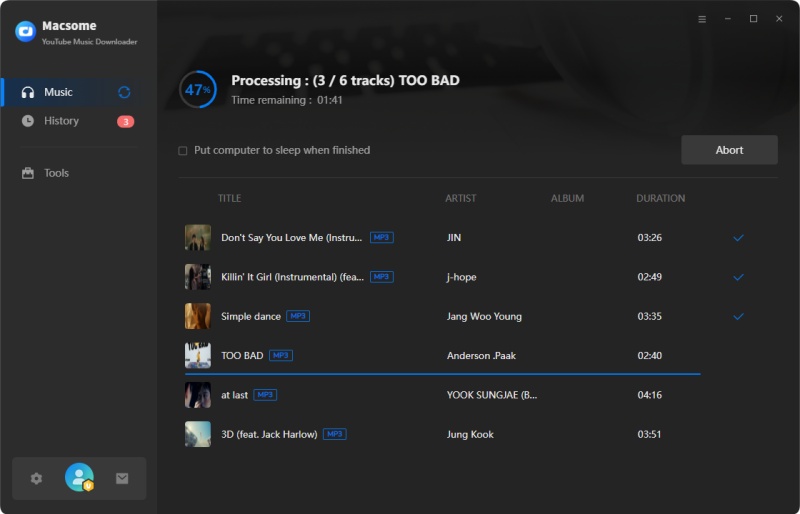
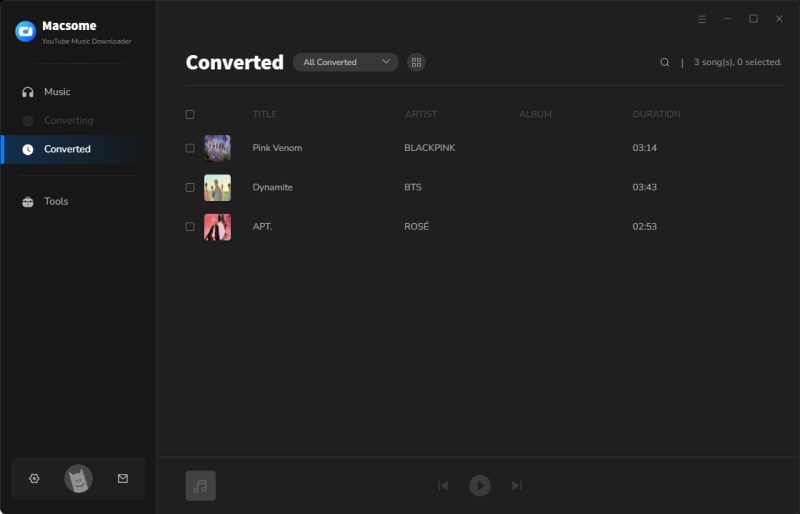
Once the downloading is finished, all the downloaded YouTube Music files will be saved to your computer locally. You can find them in .mp3 format in the history folder.

find the downloaded YouTube music

Play YouTube Music on Xbox One from A USB Drive

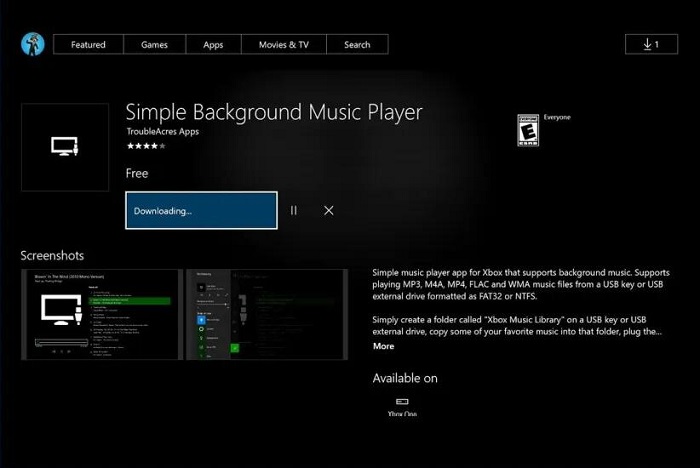
Now you can use Simple Background Music Player to play YouTube Music on Xbox One with a USB drive. First, you should get a USB drive prepared. And make sure you have downloaded the Simple Background Music from Xbox Store.

Play YouTube Music on Xbox One with Simple Background Music Player

Step 1. Insert the USB drive into your computer, and format it as NTFS or FAT32. Open the USB drive and create a new folder "Xbox Music Library". Then add the downloaded YouTube Music files to the Xbox Music Library folder. Eject the USB drive from your computer.

Step 2. Ensure the Simple Background Music Player is closed. Then connect the prepared USB drive to your Xbox One.

Step 3. Open Simple Background Music Player. When prompted, press Y on your controller to search for music. All music contained in the Xbox Music Library folder should appear on-screen. Press Y to refresh your music collection at any time while using the app.

After locating the downloaded YouTube Music files, Simple Background Music Player will automatically start playing music on Xbox One. Now you can play any game you want with this running in the background.

Here is all about how to enjoy YouTube Music on Xbox One. 

Sunday, July 17, 2022

How to Play YouTube Music on PS5 While Playing Games

YouTube Music doesn't integrate with Sony PS5. This is why you can't play YouTube Music on PS5 directly. Luckily, PS5 lets you listen to music from a USB drive. Therefore, if you can convert YouTube Music to PS5-compatible formats like MP3, AAC, or FLAC, then you can import YouTube Music to a USB drive for PS5.

Macsome YouTube Music Downloader is strongly recommended for you. It is specially designed for both YouTube Music free users and Premium subscribers and lets them download songs, playlists, and albums from YouTube Music.

In addition to the above, it is a professional YouTube Music Converter, which can convert songs from YouTube Music to MP3, AAC, WAV, FLAC, AIFF, and ALAC with original quality. So, you can play the converted YouTube Music songs on PS5 from the USB drive easily.


Detailed Tips to Download YouTube Music for Playback on PS5

Thanks to Macsome YouTube Music Downloader, you can download YouTube Music to PS5-compatible audio formats. Below, we will show you how to use it to download songs from YouTube Music. After that, you can listen to YouTube Music via USB on PlayStation 5. Please go right ahead.

Step 1. Access the YouTube Music Library

First, download, install and launch Macsome YouTube Music Downloader on your computer. When the application has started, hit on the "Open YouTube Music Web Player" button on the main interface, you will be directed to the login page, and sign in to your YouTube Music account to access the YouTube Music library.

The interface of Macsome YouTube Music Downloader

Step 2. Set the Output Formats for PS5

Click on the Settings icon in the top-right menu bar. From the pop-up window, you can select the output format available for PS5. If you want to play music from USB drives on PS5, you can select the PS5 console-supported file formats, like MP3, AAC, and FLAC from the Output Format drop-down list.

Besides, you could personalize the audio parameters, like bit rate and sample rate, as you like. If you want to arrange files in a better way, you can customize the output file name and output organized way.

Set the output format for PS5

Step 3. Add YouTube Music Playlists

Navigate to the music library, then select and open a playlist you'd like to play on PS5. Tap the "Add to list" button to load all the songs of this playlist to the conversion pane. Tick off the tracks you want to download.

Note: Macsome YouTube Music Downloader supports batch conversion, and you can download multiple playlists simultaneously. To do that, you can click on the "Save to list" button, and the selected songs will be added to the task list. Then open another playlist and repeat the same step. After that, you can check all the songs you need from the "Task list" pane.
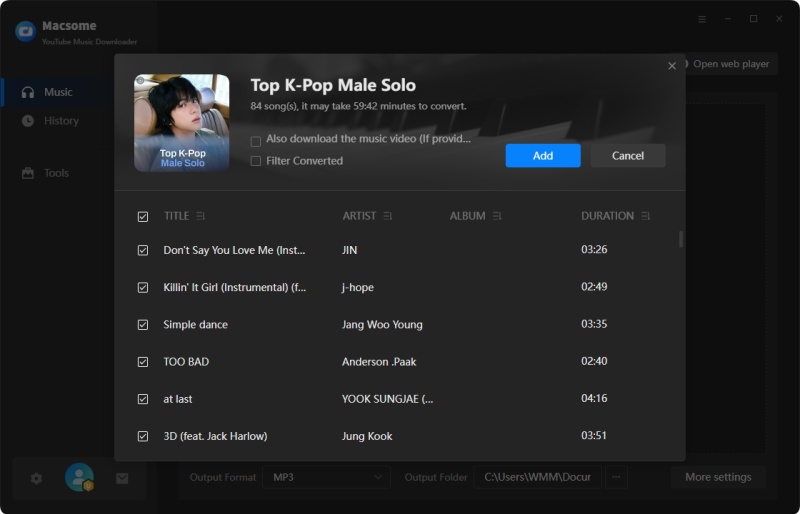
Add YouTube music from other playlists

Step 4. Start to Download YouTube Music for PS5

Press the "Convert" button to start the YouTube Music to PS5 downloading process.

Start to Download YouTube Music to PS5

Once the downloading is finished, all the downloaded YouTube Music files will be saved to your computer locally. You can locate them from the history folder.

find the downloaded YouTube music

Play YouTube Music from a USB Drive on PS5

Since you have downloaded YouTube Music to PS5-supported file types on your computer. Now you can transfer YouTube Music to a USB drive, then you can listen to the music from a USB drive on PS5 consoles.

Step 1. Plug a USB drive into your computer, and create a folder called "Music" on the USB. Then copy the downloaded YouTube Music files to the "Music" folder.

Step 2. Connect the USB drive to your PS5 console. Select Music in the control center. USB Drive appears in your playlist.

Step 3. Select USB Drive. Now you can select a YouTube Music track to play it.

Conclusion

In short, you learned how to get songs from YouTube Music to PS5 with the above tutorial. As YouTube Music is not available on the PS5, you can download songs from YouTube Music by using Macsome YouTube Music Downloader. Then you have the ability to move the downloaded YouTube Music files to a USB drive so that you can listen to the YouTube Music from a USB flash drive in the background without interrupting games on PS5 consoles.