Showing posts with label convert youtube music to mp3. Show all posts

Thursday, July 4, 2024

Step-by-step Guide to Transfer YouTube Music to USB

YouTube Music has become a popular platform for streaming music, offering a vast library of songs, albums, and playlists. However, there are times when you might want to transfer your favorite YouTube Music tracks to other devices or media players for offline listening. Macsome YouTube Music Downloader is a powerful tool that allows you to download and convert YouTube Music to various formats, making it easy to transfer and enjoy your music anywhere. This guide will walk you through the process of transferring YouTube Music to USB using Macsome YouTube Music Downloader.

Why Use Macsome YouTube Music Downloader?


Multiple Formats

Macsome YouTube Music Downloader supports various audio formats, including MP3, AAC, WAV, FLAC, AIFF, and ALAC. This flexibility ensures compatibility with a wide range of devices and media players.

High-Quality Downloads

The downloader preserves the original quality of YouTube Music tracks, ensuring you get the best listening experience.

User-Friendly Interface

Macsome YouTube Music Downloader is designed with a user-friendly interface, making it easy for both beginners and advanced users to navigate and use the software.

Fast Conversion Speed

The downloader offers fast conversion speeds, allowing you to quickly download and convert your favorite tracks.


Step-by-Step Guide to Transfer YouTube Music to USB Using Macsome YouTube Music Downloader


Step 1: Install Macsome YouTube Music Downloader

To get started, download and install Macsome YouTube Music Downloader from the official website. Follow the installation instructions to set up the software on your computer.

Step 2: Log into Your YouTube Music Account

Open Macsome YouTube Music Downloader and log into your YouTube Music account. This step is necessary to access your playlists and tracks for downloading.

Step 3: Select the YouTube Music Tracks

Browse your YouTube Music library and select the tracks, playlists, or albums you want to download. You can search for specific songs or navigate through your saved playlists.

Step 4: Choose the Output Format

In the settings menu, choose the desired output format for your downloads. Macsome YouTube Music Downloader supports multiple formats, including MP3, AAC, WAV, FLAC, AIFF, and ALAC. Select the format that best suits your needs.

Step 5: Start the Download and Conversion Process

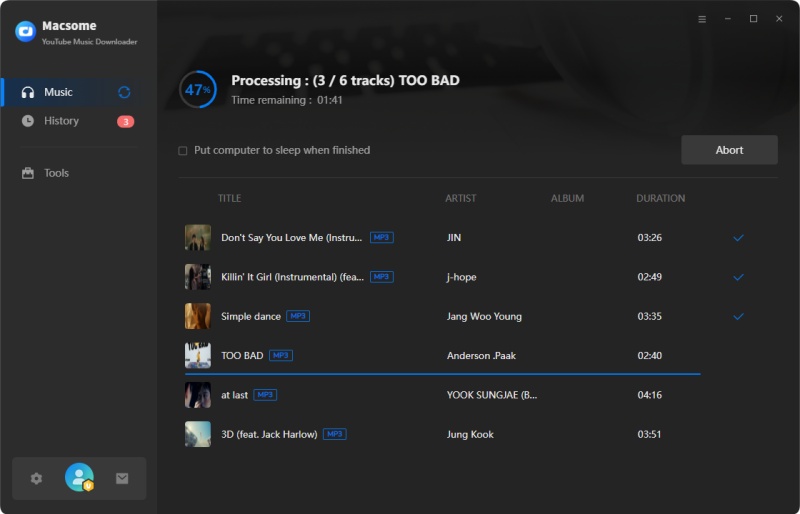
Click the download button to start the conversion process. The software will download and convert the selected tracks to the chosen format. The conversion speed may vary depending on the number of tracks and your internet connection.

Step 6: Locate the Downloaded Files

Once the download and conversion process is complete, locate the downloaded files on your computer. The files will be saved in the output folder specified in the settings menu.

Step 7: Transfer the Downloaded Music to Your Device

Now that you have the downloaded music files, you can transfer them to your desired device. Here’s how to do it for different devices:

For Windows and Mac Computers:

  • Connect your device (e.g., smartphone, tablet, MP3 player) to your computer using a USB cable.
  • Open the file explorer on your computer and navigate to the output folder where the downloaded music files are saved.
  • Copy the music files and paste them into the music folder on your device.

For iOS Devices (iPhone, iPad):

  • Open iTunes on your computer and connect your iOS device using a USB cable.
  • Drag and drop the downloaded music files into the iTunes library.
  • Sync your iOS device with iTunes to transfer the music files.

For Android Devices:

  • Connect your Android device to your computer using a USB cable.
  • Open the file explorer on your computer and navigate to the output folder where the downloaded music files are saved.
  • Copy the music files and paste them into the music folder on your Android device.

For Other Media Players:

  • Connect your media player to your computer using a USB cable.
  • Open the file explorer on your computer and navigate to the output folder where the downloaded music files are saved.
  • Copy the music files and paste them into the appropriate folder on your media player.

Conclusion


Transferring YouTube Music to USB using Macsome YouTube Music Downloader offers a convenient and efficient way to enjoy your favorite tracks offline. By following the step-by-step guide provided in this article, you can easily download and convert YouTube Music to various formats and transfer them to your desired devices. Remember to respect copyright laws and use the software responsibly. With Macsome YouTube Music Downloader, you can enhance your music experience and enjoy high-quality audio anytime, anywhere.

Tuesday, February 27, 2024

How to Download YouTube Music to MP3?

Downloading YouTube Music to MP3 format can be a convenient way to enjoy your favorite songs offline, without relying on an internet connection. While YouTube offers a wide range of music and content, it does not provide a direct option to download music in MP3 format. 

However, there are several methods and tools available that allow users to download YouTube music to MP3 for offline listening. In this article, we will explore some of the most popular and effective ways to download YouTube Music to MP3 format.

In this way, you can also play YouTube Music on MP3 player, old iPod, or other common media players. 


1. Third-party YouTube Music to MP3 Desktop Software:

There are numerous third-party YouTube Music to MP3 downloading tools that offer the ability to convert YouTube music to MP3 format.  Among them, Macsome YouTube Music Downloader is highly recommended for you. It is a professional YouTube to MP3 Converter, which is specially designed to help users to download tracks, albums, and playlists from YouTube Music to MP3 with high quality up to 320kbps. Apart from MP3, it can also convert songs from YouTube to AAC, WAV, FLAC, AIFF, and ALAC with up to 10x faster speed.

It often offers additional features such as batch downloading, file management, and audio customization options.

Download YouTube Music to MP3 with Macsome

Step 1. Login YouTube Music Web Player

With a built-in YouTube Music Web Player, all you need to do is log in to YouTube Music Web Player using your Google account. You can also create a new account right now.

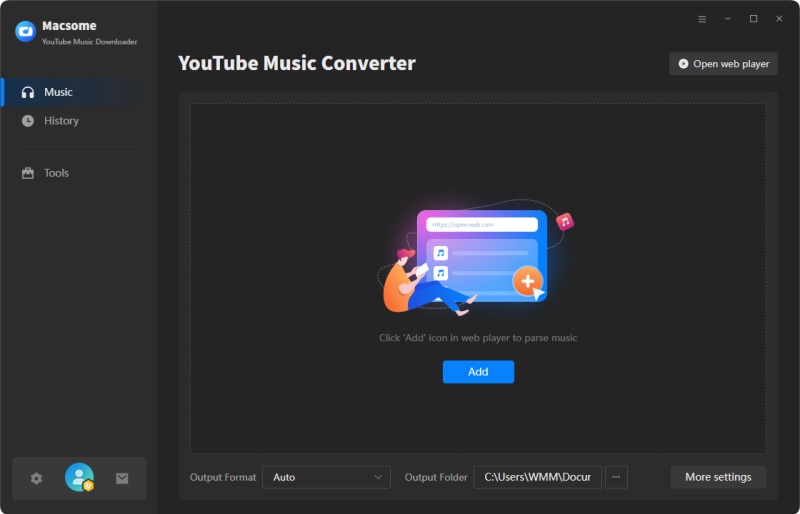
The interface of Macsome YouTube Music Downloader

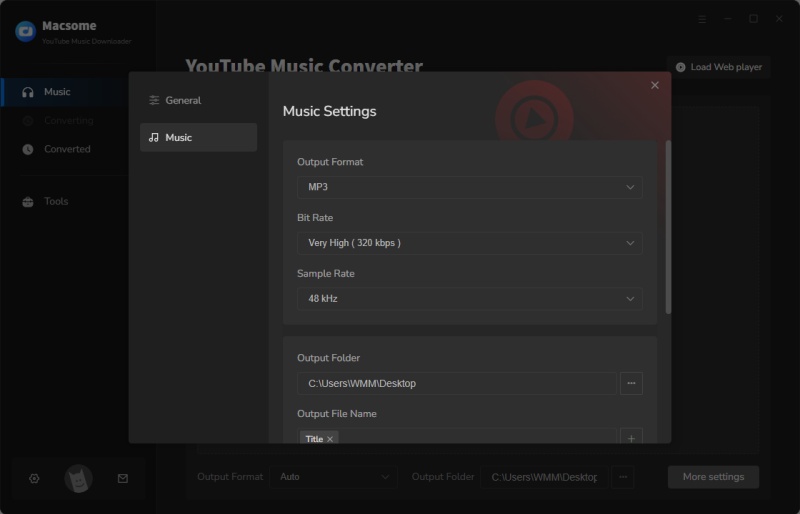
Step 2. Set MP3 as the Output Format

Click on the  icon in the bottom left corner. In the pop-up window, tap the "Output Format" drop-down list, and then select MP3 as the output format. Macsome also offers the audio quality settings (128kbps, 192kbps, 256kbps, 320kbps), you can adjust the bit rate to get the high audio quality you need.

Set MP3 as the output format

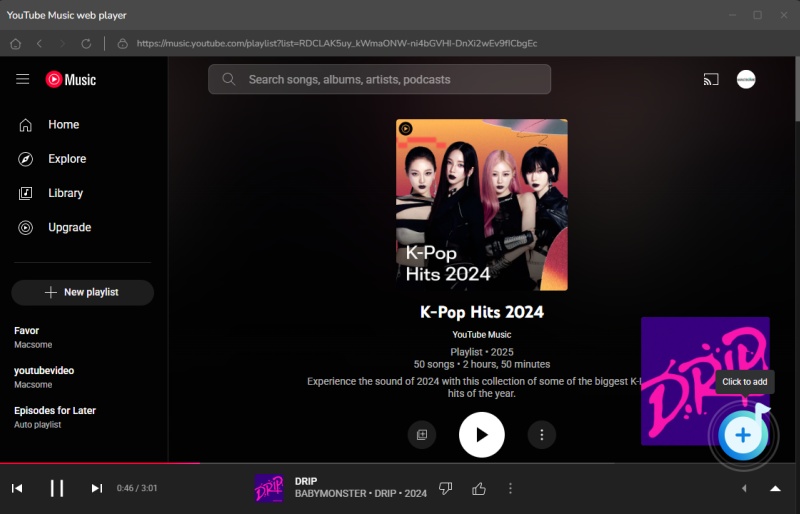
Step 3. Select YouTube Music Tracks and Playlists to Convert

Browse an album or a playlist in the YouTube Music web player, then you will see the blue "Click to add" button.

Add YouTube music

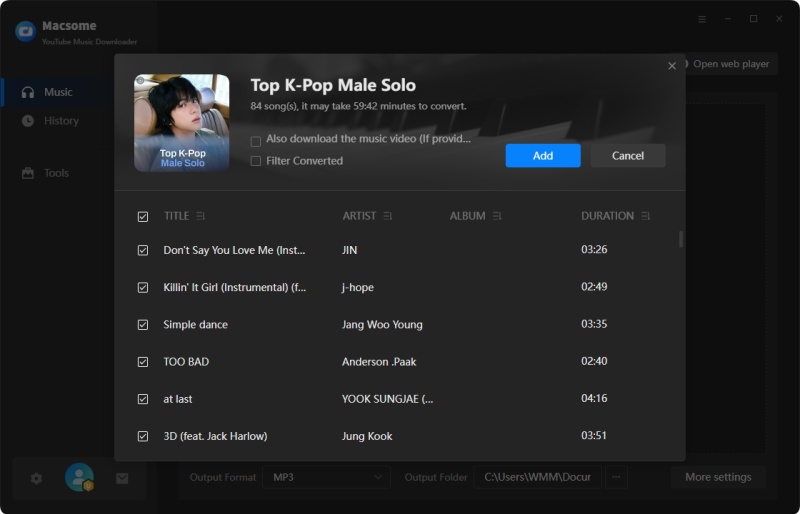
Click it, and all the selected songs will be loaded. Tick off the songs you'd like to convert. Then press the "Add" button.

Add YouTube music from other playlists

Step 4. Start to Convert YouTube Music to MP3

Simply hit on the "Convert" button, YouTube Music to MP3 conversion process will begin automatically.

Start to Convert YouTube Music to mp3

2. Online Converters:

Another option for converting YouTube music to MP3 is to use online tools and websites that offer the ability to convert YouTube music to MP3 format. These platforms typically work by allowing users to paste the URL of the YouTube video containing the desired music, and then converting it to an MP3 file that can be downloaded to their device. 

Here are some YouTube to MP3 conversion free sites you can choose, such as Onlymp3.to,  YTMP3.cc, Y2Mate, ToMP3.cc, OnlineVideoConverter.pro,  ListenVid.net and Yt2mp3.info. 

3. Browser Extensions:

Certain web browsers support extensions or add-ons that enable users to download and convert YouTube music directly from their browser interface. These extensions typically add a download button or option to YouTube videos, allowing users to save the content in MP3 format with a single click. While convenient, users should be cautious when installing browser extensions from third-party sources, as they may compromise the security of the browser or device.

Conclusion

Downloading YouTube Music to MP3 format can be a convenient way to enjoy music offline, and there are several methods available to achieve this. Whether using online converters, Macsome YouTube Music Downloader, browser extensions, users should prioritize safety when engaging in the process of converting YouTube music to MP3.

Macsome YouTube Music Downloader is the best YouTube to MP3 Converter recommended. It is specially designed to download tracks, playlists, and albums from YouTube Music. Besides, it can also download music videos on your computer. As a professional YouTube Converter, you are able to convert YouTube Music to MP3, AAC, WAV, FLAC, AIFF, or ALAC without quality loss. The biggest highlight of this software is the ability to save the lyrics in a text file. Have a free trial now.