Showing posts with label ipod. Show all posts

Wednesday, January 18, 2023

How to Play YouTube Music on iPod

 Can you download YouTube Music to iPod? Due to the popularity of mobile devices, Apple has discontinued the iPod brand, the iPod doesn't integrate YouTube Music, so you can not download and play YouTube Music directly with your iPod.

Don't worry about it. In this post, we will guide you on how to play YouTube Music on iPod. Please follow the steps below and learn how to download and sync YouTube Music to iPod easily and effectively, regardless of the iPod type you have.

You can't transfer YouTube Music to your iPod directly. To get YouTube Music on an iPod, the best method is to try Macsome YouTube Music Downloader. It enables you to convert YouTube Music to MP3, AAC, or other common audio formats with 100% original quality.

It is specially designed for both YouTube Music Free users and Premium subscribers and lets them download songs, playlists, and albums from YouTube Music to iPod supported formats. Then you can move the downloaded YouTube Music songs to iPod and any other devices without any limit.

Before you begin, just click the Download button above to get the latest version of Macsome YouTube Music Downloader.

Step 1. Access the YouTube Music Library

Install and launch Macsome YouTube Music Downloader on your computer, hit on the "Open YouTube Music Web Player" button on the main interface, you will be directed to the login page, and sign in to your YouTube Music account to access the YouTube Music library.
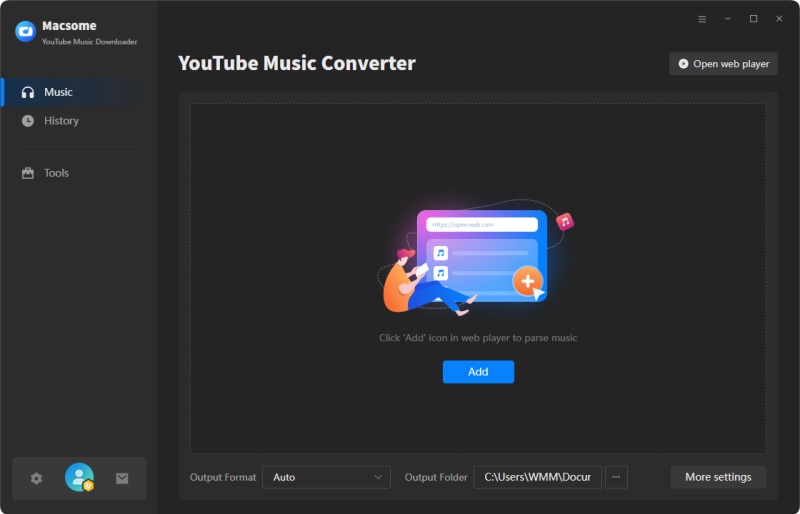
The interface of Macsome YouTube Music Downloader

Step 2. Set MP3 or AAC as the Output Format for iPod

Click on the Settings  icon in the top-right menu bar. From the pop-up window, you can select MP3 or AAC from the Output Format drop-down list.

Besides, you could personalize the audio parameters, like bit rate and sample rate, as you like. If you want to arrange files in a better way, you can customize the output file name and output organized way.
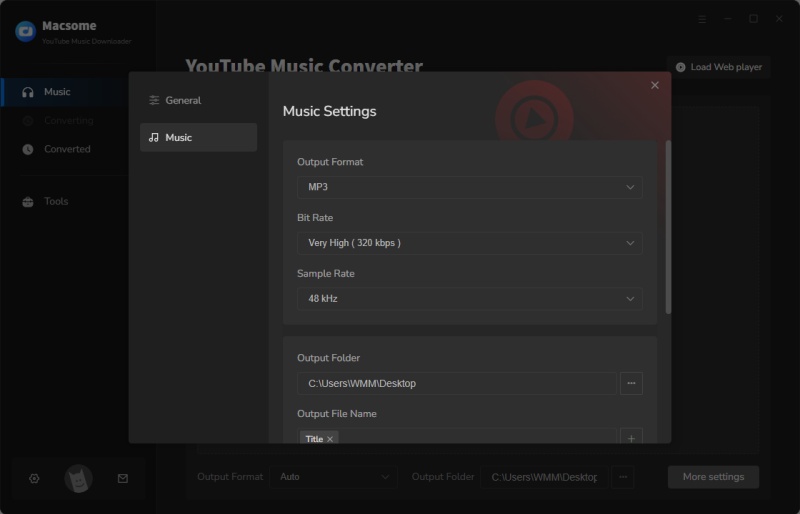
Set the output format for iPod

Step 3. Add YouTube Music Playlists

Navigate to the music library, then select and open a playlist, tap the "Add to list" button to load all the songs of this playlist to the conversion pane. Tick off the tracks you want to download.

Note: Macsome YouTube Music Downloader supports batch conversion, and you can download multiple playlists simultaneously. To do that, you can click on the "Save to list" button, and the selected songs will be added to the task list. Then open another playlist and repeat the same step. After that, you can check all the songs you need from the "Task list" pane.
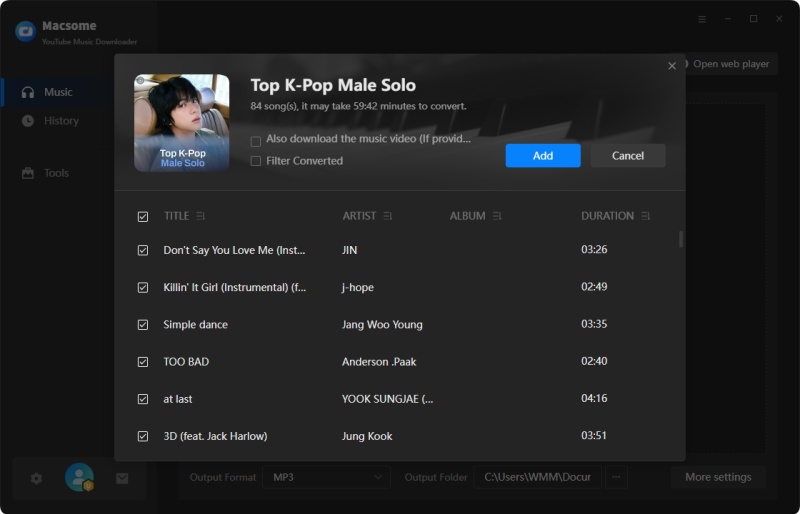
Add YouTube music from other playlists

Step 4. Start to Download YouTube Music

Press the "Convert" button to start the YouTube Music to iPod supported audio format. Once done, you'll get the YouTube Music tracks with the same ID3 tags as the original files. You can find offline songs by clicking the history folder.
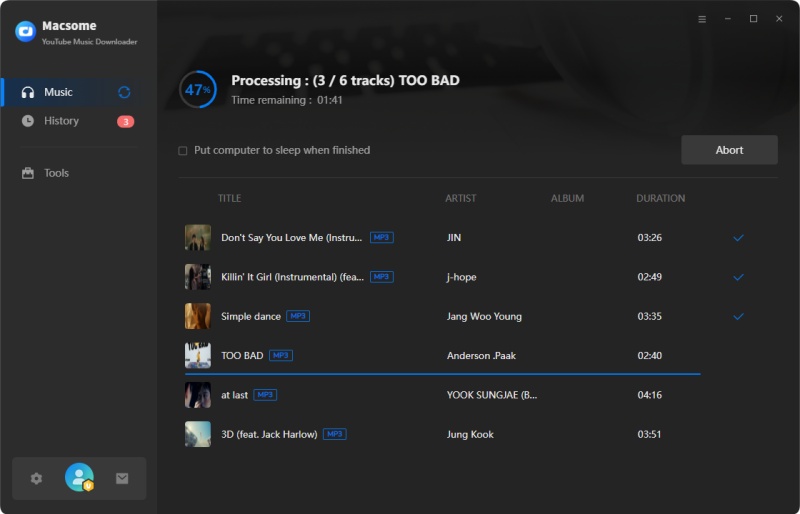
Start to Download YouTube Music to iPod

After downloading YouTube Music songs locally, you can sync YouTube Music songs to your iPod using iTunes by following these simple steps.

Step 1. Open iTunes on your computer, and import the downloaded YouTube Music songs into iTunes library by clicking the top menu File - Add File to Library.

Step 2. Connect your iPod to your computer with a USB cable. Then click the iPod icon in the upper-left corner of the iTunes window to load the info of your iPod model.

Step 3. From the list under Settings on the left side of the iTunes window, go to Music, select the checkbox next to Sync Music, and choose Selected playlists, artists, albums, and genres.
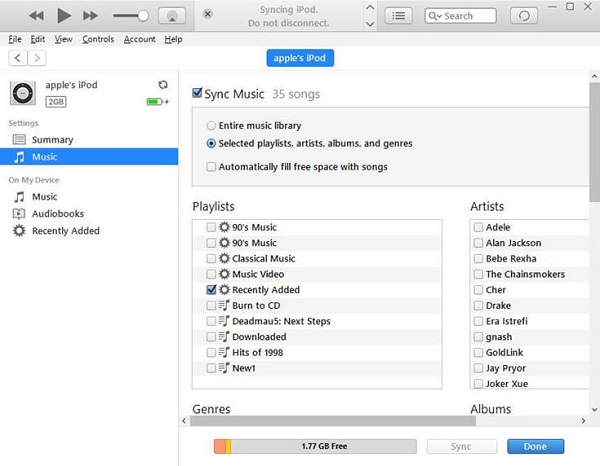
sync YouTube Music to iPod

Step 4. Under Playlists, check Recently Added where your uploaded YouTube Music songs are saved. Then click the Apply button in the lower-right corner of the window and YouTube Music tracks will be automatically synced to your iPod successfully.

Now you can listen to YouTube Music tracks on iPod Touch, iPod Nano, and any other iPod models at will.

Detailed Tips you can find: http://bit.ly/3kr1NBf

Tuesday, April 7, 2020

How to Transfer Music from Spotify to iPod


'Q: Can't transfer music from Spotify to ipod'. Why is it that I'm unable to transfer music files from Spotify to my ipod? I'm okay with iphone, and ipad. But ipod is the problem. I'm getting ready to give up on this Spotify deal.
Henya asked on the Spotify Community.
The problem usually arises when one wants to transfer Spotify music to iPod. How to solve this kind of tricky problems? Take it easy, we will offer a brilliant solution to enable you to play any Spotify songs on your iPod without any limitations.
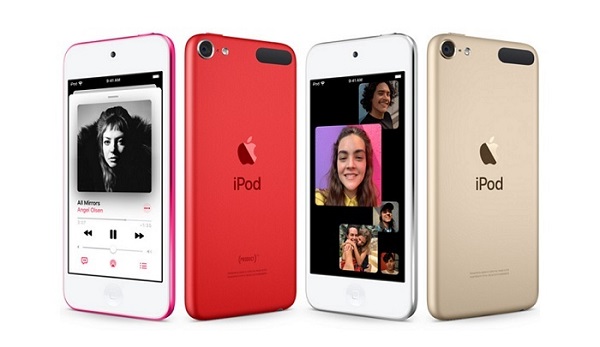
The iPod is a small, light hand-held music-playing device produced by Apple and sold across the world. It's the best-known family of MP3 players and comes in a variety of models, including iPod Touch, iPod Shuffle, iPod Nano and iPod Classic.
play spotify music on ipod
Spotify is one of the most popular audio streaming services that allows you to play millions of songs and podcasts for free. When you upgrade to Spotify Premium, you can simply download and enjoy Spotify playlist and album using offline mode within Spotify application.

WHY CAN'T TRANSFER MUSIC FROM SPOTIFY TO IPOD

If Spotify is your preferred or only music service, it might be much more convenient for you to download Spotify songs to iPod. But you can't. Partly because iPod Nano, Classic and Shuffle doesn't support the Spotify application. If you are running iPod touch 6th generation with iOS 10 or above, you can use Spotify on it. The premise is that you have to get a Premium subscription.
Also, it is worth noting that you cannot transfer music from the Spotify to iPods. That's because Spotify music is streamed in Ogg Vorbis. As iPod is simply an MP3 player, you can't play Spotify songs on iPod or other non-approved devices.
Don't worry, Macsome Spotify Downloader can help you out. With it, you can download music from Spotify and convert them as MP3 or other audio formats with excellent quality output, no matter you are subscribing to Spotify Free or Premium.
Why Macsome Spotify Downloader is Recommended
  • Download Spotify tracks, Playlists and albums.
  • Convert Spotify songs to MP3, AAC, FLAC or WAV format.
  • Transfer Music from Spotify to iPod, iPhone, PS4 and more.
  • Keep ID3 tags and preserve lossless audio quality.
  • Upload & Share Spotify music to Google Drive and One Drive.

PART 1. SIMPLE GUIDE TO CONVERT SPOTIFY MUSIC TO IPOD

At first, please download the latest version of Macsome Spotify Downloader on your computer according to the system you have. It is available on both Windows and Mac computers. The following tutorial is taken the Windows for an example. Here we go.
Step 1. Import Spotify Songs to Macsome.
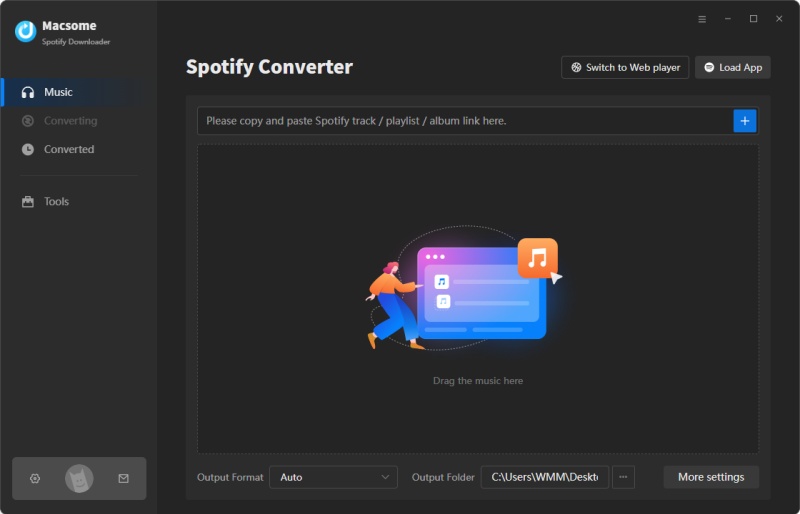
Install and run Spotify Downloader on your computer, and the Spotify will open at the same time.
Interface of Spotify Downloader
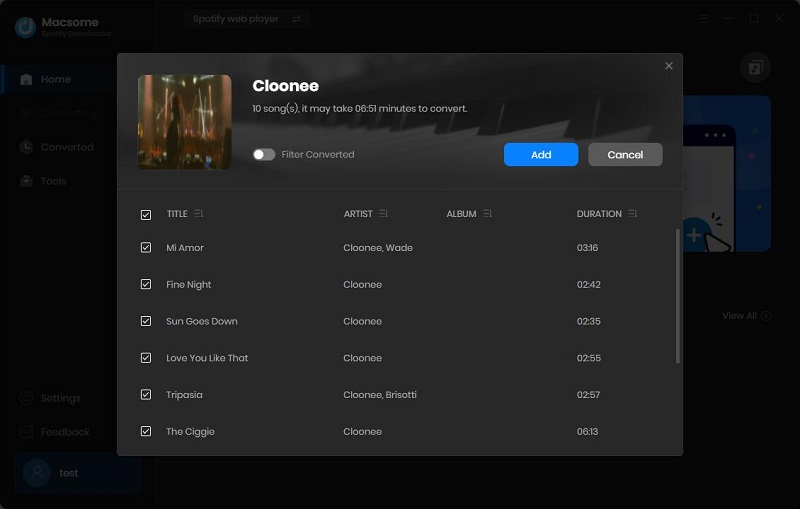
Now you can copy and paste the Spotify music or playlist link to the program. Alternatively, you can also drag and drop the tracks from Spotify to the program directly. Click "OK" button, all the songs will be added to the main window.
add Spotify songs to the program
Step 2. Set MP3 as the Output Format.
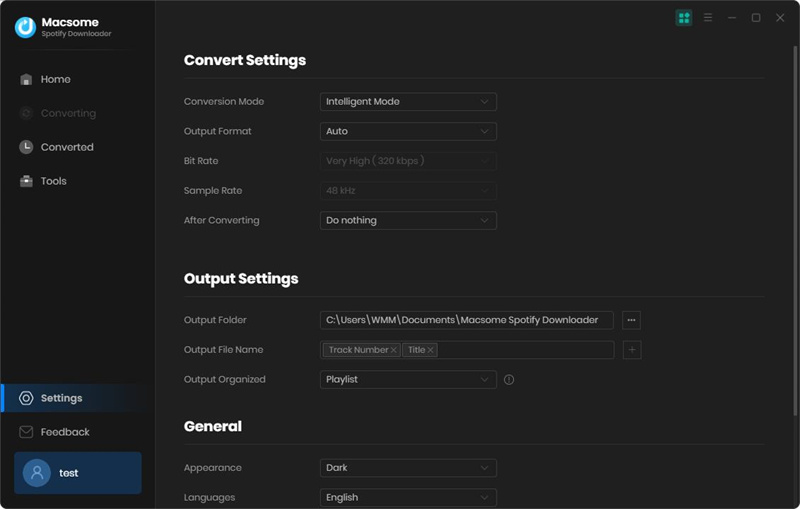
Click on the Settings button on the top right corner of the user interface, please select MP3 as the output format. And you can also select the Output Quality among 320kbps, 256kbps, 192kbps and 128kbps. Plus, you can also set the Output Path to save the downloaded Spotify files if you need.
Set the output format for iPod
Step 3. Start to Convert Spotify Music to MP3.
After all these settings, you can click the "Convert" button to start to download Spotify music process.
start to convert Spotify to MP3
When the whole conversion process finished, you can find the converted Spotify music files you can find in your target folder.

PART 2. HOW TO TRANSFER SPOTIFY MUSIC TO IPOD FOR PLAYBACK

As you have converted Spotify songs to the common MP3 files, it is much easier to sync Spotify songs to your iPods. Now you can import the converted Spotify music to iPod easily, you'll learn how to do it here.
Step 1. Connect iPod to your computer via USB cable. Go to Start -Settings - Control Panel on your computer, double click on \"Folder Options\".
Step 2. Double click on the drive titled \"iPod\" and find the folder within it titled \"Music\".
Step 3. Select all the converted Spotify songs you want to transfer; you can copy and paste or drag all the songs from the Music folder to the iPod's Music folder.
What's more, you can also move Spotify songs to iPod with iTunes, just import the converted Spotify songs to iTunes, and then plug iPod into your computer. Click "Music" tab - "Sync Music" - "selected playlists, artists, albums, and genres". Under "Playlists", check "Recently added" where the downloaded Spotify songs are saved. Then click the "Apply" button in the lower right-hand corner and the Spotify tracks will be automatically synced to your iPod as expected.
sync spotify music to ipod
Once the transferring done, unplug the iPod. Power it up and you should see all your music there. Now you can listen to Spotify songs on your iPod freely.