Showing posts with label aa to mp3 converter. Show all posts

Sunday, July 7, 2019

How to play Audible Audiobook on MP3 player

We know that Kindle Audiobook are purchased from Audible.com, and people can use Audible.com to download audiobooks to your iPhone, Android, Windows Phone, Kindle or other listening device and listen to Audible audiobooks by best-selling authors anytime.
After you paid the Audiobook, you can listen to the Audiobook after you authorize the device, for the DRM limits you.
Would you like to get rid of the DRM from the paid Audiobook?
Here Macsome iTunes Converter can help you, which supports converting audiobooks and apple music even on the latest iTunes and supports saving audiobook's chapters when you convert to AAC format. But it don't support the split function.
All the steps to get rid of the DRM are quite simple, and no additional app to install.
First, free download the software according to your computer system, and install it on your computer.
Windows Version Download
Mac Version Download
Then run the iTunes Music Converter, and choose the Audio book files you want to convert from the iTunes Books library.
Please make sure that you have authorized the purchased Audiobooks to the device or the computer so as to play them normally.
And now click Profile button and select the required profile in Output File Format drop-down list.
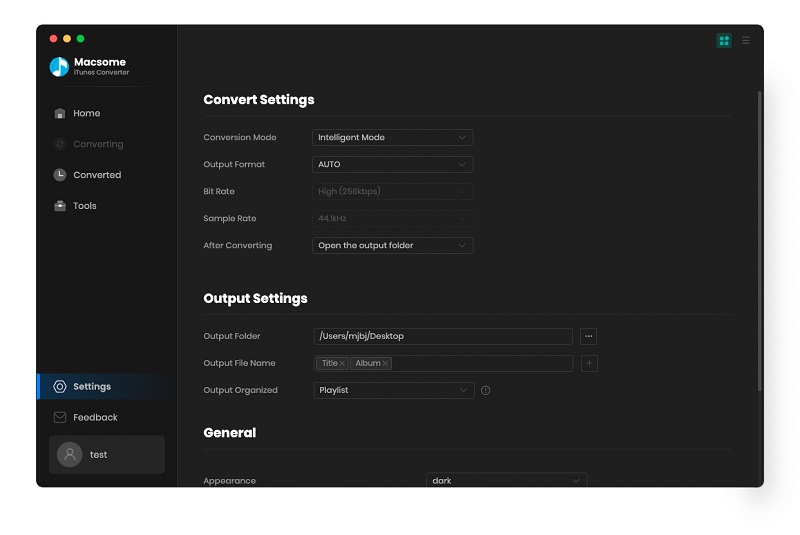
Preferences output Settings
You can also click the software menu and select Preferences to customize the Output Settings by clicking Choose... to set the destination.
Finally, click the Convert button to start the conversion. Meanwhile the paid Audiobook's DRM is removed as well.
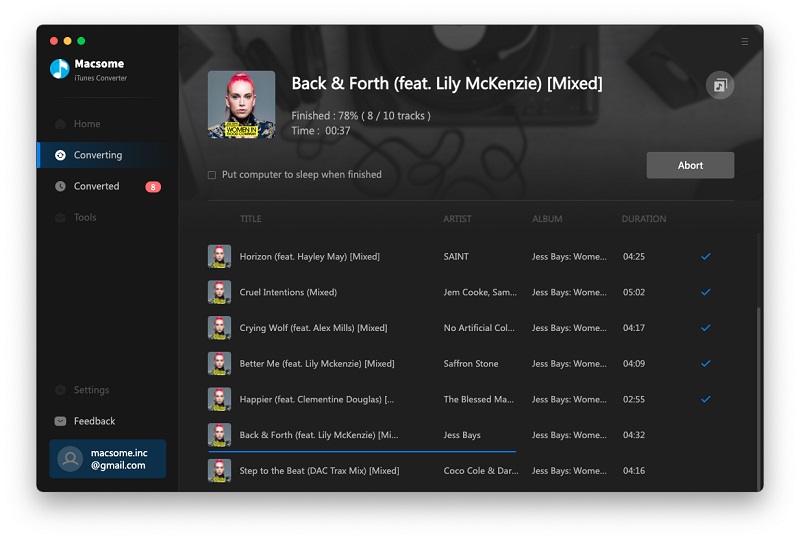
Converting Audio books to MP3
After the conversion is done, you can play the purchased Kindle Audiobook on any MP3 or other audio player as you like without DRM any more.

Wednesday, October 21, 2015

How to play Welcome to Night Vale: A Novel on MP3 player

Welcome to Night Vale is now the top and hottest Audio Book file on the iTunes Store, which is Performed by Welcome to Night Vale podcast narrator Cecil Baldwin and special guests Dylan Marron, Retta, Thérèse Plummer, and Dan Bittner, with music by Disparition. From the creators of the wildly popular Welcome to Night Vale podcast comes an imaginative mystery of appearances and disappearances that is also a poignant look at the ways in which we all struggle to find ourselves.
You can purchase it through https://itunes.apple.com/us/audiobook/welcome-to-night-vale-novel/id1046988053, or through iTunes App to purchase it.
1
You know that the purchased Welcome to Night Vale Audio Books are DRM protected and you can only play them on your Apple products with Apple ID authorized. And it can’t be playable on MP3 player devices and other audio player. How to solve this?
Here recommend you Macsome Audio Book Converter (http://www.macsome.com/audio-book-converter-mac/index.html), which can convert kinds of iTunes Audio Books to MP3, AAC format, and you can also split these big files with chapter kept.
There are three ways to split your big audio books by by the duration, file size or chapter of files. And the splitting and converting process has removed DRM as well.
Steps to convert Welcome to Night Vale to MP3 format.
If you have purchased Welcome to Night Vale, make sure that you have authorized it to your computer.
Step 1, go to download Macsome Audio Book Converter
(http://www.macsome.com/AudiobookConverter.dmg), install and run it. The Audio Book Converter loads all playable audiobooks from the iTunes Books library automatically, including Welcome to Night Vale.
Step 2. Click Profile button and select the required profile in Output File Format drop-down list.
Step 3. Click the Macsome AudioBook Converter menu and select Preferences to customize the Output Settings by clicking Choose... to set the destination.
Step 4. Click the Convert button and then the selected files will be listed in the window that pops up. And the Status will keep updating the status of the files until that the conversion finished.
After the conversion is done, the Stop button will change to the Close button. Click the Play button shown behind the completed file to play the output files.
Want to know more about Audio Book Converter, go to http://www.macsome.com/audio-book-converter-mac/index.html