Showing posts with label spotify to mp3. Show all posts

Friday, February 28, 2025

Top 10+ Best Solutions to Fix Spotify App Not Working / Spotify Not Playing

 Spotify is one of the most popular music streaming platforms, allowing millions of users to enjoy their favorite songs, podcasts, and playlists anytime, anywhere. However, there are instances when the Spotify app won’t work correctly, causing frustration. Users may face issues such as songs not playing, the app crashing, login problems, or connectivity errors.

In this article, we will explore the potential reasons why the Spotify app isn’t working, troubleshooting steps to fix the problem, and using Macsome Spotify Downloader to download Spotify music locally to avoid Spotify app not working issue.


Common Reasons Why the Spotify App Won’t Work

Several factors can cause Spotify to malfunction. Here are the most common reasons:

1. Poor Internet Connection

2. Using an outdated version of the Spotify app.

3. Corrupted Cache Data

4. Server Issues

5. Device-Specific Problems

6. Account-Related Restrictions

7. App Conflicts

Troubleshooting: How to Fix Spotify When It’s Not Working

If you’re experiencing issues with Spotify, try the following fixes:

1. Check for Server Outages

Before troubleshooting your device, check if Spotify’s servers are down. You can visit:

If there is an outage, you will need to wait for Spotify to resolve the issue.

2. Restart the App

Close the Spotify app completely and reopen it to see if the issue resolves itself.

3. Restart Your Device

Turn off your phone, tablet, or PC and restart it. This simple step can resolve minor glitches.

4. Check Your Internet Connection

Ensure you have a stable internet connection by following these steps:

  • Switch between Wi-Fi and mobile data.
  • Try loading other websites or apps to test connectivity.
  • Restart your router/modem.

5. Update the Spotify App

  • On Android:

Open the Google Play Store.

Search for “Spotify” and tap Update if available.

  • On iOS:

Open the App Store.

Search for “Spotify” and tap Update.

6. Clear the App Cache

For Android Users:

Go to Settings > Apps > Spotify.

Tap Storage & Cache > Clear Cache.

For iOS Users:
 Spotify doesn’t allow clearing cache via system settings. Instead:

Open Spotify > Settings > Storage > Clear Cache.

7. Reinstall the App

If clearing the cache doesn’t work, reinstall the app:

  • Uninstall Spotify from your device.
  • Restart your device.
  • Reinstall Spotify from the app store.

8. Check for Device Updates

Ensure your phone, tablet, or computer has the latest OS version:

  • On Android: Go to Settings > Software Update.
  • On iPhone: Go to Settings > General > Software Update.

9. Disable Battery Saver or Data Saver Modes

Power-saving modes may limit Spotify’s background performance:

  • On Android: Turn off “Battery Saver” by going to Settings > Battery.
  • On iPhone: Disable Low Power Mode under Battery settings.

10. Log Out and Log Back In

Sometimes, logging out and back into your account can resolve issues.

  • Open Spotify > Settings > Log Out.
  • Restart the app and log back in.

11. Disable VPNs or Proxies

If you’re using a VPN, it may interfere with Spotify. Disable it and check if Spotify works.

12. Try Streaming on Another Device

If Spotify works on another device, the issue may be with your primary device.

13. Check Storage Space

Spotify requires sufficient storage to download and stream music. If your device has low storage, clear unused files.

Advanced Troubleshooting: Fixing Specific Error Messages

1. “Spotify Can’t Play This Right Now” Error

  • Clear the app cache.
  • Restart the device and app.
  • Check storage availability.

2. “No Internet Connection” Error (Even When Connected)

  • Reset the network settings (under phone settings).
  • Try switching networks (Wi-Fi to mobile data or vice versa).

3. “Something Went Wrong” Error

  • Ensure Spotify is updated to the latest version.
  • Restart your router and device.

4. Playlist Not Syncing or Playing

  • Ensure the playlist is available offline if using low data mode.
  • Try re-downloading songs (for Premium users).

Preventative Measures: Keeping Spotify Running Smoothly

To avoid future issues with Spotify, consider these tips:

1. Keep Spotify Updated

Enable automatic updates to avoid software issues.

2. Regularly Clear Cache

Prevent corruption by clearing the app cache every few weeks.

3. Maintain a Stable Internet Connection

Ensure a strong Wi-Fi or data connection for uninterrupted streaming.

4. Avoid Running Too Many Background Apps

Close unnecessary apps to free up device resources.

5. Monitor Account Activity

Check if unauthorized devices are using your account under Settings > Devices.

6. Ensure Subscription is Active

If you use Spotify Premium, verify payments to avoid service interruption.

7. Download Spotify music locally to play without the Spotify app


If none of the above solutions have worked to solve your issue of Spotify not working, head to Spotify’s support page and look into their current articles. Instead, get in touch with the Spotify support team directly and explain your problem.

To avoid running into the Spotify not working issue, you can try to download music from Spotify. Therefore, you do not need to use the Spotify app to play Spotify music. However, Spotify is a music streaming platform. You can only listen to Spotify songs in the Spotify app, and you can’t export songs from Spotify to other apps or devices. To play Spotify music without using the Spotify app, Macsome Spotify Downloader is a good choice.

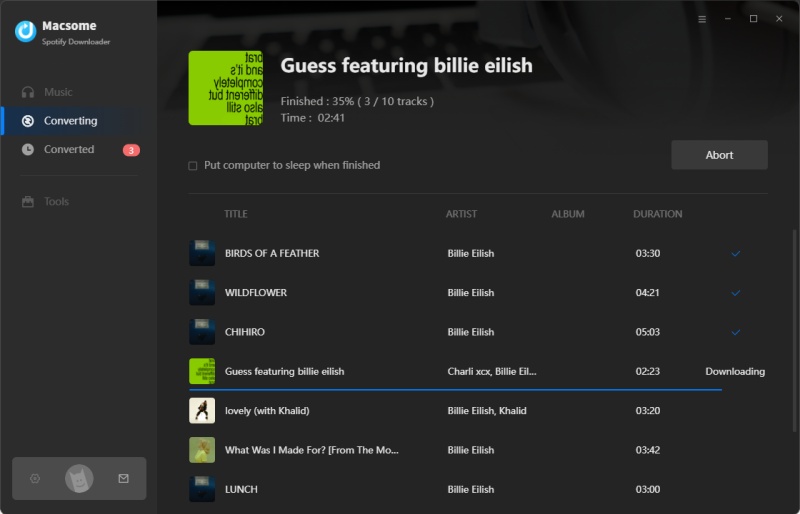
With it, you can download Spotify tracks, albums, playlists, podcasts, and audiobooks on your computer. Besides, you are able to convert Spotify music to MP3, AAC, WAV, FLAC, AIFF, and ALAC with lossless sound quality. Thus, you can enjoy your favorite Spotify music on any device you want. Macsome Spotify Downloader is applicable to all Spotify users, even if you are a Spotify Free user, you can still download Spotify music for offline listening. It works at a 10x faster speed. Additionally, after downloading, it preserves almost all ID3 tags of your Spotify music, including Title, Artist, Album, Artwork, Track Number, Disc Number, and Year.

Conclusion

Spotify is the most popular music streaming platform that has a large number of users from all over the world. It is not surprising that Spotify has issues from time to time. Spotify doesn’t work is one of the most common problems. Luckily, we’ve got some easy methods you can use to get back to streaming quickly. You can check Spotify’s Twitter account to see whether Spotify is down, make sure the Spotify app is up to date, try the Spotify web player, or close other apps to reclaim memory and prevent incompatibilities. If these fixes do not work, please contact the Spotify team directly.

We hope that the above solutions will be helpful to you. To prevent the issue, Macsome Spotify Downloader comes to help you. By using this smart tool, you can not only download Spotify music on your local computer, even if you use a Spotify free account, but also can convert Spotify music to MP3, AAC, WAV, FLAC, AIFF, and ALAC without any quality loss. In this way, you can listen to Spotify music on any player and device without the Spotify app.

Tuesday, February 25, 2025

Spotify Will Release Spotify Pro with high-quality audio (HiFi)

 Spotify is planning to introduce a new additional subscription tier called Music Pro, which will cost $6 in the United States, in addition to the existing subscription plans.

This new plan includes long-awaited features, such as high-quality audio (HiFi), which was first announced in 2021, but whose implementation has not yet been realized.

Users who choose the Music Pro plan will have access to remix tools, as well as the possibility of getting tickets for concerts. These benefits are in addition to the ability to mix songs from different artists using artificial intelligence, which promises to transform the listening experience on the platform.

Spotify Pro Reiview & Pro and Cons & Prices

Spotify Pro, also known as Spotify Music Pro, is a subscription service that will offer high-quality audio and other perks. It’s expected to be available by the end of 2025. Features

  • Lossless audio: Spotify Pro will offer high-quality audio, including lossless audio
  • Concert tickets: Spotify Pro will offer access to presales and better seats for concerts
  • Song mixing: Spotify Pro will allow users to mix songs from different artists together
  • Artificial intelligence: Spotify Pro will use artificial intelligence to provide extra perks

Cost

  • Spotify Pro will cost an extra $6 per month on top of the Spotify Premium plan
  • The Spotify Premium Individual plan costs $11.99 per month
  • The Spotify Premium Duo plan costs $16.99 per month
  • The Spotify Premium Family plan costs $19.99 per month
  • The Spotify Premium Student plan costs $5.99 per month

Competition

Spotify Pro will compete with Apple Music, TIDAL, and Deezer, which have been popular with audiophiles.

Will you upgrade to Spotify Pro

Maybe I will not. $18 per month is too expansive for me. To get high-quality audio, I can subscribe to Tidal, Amazon Music, or Apple Music, even Qobuz. Others streaming services’ monthly prices are more cheaper.

You can also use Macsome Spotify Downloader to stream music, podcasts, or audiobooks from Spotify to listen offline. It doesn’t need a Premium subscription.

A new fee that depends on the artists themselves

However, it is important to note that Spotify is still in talks to negotiate the necessary rights with major music companies, which could affect the availability of these features.

The total cost for users who wish to combine the Music Pro plan with their base subscription could reach approximately $18 per month, although prices may vary by region. As Spotify prepares to launch this new subscription tier, a phased rollout is anticipated globally.

However, despite the ambitious plans for Music Pro, doubts remain about the platform’s ability to deliver on these improvements, especially given that there have been significant delays in the implementation of high-quality audio enhancements in Spotify Premium in the past.

Tuesday, July 2, 2024

How to Embed Spotify Music into PPT with Macsome Spotify Downloader

Adding music to PowerPoint presentations can significantly enhance the overall impact, making them more engaging and memorable. Whether you're preparing a business presentation, a school project, or a personal slideshow, the right music can set the tone and captivate your audience. In this article, we will explore how to embed Spotify music into PPT with Macsome Spotify Downloader, a powerful tool that simplifies the process of downloading and converting Spotify tracks for use in PowerPoint presentations.


Why Add Music to Your PowerPoint Presentations?

Enhancing Audience Engagement

Music has the power to capture attention and keep your audience engaged. By adding background music or specific tracks to your slides, you can create a more dynamic and immersive experience.

Setting the Tone and Mood

The right music can set the tone for your presentation, whether it's upbeat and energetic for a sales pitch or calm and soothing for a reflective presentation. Music helps convey emotions and reinforces your message.

Making Presentations More Memorable

Presentations with music are often more memorable. The combination of visual and auditory elements can leave a lasting impression on your audience, making your content more impactful.

What is Macsome Spotify Downloader?

Introduction to Macsome Spotify Downloader

Macsome Spotify Downloader is a versatile tool designed to help Spotify users download and convert their favorite tracks, playlists, albums, and podcasts into various audio formats. This software is particularly useful for those who want to use Spotify music offline or embed it into other media, such as PowerPoint presentations.

Key Features and Benefits

  • Multiple Formats: Convert Spotify music to MP3, AAC, FLAC, WAV, AIFF, and ALAC.
  • High Quality: Preserve the original quality of Spotify tracks.
  • User-Friendly Interface: Easy to navigate and use, even for beginners.
  • Fast Conversion: Quick download and conversion speeds.

Supported Formats and Compatibility

Macsome Spotify Downloader supports a wide range of audio formats, ensuring compatibility with various devices and software, including PowerPoint. This flexibility makes it an ideal choice for embedding music into presentations.

Step-by-Step Guide to Download Spotify Music Using Macsome Spotify Downloader

Step 1: Install Macsome Spotify Downloader

To get started, download and install Macsome Spotify Downloader from the official website. Follow the installation instructions to set up the software on your computer.

Step 2: Choose Songs, Playlists, or Albums

Choose the desired format (e.g., MP3) and wait for the download to complete. Browse your Spotify library and select the music you want to download.

Step 3: Download Spotify Music

Click the Convert button to start the conversion process. 

How to Embed Spotify Music into PowerPoint Presentations

Step 1: Open Your PowerPoint Presentation

Start by opening the PowerPoint presentation where you want to embed the music. You can use an existing presentation or create a new one.

Step 2: Insert Audio File

Navigate to the slide where you want to add the music. Go to the "Insert" tab and select "Audio" from the dropdown menu. Choose "Audio on My PC" to locate the downloaded music file.

Step 3: Select the Downloaded Music File

Browse your computer to find the converted Spotify music file. Select the file and click "Insert" to add it to your slide.

Step 4: Customize Audio Playback Settings

Once the audio file is embedded, you can customize its playback settings. Click on the audio icon on the slide and go to the "Playback" tab. Here, you can set the music to play automatically, loop until stopped, or start on a click.

Common Questions Related to Embedding Spotify Music into PPT with Macsome Spotify Downloader

Can I use Macsome Spotify Downloader with a free Spotify account?

Yes, Macsome Spotify Downloader works with both free and premium Spotify accounts. However, Premium accounts may offer higher audio quality.

What audio formats are supported by PowerPoint?

PowerPoint supports several audio formats, including MP3, WAV, and WMA. Macsome Spotify Downloader can convert Spotify music to these compatible formats.

How can I ensure the music plays automatically during the presentation?

In the "Playback" tab, select "Start Automatically" to ensure the music plays as soon as the slide appears.

Conclusion

Embedding Spotify music into PowerPoint presentations can significantly enhance the overall impact, making them more engaging and memorable. By using Macsome Spotify Downloader, you can easily download and convert your favorite Spotify tracks for use in your presentations. Follow the step-by-step guide provided in this article to seamlessly integrate music into your slides and create a dynamic and captivating presentation. With the right music and proper settings, you can elevate your presentations to a whole new level.

Tuesday, June 18, 2024

Download BTS (방탄소년단) JUNGKOOK 'Never Let Go' to MP3 from Spotify, Apple Music, YouTube

Download BTS (방탄소년단) Jung Kook new single 'Never Let Go' to MP3 from Spotify, Apple Music, YouTube

BTS member Jung Kook has unveiled his new single 'Never Let Go'. After teasing the song earlier this week, the singer shared the intimate, reflective track with fans and dedicated it to the BTS ARMY. 

Jungkook is credited as both songwriter & producer in his new single 'Never Let Go'. This English track, built on a house rhythm, features minimalist yet captivating synthesizers and refreshing instruments that blend harmoniously.


"Never Let Go", Jung Kook's first solo track since the release of his 2023 LP, Golden, coincides with this year's BTS Festa in Seoul, South Korea. It is also released on the 10th anniversary of BTS' debut album, Dark & Wild, and serves as "a gesture of appreciation and love to ARMY worldwide". 

"Without your love I'm nothing / You mean more than you know," Jung Kook sings on the track. "And words escape me whenever you're near.

Now you can stream BTS JUNGKOOK 'Never Let Go' from Spotify, Apple Music, Tidal, YouTube, or other available websies for offline listening. 

Download BTS JUNGKOOK 'Never Let Go' to MP3 from Spotify, Apple Music, YouTube

Macsome Music One can not only lets you download music losslessly from popular music streaming services such as Spotify, Apple Music, Amazon Music, Tidal, YouTube Music, Deezer, Pandora Music, Audible and more but also record audio directly from popular online video platforms or other websites, including YouTube, SoundCloud, Dailymotion, Vimeo, Veoh and more. 

With Macsome Music One, you can not only download songs from Spotify, Apple Music, YouTube Music, Tidal, Deezer, Amazon Music, etc., but also record audio from YouTube videos and save them as MP3 files. 

How to Use Macsome Music One to Download BTS JUNGKOOK 'Never Let Go' MP3 and Lyrics

Step 1. Download, install and start Macsome Music One. Select a music streaming platform you'd like to download. Here we choose Tidal, which can help you download Tidal MQA or HiFi songs locally at a faster speed.


Step 2. Search 'Never Let Go'. Tap on the "Click to Add" button and import the tracks of the full album. Click on "Add" to queue for download.

Step 3:  Click the "Convert" button to start downloading BTS JUNGKOOK 'Never Let Go' MP3. 

After the conversion, you can find the track in the "Converted" tab.  You can find the downloaded JUNGKOOK 'Never Let Go' in .mp3 and lyrics in your local folder. 


BTS (방탄소년단) JUNGKOOK 'Never Let Go' MV


Never Let Go Lyrics

[Intro]
Outtatown, we never out of money
Star boy, you're my, you're my hero

[Verse 1]
Oh, every day, I wonder if this all is just a dream
Everything falls into place 'cause you're right here with me
Without your love, I'm nothing
You mean more than you know
And words escape me whenever you're close
I tried to put it into words but it don't measure up
My pen and paper could never do quite enough
It's the truth, it's the truth
We got something rеal nothing could break

[Pre-Chorus]
And when the days gеt longer
You fill my world with wonder
Everybody needs somebody
You been that somebody
So stay with me and keep holding on

[Chorus]
Never let go, go, go, go, go, go
Never let go, go, go, go, go
Never let go, go, go, go
Never let go
See upcoming pop shows
Get tickets for your favorite artists

You might also like
Close To You
Gracie Abrams
The End
Halsey
Please Please Please
Sabrina Carpenter

[Verse 2]
Every town I'm in, you're the one I'm with
With me from the start
Always the best part of my day
Being who you are, being who you are in the dark
You were the light that led me to you
I'm grateful (For you)
It's simple (With you)
I'll never (Leave you)
I'm better (With you)
It's too good (With you)
It's my turn to give back for all that you do

[Pre-Chorus]
And when the days get longer
You fill my world with wonder
Everybody needs somebody
You been that somebody
So stay with me and keep holding on

[Chorus]
Never let go, go, go, go, go, go (Oh)
Never let go, go, go, go, go
Never let go, go, go, go, go (Oh)
Never let go, go, go, go, go
Never let go, go, go, go
Never let go, go, go, go (Oh)
Never let go, go, go, go
Never let go
Never let go


Thursday, March 26, 2020

How to Create Spotify Songs as Ringtone for iPhone or Android


Can you use Spotify songs as ringtones? How do I make a Spotify song my ringtone on iPhone? How do I download music from Spotify for ringtones on Android?
Macsome Spotify Downloader can solve all the problems.
Spotify is one of the best music streaming services for most people. There are over 50 million songs in the Spotify library. People prefer to set Spotify music as ringtone and add it to iPhone or Android phone. However, the downloaded Spotify music are cached files. And Spotify uses Ogg Vorbis as their streaming format, so that they can't be used to make ringtones.
make Spotify music for ringtone
While Spotify content has many restrictions, you can still want to set Spotify track as iPhone ringtone or Android ringtone. Only if you turn to a third-party tool like Macsome Spotify Download, you can easily convert Spotify music to ringtone audio format like MP3 or AAC. In the following article, we will clearly illustrate this method on how to use Spotify songs for making ringtone to your iPhone or Android phone.

DOWNLOAD SPOTIFY MUSIC SONGS TO RINGTONE AUDIO FORMAT

Macsome Spotify Downloader is such a speedy, reliable, and multi-function Spotify Converter for you. With it, both Spotify free and Premium users can convert Spotify songs, albums and playlists to plain audio formats supported by iPhone or Android devices, such as MP3, AAC, FLAC and WAV. Now you can refer to the method shown below to use Spotify songs as your phone ringtone with Macsome Spotify Downloader.
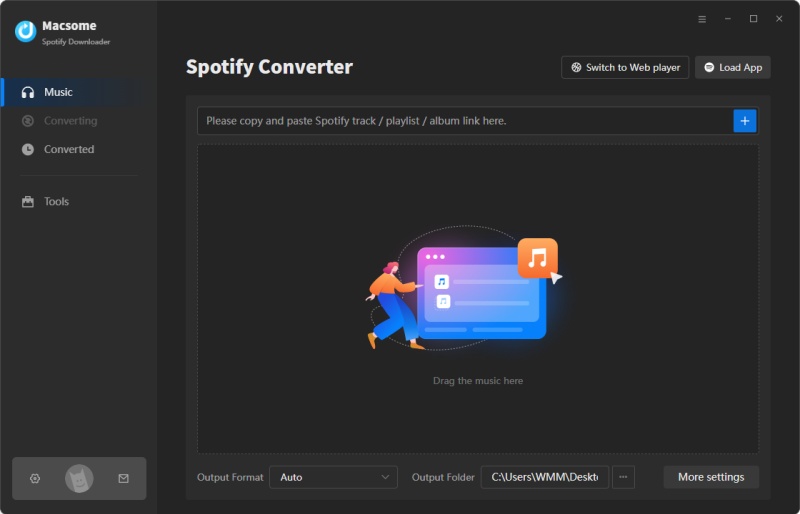
Step 1. Download Macsome Spotify Downloader on your computer.
If you are a Mac user, please download the Spotify Downloader for Mac version.
screenshot of macsome spotify downloader
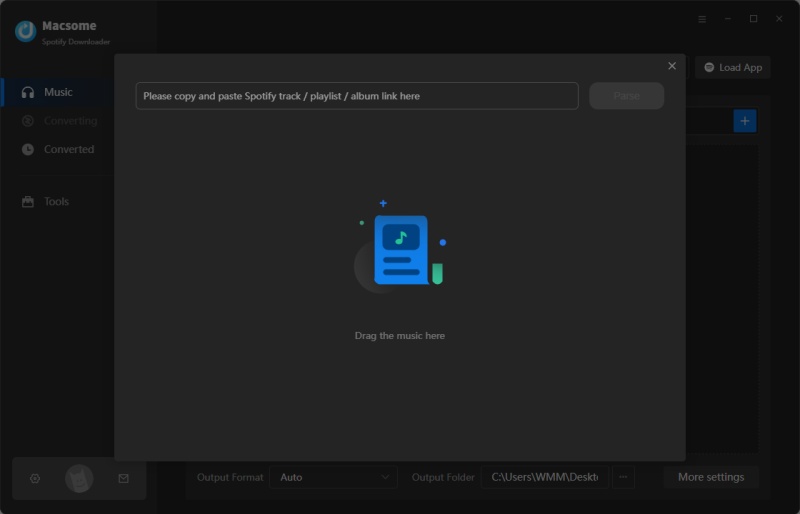
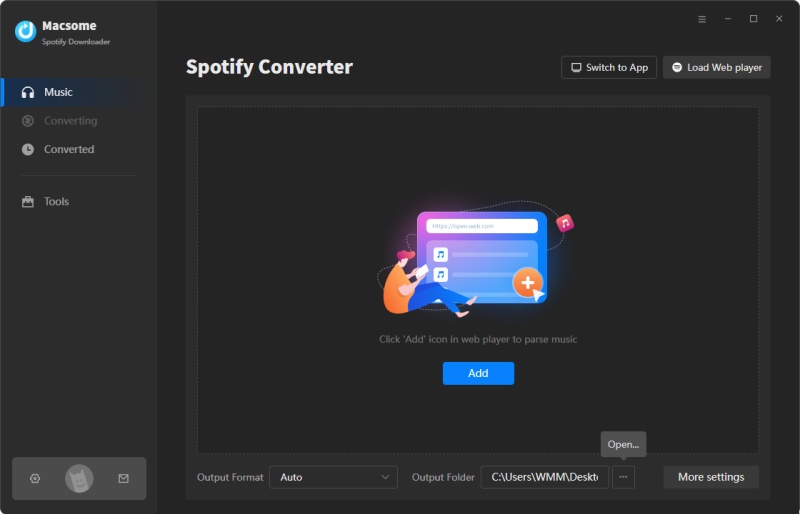
Step 2. Add Spotify Music and Playlist to Macsome.
You can copy and paste the link of Spotify songs to the program. Besides, you can also drag and drop the Spotify songs or playlist to the main panel.
Add Spotify songs to convert
Step 3. Set Output Format and Output Path.
Press the Settings button, you can set the output format, output quality, output folder and other parameters according to your own needs.
set mp3 as output format
Step 4. Start to Convert Spotify Music Process.
In the end, hit the "Convert" button, you will find the Spotify music conversion process will begin automatically.
start downloading Spotify music
After the conversion is finished, you will find the converted Spotify songs in the output folder you set before.
Step 5. Set the Spotify Music as Ringtone for Your Phone.
1. For Android users: First, copy the converted Spotify music to your Android. Go to Settings - Sound - Device ringtone, you will see a list of the ringtones available on your device. Select the converted Spotify songs and press OK to save the selection.
This image has an empty alt attribute; its file name is android-ringtone.jpg
2. For iPhone users: On your PC, you can import the converted Spotify songs to iTunes, and then cut it to the maximum of 40 seconds long. Then go up to File at the top of the screen and select Convert - Create AAC version. And change the extension to .m4r. Return to iTunes and delete the short version of the track. Drag it to iTunes and you will find it on the Tones panel.
This image has an empty alt attribute; its file name is set-music-as_iphone_ringtone.jpg
Connect your iPhone to iTunes, you can sync the tone to your iPhone. Once inside, click Sync Tones - Selected tones, then the track you've created. Finally go to the bottom right hand corner and click Apply.

CONCLUSION

With Macsome Spotify Downloader, you can make Spotify song as Ringtone for your phone easily. What's more, it is also an all-in-one Spotify Music Converter, which can convert Spotify music to other common audio formats like MP3. In this way, you can transfer music from Spotify to other programs or devices.
What are you waiting for? Now you can download it and have a free trial https://macsome.com/macsome-spotify-downloader.exe