Showing posts with label apple music drm removal. Show all posts

Friday, November 16, 2018

How to backup Apple Music to SD card

Just imagine that you want to stop your Apple Music subscription, and once you stop the subscription, you can't play them any more, even you think that you have downloaded them and still can play and enjoy them after you cancel the subscription.
If you can backup these Apple Music files, you can still play Apple Music songs normally, after you stop the Apple Music subscription and you can play these Apple Music songs on any audio player devices, not only Apple Music Apps and Apple devices.
If we can remove DRM from Apple Music files and then transfer the converted Apple Music files to SD card, and then you can play them anywhere you like.
In the following, we will show you how to backup Apple Music files to SD card, so you can play these converted files via SD card freely.

Remove DRM from Apple Music and backup to SD card

To deal with DRM well, we need Macsome iTunes Converter  for help, which is an all-in-one tool to convert downloaded Apple Music files, and purchased Audiobooks and remove DRM from these protected Audiobooks and downloaded Apple Music files with fast conversion speed and excellent output quality.
In order to start conversion, users need to free download Macsome iTunes Converter at first.
Windows Version Download
Mac Version Download
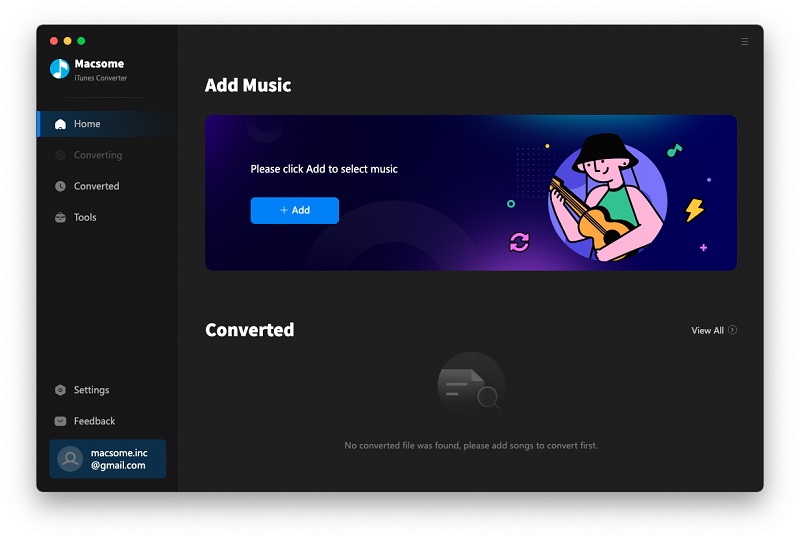
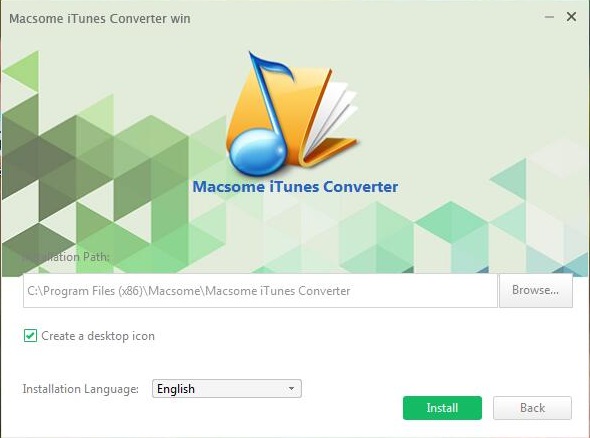
Step 1, After you download the program, double click to install the latest version of Apple Music Converter on your PC, and then run it.
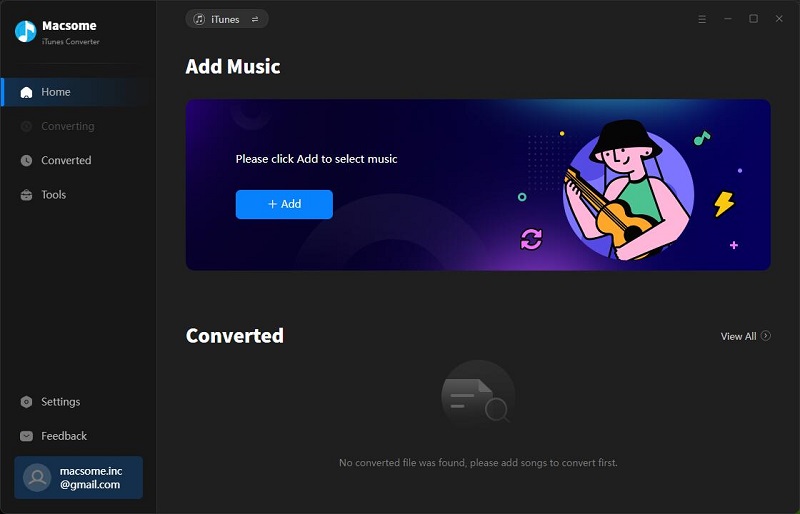
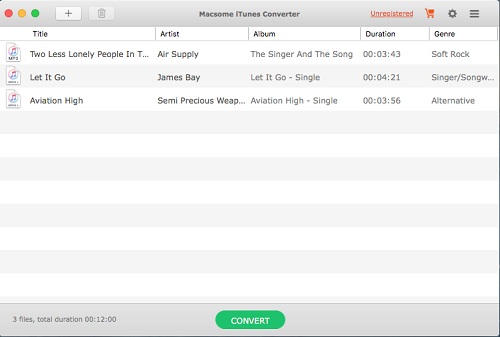
User Interface
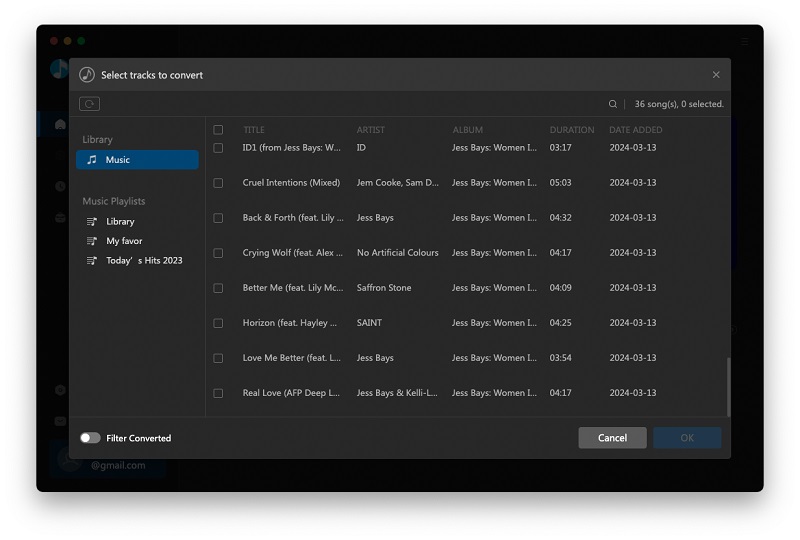
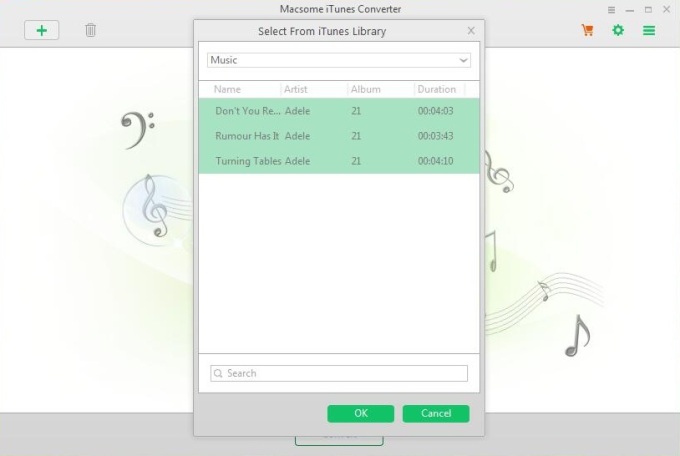
Step 2, click the Add button and select the audio files you want to convert from iTunes library.
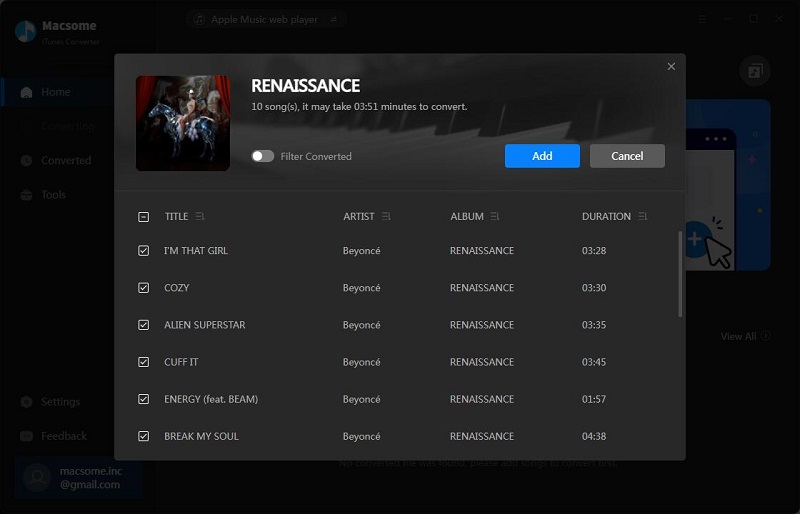
Add Downloaded Apple Music
After you choose the music files you would like to convert, click "OK", and then all the audio tracks files you selected would be listed on the main window.
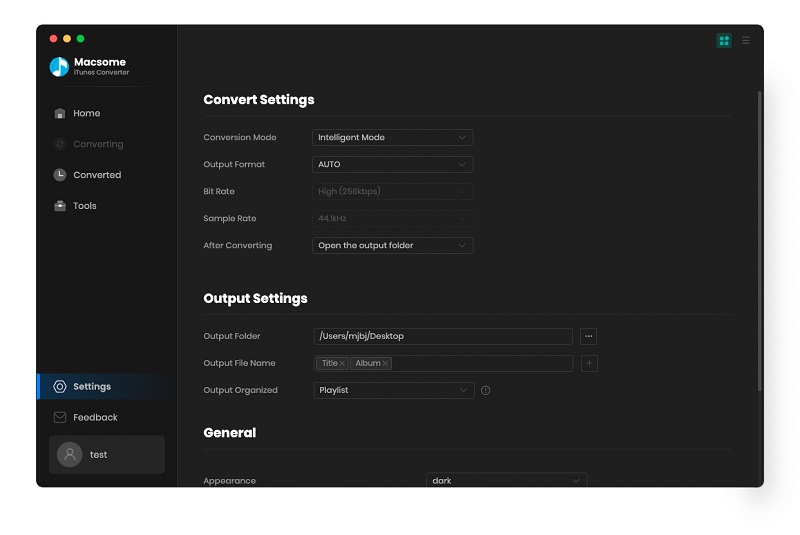
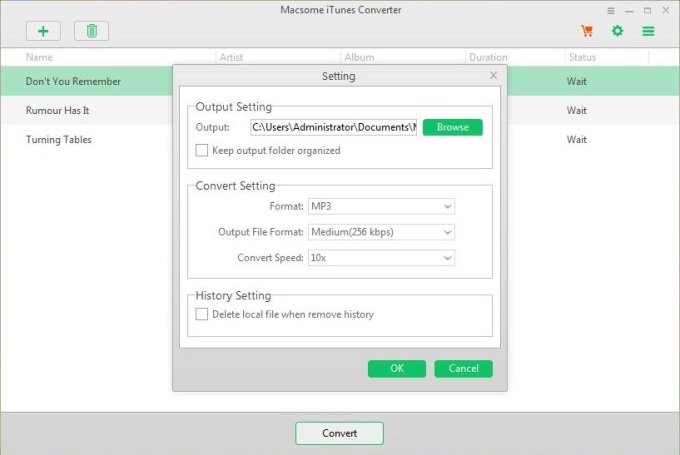
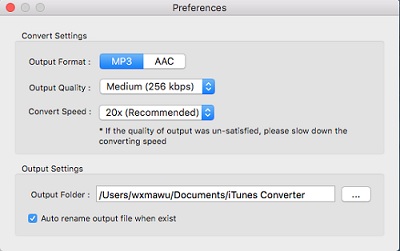
Step 3, Set the output format by clicking the Setting icon, here we choose MP3 format.
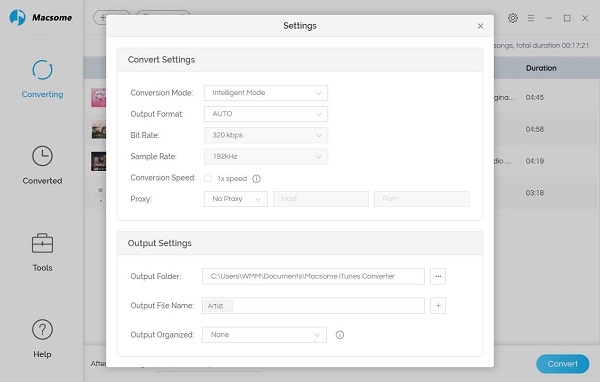
Set MP3 as the output format
Besides MP3 output format, it also supports AAC, FLAC and WAV output formats. You can also reset the output path and organize the output files by Artist, Album, Artist / Album, Album / Artist as you need.
You can also add a track number for the output files, so that you can manage the output files better.
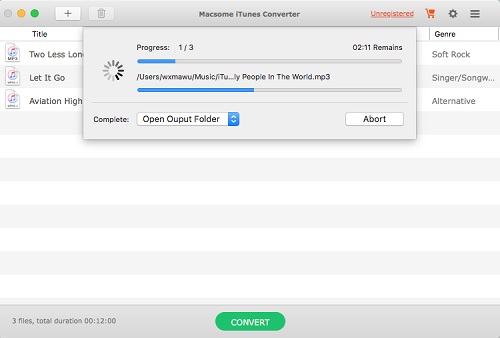
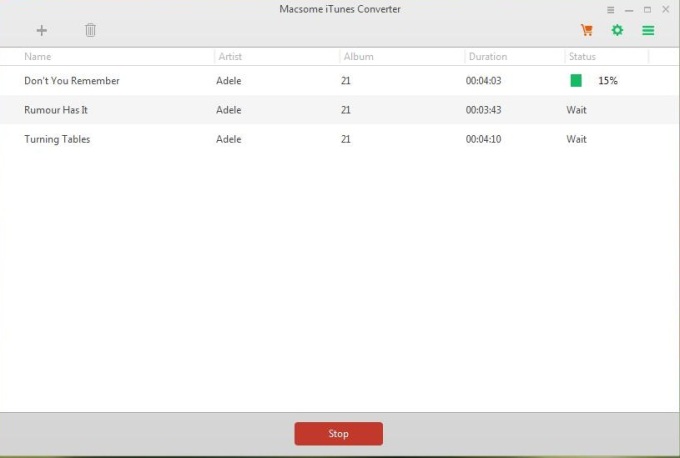
Step 4, click the Convert button to start converting.
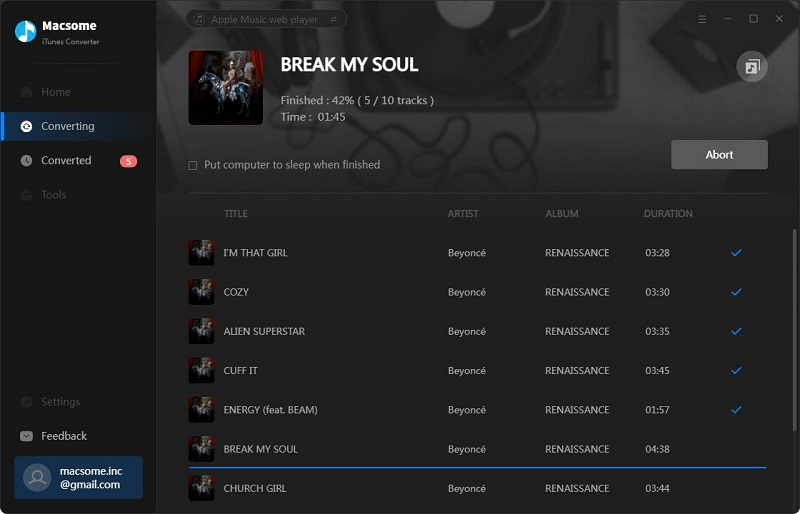
Convert M4P to MP3
Just wait a minute, after the conversion, you get the unprotected MP3 music files from protected Apple Music files.
Now Connect your SD to your computer with a card reader, find the converted files and drag them to your SD card.
After this, you have backup your whole converted Apple Music files to SD card, and then you can play them via SD card freely.
More Apple Music Converter Tips:

Monday, November 5, 2018

Tips to share Apple Music Playlist with your friends

dims
Any streaming music you've added to your library from the Apple Music catalog are DRM protected, to say in other words, you can play, listen to and enjoy these music files and download as well during your subscription. However you can’t backup, copy, move or share with others directly.
If you still want to know how to share Apple Music Playlist with your friends, removing DRM from the Apple Music is the final solution.
What you need to do is free download one Apple Music DRM removal, Macsome iTunes Converter is the tool used to decrypt DRM from Apple Music and convert Apple Music files to MP3, AAC, FLAC and WAV with fast conversion speed and perfect output quality.
Now follow the next guide to remove Apple Music's DRM and then share with your friends.

Fast guide to remove Apple Music's DRM and convert to MP3

First of all please go to free download the latest version of Macsome iTunes Converter for Windows, and follow the next instructions, and finish the conversion.
Windows Version Download
Mac Version Download
Step 1, Please install the latest version of iTunes Music Converter on your PC, and then run it.
User Interface
Step 2, click the Add button, now you can choose the total playlist you wan to share with your friends.
Load Downloaded Apple Music
After you load all the music songs you want to convert, click "OK", and then all the audio tracks files you selected would be listed on the main window.
Step 3, Set the output format by clicking the Setting icon.
Macsome iTunes Music Converter offers users 4 choices including MP3, AAC, FLAC and WAV formats for you to choose. According to the requirements, here we choose MP3 audio format as the output formats.
Set MP3 as the output format
Step 4, click the Convert button to start converting.
Convert M4P to MP3
After the conversion, the whole Apple Music playlist's DRM has been removed, and the you can copy or unpacked the converted files to your friends.
More related you want to read:

Monday, May 14, 2018

Yes, you can Stream Apple Music to Amazon Echo

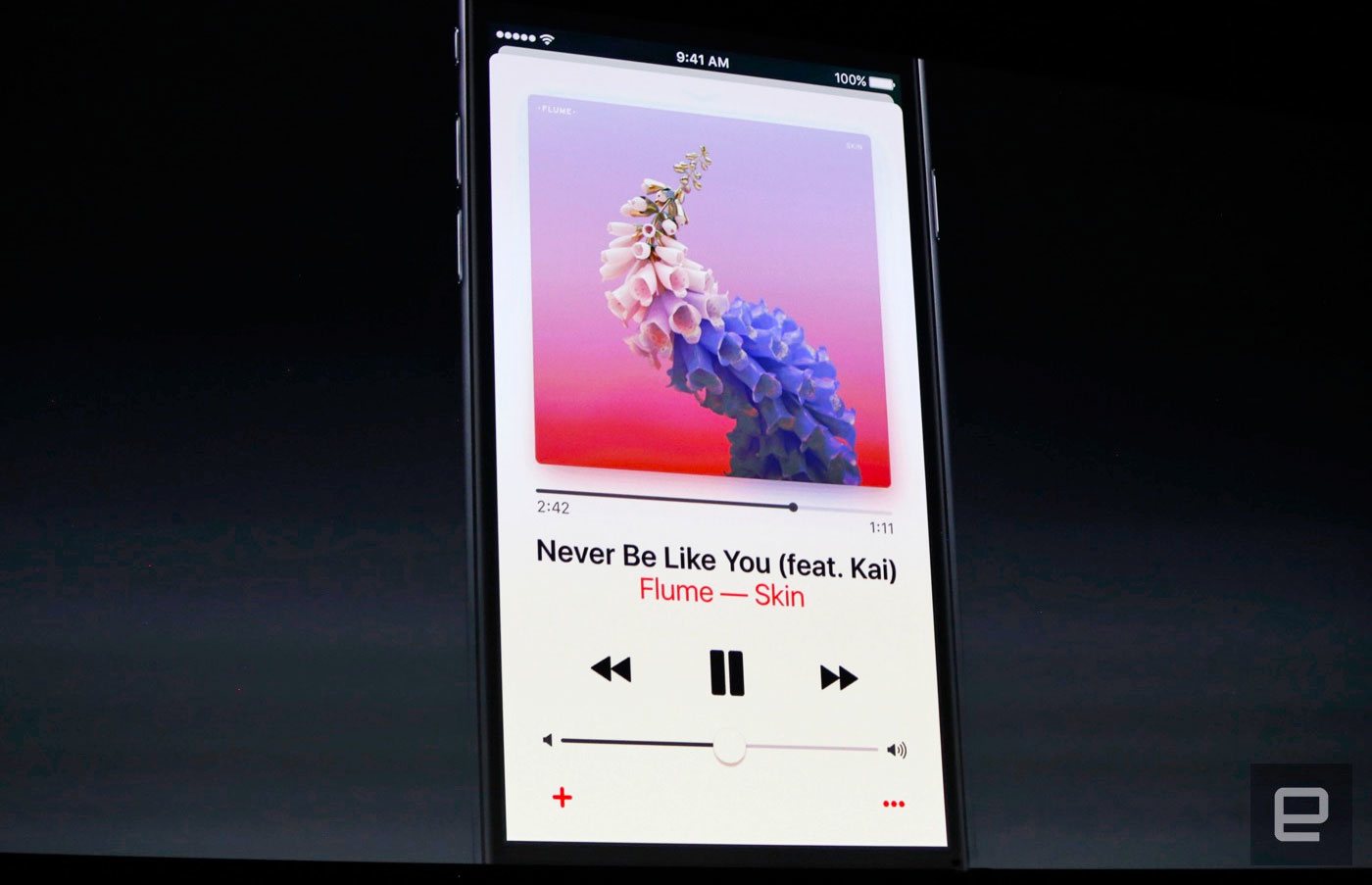
Apple has its online music streaming service - Apple Music, and Amazon has its own online music streaming service - Amazon Music unlimited. Generally speaking, if you have most Apple products, you will choose Apple Music, or else you will choose other corresponding music streaming service.
You may encounter with the situation that: you have purchased an Amazon Echo, but you are an Apple Music subscriber, how to stream Apple on Amazon Echo easily?
Stream Apple Music to Amazon Echo

Generally speaking, if users want to use Alexa voice control to control Amazon Echo to play Apple Music, this is impossible and unrealizable, you know that Apple Music is not the built-in App of Amazon Echo. If you want to play Apple Music on Amazon Echo with your iPhone or other device which supports Apple Music App, just follow the Method 1. Or else, if you want to upload Apple Music to Amazon so as to use lexa voice control to play the music files, follow the Method 2.

Method 1: Stream Apple Music on Amazon Echo via Bluetooth

Yes, this method is very simple, what you need is just one setting steps. However this needs your devices which supports Apple Music playing working as well.
In the next example, we take iPhone setting as an example.
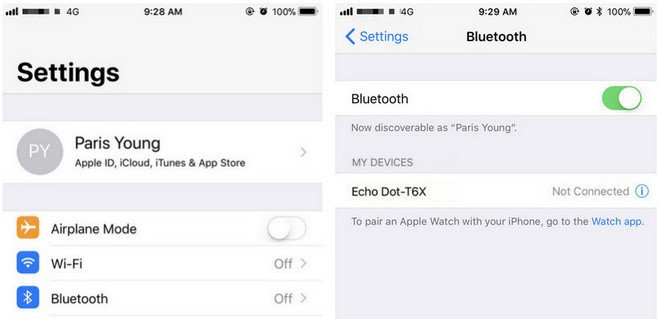
Click Settings icon > tap on Bluetooth. Then you will see Amazon Echo device after searching and just pair it with iPhone.
Open Bluetooth on iPhone

Method 2: Upload your downloaded Apple Music to Amazon so as to play them directly

Apple Music supports streaming music like Amazon Music Unlimited, which are DRM protected. That is to say, you can't freely transfer them to other audio players even you have "downloaded" for playing offline
Similarly, you can't upload these downloaded Apple Music songs to Amazon as well. If you can remove the annoying DRM, and then you can upload them to Amazon without limitation any longer.
Macsome iTunes Converter is the tool which you are looking for. It supports an ideal solution for converting protected iTunes Audio files, including downloaded Apple Music files, and purchased music and Audiobooks from Audible.com and so on.
First of all, free download the Apple Music files you want.
Open your iTunes, and find your whole Apple Music category. And then select the Apple Music files, click "..." to add them to "Playlist". After this, you can choose the Playlist and click the cloud icon to download it to play offline.
Second, free download the latest version of Macsome Apple Music Converter, install and run it.
Windows Version Download
Mac Version Download
Third, when you click "+" button, all the music files including the downloaded Apple Music files will be listed, now select them and click "OK", and all the music files has been added. Batch conversion is also supported.

Forth, after you add these music files, now you can click the setting icon to set the output format and output folder. Here are MP3, AAC, FLAC, WAV for kinds of users.
Fifth, you can click "CONVERT" button and start conversion.

Upload the Converted Apple Music Songs to Amazon

After the conversion, you can upload the converted Apple Music songs to My Music on Amazon from your computer. And then you can control the music playing via your Alexa device.
Amazon.inc supports free users up to 250 songs storage to My Music.
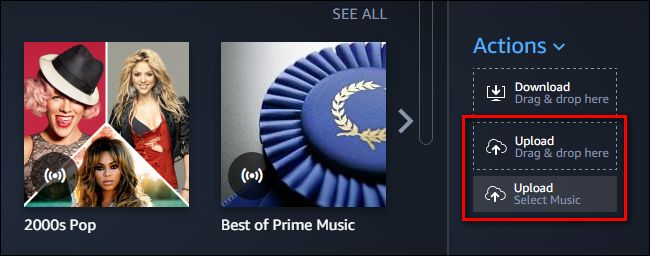
Now Run Amazon Music app on your PC or Mac and log in your ID, then drag and drop files from your computer into the Upload selection in the right sidebar under Actions.
Upload Apple Music to Amazon music
And then Select My Music > Songs > choose Offline filter in the right navigation sidebar and click the upload icon to choose the converted Apple Music files or folder to upload. And now you can start uploading.
Upload music to Amazon
After the above steps, you can use Alexa to play these songs on your Amazon Echo and so on.
More you want to visit:

Tuesday, April 3, 2018

How to stream Apple Music on PS4

If you have subscribed Apple Music, and listen to it very easily on the product Apple Music supported. However, PS4 doesn't support Apple Music service.
In order to play the streaming Music on PS4, the FairPlay DRM of Apple Music is needed to be removed. Moreover, you need to convert the downloaded Apple Music to MP3, AAC and so on audio formats to a USB flash drive and then transfer to PS4.
To solve the problem better, you need ask Macsome iTunes Converter for help, which not only converts iTunes Music library files, it also supports converting purchased Audiobooks and subscribed and downloaded Apple Music files and so on.
Before you get started, please make sure all of the Apple Music files you want to convert have been downloaded. First of all, free download the trial version of iTunes Converter. After the downloading, follow the instruction to finish the conversion.
Windows Version Download
Mac Version Download
Step 1: Install and launch iTunes Converter on your Mac.
Interface of Macsome iTunes Converter
Step 2: Click Add button, and then choose the music files from the Music library, and click OK, and then all files are import.
Add audio files
Step 3: Click the setting icon to set the output format.
Convert Apple Music to MP3
Step 4: Click CONVERT button to start Apple Music to MP3 conversion.
Once the conversion process is completed, connect USB drive with your computer. And you can drag and drop the converted iTunes music files to the USB. Plug the USB into your PS4, you can play Apple music on Sony PS4 on the go.

Thursday, February 9, 2017

One of the best Solution to play Apple Music on iPod Nano / Shuffle

It is it, you can't play Apple Music on iPod Nano or iPod Shuffle, for Apple Music is a streaming music service, even you have subscribed Apple Music. 
Here we talk about one method to convert Apple Music to iPod Nano or Shuffle audio format, and then you can transfer or sync them to iPod through iTunes.
First you need to free download Apple Music Converter (Mac Version and Windows Version) on your computer.
Second, Double click to install the Apple Music Converter, and run it. Here we take the Mac version for example.
Third, click the Add button, and then choose the downloaded Apple Music files to the filelist to convert.
And select the file you want to convert, click OK, and then all files you selected will be listed on the main window.
Moreover, click Setting button to set the output format and output path before the conversion as your need.
Finally, click the Convert button to start converting.
After the conversion, you can find the converted files through show in the Finder, and then use iTunes to sync the converted music files to your iPod Nano or Shuffle as you like.

You May also like to read:

Friday, July 22, 2016

Good news for Apple Music subscribers: Apple Music will no longer add DRM to songs you upload to the cloud

Good news for Apple Music subscribers:
Apple Music will no longer add DRM to songs you upload to the cloud
Streaming-Service Apple Music
Not only is the matching algorithm now better (matching from audio fingerprints instead of metadata), tracks you upload to iTunes from Apple Music will no longer have DRM.
In other words, it will now work exactly the same way as the existing iTunes Match feature.
When Apple Music debuted last year, one of the benefits of the service was that any music already in your iTunes library that you didn’t buy from Apple could be uploaded to the cloud for access later.
Apple would simply match the tracks it could in its library (Amazon and Google both offer similar services). The problem – and what made Apple Music’s matching different from iTunes Match – was that it would attach DRM to any of those uploads.
That might be OK if you stay an Apple Music subscriber forever. (Actually, no, I take that back. It’s never OK to put DRM on non-DRM content that you upload to the cloud.) But it presents problems if you cancel the service because any tracks you download back to your computer now have DRM on them.
The music songs downloaded from Apple Music can only work during the time you subscribe the Apple Music. After you cancel the Apple Music subscription, even you have downloaded the music songs, you can’t play them because of the DRM.
And if you have some downloaded Apple Music files, how to break the DRM from Apple Music software?
First, go to download and install the iTunes Converter on your computer, run it.
If you are a Windows user, view http://macsome.com/MacsomeIC.exe
If you are a Mac user, please download the iTunes Converter for Mac version.
 install1
Second, click the button Add, you can choose the different iTunes library to add the audio files to convert.
2
And select the file you want to convert, click OK, and then all files you selected will be listed on the main window.
Third, click Setting button to set the output format and output path before the conversion as your need.
3
Finally, click the Convert button to start converting.
6
 After the conversion, all the Apple Music songs have been removed DRM

Wednesday, March 23, 2016

How to play sports music of Apple Music on MP3 player
Why we need sports
music-running
Physical exercise is good for mind, body and spirit. Furthermore, team sports are good for learning accountability, dedication, and leadership, among many other traits. Putting it all together by playing a sport is a winning combination.
When you playing a sport,
  • Many athletes do better academically. 
  • Sports teach teamwork and help achieve goals. 
  • Sports offer many health benefits, some less obvious. 
  • Sports boost self-esteem. 
  • Playing a sport cuts down on pressure and stress. 
For all of these reasons, it is always a great decision to get involved in the sports arena.

About Sports Music of Apple Music

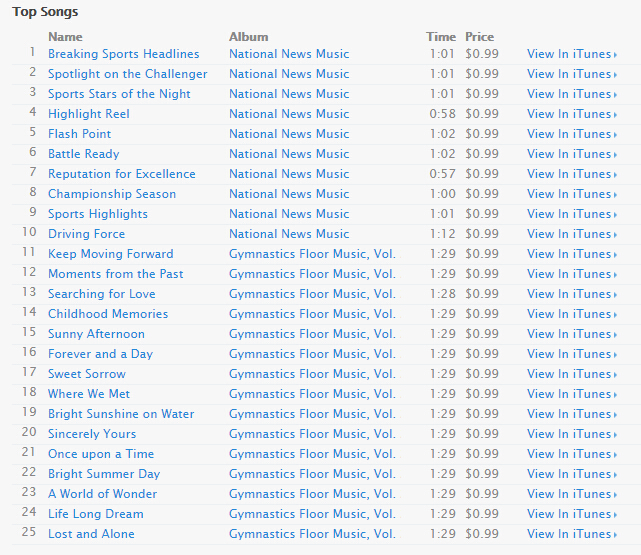
We all know that, listening to music when you hit the gym may improve your workout. There are various sports music songs on Apple Music.
Music For Sports on iTunes Store
top1
If you don’t want to play them on Apple products and you really like the Sport music playlist on your Apple Music, how to do?
The Apple Music Converter for Mac / Win comes to help you. With its help, you can convert all the Apple Music file to MP3 format and remove the DRM from Apple Music. The only condition is that you need to download them from iCloud before your conversion.

Quick guide to convert Sports music of Apple Music files from M4P to MP3.

Step 1: Install Macsome iTunes Converter and run it.
Tips: Download iTunesConverter.dmg by clicking http://www.macsome.com/iTunesConverter.dmg.
Step 2. Load Apple Music files to convert.
Click Add button and choose the Music library and add the files you want to convert.
add
Step 3. Click Macsome iTunes Converter Menu, and in the drop-down list, choose Preferences, turn to Advanced to set the output format.
preference
Step 4: Click Convert button to start converting Sports music to MP3 format.
convert

After the conversion process is finished, you can play the converted Sport MP3 music files anywhere and anytime as you like.
(Tips: If you are interested in DRM Media Converter for iTunes movies, You can take a try M4V Converter Plus )

Tuesday, August 18, 2015

How to unlock Apple Music’s DRM

Someone said when they import their CD music songs to Apple Music, and they are yet limited by DRM.
“What a pity! I have purchased the music songs, now I can’t make full use of my own music songs?”
Let us find the solution to remove DRM from Apple Music.
First of all, you need go to download a DRM removal tool – Macsome iTunes Converter (http://www.macsome.com/itunes-converter-mac/index.html), which is also a powerful Apple Music Converter to convert any Apple Music to MP3 / AAC, and remove DRM from protected Apple Music.
Step-by-step guide to unlock DRM from Apple Music with iTunes Converter.
Step 1: Install Macsome iTunes Converter and run it.
Step 2. Load Apple Music files to convert.
Click Add button and choose the Music library and add the files you want to convert.
Add files to convert
Step 3. Click Macsome iTunes Converter Menu, and in the drop-down list, choose Preferences, turn to Advanced to set the output format.
Set output format of Apple Music
Step 4: Click Convert button to start removing DRM from Apple Music.
 Remove DRM from Apple Music

After conversion, all the DRM limitations of Apple Music files can be removed. And you can enjoy the converted Apple Music files without any limitations any more.
Warning: Macsome iTunes Converter is a shareware, which supports a trial version, which can only convert 3 minutes each file. If you want to remove the limitation, purchase a full version of Macsome iTunes Converter.