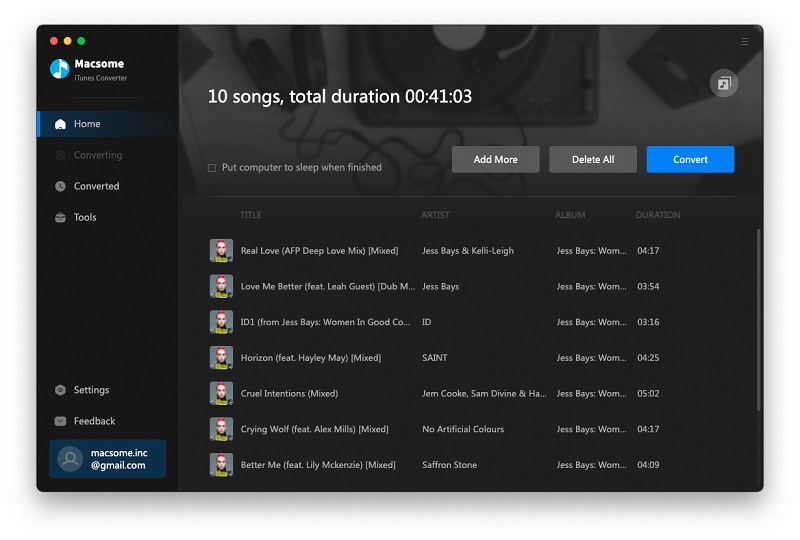
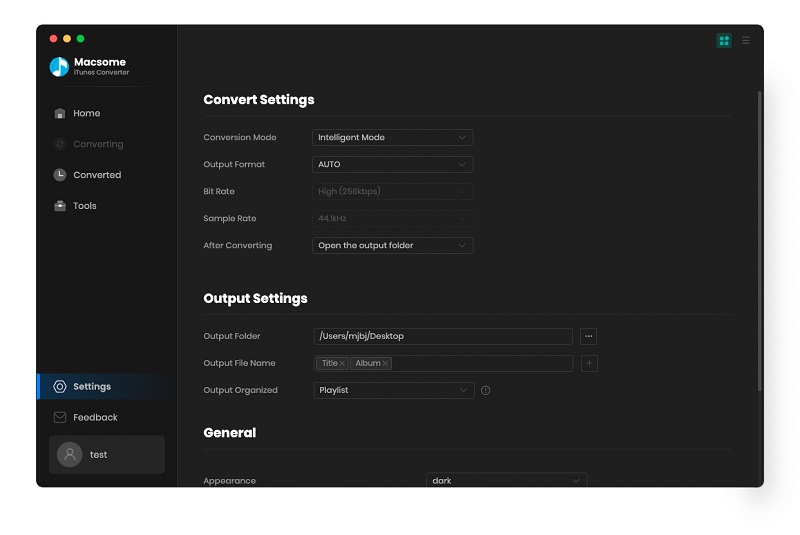
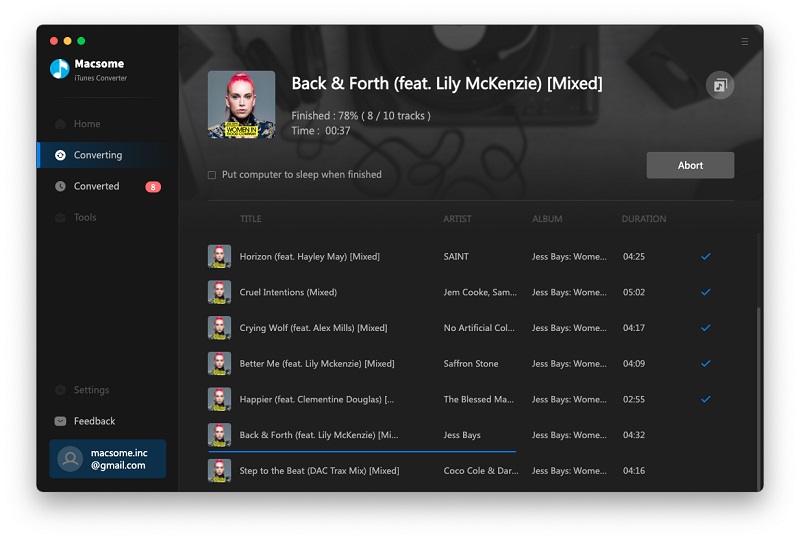
Showing posts with label apple music converter. Show all posts

Thursday, November 16, 2023

Macsome Launches Super Black Friday Campaign - Save up to $60 OFF

Macsome Inc. has recently released a big Black Friday Campaign. Users can save up to $60 on Macsome’s products. The event will be concluded on Nov. 30, 2023. Don't miss out on the year's biggest promotion. 

Macsome Inc., an industry-leading software developer, has launched its Black Fridaybig sales event. During this promotion, users can enjoy at up to 25% off discount for Macsome’s yearly subscriptions, save up to $40 off on Macsome’s lifetime version, and up to $60 off for all-in-one music downloader - Music One. 

Starting from November 16, Macsome Black Friday & Cyber Monday sale is in progress. Here is the landing page for this campaign:


Macsome 2023 Black Friday Sales Quick Overview

  • Macsome is offering up to 25% off on their yearly subscription streaming music conversion tools for Black Friday (original price: $59.95, now: $44.95, Coupon code: 2023-MS-15Y-B5) , including Macsome Spotify Downloader, Macsome Apple Music Converter, Macsome YouTube Music Downloader, Macsome Amazon Music Downloader, Macsome Deezer Music Converter, and Macsome Tidal Music Downloaders.
  • Macsome is offering up to $40 off on their lifetime version of music downloading software (original price: $129.90, now: $89.90, Coupon code: 2023-MS-40L-B5), allowing you to download music from Spotify, Apple Music, YouTube Music, Amazon Music, Tidal, or Deezer without any limitations.
  • Users can also get an All-in-one Music Downloader at up to $60 off. This Music One program can let you download music from Spotify, Apple Music, Amazon Music, Tidal, Deezer, YouTube Music, Line Music, and Pandora Music. Besides, it also lets you record audio files from popular sites, such as YouTube, Dailymotion, Veoh, Vimeo, SoundCloud, etc. This product with an intuitive interface that's perfect for beginners and professionals alike.
 
A brief introduction to the product featured in the promotion of Macsome

Spotify Music Downloader - Download Spotify music songs, playlists, albums, and podcasts to MP3, AAC, WAV, FLAC, AIFF, and ALAC.


Apple Music Converter - Convert Apple Music, iTunes purchased songs, and iTunes/ Audible audiobooks to MP3, AAC, WAV, FLAC, AIFF, and ALAC.

YouTube Music Converter - Available for both YouTube Free and Premium users to download YouTube Music to MP3, AAC, WAV, FLAC, AIFF, and ALAC.

Deezer Music Converter - Convert Deezer Music to MP3, AAC, etc with Hi-Fi audio quality.

Pandora Music Converter - Download Pandora Music songs, albums, playlists, and podcasts to MP3, AAC, WAV, FLAC, etc.

Tidal Music Downloader - Download music from Tidal to MP3, AAC, WAV, FLAC, AIFF, and ALAC with high output quality.

Amazon Music Downloader - Download Amazon Songs to MP3, AAC, WAV, FLAC, AIFF, and ALAC with ID3 tags.

"To shows our sincere gratitude to all customers, we have offered the biggest discounts during the Black Friday Campaign, and this would be the lowest price of the year," said Leo Fan, marketing manager of Macsome.

For more details about Macsome Black Friday sales, please visit the official promotion page from: https://www.macsome.com/promotion/2023-black-friday-sales/

Pricing and Availability

This promotion is valid until November 30th, 2023. Anyone who visits Macsome official website can enjoy this special discount. Now you can get Annual Plan for Macsome at up to 25% off. This plan now costs $44.95 (original price: $59.95) per year, and save up to $40 on Macsome lifetime versions, giving you access to all the features and updates of Macsome.

For more promotion information, please go to:

https://www.macsome.com/promotion/2023-black-friday-sales/

About Macsome Inc
Macsome Inc is a software development company that was established in 2008. It is devoted to providing ultimate multimedia solutions to customers worldwide. Main products include Spotify Downloader, Apple Music Converter, YouTube Music Downloader, Amazon Music Downloader, Tidal Music Downloader, Deezer Music Converter, Pandora Music Downloader, and the new upgrade of Audible Audiobook Converter. 

Press Contact

Name: Leo Fan

Email: market@macsome.com

Website: https://www.macsome.com

Facebook: https://www.facebook.com/MacsomeOfficial

Black Friday Promotion page: https://www.macsome.com/promotion/2023-black-friday-sales/

Tuesday, November 27, 2018

How to cast Apple Music to Chromecast Audio

33323
Apple Music is a streaming Music service, and all the Apple Music files are DRM protected. After you have Apple Music's subscription, you can play, enjoy and download these music tracks with the Apple account, but you can't transfer them or copy them to other non-Apple Music player and devices.
If you are Apple Music subscribers and want to cast apple music to Chromecast Audio, what to do?
Macsome Apple Music Converter is a perfect utility to decrypt DRM from Apple Music songs or playlists legally, and convert Apple Music songs to unprotected audio files like MP3, M4A, M4B, FLAC, or WAV losslessly, so you can easily cast the converted Apple Music songs to Chromecast Audio.

Remove DRM from Apple Music so as to stream on Chromecast Audio.

To convert Apple Music songs well, users need to free download Macsome iTunes Converter at first.
Windows Version Download
Mac Version Download
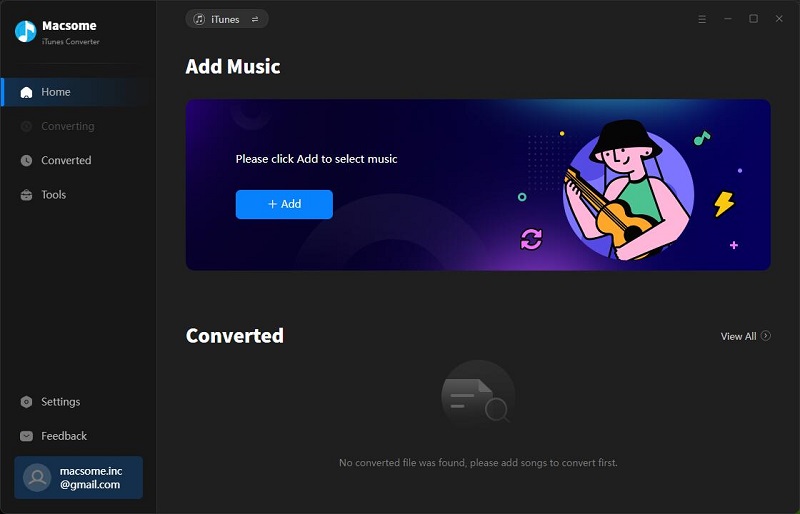
Step 1, After you download the program, double click to install the trial version of Apple Music Converter on your PC, and then run it.
User Interface
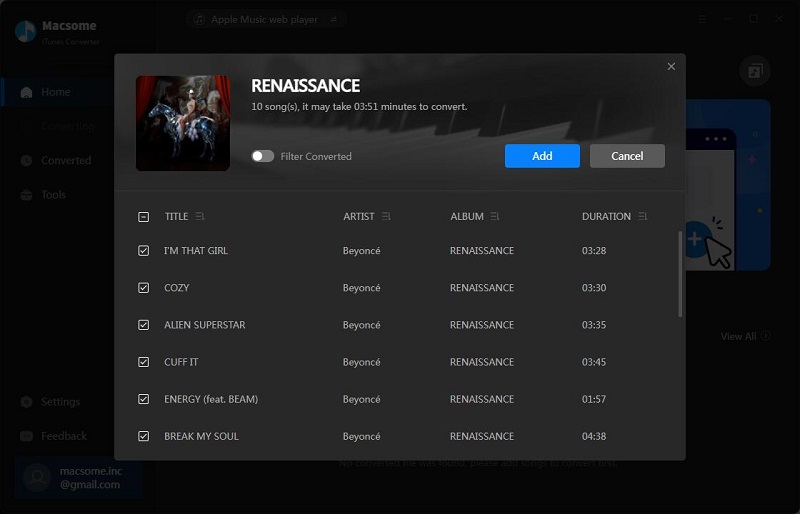
Step 2, click the Add button and select the audio files you want to convert from iTunes library.
Add Downloaded Apple Music
After you choose the music files you would like to convert, click "OK", and then all the audio tracks files you selected would be listed on the main window.
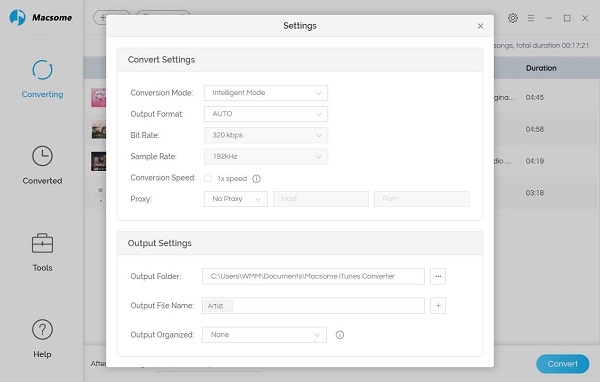
Step 3, Set the output format by clicking the Setting icon, here we choose MP3 format. After iTunes Converter V3.0.0, the default conversion speed is super fast. There is no need to set the conversion speed.
Set MP3 as the output format
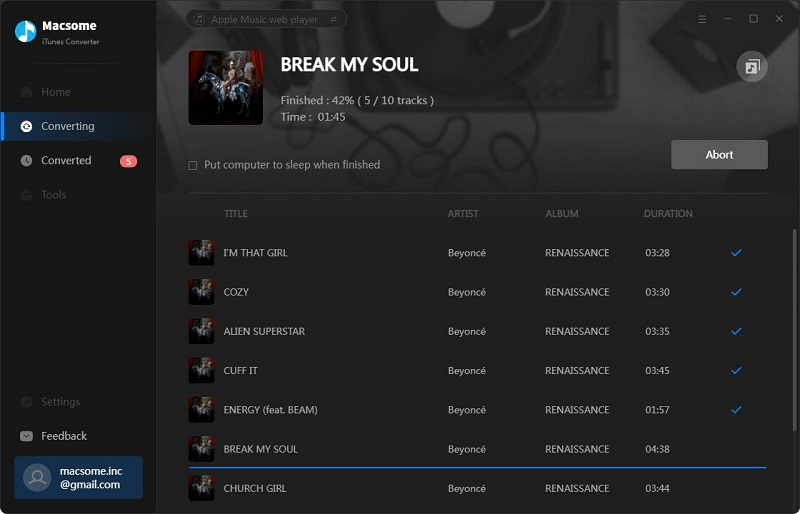
Step 4, click the Convert button to start converting.
Convert M4P to MP3
After the conversion, you get the unprotected MP3 music files from protected Apple Music files.
Step 5. Upload the converted songs to Google Play music or Plex, and then use Chromecast Audio streaming them.
All the process is very simple, even you are a new user, you can easily use the program to convert your audio files quickly. Why not free download it and take a try.
More Apple Music Tips & Guides:

Tuesday, October 9, 2018

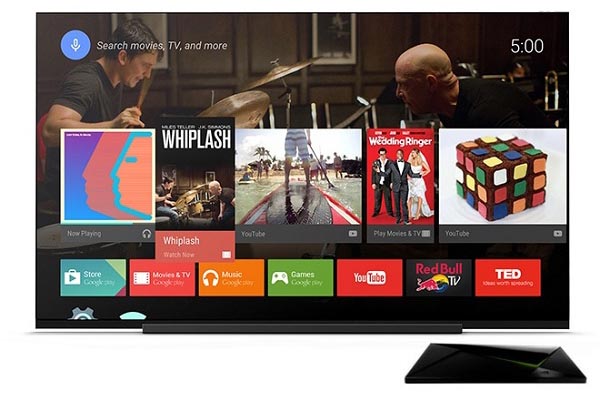
Useful solutions to play Apple Music on Android TV

Play Apple Music on Andriod TV
Android TV is different from Apple TV, which is a version of the Android operating system designed for digital media players.
Android TV supports streaming videos from the hot online video websites like Netflix, YouTube, and BBC iPlayer. It also supports streaming music via Spotify, Google Play Music, Pandora, and your local music files.
If you are an Apple Music subscriber, you will get troublesome. Apple Music is not the built-in App on Android TV, and you can't air the Apple Music contents from iPhone to Android TV as well.

You can't play Apple Music on Android TV, why?

So "I can't play Apple Music on Android TV, how to fix", the problem comes out. To help users to play Apple Music on Android TV successfully, users need to know why you move Apple Music playlist to Android TV at first.
First, you know that Android TV doesn't built-in Apple Music App.
Second, all the Apple Music songs, even you have downloaded them so as to play offline, you can’t move or copy or transfer them, because they are DRM protected.
If you want to transfer Apple Music files to Android TV, you need to remove DRM first and then load the converted Apple Music files to Android TV with USB drive, or you can upload to Google Play Music.

Part 1 Decrypt DRM from Apple Music

To simplify the procedure, we ask Macsome iTunes Converter to help us, which is designed to convert Apple Music songs and other DRM protected iTunes Audio files to MP3, AAC, WAV or FLAC with fast conversion speed and wonderful output quality. Meanwhile 100% original audio quality and ID3 tags will be preserved.
Step 1. free download the latest version of iTunes Music Converter, install and run it.
Windows Version Download
Mac Version Download
Please make sure that you have downloaded the Apple Music files which you want to convert, and they can work normally on your iTunes.
Step 2. Click "+" to import the downloaded Apple Music files.
Add downloaded Apple Music songs
Step 3. Click the setting icon to set the output format and output folder. If it is necessary, you can also reset the related audio parameters.
Preferences output Settings
Now the output formats include MP3, AAC, FLAC and WAV, you can just to choose a suitable one and set the other parameters according to your need.
Step 4. Click the "CONVERT" button to start your iTunes music converting.
Converting Apple Music songs to MP3

Part 2: Transfer Apple Music to Android TV

Method 1. Transfer Apple Music to Android TV with USB drive
After you remove DRM from Apple Music files, now you get the unprotected music files and you can transfer them to your USB drive, and then plug the USB drive to Android TV via USB cable. Now you can start to navigate the Apple Music and choose a music player for playback on you Android TV.
Method 2. Upload Apple Music to Google Play Music and then play on Android TV
Step 1: Install Google Play Music web player (click control panel on chrome > More tools > Extensions > add Google Play Music) on your Google Chrome.
Step 2: Go to the web player and click the menu bar > select Upload music.
Step 3: Choose the converted Apple Music from local drive or drag & drop files.
Step 4: Launch Google Play Music on your TV and click Setting button > Select your account > choose Sync to sync the Apple Music on TV.
You can choose one method as you like. After this step, you can enjoy the Apple Music on Android TV with ease. Now try to do this by yourself.
Source from https://www.macsome.com/guide/howto-play-apple-music-on-android-tv.html
More Related Tips:

Tuesday, August 28, 2018

How to backup Apple Music to USB

Nowadays USB flash drive gets more and more popular. They are smaller, faster, have thousands of times more capacity, and are more durable and reliable because they have no moving parts.
Here we take transferring Apple Music to USB and play them on PS4 via USB for example to show you step by step.
To transfer Apple Music to the USB flash drive, you need to remove the Apple Music's DRM and convert them to MP3, AAC and other audio format as you need, and then transfer Apple Music to USB flash drive.

Steps to remove DRM from Apple Music and transfer to your USB

To complete this quickly and easily, here recommend you Macsome iTunes Converter, which supports all-in-one solution to remove the FairPlay DRM and convert to unprotected MP3 or AAC format.

Main functions of iTunes Converter

  • Record Apple Music streams with super fast speed and 100% lossless quality
  • Remove DRM from Apple Music.
  • Up to 20X speed to convert kinds of music files with ID tags and all metadatas.
  • Convert iTunes & Audible audiobooks & protected M4P, M4A, M4B music files to MP3 / AAC / WAV.
Windows Version Download
Mac Version Download
Step 1: Click the above download button to get the trail version, install and run it.

Step 2. Click Add button to import the files from Music library of iTunes.

Step 3. Click the setting icon to set the output audio format.

Step 4. Click CONVERT button and start conversion.

Step 5. Go to find the convertes files and drag-and-drop to your USB, and then you can play these music files via USB wherever you like.
More Apple Music Tips:

Monday, May 14, 2018

Yes, you can Stream Apple Music to Amazon Echo

Apple has its online music streaming service - Apple Music, and Amazon has its own online music streaming service - Amazon Music unlimited. Generally speaking, if you have most Apple products, you will choose Apple Music, or else you will choose other corresponding music streaming service.
You may encounter with the situation that: you have purchased an Amazon Echo, but you are an Apple Music subscriber, how to stream Apple on Amazon Echo easily?
Stream Apple Music to Amazon Echo

Generally speaking, if users want to use Alexa voice control to control Amazon Echo to play Apple Music, this is impossible and unrealizable, you know that Apple Music is not the built-in App of Amazon Echo. If you want to play Apple Music on Amazon Echo with your iPhone or other device which supports Apple Music App, just follow the Method 1. Or else, if you want to upload Apple Music to Amazon so as to use lexa voice control to play the music files, follow the Method 2.

Method 1: Stream Apple Music on Amazon Echo via Bluetooth

Yes, this method is very simple, what you need is just one setting steps. However this needs your devices which supports Apple Music playing working as well.
In the next example, we take iPhone setting as an example.
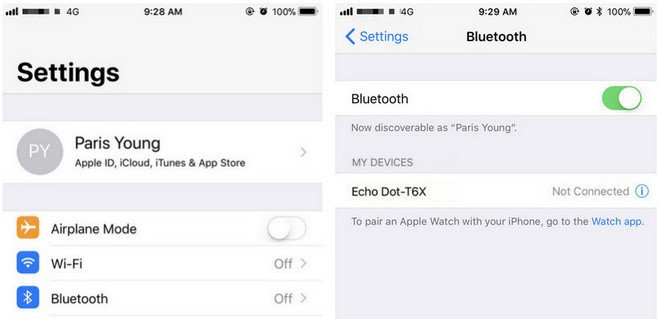
Click Settings icon > tap on Bluetooth. Then you will see Amazon Echo device after searching and just pair it with iPhone.
Open Bluetooth on iPhone

Method 2: Upload your downloaded Apple Music to Amazon so as to play them directly

Apple Music supports streaming music like Amazon Music Unlimited, which are DRM protected. That is to say, you can't freely transfer them to other audio players even you have "downloaded" for playing offline
Similarly, you can't upload these downloaded Apple Music songs to Amazon as well. If you can remove the annoying DRM, and then you can upload them to Amazon without limitation any longer.
Macsome iTunes Converter is the tool which you are looking for. It supports an ideal solution for converting protected iTunes Audio files, including downloaded Apple Music files, and purchased music and Audiobooks from Audible.com and so on.
First of all, free download the Apple Music files you want.
Open your iTunes, and find your whole Apple Music category. And then select the Apple Music files, click "..." to add them to "Playlist". After this, you can choose the Playlist and click the cloud icon to download it to play offline.
Second, free download the latest version of Macsome Apple Music Converter, install and run it.
Windows Version Download
Mac Version Download
Third, when you click "+" button, all the music files including the downloaded Apple Music files will be listed, now select them and click "OK", and all the music files has been added. Batch conversion is also supported.

Forth, after you add these music files, now you can click the setting icon to set the output format and output folder. Here are MP3, AAC, FLAC, WAV for kinds of users.
Fifth, you can click "CONVERT" button and start conversion.

Upload the Converted Apple Music Songs to Amazon

After the conversion, you can upload the converted Apple Music songs to My Music on Amazon from your computer. And then you can control the music playing via your Alexa device.
Amazon.inc supports free users up to 250 songs storage to My Music.
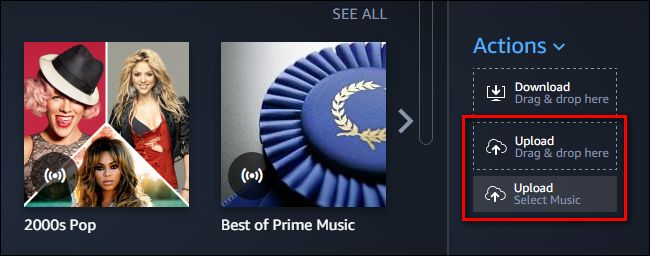
Now Run Amazon Music app on your PC or Mac and log in your ID, then drag and drop files from your computer into the Upload selection in the right sidebar under Actions.
Upload Apple Music to Amazon music
And then Select My Music > Songs > choose Offline filter in the right navigation sidebar and click the upload icon to choose the converted Apple Music files or folder to upload. And now you can start uploading.
Upload music to Amazon
After the above steps, you can use Alexa to play these songs on your Amazon Echo and so on.
More you want to visit:

Tuesday, May 8, 2018

How to Move iTunes / Apple Music Playlists to Huawei P20 & P20 Pro

Generally speaking, Huawei P20 or P20 Pro are Android phones, if you want to stream Apple Music songs, you can download Apple Music for Android App, and then stream your Apple Music songs with the APP, but this need your Apple Music subscription.
If you want to transfer the downloaded Apple Music songs from your computer to the Huawei P20 or P20 pro via a USB cable, you may find that you can transfer only some audio files in iTunes Media Folder, but you can't transfer the downloaded Apple Music files or even you can transfer them, you can't play them normally.
As a streaming Music service, all the Apple Music files are DRM protected. With the subscription, you can play, enjoy and download these music tracks with the Apple account, but you can't transfer them to other non-Apple Music player and devices.
So what can we do to remove the DRM and then transfer the downloaded Apple Music playlist to Huawei P20 or P20 Pro, the following guide will help you deal with problem.

Remove DRM from Apple Music and transfer to Huawei P20 and P20 Pro

To deal with the problem well, you need to free download Macsome iTunes Converter at first.
Macsome iTunes Converter is an ideal solution to remove DRM from protected iTunes audio files including Apple Music files, purchased Audiobooks and so on. After the conversion, the converted audio files can easily be played on Sony PSP, Sony Walkman, iRiver, Android Phones and Tables and so on.
Windows Version Download
Mac Version Download
Step 1, Double click to install the trial version of iTunes Music Converter on your PC, and then run it.


Step 2, click the Add button and select audio files from iTunes library.

After you choose the music files, click "OK", and then all the audio tracks files you selected would be listed on the main window.

Step 3, Set the output format by clicking the Setting icon, here we choose MP3 format. And in the same way, you can set the output path and conversion speed (here we choose 10X) before the conversion as your need.


Step 4, click the Convert button to start converting.


After the conversion, you get the unprotected MP3 music files from protected Apple Music files. Now connect Huawei P20 or P20 Pro to PC via a USB cable and open the output Folder to choose the converted Audio files and then copy them to your phone.
You May Want to Read:

Thursday, April 26, 2018

How to Transfer Apple Music to External Hard Drive

It is known that Apple Music is a streaming Music service. Users can listen to all of Apple Music files online or download them so as to play them offline. But you can’t transfer the streaming Music to other devices.
Moreover, if you cancel your Apple Music subsctiption, all the files including the downloaded Music from Apple Music can’t be played any more?
It is necessary to backup the downloaded Apple Music file to External Hard Drive, and then you can play them anywhere with External Hard Drive.

Steps to remove DRM from Apple Music and move to External Hard Drive

Step 1, free download the latest version of iTunes Music Converter, install and run it.
Please make sure that you have downloaded the Apple Music files you want to convert and they can work normally on your iTunes.
Step 2. Click “+” to import the downloaded Apple Music files.
Add downloaded Apple Music songs
Step 3. Click the setting icon to set the output format and output folder. There are MP3, AAC, FLAC and WAV – 4 output format for you to choose. If necessary, you can also reset the related audio parameters.
Moreover, you can reset the conversion speed, the default one is 20X. If you want to get a high audio quality, you can choose a low conversion speed.
Preferences output Settings
Step 4. Click the “CONVERT” button to start your iTunes music converting.
Converting Apple Music songs to MP3
After the conversion, you can transfer the DRM-free music files to your External Hard Drive as you like.
More you may like:

Thursday, April 19, 2018

How to add Apple Music to PPT backgroud music

PPT is very important for you to show others, if you want to make an amazing PPT, it is very helpful to add background music to it, which will make your PPT unique.
The background music sources are various. If you have some favorite Apple Music files, you want to add them to PPT, but you can't add, for the streaming music service can be played with limitations.
Here we will talk about converting Apple Music to MP3 and adding the converted to PPT.

All-in-one Apple Music Converter – Macsome iTunes Converter

Macsome iTunes Converter is used to convert downloaded Apple Music files, purchased audio tracks including audiobooks from Audible and iBook store to MP3, AAC, FLAC, WAV and remove DRM from the protected audio files with fast speed and lossless quality.
With its help, It is extremely simple to convert your favorite Apple Music to MP3, and then you can add MP3 files to PowerPoint as background music.

Steps to convert Apple Music to MP3 and add to PPT

Step 1, free download the latest version of iTunes Music Converter, install and run it.
Windows Version Download
Mac Version Download
Please make sure that you have downloaded the Apple Music files you want to convert and they can work normally on your iTunes.
Step 2. Click "+" to import the downloaded Apple Music files.

Step 3. Click the setting icon to set the output format and output folder. If it is necessary, you can also reset the related audio parameters.

Now the output formats include MP3, AAC, FLAC and WAV, you can just to choose a suitable one and set the other parameters according to your need.
Step 4. Click the "CONVERT" button to start your iTunes music converting.

Step 5. Add MP3 to PPT background music
After the conversion, now please open the PowerPoint you are editing, then click the Insert tab and click Audio icon to select the converted MP3 from the pop-up window.

And then click Playback and you can set the start point here you like to play in the background of the presentation, loop until you stop the audio, tart automatically or when clicked, fade in and out or play across all slides.

Referral links :

Thursday, September 28, 2017

iTunes Converter for Mac V2.3.2 has been released

With the new release of macOS High Sierra 10.13, to make iTunes Converter work well with the new system , Macsome Inc newly released iTunes Converter for Mac V2.3.2.
With the new version 2.3.2, macOS 10.13 users can only convert music files with 1X conversion speed, if you are other system users, there is no need to worry about the only 1X conversion speed, you can still convert Audio tracks with up to 20X conversion speed.
If you want to convert Audiobook with the iTunes Converter, you can still try the incredible speed.
With the fast conversion option, you can only convert AAX to M4A format with chapter, cover, etc kept, and convert AA to MP3 format without chapter and other info kept.
If the first time conversion is slow, don’t worry, the following conversion speed is unbelievable.
Even you are macOS users, don't worry, the up to 20X conversion speed will be added and supported in the following version, please wait a moment.

About macOS High Sierra

macoshighsierra-800x464
Apple introduced macOS High Sierra at its 2017 Worldwide Developers Conference in June. macOS High Sierra, as the name suggests, is a follow-up to macOS Sierra and is largely designed to improve on macOS Sierra through major under-the-hood updates and a handful of outward-facing changes.
macOS High Sierra is the newest version of macOS, introducing Metal 2, APFS, HEVC video, VR support, and Safari and Siri updates. Launched on September 25.
With macOS High Sierra, Apple says it's focusing on the fundamentals: data, video, and graphics. High Sierra is about deep technologies that will provide a platform for future innovation while also introducing new technologies to make the Mac more reliable, capable, and responsive.

FEATURES

  • Metal 2
  • HEVC (H.265) support
  • Apple File System
  • VR and external GPU support (spring 2018)
  • Siri updates
  • Autoplay blocking in Safari
  • Anti-tracking in Safari
You may want to read as well

Wednesday, April 19, 2017

Macsome iTunes Converter for Mac Version 2.1.7 has been released

Since users can use iTunes Music Converter V2.1.6 on iTunes 12.6, if they could disabled System Integrity Protection. Or for macOS 10.11 (El Capitan) users, they can downgrade iTunes 12.6 to iTunes 12.5.
Now when iTunes Converter for Mac V2.1.7 has been released, users have no other need to disabled System Integrity Protection or downgrade iTunes 12.6 to iTunes 12.5, they can work with iTunes Converter V2.1.7 on iTunes 12.6 on any Mac OS X.
What you need to do is click the next download button to download the latest version, and then install on your Mac. And you can work like
Macsome iTunes Music Converter supports simple and fast solutions to play the DRM music on iTunes on different audio player devices, not only Apple products. Even Apple Music streaming music files, if you download these streamed music files to your Mac, you can also use iTunes Music Converter to convert them.
It is also a DRM removal tool, that is to say, any DRM protected audio files, you can play them on iTunes normally, you can use the DRM Converter to convert it and remove the DRM.

About the latest version V2.1.7

Cost: $39.95
Size:5.06 MB
System supported: Mac OS X 10.9 or later

About Macsome Inc

Macsome Inc. is a software development company which established in 2008 with expertise and experience in converting audio books and iTunes music, transferring iPod files and recording audio. It develops products such as Macsome Audio Book Converter, iTunes Music Converter, Audio Recorder and so on for personal computers and mobile devices. All of Macsome products have an easy-to-use interface.

Press Contact

Name: Leo Fan
Address: No. 62, Jiao Da Dong Lu, Haidian, Beijing, China
Email: market@macsome.com
Website: http://www.macsome.com

Tuesday, November 29, 2016

How to creat CD from downloaded Apple Music files

Someone maybe find that they can't burn downloaded Apple Music files to CD? Even they are subscribers of Apple Music.
This is  big problem to solve? Here we will talk how to creating CD from downloaded Apple Music with the help of Macsome iTunes Converter, which is all-in-one iTunes Audio files Dealer and helper.
When you want to convert some iTunes Audio files,  use Macsome iTunes Converter.
When you want to convert purchased Audiobooks, use it.
 When you want to remove the FairPlay DRM, use it.

Steps to Burn Apple Music files to CD

To Creat CDs from Apple Music files, you need two parts to get it. 
Part 1. Remove the limitation of Apple Music and convert to MP3 or other
Part 2. Use iTunes to burn the converted  MP3 to CD.

Part 1. Remove the limitation of Apple Music and convert to MP3 or other

First of all, free download the latest version of iTunes Converter, install and run it.
Step 1. Click Add button to import the music files from Music library of iTunes.
Add Apple Music to Convert
Step 2. Click iTunes Converter Menu – Preferences – Advanced to set the output audio format, here we use the default one: Same as source.
Apple Music to MP3
Step 3. Click Convert button to start conversion.

Part 2. Use iTunes to burn the converted  MP3 to CD.

Now you can following the iTunes burning guide to burn the convert MP3 files to CD.


Thursday, October 20, 2016

Now Update your Apple Music Converter to Version 2.0.9

On Oct 19, 2016, Macsome Inc has upgraded iTunes / Apple Music Converter to the new version V2.0.9 for Mac OS X users.
interface
With the latest version, you can set FLAC audio format as the output format.
(Referral reading: FLAC, short for Free Lossless Audio Codec, is an audio coding format for lossless compression of digital audio, and is also the name of the reference codec implementation. Digital audio compressed by FLAC's algorithm can typically be reduced to 50–60% of its original size and decompress to an identical copy of the original audio data.)
For the registered users, now you can find the license information on the registration window.
If you update to the iOS 10, your conversion maybe occur some one error, now we have fixed the related errors. Hope you have a nice try.
The Apple Music Converter can easily convert purchased audio tracks and subscribed Apple Music files to MP3, AAX and FLAC. After the conversion, you can play the converted files on any MP3 players and iPod, iPod Touch, iPhone, Zune, PSP, Creative Zen with 5X higher conversion speed and CD quality.
Moreover, it is also a professional FairPlay DRM Removal to help you remove any limitations from the protected audio tracks and then you can play them on any players as you like.
About Macsome
Macsome Inc. is a software development company which established in 2008 with expertise and experience in converting audio books and iTunes music, transferring iPod files and recording audio. It develops products such as Macsome Audio Book Converter, iPod File Transfer, iTunes Music Converter, Audio Recorder and so on for personal computers and mobile devices.
Visit here http://www.macsome.com to know more about Macsome Inc.
Contact Info:
Name: Leo Fan
Address: No. 62, Jiao Da Dong Lu, Haidian, Beijing, China
Phone: 86-10-62234491
Email: market@macsome.com


Tuesday, July 28, 2015

How to burn Apple Music to CD easily and quickly

Apple Music supplies streaming music, that is to say, Apple Music can listen to the tens of millions of tracks in the Apple Music library, download them to enjoy offline, and share with your family, but you can’t burn these Apple Music files to CD, for all of Apple Music have DRM limited, and when you cancel the Apple Music subscription, all of them can’t work any more.
But how to burn these Apple Music files to CD so that users have no need of the DRM limitations.
Let Macsome iTunes Converter (http://www.macsome.com/itunes-converter-mac/index.html) help you.
With it, you can
Remove DRM from Apple Music Store
Backup your Apple Music
Convert Apple Music to MP3
Convert iTunes Match Music to MP3
Remove DRM from purchased Audio Books

Steps to convert Apple Music so as to burn to CD
Apple Music files are DRM protected, so it is difficult to convert and burn to CD with the general audio converter or free mp3 converter and like this. But Macsome iTunes Converter does well in removing DRM of Apple Music and convert to MP3 so as to burn to CD easily with lossless quality
Step 1: Install and run the trial version of iTunes Converter.
Step 2: Click Add to choose the music files on the Music library, and click OK to import them.
Add Apple Music to Convert
Step 3: Click Menu – Preferences…- Advanced to set the output format.
Convert Apple Music to MP3
Step 4: Click Convert to start conversion.
After the conversion, all the Apple Music files are converted to MP3 so as be burnt to CD easily.
Search a free MP3 to CD burner, now you can burn MP3 to CD quickly. And you have burnt your Apple Music files to CD successfully.

Tuesday, July 21, 2015

How to convert Apple Music M4P to MP3 so as to backup Apple Music

Apple Music is a revolutionary streaming service and app that puts the entire Apple Music catalog at your fingertips across your favorite devices. Starting with the music you already know — whether from the iTunes Store or ripped CDs — your music now lives in one place alongside the Apple Music catalog with over 30 million songs. You can stream any song, album or playlist you choose.
Apple Music gives users more freedom to enjoy the music by themselves. If you subscribe Apple Music service, and you can enjoy the music without any limitations, when you cancel the service, all the playlist and music songs will be removed, what a pity.
Would you like to remove the limitation and keep Apple Music longer as you like?
Would you like to convert Apple Music to MP3 player in order to play them on MP3 player?
Macsome iTunes Converter makes the problem easy and fast to deal with. As an all-in-one Apple MusicConverter and iTunes music Converter, iTunes Converter uses 5X recording and encoding to MP3 / AAC technology, during the process, the DRM has been removed, and Apple Music files have been converted to MP3.
The Apple Music M4P to MP3 conversion is very simple, just follow the next steps, you can get your MP3 files from Apple Music as you like.
Step 1: Go to the webpage and free download the latest version of iTunes Converter, install and run it.

Step 2: Click Add button and choose the library and add the files you want to convert.
Step 3: Click Menu – Preferences – Advance to set the output format.
Step 4: Click Convert button to start M4P to MP3 conversion.
Batch conversion is also supported by iTunes Converter. And there is no need to convert files one by one.  
A few minutes later, the conversion will be finished, and right click to find the folder to go to the converted files directly.
It is so cool, why not free download the trial version and take a try. More info from: http://www.macsome.com/itunes-converter-mac/index.html