Showing posts with label Apple Music Tips. Show all posts

Friday, April 19, 2019

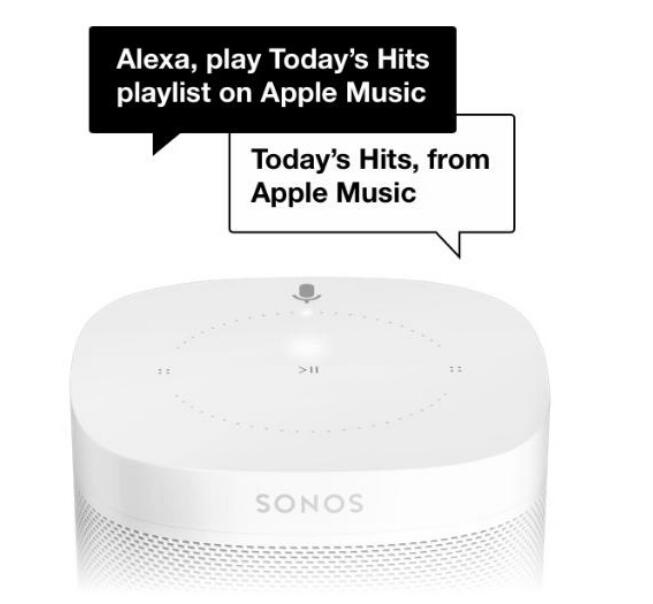
Alexa Support for Apple Music Expands to Sonos Speakers

Amazon Echo devices have been able to use Alexa-based voice commands to control Apple Music since December, but the feature has been limited to Amazon's own devices until today. 
Sonos One and Sonos Beam owners in the United States, United Kingdom, and Ireland are now also able to use Alexa to control Apple Music after adding the Apple Music skill to the Alexa app. 
123
 

To get Alexa controls for Apple Music on Sonos, users will need to update to the newest version of the Sonos app, enable the Apple Music skill in the separate Amazon Alexa app, and link an Apple Music account.

From there, Sonos owners will be able to use commands like "Play My Chill Mix on Apple Music," or "Play Beats 1 Radio on Apple Music."

It's not yet clear if other Alexa-enabled devices will also be gaining support for Apple Musiccontrols in the future, but right now, the feature is available on all Amazon Echo and Fire TV devices along with the Sonos One and Sonos Beam.
Source from Macrumors.com

 More Apple Music Tips you may like:


Tuesday, December 4, 2018

The best Apple Music songs of 2018

Apple-presents-best-of-2018-Music-12032018_big.jpg.large
To close out an extraordinary year, Apple Music’s editors have awarded highest honors to the artists who truly represent the very best of 2018. Drake owns the Artist of the Year category while country’s Kasey Musgraves scores Album of the Year for her dynamic Golden Hour. The fiery collaboration between Cardi B, J. Balvin and Bad Bunny made “I Like It” an easy choice for Song of the Year and Breakout Artist Juice WRLD has been giving everyone “Lucid Dreams” all year long. But these all-stars weren’t the only stars: Apple Music’s global year-end charts and editorial playlists are packed with the year’s biggest hits and favorites from all over the world.

Best Music of the Year
Artist of the Year: Drake
Breakout Artist of the Year: Juice WRLD
Song of the Year: I Like It - Cardi B featuring Bad Bunny & J. Balvin
Album of the Year: Golden Hour - Kacey Musgraves
More Apple Music Tips:

Tuesday, October 9, 2018

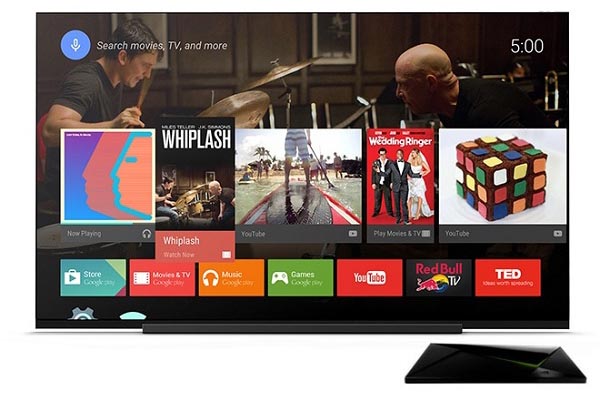
Useful solutions to play Apple Music on Android TV

Play Apple Music on Andriod TV
Android TV is different from Apple TV, which is a version of the Android operating system designed for digital media players.
Android TV supports streaming videos from the hot online video websites like Netflix, YouTube, and BBC iPlayer. It also supports streaming music via Spotify, Google Play Music, Pandora, and your local music files.
If you are an Apple Music subscriber, you will get troublesome. Apple Music is not the built-in App on Android TV, and you can't air the Apple Music contents from iPhone to Android TV as well.

You can't play Apple Music on Android TV, why?

So "I can't play Apple Music on Android TV, how to fix", the problem comes out. To help users to play Apple Music on Android TV successfully, users need to know why you move Apple Music playlist to Android TV at first.
First, you know that Android TV doesn't built-in Apple Music App.
Second, all the Apple Music songs, even you have downloaded them so as to play offline, you can’t move or copy or transfer them, because they are DRM protected.
If you want to transfer Apple Music files to Android TV, you need to remove DRM first and then load the converted Apple Music files to Android TV with USB drive, or you can upload to Google Play Music.

Part 1 Decrypt DRM from Apple Music

To simplify the procedure, we ask Macsome iTunes Converter to help us, which is designed to convert Apple Music songs and other DRM protected iTunes Audio files to MP3, AAC, WAV or FLAC with fast conversion speed and wonderful output quality. Meanwhile 100% original audio quality and ID3 tags will be preserved.
Step 1. free download the latest version of iTunes Music Converter, install and run it.
Windows Version Download
Mac Version Download
Please make sure that you have downloaded the Apple Music files which you want to convert, and they can work normally on your iTunes.
Step 2. Click "+" to import the downloaded Apple Music files.
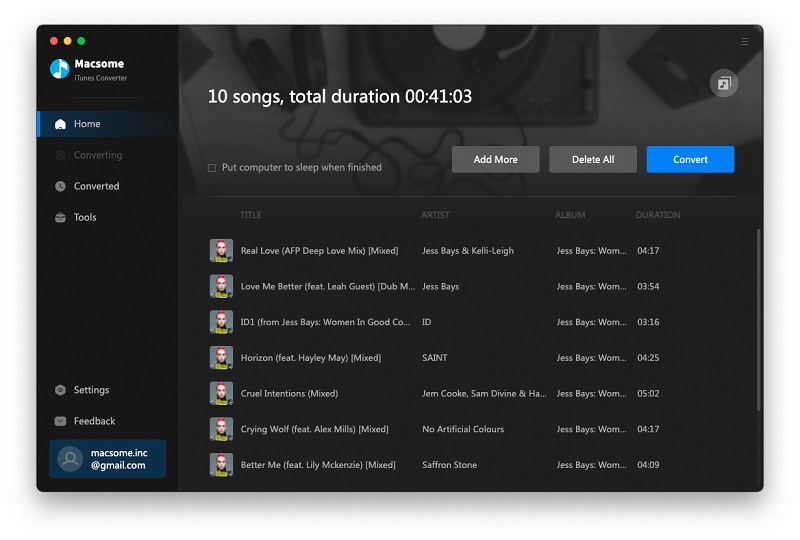
Add downloaded Apple Music songs
Step 3. Click the setting icon to set the output format and output folder. If it is necessary, you can also reset the related audio parameters.
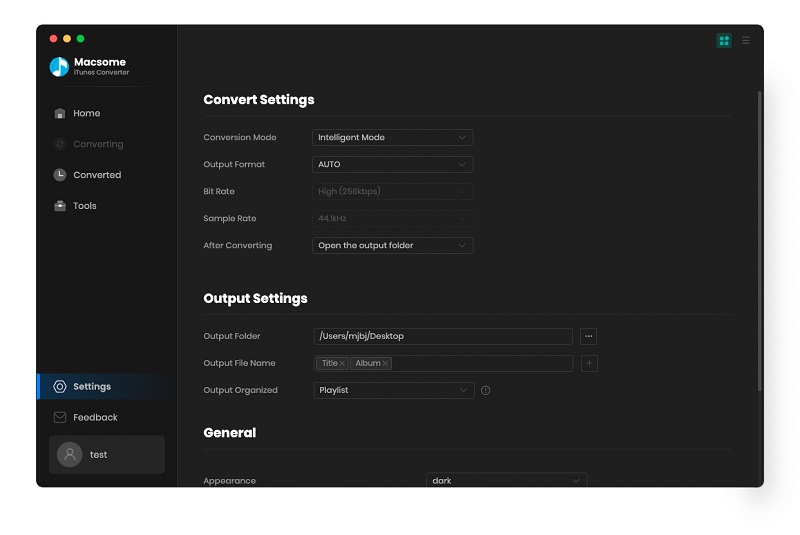
Preferences output Settings
Now the output formats include MP3, AAC, FLAC and WAV, you can just to choose a suitable one and set the other parameters according to your need.
Step 4. Click the "CONVERT" button to start your iTunes music converting.
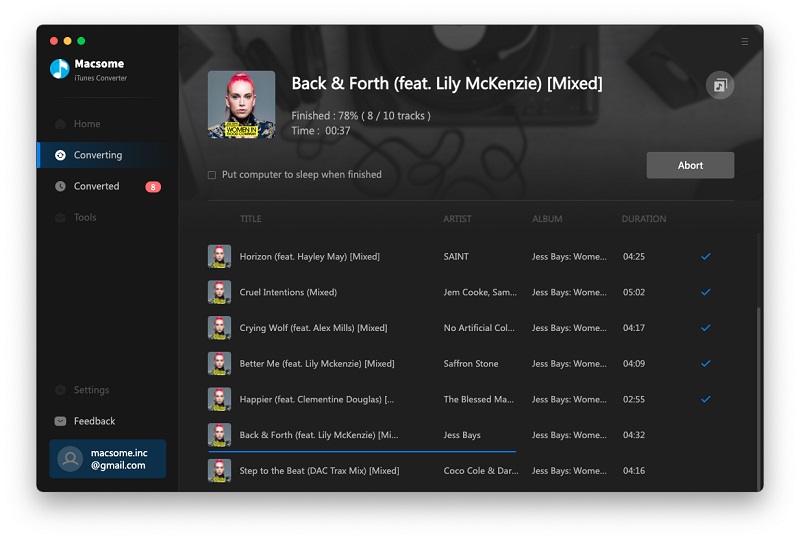
Converting Apple Music songs to MP3

Part 2: Transfer Apple Music to Android TV

Method 1. Transfer Apple Music to Android TV with USB drive
After you remove DRM from Apple Music files, now you get the unprotected music files and you can transfer them to your USB drive, and then plug the USB drive to Android TV via USB cable. Now you can start to navigate the Apple Music and choose a music player for playback on you Android TV.
Method 2. Upload Apple Music to Google Play Music and then play on Android TV
Step 1: Install Google Play Music web player (click control panel on chrome > More tools > Extensions > add Google Play Music) on your Google Chrome.
Step 2: Go to the web player and click the menu bar > select Upload music.
Step 3: Choose the converted Apple Music from local drive or drag & drop files.
Step 4: Launch Google Play Music on your TV and click Setting button > Select your account > choose Sync to sync the Apple Music on TV.
You can choose one method as you like. After this step, you can enjoy the Apple Music on Android TV with ease. Now try to do this by yourself.
Source from https://www.macsome.com/guide/howto-play-apple-music-on-android-tv.html
More Related Tips:
Tuesday, September 18, 2018

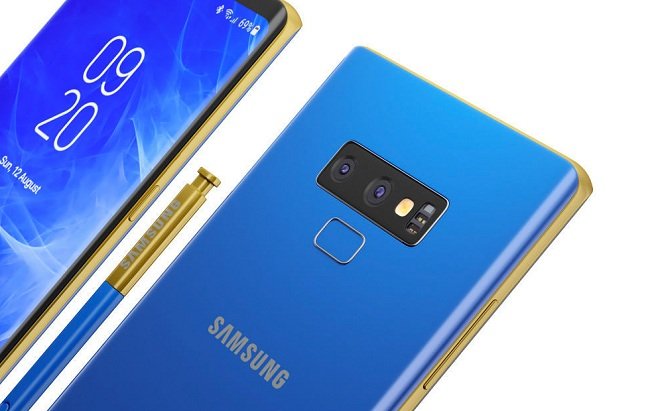
How to transfer Apple music playlist to Samsung Galaxy Note 9

Sync Apple Music to Samsung Galaxy Note 9
Samsung Galaxy Note 9 is the latest member of the Samsung family launched in August 2018 in India. It is one of the most stylish and best smartphones in 2018 that features a stellar camera, amazing speakers, battery backup, elegant body and much more.
If you have subscribed Apple Music service, you can directly install Apple Music for Android App on your Samsung Galaxy Note 9, and then enjoy Apple Music on Samsung Galaxy Note 9 with ease.
Here recommend you try to Macsome iTunes Converter to remove DRM from Apple Music and then sync the unprotected Apple Music files to your Samsung Galaxy Note 9.
Step 1, Click the next download link to free download the latest version of iTunes Music Converter, and follow the tips to install and run it.
Windows Version Download
Mac Version Download
Step 2. Click "+" button, and choose the music files you want to convert, and then click "OK". Not you have added the downloaded Apple Music files to the program.
Please make sure that you have downloaded the Apple Music files you want to convert and they can work normally on your iTunes.
Add downloaded Apple Music songs
Step 3. Click the setting icon to set the output format or output folder.
Here are four choices including MP3, AAC, FLAC and WAV for you to choose. Just choose one suitable output format according to your requirements. If you have some special need, you can also reset the related audio parameters.
Preferences output Settings
Step 4. click the "CONVERT" button to start your iTunes music converting.
Converting Apple Music songs to MP3
After the conversion, you can go to the output folder to find the converted music files and then transfer them to your Samsung Galaxy Note 9 via via USB cable as you need.