Showing posts with label drm removal. Show all posts

Tuesday, May 8, 2018

How to Move iTunes / Apple Music Playlists to Huawei P20 & P20 Pro

Generally speaking, Huawei P20 or P20 Pro are Android phones, if you want to stream Apple Music songs, you can download Apple Music for Android App, and then stream your Apple Music songs with the APP, but this need your Apple Music subscription.
If you want to transfer the downloaded Apple Music songs from your computer to the Huawei P20 or P20 pro via a USB cable, you may find that you can transfer only some audio files in iTunes Media Folder, but you can't transfer the downloaded Apple Music files or even you can transfer them, you can't play them normally.
As a streaming Music service, all the Apple Music files are DRM protected. With the subscription, you can play, enjoy and download these music tracks with the Apple account, but you can't transfer them to other non-Apple Music player and devices.
So what can we do to remove the DRM and then transfer the downloaded Apple Music playlist to Huawei P20 or P20 Pro, the following guide will help you deal with problem.

Remove DRM from Apple Music and transfer to Huawei P20 and P20 Pro

To deal with the problem well, you need to free download Macsome iTunes Converter at first.
Macsome iTunes Converter is an ideal solution to remove DRM from protected iTunes audio files including Apple Music files, purchased Audiobooks and so on. After the conversion, the converted audio files can easily be played on Sony PSP, Sony Walkman, iRiver, Android Phones and Tables and so on.
Windows Version Download
Mac Version Download
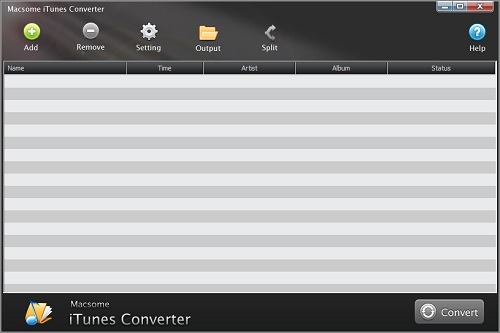
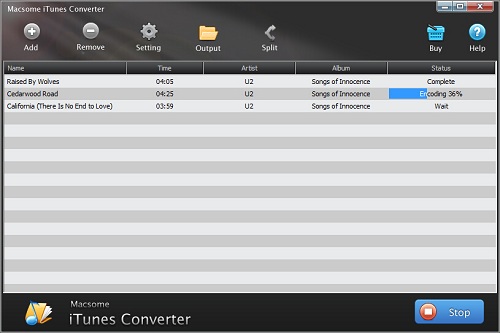
Step 1, Double click to install the trial version of iTunes Music Converter on your PC, and then run it.


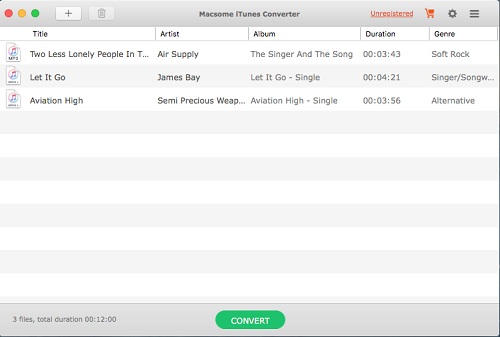
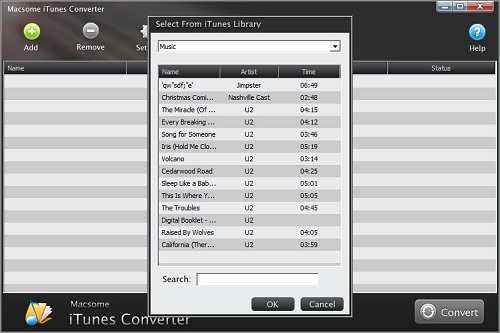
Step 2, click the Add button and select audio files from iTunes library.

After you choose the music files, click "OK", and then all the audio tracks files you selected would be listed on the main window.

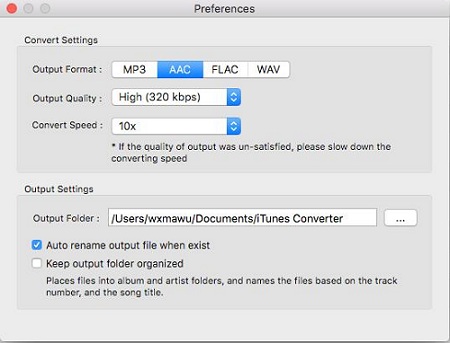
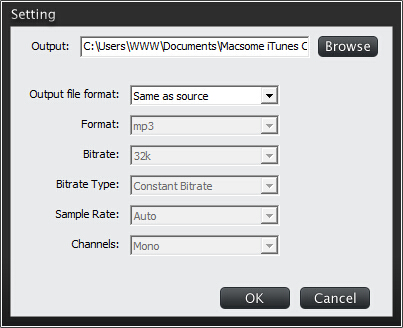
Step 3, Set the output format by clicking the Setting icon, here we choose MP3 format. And in the same way, you can set the output path and conversion speed (here we choose 10X) before the conversion as your need.


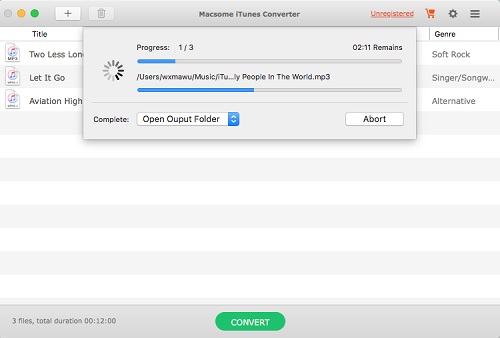
Step 4, click the Convert button to start converting.


After the conversion, you get the unprotected MP3 music files from protected Apple Music files. Now connect Huawei P20 or P20 Pro to PC via a USB cable and open the output Folder to choose the converted Audio files and then copy them to your phone.
You May Want to Read:

Thursday, June 15, 2017

How to copy Apple Music playlist to Spotify

 Some users complained that, after they made a wonderful playlist, but they don't like the interface, any ways to copy the playlist from Apple Music to Spotify.
Both Apple Music and Spotify are online streaming music services.  All their music files are protected with DRM. If you want to copy one to other one, you need to remove DRM and then transfer the converted music files to Spotify as you like.
To solve the problem better, we need a third party tool - Macsome iTunes Converter to help you remove DRM and convert to unprotected music format like MP3, AAC, WAV and so on, and then you can transfer them to Spotify.
Now follow the next step-by-step guide to finish the transferring from Apple Music to Spotify.
Step 1. Login your Apple ID, and download the music files of the playlist from Apple Music.
Step 2. Free Download Macsome iTunes Converter, install and run it on your Mac.
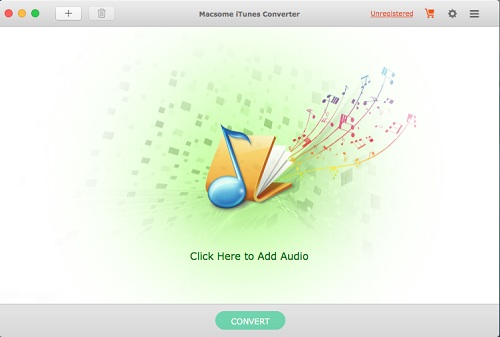
interface
Macsome iTunes Converter supports converting any Audio tracks including Music songs, albums, purchased Audio books and so on to MP3, AAC, FLAC and so on. Even the audio files are protected and limited with DRM, if you can play them on iTunes normally, you can convert them with its help.
Not only Mac version, the iTunes Converter also supports a Windows version for Windows users.
Step 3. Click "+" to import the downloaded Apple Music files from the library or playlist. All the Apple Music files you have downloaded the Apple Music files you want to convert and they can work normally on your iTunes.


Step 4. Click the setting icon to set the output format and output folder. There are four output formats including MP3, AAC, FLAC and WMA for you to choose. If necessary, you can also reset the related audio parameters.

Moreover, you can reset the conversion speed, the default one is 10X. If you want to get a higher audio quality, you can choose a lower conversion speed.

Step 5. Click the "CONVERT" button to start your converting.


After you complete the conversion, you can find all the converted Music files on you Mac, and then you can add them to your Spotify.
You may also want to read:

Monday, May 15, 2017

How to transfer Music files from iTunes to SD card

You know that you can play kinds of music files on iTunes, but you can't transfer them from iTunes to SD card because of DRM limited, if you want to play them on other player.
This guide will show you the detailed steps to convert iTunes Music file, remove DRM and then transfer them to SD card.
At first, free download the latest version of iTunes Converter for Mac OS X, install and run it.
Mac Users click here: http://macsome.com/iTunesConverter.dmg
Windows users click here: http://macsome.com/MacsomeIC.exe
Step 1. Click "+" to import the audio track files you want.
add
Step 2. Set the output format and output folder by clicking the set icon. If necessary, you can also reset the related audio parameters.
preference
Step 3. Now click the "CONVERT" button to start converting.
convert
Now connect your SD card to your computer with the built-in SD card reader. If there is none in your computer, you need one external SD card reader to help the computer to read.
Then, find the converted music files on the computer, and select and drag-and-drop to your SD card.
Finally, eject it, and then you can play them anywhere and anytime you like.
Referral reading:

Wednesday, April 19, 2017

Macsome iTunes Converter for Mac Version 2.1.7 has been released

Since users can use iTunes Music Converter V2.1.6 on iTunes 12.6, if they could disabled System Integrity Protection. Or for macOS 10.11 (El Capitan) users, they can downgrade iTunes 12.6 to iTunes 12.5.
Now when iTunes Converter for Mac V2.1.7 has been released, users have no other need to disabled System Integrity Protection or downgrade iTunes 12.6 to iTunes 12.5, they can work with iTunes Converter V2.1.7 on iTunes 12.6 on any Mac OS X.
What you need to do is click the next download button to download the latest version, and then install on your Mac. And you can work like
Macsome iTunes Music Converter supports simple and fast solutions to play the DRM music on iTunes on different audio player devices, not only Apple products. Even Apple Music streaming music files, if you download these streamed music files to your Mac, you can also use iTunes Music Converter to convert them.
It is also a DRM removal tool, that is to say, any DRM protected audio files, you can play them on iTunes normally, you can use the DRM Converter to convert it and remove the DRM.

About the latest version V2.1.7

Cost: $39.95
Size:5.06 MB
System supported: Mac OS X 10.9 or later

About Macsome Inc

Macsome Inc. is a software development company which established in 2008 with expertise and experience in converting audio books and iTunes music, transferring iPod files and recording audio. It develops products such as Macsome Audio Book Converter, iTunes Music Converter, Audio Recorder and so on for personal computers and mobile devices. All of Macsome products have an easy-to-use interface.

Press Contact

Name: Leo Fan
Address: No. 62, Jiao Da Dong Lu, Haidian, Beijing, China
Email: market@macsome.com
Website: http://www.macsome.com

Sunday, February 19, 2017

Howto get rid of DRM on paid Kindle Audiobook

We know that Kindle Audiobook are purchased from Audible.com, and people can use Audible.com to download audiobooks to your iPhone, Android, Windows Phone, Kindle or other listening device and listen to Audible audiobooks by best-selling authors anytime.
After you paid the Audiobook, you can listen to the Audiobook after you authorize the device, for the DRM limits you.
Would you like to get rid of the DRM from the paid Audiobook?
Here Macsome Audio Book Converter can help you, Windows users click here (http://macsome.com/audio-book-converter-win/).
All the steps to get rid of the DRM are quite simple, and no additional app to install.
First, free download the software according to your computer system, and install it on your computer.
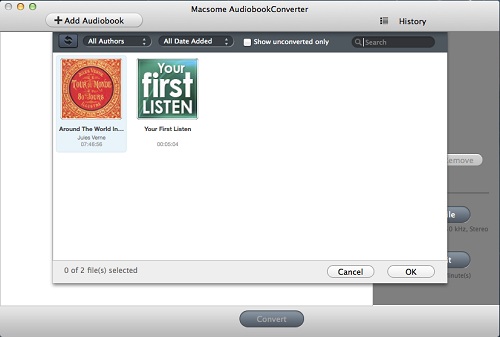
Then run the Audiobook Converter, and it will shows all playable audiobooks from the iTunes Books library automatically.
Please make sure that you have authorized the purchased Audiobooks to the device or the computer so as to play them normally.
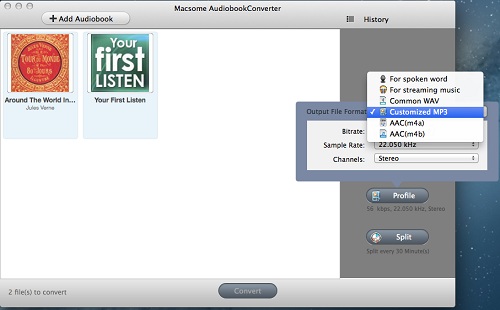
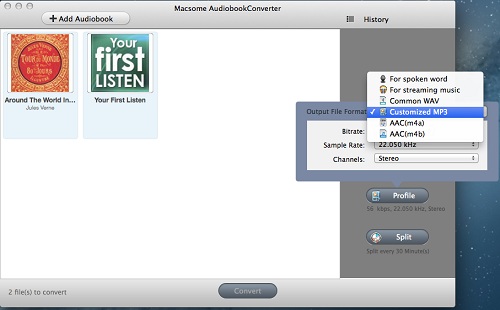
And now click Profile button and select the required profile in Output File Format drop-down list.
set-output-format
You can also click the Macsome AudioBook Converter menu and select Preferences to customize the Output Settings by clicking Choose... to set the destination.
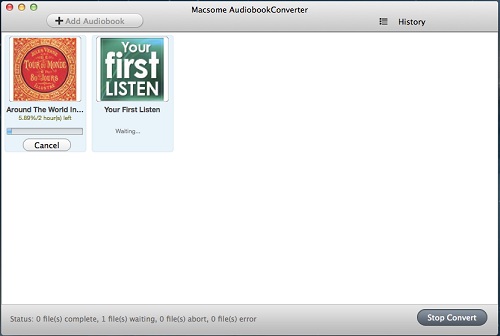
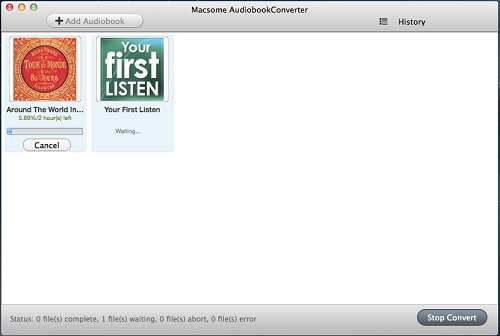
Finally, click the Convert button to start the conversion. Meanwhile the paid Audiobook’s DRM is removed as well.
convert
After the conversion is done, you can play the purchased Kindle Audiobook on any MP3 or other audio player as you like without DRM any more.
Read more:

Tuesday, August 16, 2016

Howto get rid of DRM on paid Kindle Audiobook

We know that Kindle Audiobook are purchased from Audible.com, and people can use Audible.com to download audiobooks to your iPhone, Android, Windows Phone, Kindle or other listening device and listen to Audible audiobooks by best-selling authors anytime.
After you paid the Audiobook, you can listen to the Audiobook after you authorize the device, for the DRM limits you.
Here Macsome Audio Book Converter can help you.
All the steps to get rid of the DRM are quite simple, and no additional app to install.
First, free download the software according to your computer system, and install it on your computer.
Then run the Audiobook Converter, and it will shows all playable audiobooks from the iTunes Books library automatically.
add-itunes-audiobooks
Please make sure that you have authorized the purchased Audiobooks to the device or the computer so as to play them normally.
And now click Profile button and select the required profile in Output File Format drop-down list.
set-output-format
You can also click the Macsome AudioBook Converter menu and select Preferences to customize the Output Settings by clicking Choose... to set the destination.
set-output-folder
Finally, click the Convert button to start the conversion. Meanwhile the paid Audiobook’s DRM is removed as well.
convert
After the conversion is done, you can play the purchased Kindle Audiobook on any MP3 or other audio player as you like without DRM any more.


Wednesday, February 17, 2016

How To Bypass DRM from Apple Music software

DRM-free_label.en.svg
Some people may meet with the following question. 
After you subscribed Apple Music, there are so many music songs for you to choose, listen and download. What is more, Apple Music gives new users 3-month free trial.
When you don’t keep on the subscription, all the music can’t work and play any longer, even you have downloaded it, for the DRM limited.
Here we will talk how to bypass the DRM from Apple Music software and then play the converted music files without DRM.
To remove DRM from iTunes, you need a conversion tool – iTunes Converter to help you.     
First, go to download and install the iTunes Converter on your PC, run it.
If you are a Mac user, please download the iTunes Converter for Mac version
 interface
Second, click the button Add, you can choose the different iTunes library to add the audio files to convert.
add1
And select the file you want to convert, click OK, and then all files you selected will be listed on the main window.
Third, click Setting button to set the output format and output path before the conversion as your need.
setting
Finally, click the Convert button to start converting.
converting

Now when it finished the conversion, you can play the unprotected MP3 / AAC music songs wherever as you like.