Showing posts with label remove drm from apple music. Show all posts

Monday, December 10, 2018

How to get DRM-free Apple Music Songs

All the music songs from Apple Music are DRM limited. When you cancel your Apple Music subsctiption, all the files including the downloaded Music from Apple Music can't be played any more.
If you can remove DRM from these protected music files, and then you can play these songs without limitations any longer. And the Apple Music files are DRM-free.
Macsome iTunes Converter is the tool to deal with the Apple Music files with DRM. It help users remove DRM from Apple Music and convert to the popular audio formats including MP3, AAC, FLAC, WAV and so on, so you can play the converted music files on whatever audio player you like and transfer to whatever devices you like.
Follow the next step-by-step guide to get your Apple Music files' DRM removed.
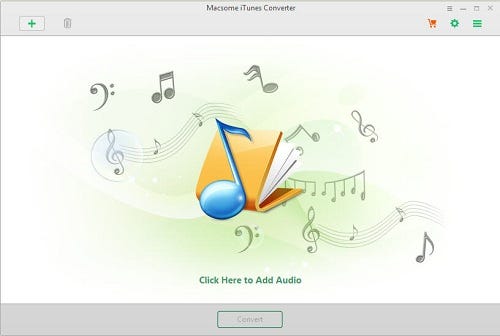
Step 1, Go to download the latest version of iTunes Music Converter by clicking the next download button according to your system, and then install and run it.
In the next, all the conversion are working with Macsome iTunes Converter for Mac.
Windows Version Download
Mac Version Download
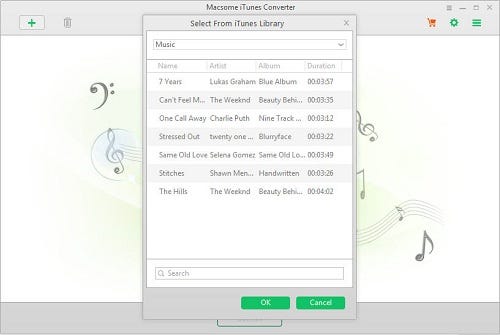
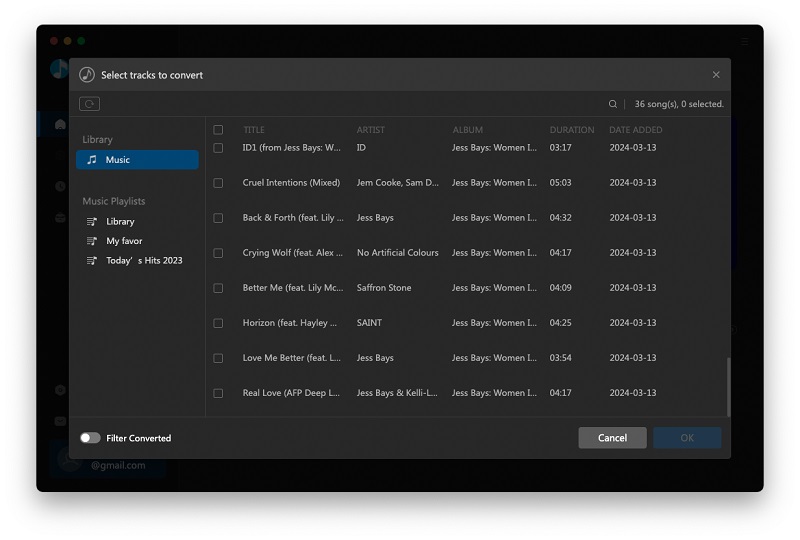
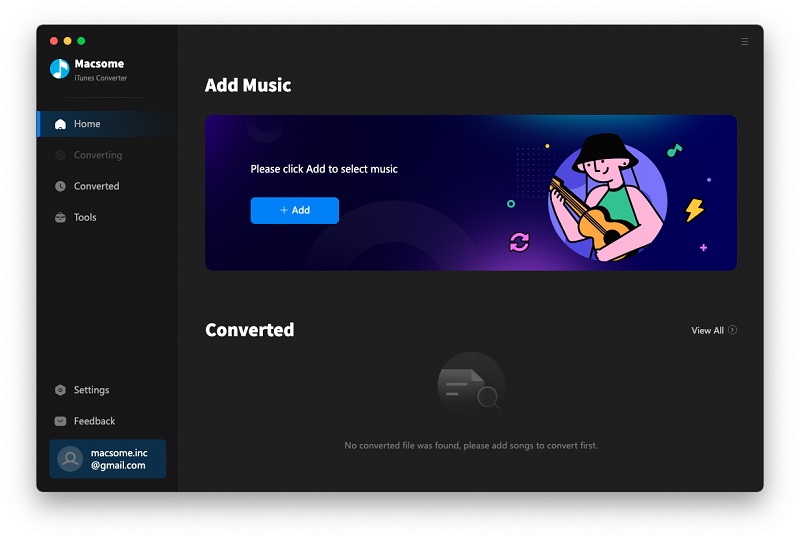
Step 2. Now you can click "+" to import the downloaded Apple Music files.
Please make sure that you have downloaded the Apple Music files you want to convert and they can work normally on your iTunes.
Add downloaded Apple Music songs
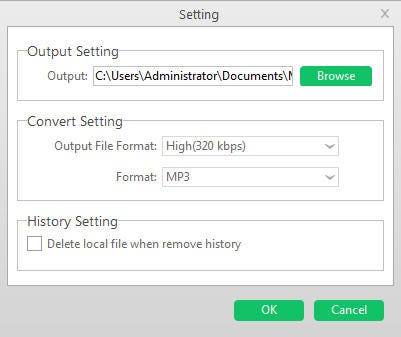
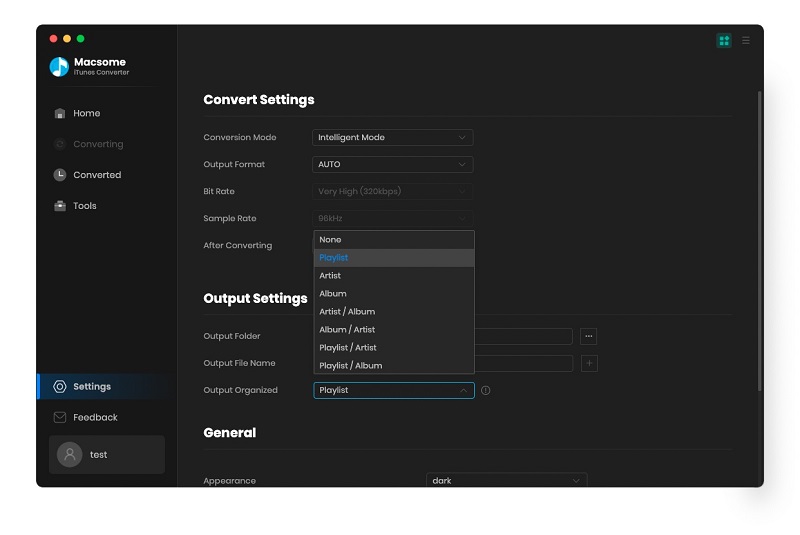
Step 3. Click the setting icon to set the output format and output folder.
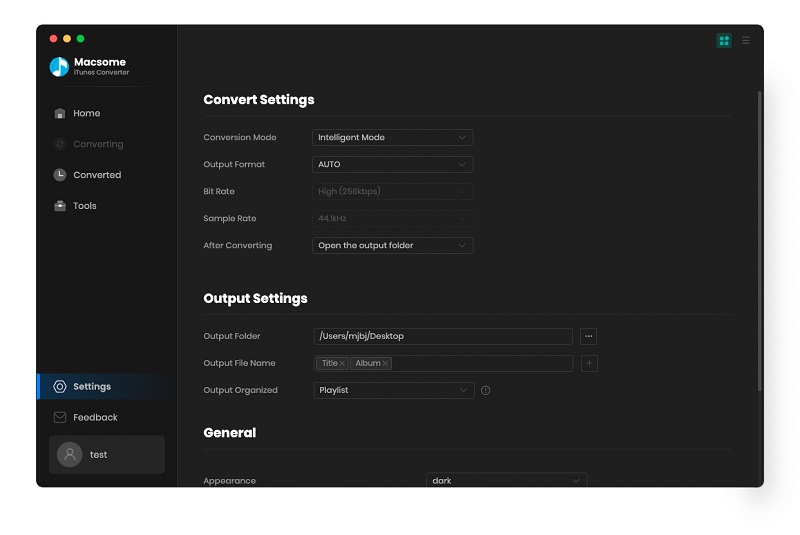
Preferences output Settings
There are four output formats including MP3, AAC, FLAC and WAV for users to choose. If necessary, you can also reset the related audio parameters.
Moreover, you can reset the conversion speed according to your need, the default one is 10X. If you want to get a high audio quality, you can choose a low conversion speed.
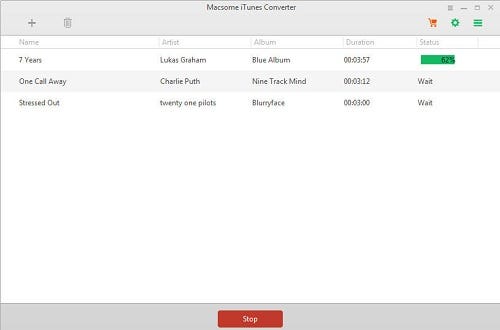
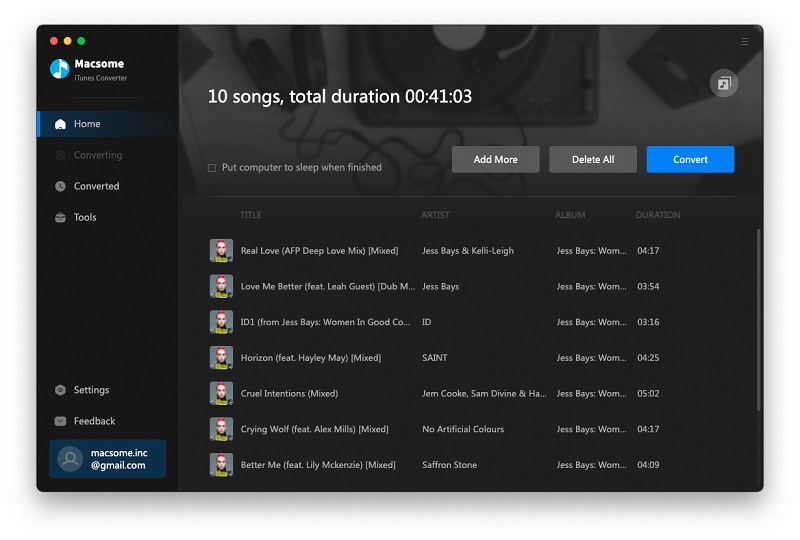
Step 4. Click the "CONVERT" button to start your iTunes music converting.
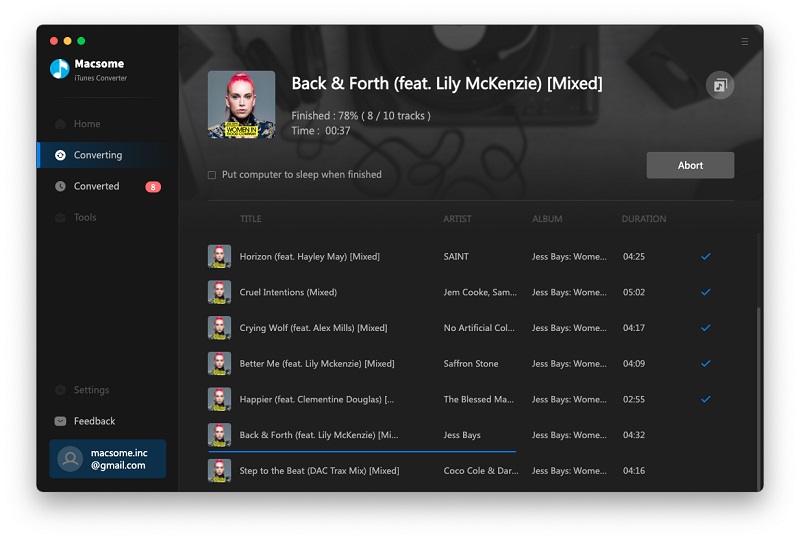
Converting Apple Music songs to MP3
After the conversion, you can find the converted files which are all DRM-free, and you can play them anywhere and anytime.

Wednesday, December 6, 2017

How to transfer Apple music files from iCloud to Google Drive

When iTunes users can upload their purchased Music files to iCloud, and then play these DRM-free music files on other player devices. To the DRM Music files of Apple Music & iTunes Match, it won't work any more when users stop paying for the services. And you can't transfer them to Google Drive.
And then how to remove DRM from the protected music of iCloud and then transfer the unprotected files to your Google Drive and other audio player as you like.
To remove the DRM from protected music of iCloud, we need a helper - Macsome iTunes Converter, take Mac version for example (Windows version is also supported.).
Windows Version Download
Mac Version Download
Step 1, Go to download the latest version of iTunes Music Converter, follow the instruction to install and then run it.
Please make sure that if you want to convert the DRM protected music files of iCloud, you need to download them to your iTunes from iCloud at first.
Interface of iTunes Music Converter
Step 2, Click "+" to import the music files you want to convert.
And you will find all the music files are in the Music library including Apple Music files and iTunes Match music files.
Add downloaded Apple Music songs
Step 3, Set the output format and output folder by clicking the set icon. If necessary, you can also reset the related audio parameters.
Now the output formats have MP3 and AAC two choices, you can just to choose a suitable one and set the other parameters according to your need.
Preferences output Settings
Moreover, you can reset the conversion speed, the default one is 20X. If you want to get a high audio quality, you can choose a low conversion speed.
Step 4, Now click the "CONVERT" button to start your iTunes music converting.
Converting Apple Music songs to MP3
After the conversion, all the DRM protected music files are now DRM-free, and go to find the converted files to transfer them to your Google Drive to enjoy them.

About iCloud and Google Drive

iCloud is a cloud storage and cloud computing service from Apple Inc. launched on October 12, 2011. As of July 2013, the service had 320 million users. The service provides its users with means to store data such as documents, photos, and music on remote servers for download to iOS, Macintosh or Windows devices, to share and send data to other users, and to manage their Apple devices if lost or stolen.
Google Drive is a file storage and synchronization service created by Google. It allows users to store files in the cloud, share files, and edit documents, spreadsheets, and presentations with collaborators. Google Drive encompasses Google Docs, Sheets, and Slides, an office suite that permits collaborative editing of documents, spreadsheets, presentations, drawings, forms, and more.

Thursday, March 2, 2017

How to make the downloaded Apple Music files still play on iPhone 7 Plus after you cancel the subscription

We all know that iPhone 7 and iPhone 7 Plus are very hot, and with the bigger screen of iPhone 7 Plus, you may not only watch movies on it, you may want to play music as well.
Generally speaking, if you are a user which cancel the Apple Music subscription, all the music files from Apple Music can’t work any more, even those you have downloaded them offline.
And why?
All the Apple Music files are streaming music. Any streaming music you’ve added to your library from the Apple Music catalog will no longer be playable. (You have thirty days to reinstate your membership if you want to restore these tracks.) You’ll also stop having access to Connect content; and unless you switch to the stand-alone iTunes Match service, you won’t be able to stream your previously purchased and uploaded music to your devices, and (Any songs from your Mac’s original iTunes library that you’ve downloaded on other devices remain as-is.)
Don’t worry. Here we will tell you one way to remove the limitations and convert the offline Apple Music’s format, so that even you don’t subscribe Apple Music, the offline Apple Music can also be played. What an amazing thing.
Guide to convert offline Apple Music format and play on iPhone 7 Plus
First, go to download and install the latest version of Apple Music Converter on your PC, and then run it.
Second, click the Add button, you can choose the different iTunes library to add the audio files to convert.
And select the file you want to convert, click “OK”, and then all files you selected will be listed on the main window.
Third, click Setting icon to set the output format and output path before the conversion as your need.
Finally, click the Convert button to start converting.
After the conversion, you can play the converted Apple Music songs on your iPhone 7 Plus anytime as you like.
View the source url

Tuesday, August 18, 2015

How to unlock Apple Music’s DRM

Someone said when they import their CD music songs to Apple Music, and they are yet limited by DRM.
“What a pity! I have purchased the music songs, now I can’t make full use of my own music songs?”
Let us find the solution to remove DRM from Apple Music.
First of all, you need go to download a DRM removal tool – Macsome iTunes Converter (http://www.macsome.com/itunes-converter-mac/index.html), which is also a powerful Apple Music Converter to convert any Apple Music to MP3 / AAC, and remove DRM from protected Apple Music.
Step-by-step guide to unlock DRM from Apple Music with iTunes Converter.
Step 1: Install Macsome iTunes Converter and run it.
Step 2. Load Apple Music files to convert.
Click Add button and choose the Music library and add the files you want to convert.
Add files to convert
Step 3. Click Macsome iTunes Converter Menu, and in the drop-down list, choose Preferences, turn to Advanced to set the output format.
Set output format of Apple Music
Step 4: Click Convert button to start removing DRM from Apple Music.
 Remove DRM from Apple Music

After conversion, all the DRM limitations of Apple Music files can be removed. And you can enjoy the converted Apple Music files without any limitations any more.
Warning: Macsome iTunes Converter is a shareware, which supports a trial version, which can only convert 3 minutes each file. If you want to remove the limitation, purchase a full version of Macsome iTunes Converter.


Thursday, July 30, 2015

How to copy Apple Music to MP3 player & Play Appe Music on MP3 player

Apple Music supports streaming music songs with DRM protected, if you like some Apple Music songs and want to play them on your general MP3 player, what to do?
First you need a tool to convert the DRM Apple Music songs to MP3 format and then transfer them to MP3 player. Two steps, you can enjoy the Apple Music songs on MP3 player freely.
Here recommend the tool – Macsome iTunesConverter (http://www.macsome.com/itunes-converter-mac/index.html), which also supports a free trial version to free download. The trial version is almost like the full version, except the limitation of converting 3 minutes each file.
Macsome iTunes Converter is all-in-one iTunes audio converter to convert iTunes Music, iTunes Match, Apple Music, Audio Books, and so on, and support removing DRM from protected audio files.
Any audios you can play on your iTunes, iTunes Converter can convert it. It is so cool.

Quick Guide to convert Apple Music songs to MP3
Step 1: Free download the latest version ofiTunes Converter, install and run it.

For iTunes 12.2 or later users, you need to allow iTunes to share the xml file to make it work well on iTunes 12.2.
Step 2. Click Add button to import the music files from Music library of iTunes.

Step 3. Click iTunes Converter Menu – Preferences – Advanced to set the output audio format, here we use the default one: Same as source.

Step 4. Click Convert button to start conversion.

After the conversion is completed, you can transfer the converted MP3 files to your MP3 player and enjoy them anywhere and anytime.