Wednesday, June 12, 2019

Spotify is building shared-queue Social Listening

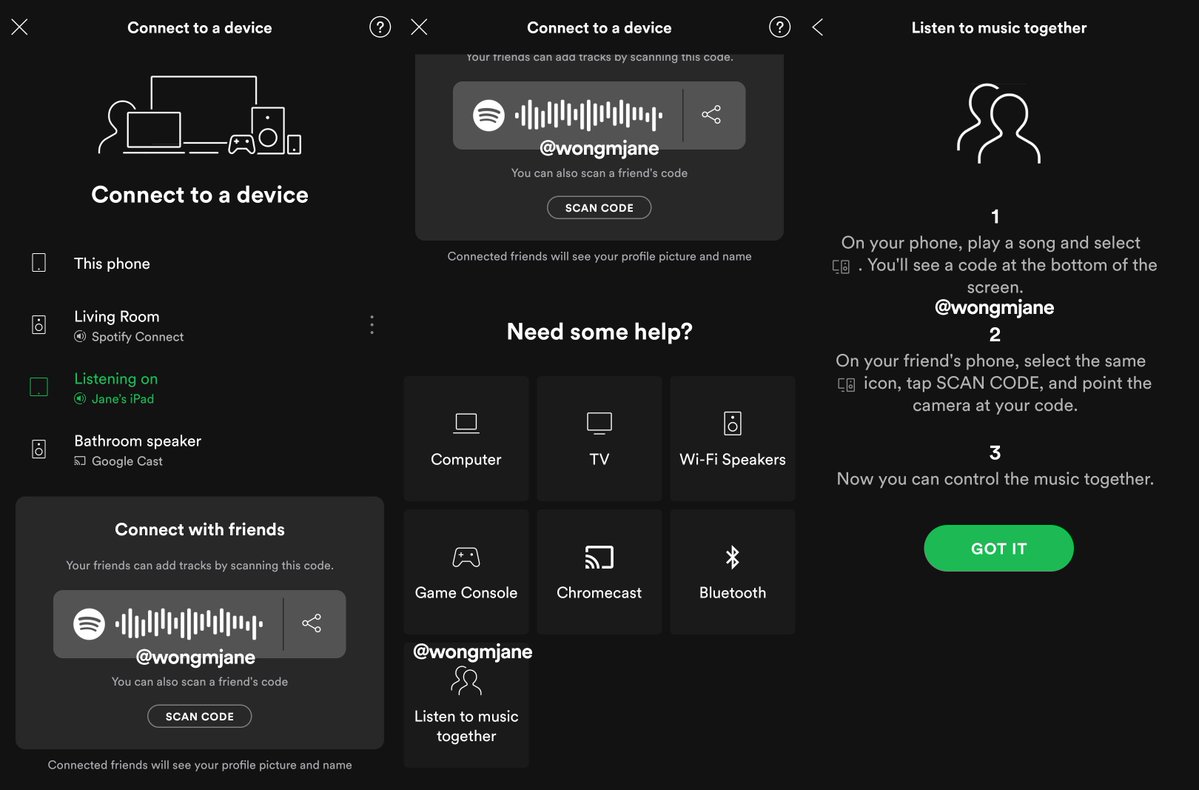
Spotify appears to be testing a "Social Listening" feature that lets friends control the music together. This is similar-ish to its collaborative playlist feature, but it contains a real-time component. The idea is that collaborators are listening to the same songs, together — whether physically in the same room, or apart.
Software engineer Jane Manchun Wong, who is known for discovering unreleased app features by digging through code, recently spotted the feature and posted about it on Twitter. Manchun Wong found the feature buried in Spotify's Android app code, which she combs through for "clues" of what the company is working on.
While Manchun Wong has found her way in, Social Listening is currently only available to Spotify employees. You can see screenshots of the feature in her tweets below.
Spotify-Social-Listening
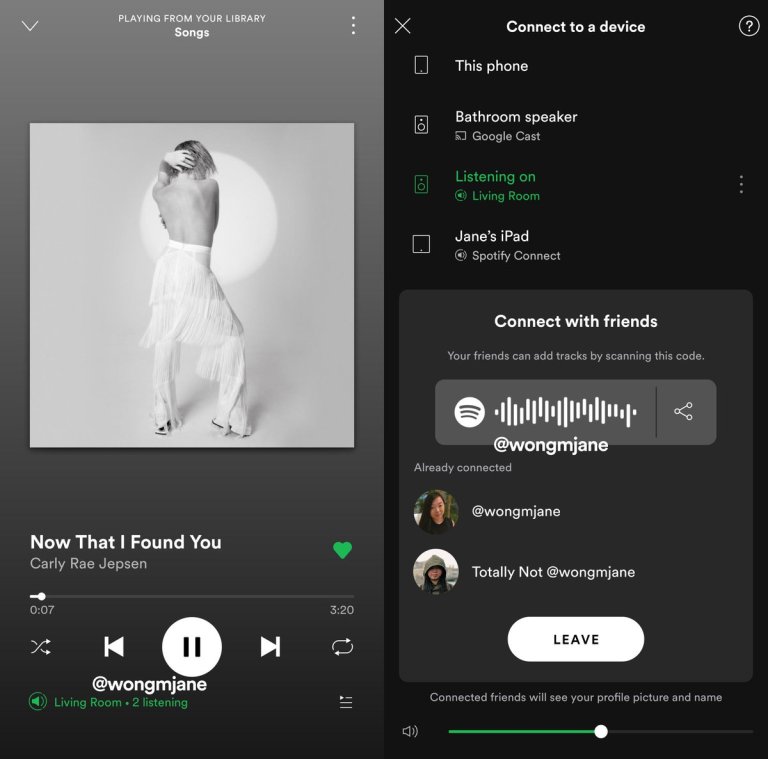
A help screen describes Social Listening as “Listen to music together. 1. On your phone, play a song and select (Connected Devices). You’ll see a code at the bottom of the screen. 2. On your friend’s phone, select the same (Connected Devices) icon, tap SCAN CODE, and point the camera at your code. 3. Now you can control the music together.” You’ll then see friends who are part of your Social Listening session listed in the Connected Devices menu. Users can also copy and share a link to join their Social Listening session that starts with the URL prefix https://open.spotify.com/socialsession/. Note that Spotify never explicitly says that playback will be synchronized.
Spotify-Listen-With-Friends
With streaming apps largely having the same music catalog and similar $9.99 per month premium pricing, they have to compete on discovery and user experience. Spotify has long been in the lead here with its algorithmically personalized Discover Weekly playlists, which were promptly copied by Apple and SoundCloud.
More Spotify Tips:

Wednesday, May 22, 2019

‘Game of Thrones’ hits record 19.3 million viewers in series finale despite fan backlash

Despite high criticism from fans, the final episode of “Game of Thrones” shattered single-night viewing records Sunday, with 19.3 million tuning in to watch the finale.
The final season of HBO’s television adaptation of George R.R. Martin’s “A Song of Ice and Fire” was widely criticized by fans who felt the pacing and its treatment of previous character developments were not up to par.
 
Still, the show continued to have record-breaking viewership. Each episode, save for one, topped viewer counts from the season seven finale, which was the series high prior to season eight’s release.
Each year “Game of Thrones” has seen its audience grow, a rarity for television shows. Typically, a series will lose viewership over the course of a run. The eighth season had high viewership because it was the show’s last. More than a decade of storytelling was coming to an end, and everyone wanted to know what happened.
While some fans of the long-running fantasy drama felt satisfied by the show’s final bow, others were quick to express their displeasure with how events unfolded. One of the chief complaints surrounding the eighth and final season was its pacing and its treatment of previous character developments.
While the first six seasons all contained 10 episodes, season seven was comprised of only seven installments and season eight had only six. The truncated nature of the final season seemed to have played a major factor in fan dissatisfaction. Plot lines that may have been developed further given more time fell flat for many longtime viewers of the show.
Source from cnbc.com.
More interesting tips you may want to read:

Sunday, May 5, 2019

Different methods to make Spotify collaborative playlist on your devices

When you find some wonderful music songs, do you want to share with your friends?
Spotify lets users create a collaborative playlist so as to share the collaborative playlist to your friends. So both you and your friends can manage your playlist.
On the Desktop:
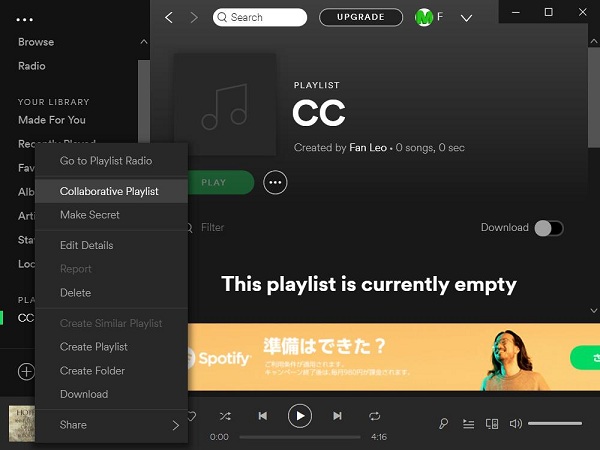
To turn on Collaborative playlist on desktop, right click (Ctrl-click on Mac) a playlist in the left panel and select "Collaborative Playlist". If the playlist is currently playing, you can also click on "..." icon and select Collaborative Playlist.
Create Collaborative Playlist
On the Mobile or Tablet:
Run Spotify on mobile or tablet, tap "Your Library" --> tap "Playlist" and select a playlist --> tap "…" icon at the top-right corner > tap "Make Collaborative".
Then share this playlist with your friends to let them know. When your friend clicks on the link, it will be opened in Spotify and they can continue to modify this playlist and share it to others.
Since after you create a collaborative playlist, both of you and your friends can edit or manage them, however all the options can only be worked on Spotify. In the following we will show you how to send the collaborative playlist to your friends via email. And then the playlist can be played on most audio player devices.
You can also use Spotify Audio Converter to free your Spotify playlist so as to manage with your friends easily.
More Spotify Tips:

Tuesday, April 30, 2019

Spotify is first to 100 million paid subscribers

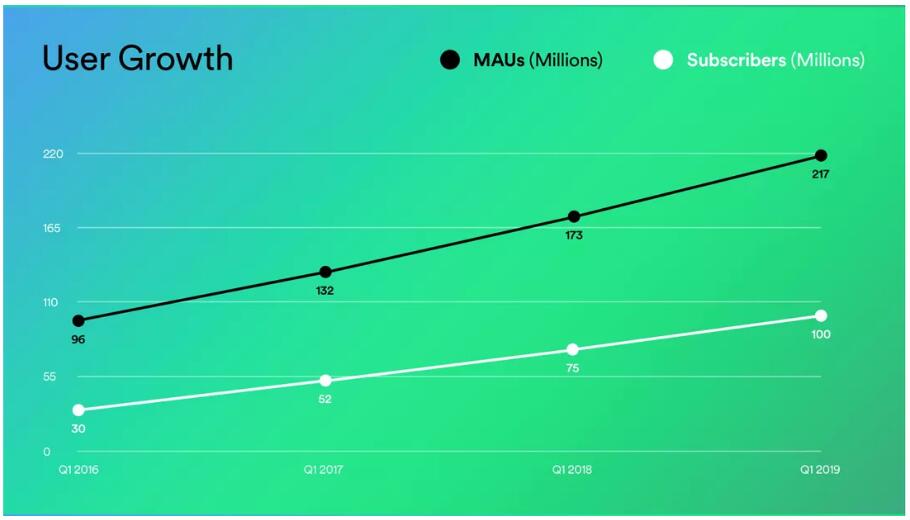
More than 100 million users worldwide now pay for Spotify Premium, the company has announced. Spotify reached the milestone by growing paid subscribers by 32-percent year-on-year. Including free subscribers, Spotify now has a total of 217 million monthly active users worldwide. That includes two million Indian users who joined after the company launched its service there in February.
Globally, the numbers put Spotify well ahead of Apple Music, its closest competitor, who reportedly had 50 million paid users worldwide at the beginning of April. However, in the US Apple’s music streaming service in winning, according to the Wall Street Journal, with 28 million subscribers compared to Spotify’s 26 million.
QQ截图20190430154043
Spotify’s latest earnings also further illuminates the company’s podcasting ambitions. The company says it intends to develop a better advertising model for podcasts, which will include better “targeting, measurement, and reporting capabilities.” This suggests the company plans to develop ways of letting podcast producers place different ads in a podcast depending on the user being targeted, similar to the ads played during ad-supported music listening. Spotify recently acquired the podcasting companies Gimlet Media, Anchor, and Parcast, and currently offers a quarter of a million podcasting titles on the streaming platform.
By the end of this quarter, Spotify says it expects to have 222 to 228 million users, including between 107 and 110 million paid subscribers. The company also says that voice speakers are a critical area for its growth. Last year Spotify ran a promotion where it gave away a free Google Home Mini speaker to every family account subscriber. However, the company’s rumored first-party speaker hardware is yet to materialize.
Spotify is still losing money despite its subscriber growth. The company posted a loss of €142 million ($158.3 million) for the January to March quarter, compared with a loss of €169 million in the same period last year.
Source from theverge.com.
More Spotify Tips:

Wednesday, April 24, 2019

Solution to play Apple Music on Airplane mode without Wifi

Sometimes you need to open your Airplane Mode, but how to open your Airplane Mode?
On your iPhone, iPad, or iPod touch, open Control Center from the Home screen, then tap iPhone Airplane Mode icon. You can also go to Settings > Airplane Mode and tap the slider to turn it on.
If the airline allows it, you can use Wi-Fi and Bluetooth while in Airplane mode. But most of the time, you don't have wifi at all, if you want to still enjoy the Apple Music songs, how to do?
Here you can try to use Macsome iTunes Converter to convert your downloaded Apple Music songs to the plain audio formats like MP3, AAC, FLAC and WAV, and then you can transfer the unprotected audio files to your iPhone.

Quick guide to Convert Apple Music to MP3, AAC

Step 1, Go to download the latest version of iTunes Music Converter by clicking the next download button according to your system, and then install and run it.
In the next, all the conversion are working with Macsome iTunes Converter for Mac.
Windows Version Download
Mac Version Download
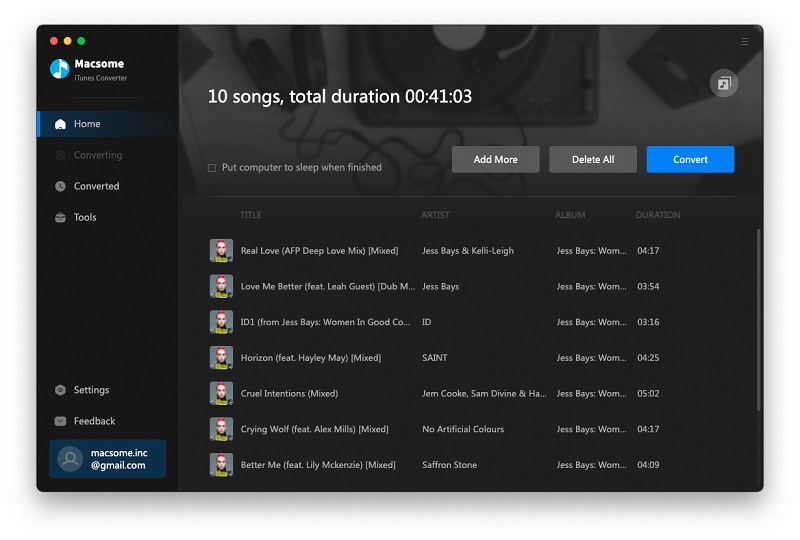
Step 2. Click "+" to import the downloaded Apple Music files.
Please make sure that you have downloaded the Apple Music files you want to convert and they can work normally on your iTunes.
Add downloaded Apple Music songs
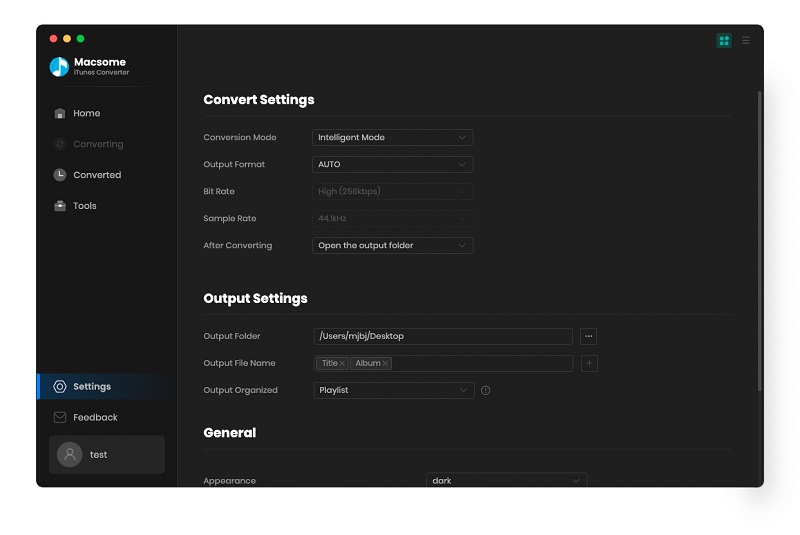
Step 3. Click the setting icon to set the output format and output folder.
Preferences output Settings
There are four output formats including MP3, AAC, FLAC and WAV for users to choose. If necessary, you can also reset the related audio parameters.
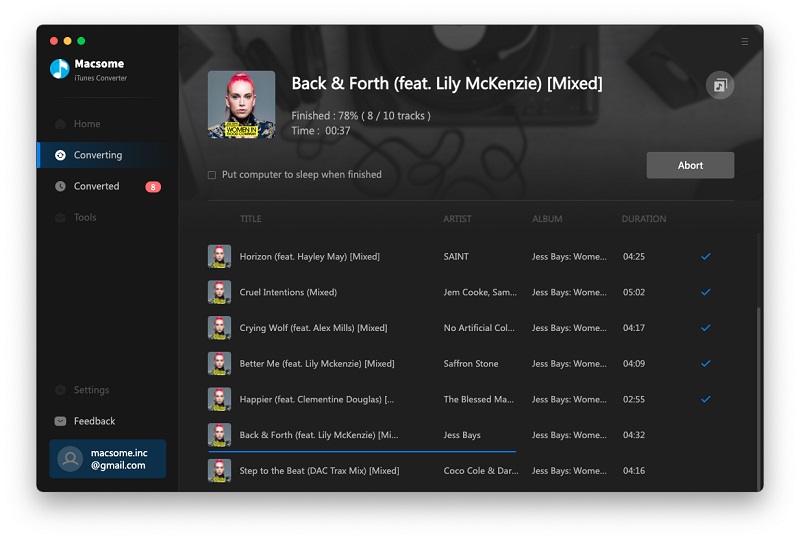
Step 4. Click the "CONVERT" button to start your iTunes music converting.
Converting Apple Music songs to MP3
After the conversion, you can find the converted files and sync them to your iPhone and then play them anywhere and anytime.
More Tips about Apple Music:

Friday, April 19, 2019

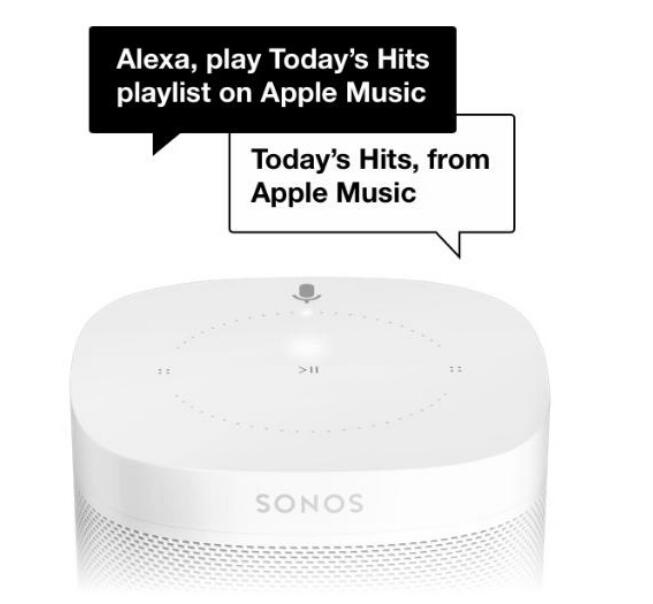
Alexa Support for Apple Music Expands to Sonos Speakers

Amazon Echo devices have been able to use Alexa-based voice commands to control Apple Music since December, but the feature has been limited to Amazon's own devices until today. 
Sonos One and Sonos Beam owners in the United States, United Kingdom, and Ireland are now also able to use Alexa to control Apple Music after adding the Apple Music skill to the Alexa app. 
123
 

To get Alexa controls for Apple Music on Sonos, users will need to update to the newest version of the Sonos app, enable the Apple Music skill in the separate Amazon Alexa app, and link an Apple Music account.

From there, Sonos owners will be able to use commands like "Play My Chill Mix on Apple Music," or "Play Beats 1 Radio on Apple Music."

It's not yet clear if other Alexa-enabled devices will also be gaining support for Apple Musiccontrols in the future, but right now, the feature is available on all Amazon Echo and Fire TV devices along with the Sonos One and Sonos Beam.
Source from Macrumors.com

 More Apple Music Tips you may like:


Thursday, April 11, 2019

How to turn off Canvas videos in the Spotify Android app

If you are Spotify Android App users, you will find that when you listen to Spotify Music, there always videos popping up on the playback screen in place of the normal album artwork. Spotify calls these "Canvas" videos. But maybe you don't want these videos, how to turn off them?
The following guide will show you how to turn off Canvas videos in the Spotify Android app.
  1. Open Spotify on your phone.
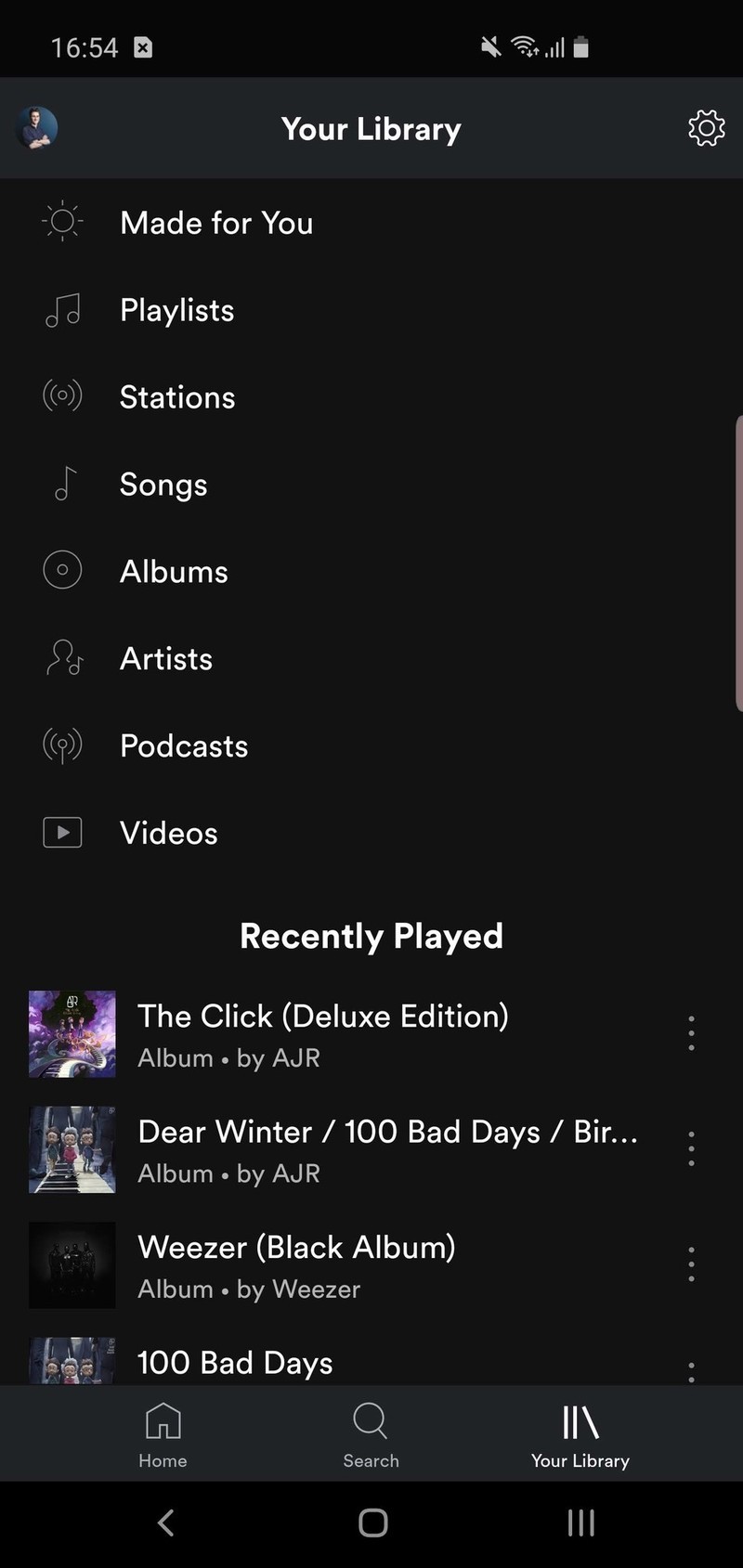
  2. Tap Your Library on the bottom navigation bar.
  3. Tap the settings icon in the top right corner.
  4. Scroll down and tap the toggle next to Canvas.
spotify-turn-off-canvas-android-2
That's it — you've officially turned off Spotify's Canvas videos. Should you ever find yourself wanting to turn them back on, simply repeat the steps shown above.
It looks so simple, now you can also go to take a try and turn off Canvas videos in the Spotify Android app.
More Spotify for Android Tips: