Showing posts with label Spotify Tips. Show all posts

Sunday, May 5, 2019

Different methods to make Spotify collaborative playlist on your devices

When you find some wonderful music songs, do you want to share with your friends?
Spotify lets users create a collaborative playlist so as to share the collaborative playlist to your friends. So both you and your friends can manage your playlist.
On the Desktop:
To turn on Collaborative playlist on desktop, right click (Ctrl-click on Mac) a playlist in the left panel and select "Collaborative Playlist". If the playlist is currently playing, you can also click on "..." icon and select Collaborative Playlist.
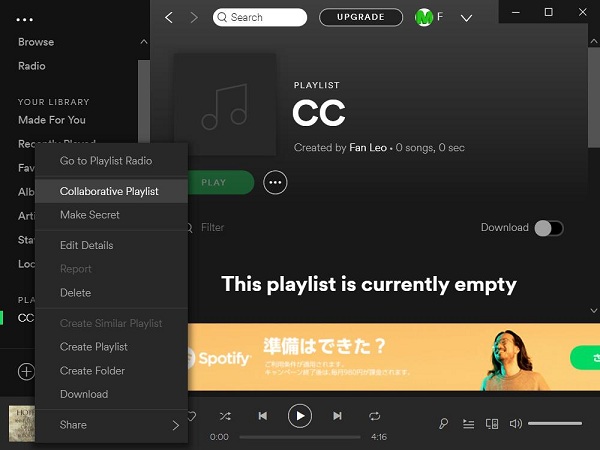
Create Collaborative Playlist
On the Mobile or Tablet:
Run Spotify on mobile or tablet, tap "Your Library" --> tap "Playlist" and select a playlist --> tap "…" icon at the top-right corner > tap "Make Collaborative".
Then share this playlist with your friends to let them know. When your friend clicks on the link, it will be opened in Spotify and they can continue to modify this playlist and share it to others.
Since after you create a collaborative playlist, both of you and your friends can edit or manage them, however all the options can only be worked on Spotify. In the following we will show you how to send the collaborative playlist to your friends via email. And then the playlist can be played on most audio player devices.
You can also use Spotify Audio Converter to free your Spotify playlist so as to manage with your friends easily.
More Spotify Tips:

Thursday, April 11, 2019

How to turn off Canvas videos in the Spotify Android app

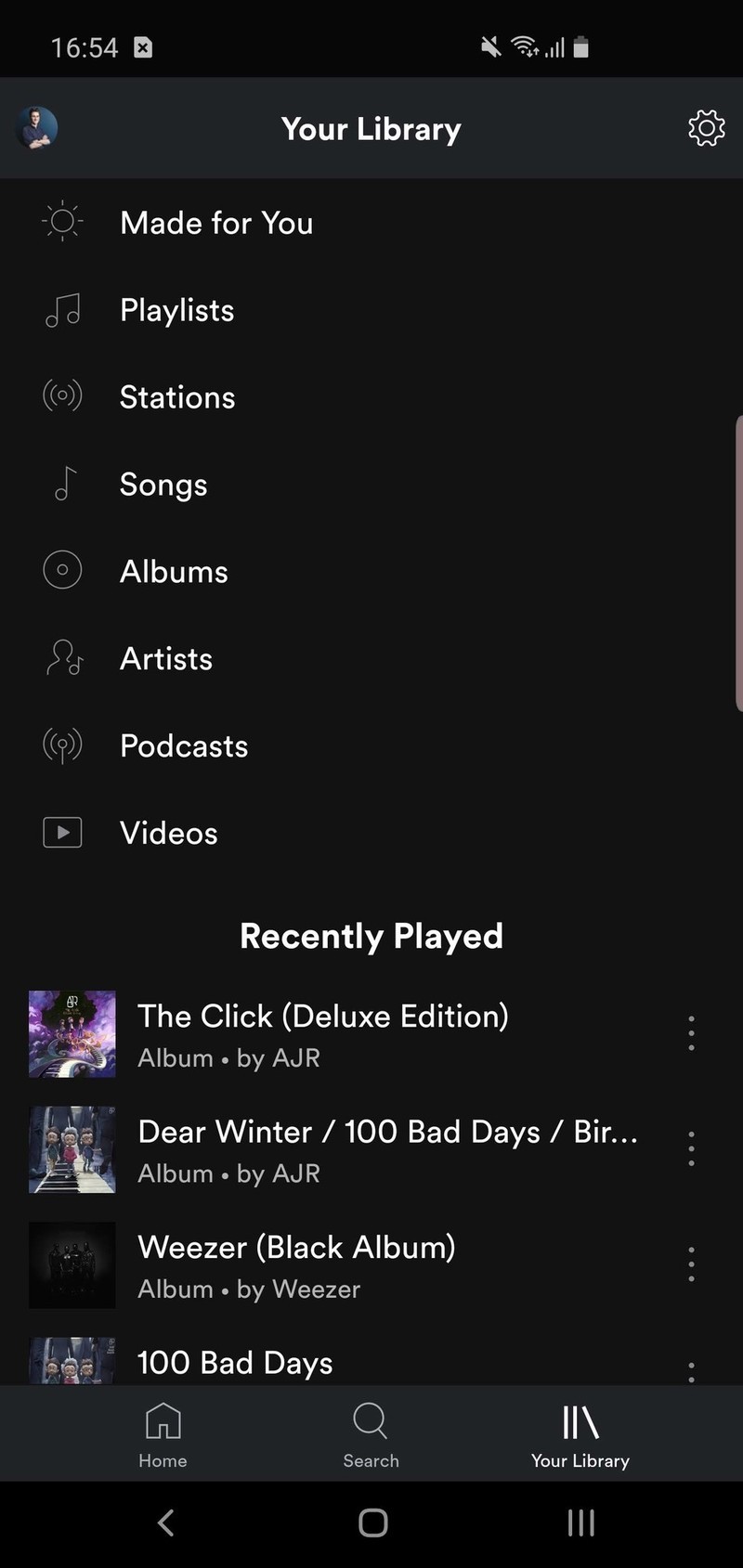
If you are Spotify Android App users, you will find that when you listen to Spotify Music, there always videos popping up on the playback screen in place of the normal album artwork. Spotify calls these "Canvas" videos. But maybe you don't want these videos, how to turn off them?
The following guide will show you how to turn off Canvas videos in the Spotify Android app.
  1. Open Spotify on your phone.
  2. Tap Your Library on the bottom navigation bar.
  3. Tap the settings icon in the top right corner.
  4. Scroll down and tap the toggle next to Canvas.
spotify-turn-off-canvas-android-2
That's it — you've officially turned off Spotify's Canvas videos. Should you ever find yourself wanting to turn them back on, simply repeat the steps shown above.
It looks so simple, now you can also go to take a try and turn off Canvas videos in the Spotify Android app.
More Spotify for Android Tips:

Thursday, March 14, 2019

Proven Method to download the hottest podcast on Spotify

More and more popular Podcasts can be enjoyed on Spotify, sometimes you know that you don't have the good internet or you need to download these podcasts so as to play them offline, or you maybe like to transfer these downloaded podcasts to your MP3 and like so on.
Please don't worry, with the following guide, you can free download Podcasts, music tracks, playlists as many as you like, and you can also copy and transfer the download files to other devices without the amount limitations.
To complete the downloading easily and quickly, here we need a helper – Macsome Spotify Music Downloader. With it, users can download Spotify music tracks, playlists and podcasts and save them to MP3, AAC, FLAC or WAV with almost 100% output quality and fast speed. With the conversion, all ID3 tags and metadata including title, artwork, artist, album, and track number will be kept in order to organize your music library.
Step 1. Go to download and install Macsome Spotify Music Downloader for Mac and run it.
Windows Version Download
Mac Version Download
Step 2. Drag and drop the podcast playlist from Spotify to Macsome Spotify Music Downloader.
Open Spotify application, check the podcast playlists you would like to convert, and then drag them to add window.


If you want to convert the whole playlist, just click "OK" to load all the files to convert, or you can choose some one or more files to convert.
Step 3. Set the Output Format.
Directly click setting button on the program interface to open the Preferences window.
In the output settings, you could change the output folder as you prefer.


Step 4. Start Conversion
After the above steps, now click "Convert" button to start conversion.


After the conversion, you can open the output folder to find the converted podcast files and then play and listen to them anytime as you like.
More Spotify Tips you want to read:

Friday, July 27, 2018

How to copy Spotify playlist to Samsung Galaxy S9

If you only want to enjoy some Spotify songs on Samsung Galaxy S9, and you are Spotify Premium subscribers, it is easy and simple to sync your Samsung Galaxy S9 with your Spotify account when you sign with the same Spotify account.
In this article, we talk about the other way to move your Spotify playlists to Samsung Galaxy S9 without Spotify App.
What you need is Spotify Audio Converter, which is the tool to help you remove DRM from Spotify songs and playlists and convert them to MP3, AAC format for Samsung Galaxy mobile phones with excellent output quality and super fast conversion speed.

Step-by-step guide to convert Spotify for Samsung Galaxy S9

Step 1. go to download and install Spotify Audio Converter Platinum for Mac and run it.
If you are a Windows user, please download the Spotify Converter for Win version.
Windows Version DownloadMac Version Download

Step 2. From Spotify to drag Songs or playlist to Spotify Audio Converter.

Click "+" icon or click center of Spotify Audio Converter Platinum, then you will see a pop-up window which indicates you to drag and drop the songs or playlist here.
To drag your Spotify songs in, just open Spotify application, check the songs or playlist you would like to convert, then drag them to add window.

Step 3. choose Output Format and Adjust Settings

Click the menu bar "Spotify Audio Converter Platinum > Preferences" or directly click setting button on the program interface to open the Preferences window.
In the output settings, you could change the output folder as you prefer.

Step 4. Click "CONVERT" to start Conversion

When the above steps are finished, just click "Convert" button to start conversion.
Now, all the Spotify music or Playlist are converted and saved to your computer, then you can connect your Samsung Galaxy S9 to computer via USB cable and start transferring the converted Spotify music.
More Spotify Tips: