Tuesday, February 27, 2024

How to Download YouTube Music to MP3?

Downloading YouTube Music to MP3 format can be a convenient way to enjoy your favorite songs offline, without relying on an internet connection. While YouTube offers a wide range of music and content, it does not provide a direct option to download music in MP3 format. 

However, there are several methods and tools available that allow users to download YouTube music to MP3 for offline listening. In this article, we will explore some of the most popular and effective ways to download YouTube Music to MP3 format.

In this way, you can also play YouTube Music on MP3 player, old iPod, or other common media players. 


1. Third-party YouTube Music to MP3 Desktop Software:

There are numerous third-party YouTube Music to MP3 downloading tools that offer the ability to convert YouTube music to MP3 format.  Among them, Macsome YouTube Music Downloader is highly recommended for you. It is a professional YouTube to MP3 Converter, which is specially designed to help users to download tracks, albums, and playlists from YouTube Music to MP3 with high quality up to 320kbps. Apart from MP3, it can also convert songs from YouTube to AAC, WAV, FLAC, AIFF, and ALAC with up to 10x faster speed.

It often offers additional features such as batch downloading, file management, and audio customization options.

Download YouTube Music to MP3 with Macsome

Step 1. Login YouTube Music Web Player

With a built-in YouTube Music Web Player, all you need to do is log in to YouTube Music Web Player using your Google account. You can also create a new account right now.
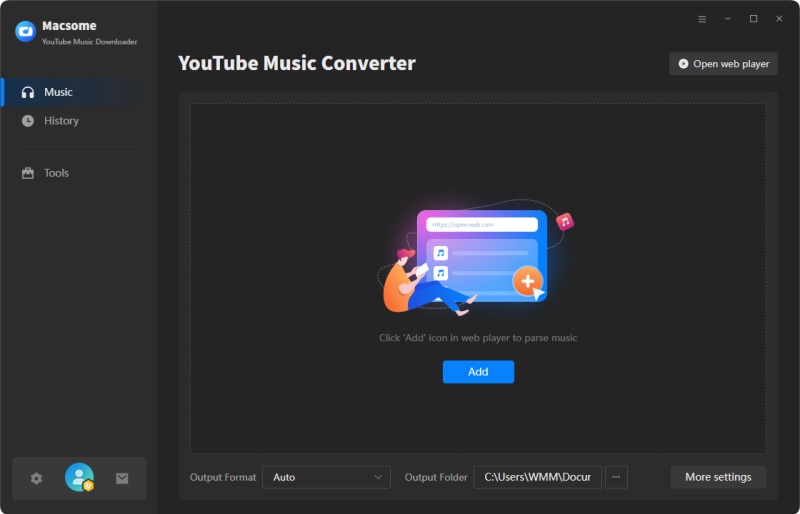
The interface of Macsome YouTube Music Downloader

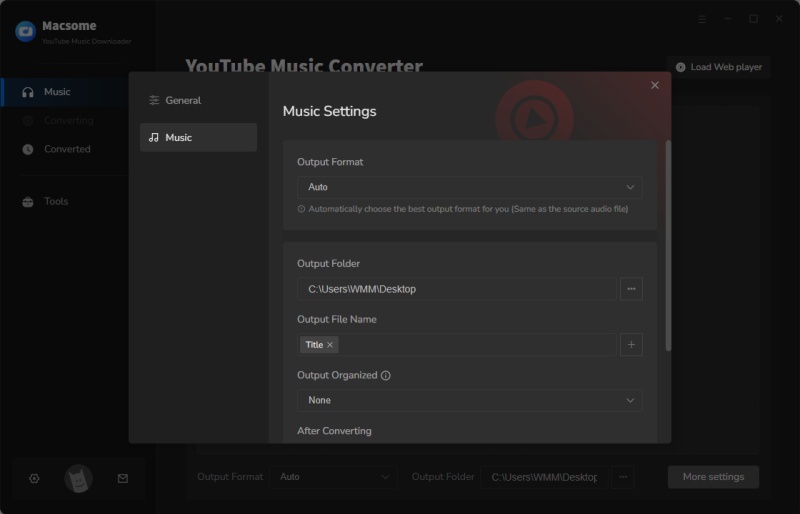
Step 2. Set MP3 as the Output Format

Click on the  icon in the bottom left corner. In the pop-up window, tap the "Output Format" drop-down list, and then select MP3 as the output format. Macsome also offers the audio quality settings (128kbps, 192kbps, 256kbps, 320kbps), you can adjust the bit rate to get the high audio quality you need.
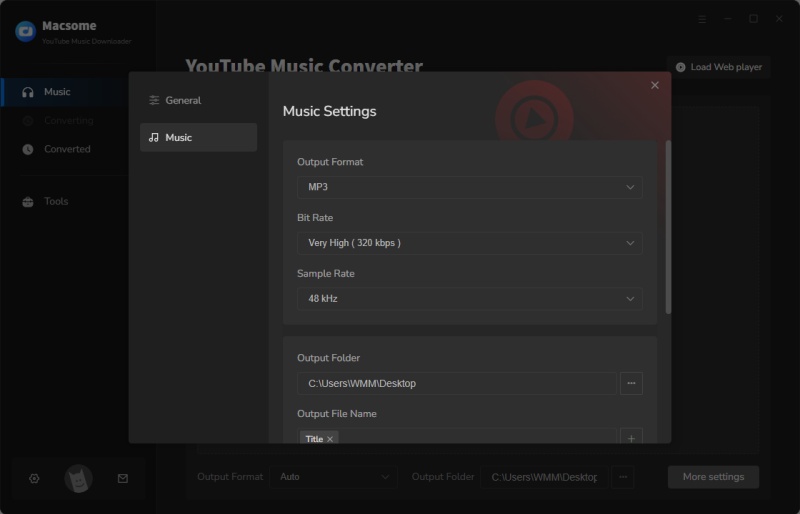
Set MP3 as the output format

Step 3. Select YouTube Music Tracks and Playlists to Convert

Browse an album or a playlist in the YouTube Music web player, then you will see the blue "Click to add" button.
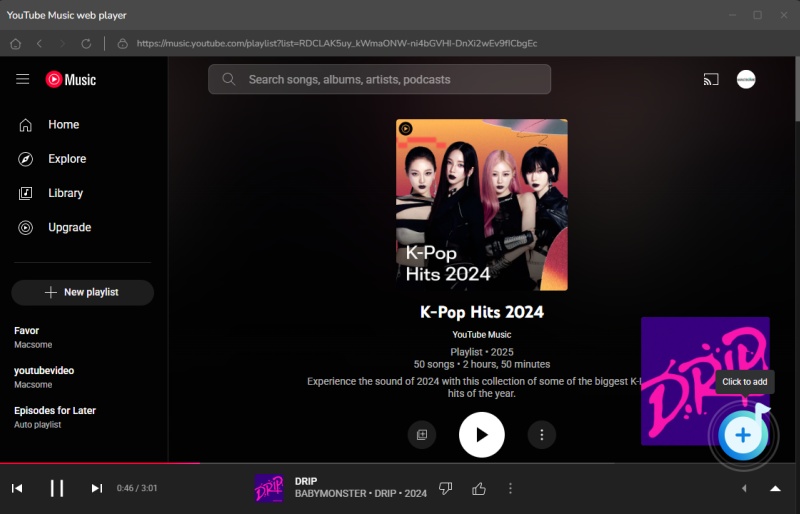
Add YouTube music

Click it, and all the selected songs will be loaded. Tick off the songs you'd like to convert. Then press the "Add" button.
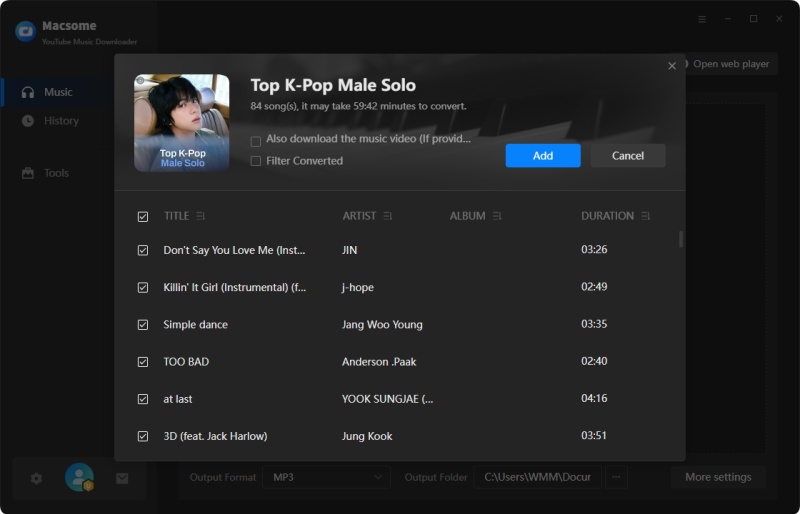
Add YouTube music from other playlists

Step 4. Start to Convert YouTube Music to MP3

Simply hit on the "Convert" button, YouTube Music to MP3 conversion process will begin automatically.
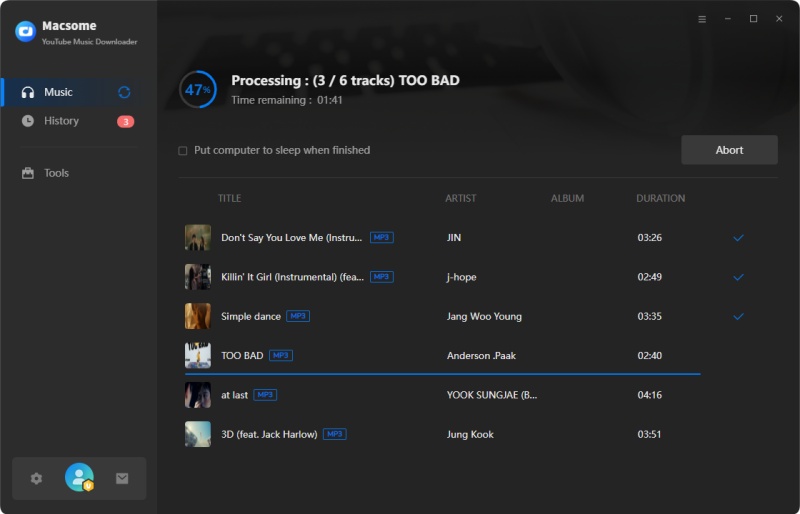
Start to Convert YouTube Music to mp3

2. Online Converters:

Another option for converting YouTube music to MP3 is to use online tools and websites that offer the ability to convert YouTube music to MP3 format. These platforms typically work by allowing users to paste the URL of the YouTube video containing the desired music, and then converting it to an MP3 file that can be downloaded to their device. 

Here are some YouTube to MP3 conversion free sites you can choose, such as Onlymp3.to,  YTMP3.cc, Y2Mate, ToMP3.cc, OnlineVideoConverter.pro,  ListenVid.net and Yt2mp3.info. 

3. Browser Extensions:

Certain web browsers support extensions or add-ons that enable users to download and convert YouTube music directly from their browser interface. These extensions typically add a download button or option to YouTube videos, allowing users to save the content in MP3 format with a single click. While convenient, users should be cautious when installing browser extensions from third-party sources, as they may compromise the security of the browser or device.

Conclusion

Downloading YouTube Music to MP3 format can be a convenient way to enjoy music offline, and there are several methods available to achieve this. Whether using online converters, Macsome YouTube Music Downloader, browser extensions, users should prioritize safety when engaging in the process of converting YouTube music to MP3.

Macsome YouTube Music Downloader is the best YouTube to MP3 Converter recommended. It is specially designed to download tracks, playlists, and albums from YouTube Music. Besides, it can also download music videos on your computer. As a professional YouTube Converter, you are able to convert YouTube Music to MP3, AAC, WAV, FLAC, AIFF, or ALAC without quality loss. The biggest highlight of this software is the ability to save the lyrics in a text file. Have a free trial now. 

Tuesday, January 30, 2024

Download 'The Joe Rogan Experience' Podcasts from Spotify 2024 Without Premium

In this article, we will introduce the best tool - Macsome Spotify Downloader to download Joe Rogan podcasts from Spotify so that you can play Joe Rogan podcasts without the Spotify app. 


What is Joe Rogan Podcasts?

"The Joe Rogan Experience" is a long-form interview podcast hosted by comedian, actor, and UFC color commentator Joe Rogan. The podcast covers a wide range of topics, including comedy, science, politics, philosophy, and popular culture. Rogan engages in informal and in-depth conversations with a diverse array of guests, including celebrities, experts, and interesting individuals from various fields.

The show gained immense popularity for its relaxed and conversational format, allowing guests to discuss their expertise or personal experiences in a more extended and less structured manner compared to traditional media interviews. Joe Rogan is known for his open-minded approach and willingness to explore a broad spectrum of ideas.

Whether you are a Spotify Free or Premium user, you can watch Joe Rogan podcast videos or only listen to podcast audio on Spotify. What's more, Spotify empowers you the ability to download Joe Rogan podcast on Spotify for offline listening directly.


How to Download 'The Joe Rogan Experience' Podcasts from Spotify

Macsome Spotify Downloader is a multifunctional tool for Spotify Free and Spotify Premium users. 

It not only enables users to download songs, albums, artists, podcasts, audiobooks, and playlists from Spotify, but also convert Spotify music to MP3, AAC, FLAC, WAV, AIFF, or ALAC format. This tool may not get your Spotify Premium for free, but it can help you remove ads from Spotify music without Premium and save Spotify songs on your local folder for offline listening.

To download Joe Rogan podcasts from Spotify, you can follow these simple steps to ensure you have access to your favorite episodes even when you're offline without using the Spotify app.

Step 1. Install and Launch Macsome Spotify Downloader.

Download, install, and launch the Macsome Spotify Downloader on your computers. It supports two download modes, here we'll use the Spotify app mode as an example. Then the Spotify app will start.


Step 2. Import Spotify Podcasts to Macsome.

Go to the Spotify app, you can navigate to 'The Joe Rogan Experience'. Or drag and drop Spotify podcasts from the Spotify app to the main window. Hit the "Add" button, and the tracks will be loaded to the main window.

Step 3. Set Output Parameters.

Click the "Settings" icon at the bottom left of the program, you can set MP3, AAC, WAV, FLAC, AIFF, or ALAC from the output format tab. Besides, you could modify other audio parameters of Spotify output files to customize the output quality, including the bit rate and sample rate. In the output settings, you can also change the output folder, output file name, or output organized as you like.


After all the settings, simply click the "Convert" button, and Macsome will start to download Spotify music at up to 10x faster speed.

When the downloading is completed, tap the "Converted" tab, and you will find the history list of all the downloaded Spotify podcasts. You can locate the downloaded Spotify files on your local computer by clicking the "folder" icon. 

Here, you'll find all the episodes you've downloaded and can listen to them without needing an internet connection.

Conclusion

By following these simple steps, you can easily download Joe Rogan podcasts from Spotify using Macsome Spotify Downloader and enjoy listening to them even when you're offline. This is especially useful for those times when you don't have access to a stable internet connection but still want to enjoy your favorite episodes of the Joe Rogan Experience.

Sunday, January 28, 2024

How to Download and Convert Deezer Music to MP3

Converting Deezer music to MP3 format can be a useful way to enjoy your favorite tracks offline or on devices that do not support the Deezer app. 

While Deezer offers a wide range of music for streaming, it does not provide an option to download songs in MP3 format for offline listening. However, there are several methods available that allow you to convert Deezer music to MP3 files for personal use. 


In this article, we will explore the most popular and effective way to achieve Deezer music to MP3 conversion.


1. Using Online Converters:

There are several online platforms that offer free Deezer to MP3 conversion services. These platforms typically require you to input the URL of the Deezer song or playlist that you want to convert. Once you have provided the necessary information, the platform will process the request and provide you with a downloadable MP3 file. It's important to note that the use of such platforms may be subject to copyright laws, so it's essential to ensure that you have the right to convert and download the music in question.

  • Deezloader
  • SMLoadr
  • Freezer APK
  • Murglar APK
  • AllToMP3
  • Audacity

2. Using Macsome Deezer Music Converter:

Another option for converting Deezer music to MP3 is to use desktop software specifically designed for this purpose. There are various programs available that allow you to record and save Deezer tracks as MP3 files on your computer. 

Macsome Deezer Music Converter is highly recommended for you. This tool is  typically work by downloading Deezer music songs, albums, podcasts, and playlists to MP3 with up to HiFi quality. Besides, it also supports converting Deezer songs to MP3, FLAC, WAV, AAC, AIFF and ALAC with ID3 tags preserved.

In this part, we will guide you through the process of using Macsome Deezer Music Converter to convert your Deezer music to MP3.

Step 1: Download and Install Macsome Deezer Music Converter

To get started, you will need to download and install Macsome Deezer Music Converter on your computer. The software is available for both Windows and Mac operating systems, so make sure to choose the appropriate version for your device. Once the installation is complete, launch the program to begin the conversion process.


Step 2: Add Deezer Music to the Converter

After launching Macsome Deezer Music Converter, you can add the Deezer music that you want to convert to MP3. To do this, simply click on the "Click to add" button and select the desired tracks from your Deezer library. You can also drag and drop the files directly into the program for added convenience.

Step 3: Choose MP3 as the Output Format

Next, you will need to specify MP3 as the output format for the converted Deezer music. Macsome Deezer Music Converter supports a variety of output formats, but for our purposes, we will focus on MP3. Simply navigate to the "Settings" section in the lower left of the program and select MP3 as the desired format.


If you want to further customize the output settings for your MP3 files, Macsome Deezer Music Converter offers a range of options to choose from. You can adjust parameters such as audio quality, bitrate, and more to tailor the converted files to your preferences. This step is optional, but it allows you to fine-tune the output to suit your needs.

Step 4: Start the Deezer to MP3 Conversion Process

Once you have added your Deezer music and configured the output settings, you can proceed to start the conversion process. Simply click on the "Convert" button within the program, and Macsome Deezer Music Converter will begin converting your selected tracks to MP3. The software is designed to work quickly and efficiently, so you can expect the process to be completed in a timely manner.

Step 5: Enjoy Your Converted MP3 Files

After the conversion process is complete, you will be able to locate the converted MP3 files within the designated output folder. 

From here, you can enjoy your Deezer music in MP3 format on any device of your choosing. Whether you want to listen to your favorite tracks offline or share them with friends, Macsome Deezer Music Converter makes it easy to access your music in a convenient and versatile format.

Conclusion

In conclusion, Macsome Deezer Music Converter provides a straightforward and effective solution for converting Deezer music to MP3

By following the simple steps outlined in this article, you can quickly and easily enjoy your favorite Deezer tracks in MP3 format. Whether you are a music enthusiast looking to expand your offline collection or simply want more flexibility with your Deezer library, Macsome Deezer Music Converter offers a user-friendly and reliable way to achieve your goals.

Thursday, December 28, 2023

Top 3 Best Spotify to MP3 Converters Online [100% Free]

If you're looking for the best way to convert Spotify to MP3 for free, we've gathered the best free Spotify to MP3 Converters online tools that can be used to convert Spotify music to MP3 in MP3 without Premium for better listening.

Note: Some people would like to use the free tool online, but it has some security problems due to it having a lot of pop-up ads that don't protect users' computers from malware attacks. For security reasons, you should choose a converter that is safe and reliable.

Macsome Spotify Downloader is such a professional Spotify to MP3 Converter recommended for you. 

Top 3 Spotify to MP3 Free Online Converters 

1. SpotiDown (Online)


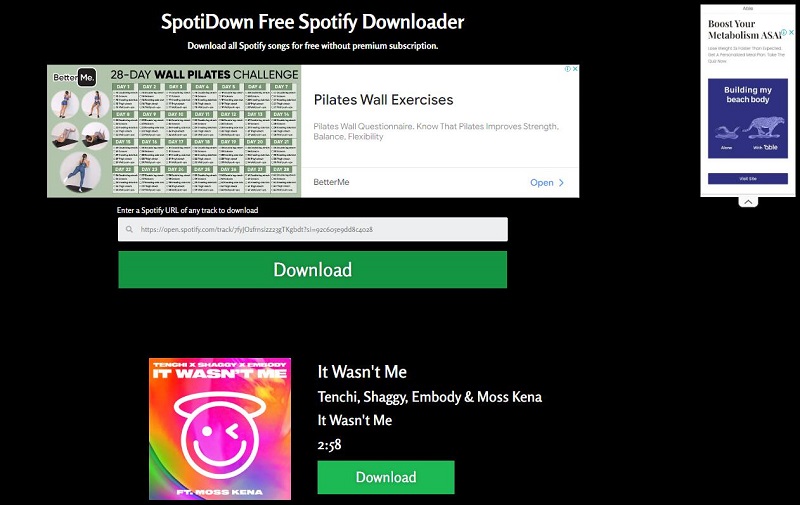
SpotiDown Free Spotify Downloader is a free online tool for converting Spotify to MP3. It is simple to use. You don't need to install any software or log into an account. With it, you are easily able to download Spotify songs to the universally supported format for offline streaming on all devices and media players with ease. 

The main information will be kept after downloading, such as title, article, track number, year, etc. SpotiDown is fully compatible with all systems, including Windows, Mac, iOS, and Android, only with a web browser installed, enabling you to process Spotify download without hassle.

How to Use SpotifyDown:
Step 1. Launch a web browser and navigate to SpotiDown Online Spotify Downloader.
Step 2. Go to Spotify to copy the link of the Spotify song you desire to download. After getting it, return to SpotiDown Online Spotify Downloader and paste it to the frame bar, then click "Download" to parse.
Step 3. Just for seconds, SpotiDown will complete the conversion. Simply tap the "Download" and you can download Spotify songs on your device.


SpotiDown Free Spotify Downloader 

 Pros:
  • Download Spotify songs to MP3 with 320 kbps.
  • Available for both Free and Premium users.
  • Fully compatible with Windows, Mac, iOS, and Android.
  • Work on all mainstream browsers, including Chrome, Firefox, Edge, etc.
  • It's completely free to use.
 Cons:
  • Only support downloading a single track from Spotify at a time.
  • Not each track can be downloaded as MP3.

2. SpotifyDown (Online)

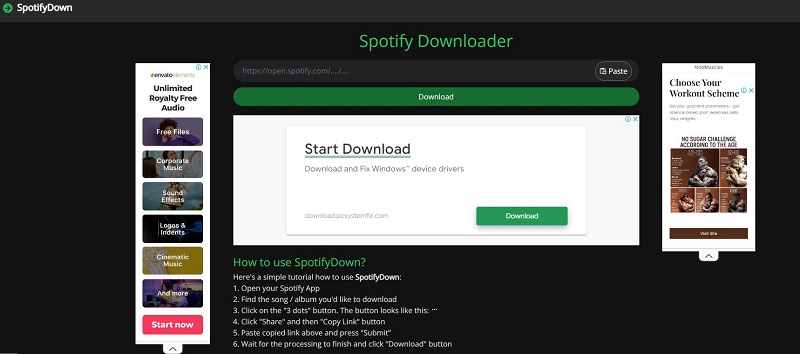
SpotifyDown is a free online Spotify to MP3 converter designed for both Spotify Free and and Premium users. It can download not only a single Spotify track but an entire playlist and albums. Even if you're using a free Spotify account, it will convert songs from Spotify without ad interruptions. Different from Spotify downloader, there is no need to watch ads when you download the tracks. 

How to Use SpotifyDown:

Step 1. Copy the song or playlist link from Spotify. Then paste that link into SpotifyDown and press "Download."
Step 2. SpotifyDown will quickly process your link, so all left for you is to hit the "Download" button. At last, you should click the "Download MP3" button to save the MP3 files on your device.

SpotifyDown


Pros:
  • Quickly convert Spotify music to 320kbps.
  • Download Spotify songs, albums, and playlists with high quality.
  • Remove pesky Spotify ads without a premium account.
  • Work with both Free and Premium accounts.
  • It's completely free and easy to use.
Cons:
  • Doesn't support Spotify podcasts, audiobooks, artists, etc.
  • Only support converting Spotify to MP3 output format.
  • Doesn't support downloading songs in batches.
  • All the downloaded tracks' titles with website link prefixes.
  • Too many advertisements on the interface.
  • There is no 100% secure or reliable. 
  • No support.

3. Spotify-downloader (Online)

Spotify-downloader is a simple Spotify to MP3 Converter that allows you to download tracks, albums, and playlists from Spotify instantly. The website said it is designed specifically to download Spotify tracks as 320kbps MP3 files. NO. I tried, but it can only download MP3 output at 128kbps. 

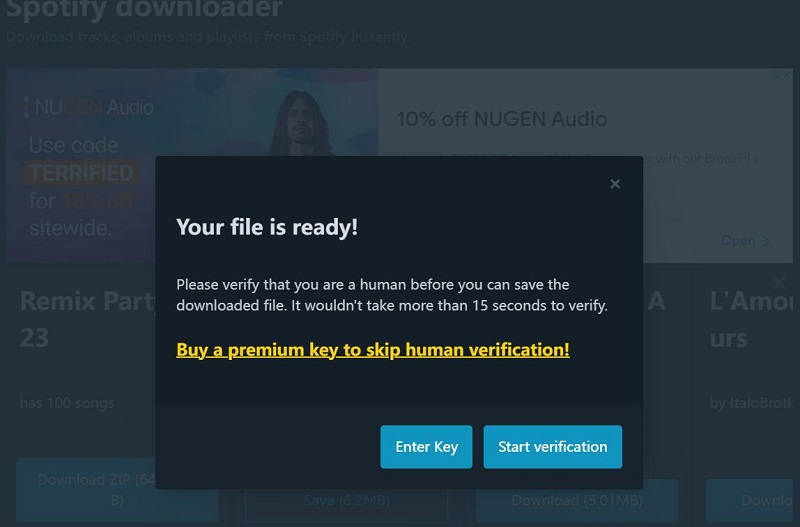
You can also download the entire album or playlist in ZIP format. It also adds all the metadata like cover images, artists, and release date in the downloaded MP3 songs. Show, Podcast, and Artist page links aren't supported yet. It has a free version with ads that need to be verified before you can save the downloaded file. 

How to Use Spotify-downloader:


Step 1. Open your Spotify app or web player, and find the track, album, or playlist you would like to download.
Step 2. Copy and paste the playlist link or song link into the box and hit "Submit". Wait for the tool to process.
Step 3. Click the "Download" button below a track you would like to download. Or click the "Download ZIP" button to download the full album or playlist. Click "Start verification". It will direct you to a new window. You should watch about 15-second advertisements. You can also remove Ads and human verification by purchasing a premium key.

Spotify downloader

 Pros:
  • Support converting Spotify tracks.
  • Download Spotify tracks, albums, and playlists.
  • Keep all the metadata in the downloaded MP3.
  • Runs in the browser, no need to install an extra app.
  • Downloads full album/playlist in ZIP.
 Cons:
  • Show, podcast, and artist page links aren't supported yet.
  • The output quality is quite low, which is only 128kbps.
  • Only support single output format.
  • The free version forces you to watch ads.
  • All the downloaded tracks' titles with website link prefixs.
  • Its security is imperfect.

Professional and Safe Spotify to MP3 Converter - Macsome Spotify Downloader


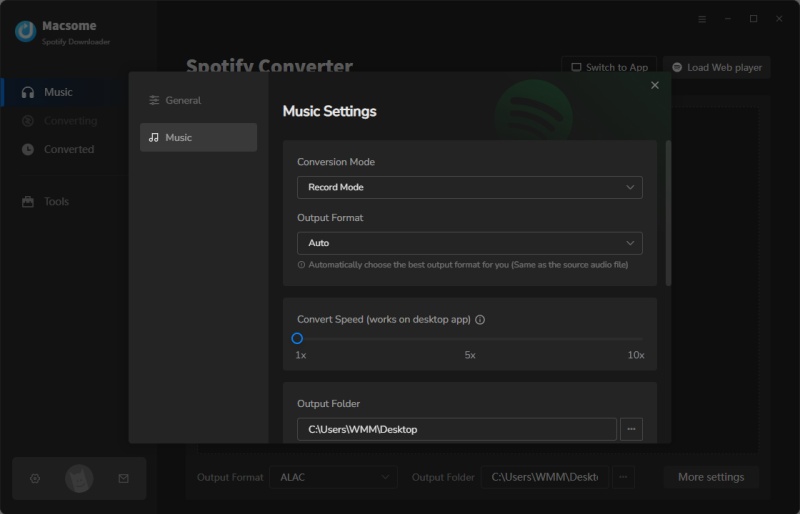
Macsome Spotify Downloader is a professional Spotify to MP3 Converter. With it, you can convert Spotify to MP3 with high quality. In addition to MP3, it also supports converting Spotify music to AAC, WAV, AIFF, FLAC, or ALAC. What's more, Macsome Spotify Downloader is capable of downloading Spotify songs, albums, playlists, audiobooks, and podcasts for offline listening with a Spotify Free account. After downloading, all ID3 tags will be preserved, including Title, Artist, Album, Artwork, Track Number, Disc Number, and Year. If Spotify songs have lyrics, Macsome also allows you to download and save them for offline use.

Macsome Spotify Downloader has two download modes: one that lets you download music from the Spotify app with the original output quality and one that lets you record music from the Spotify web player at 10 times faster speed. Apart from that, this Spotify to MP3 Converter also offers free useful tools that enable you to burn Spotify music to a CD, export Spotify music to Apple Music, convert local audio files to common formats, etc. It is compatible with Windows and Mac platforms.

set MP3 output format

Tuesday, December 26, 2023

How to Download Apple Music to MP3 for Offline Listening

If you subscribe to Apple Music, you can add music from the Apple Music catalog to your music library, then you can download music that you've added to listen to offline.

There are times when you may want to listen to your favorite tracks offline, such as during travel or in areas with limited internet connectivity. To achieve this, you can download Apple Music tracks as MP3 files for offline listening. 


Best Tool to Download Apple Music to MP3

Macsome iTunes Converter is a powerful Apple Music Downloader for you. It is an all-in-one Apple Music to MP3 Converter that lets you download Apple Music songs, playlists, and albums on your local drive. Besides, it also allows you to convert Apple Music to MP3, AAC, FLAC, WAV, AIFF, and ALAC, so you can enjoy Apple Music on your iPhone 15, iPod, Google Home, MP3 Player, Amazon Echo, Roku TV, etc. 

Detailed Guide to Download Apple Music to MP3 with Macsome iTunes Converter

In this guide, we will walk you through the process of downloading Apple Music to MP3 format by using Macsome iTunes Converter, enabling you to enjoy your favorite tunes anytime, anywhere.

Step 1: Launch Macsome Apple Music to MP3 Converter

Download, install, and launch Macsome Apple Music Converter. This program offers two download modes, choose one as you need:

Record music from iTunes: 10X speed; keep original quality; convert Apple Music, iTunes purchased tracks, and more.
Record music from Apple Music web player: up to 10X speed; convert Apple Music only.


Step 2: Add Apple Music Tracks to Macsome

Now you can add the Apple Music tracks from the Apple Music app you wish to download by either dragging and dropping them into the interface or using the "Click to add" button to import the desired music files from the Apple Music web player.


Step 3: Select MP3 as the Output Format

Next, ensure that MP3 is selected as the output format for the downloaded Apple Music tracks. Click on the "Settings" tab on the left to set the output format and output path.


Step 4: Start the Apple Music to MP3 Conversion Process

Click on the "Convert" button, Macsome will work to convert the Apple Music tracks to MP3 format.

Once the conversion is complete, go to the "Converted" tab, you will have a collection of Apple Music tracks in MP3 format. These files can then be transferred to your preferred devices, such as smartphones, tablets, or MP3 players, allowing you to enjoy your favorite music offline without relying on an internet connection.


Conclusion

By following these steps and utilizing the professional Macsome Apple Music Converter, you can easily download Apple Music tracks as MP3 files for offline listening. Now you can enjoy Apple Music offline even your Apple Music subscription expired. 

Wednesday, December 20, 2023

YouTube to Spotify - How to Convert YouTube Music to Spotify

Transferring your favorite music from YouTube to Spotify can be a convenient way to streamline your music collection and enjoy all your tracks in one place. While there isn't a direct way to transfer music from YouTube to Spotify, there are several methods you can use to achieve this. In this article, we'll explore different ways to transfer your YouTube Music to Spotify, so you can seamlessly enjoy your favorite tunes on the go.

1. Use a Third-Party Converter - Macsome YouTube Music Downloader

There are several third-party playlist converters that can help you transfer your YouTube Music to Spotify. These tools allow you to import your YouTube playlist and convert it into a format that can be easily imported into Spotify. 

Macsome YouTube Music Downloader is one of the best YouTube Music Converter you can choose. With it, you can download YouTube Music songs, albums, playlists, and music videos to your local folder. Besides, it can also convert YouTube Music to MP3, AAC, WAV, FLAC, AIFF, and ALAC with original output quality, so that you can upload the downloaded YouTube Music files to Spotify.

Detailed Steps to Convert YouTube Music to Spotify

In this section, you will learn how easy it would be to download YouTube Music to MP3 and upload local YouTube Music songs to Spotify without having to use YouTube Premium.

Step 1. Launch Macsome YouTube Music Downloader

Download, install, and launch Macsome YouTube Music Downloader on your computer, and the built-in YouTube Music web player will start at the same time. Then sign in to your free YouTube Music account.


Step 2. Choose MP3 as the Output Format

Click on the Settings icon in the lower-left corner of the window to choose the output format, output quality, output folder, and more output parameters. 


Step 3. Add YouTube Music Tracks and Playlists

In the YouTube Music web player, you can browse the music library to select songs or directly open playlists that you want to download. Then, you can tap the "Click to add" button on the right side to import the desired songs. Click the "Add" button, Macsome will list the selected songs for you.


Step 4. Start to Download YouTube Music to MP3

Finally, simply click the "Convert" button to start downloading YouTube Music with your YouTube Music Free account.


Step 5. Upload YouTube Music to Spotify

Now that your favorite YouTube Music playlist has been downloaded and saved in your local folder, you can transfer your YouTube Music playlist to Spotify.

Open the Spotify desktop app on your Windows PC or Mac and sign into your account. Click the drop-down menu next to your account name and choose Settings. Scroll down the Settings screen to the Local Files section, and toggle the Show Local Files switch.

Select Show songs from Downloads or Music Library (or both). Select Add a source and upload the local folder where your YouTube Music playlist is stored. Now you can listen to the uploaded YouTube Music songs with the Spotify desktop app. All the songs stored in the chosen local folder will appear in the Local Files folder on Spotify.

 2. Convert YouTube Music to Spotify Using Soundiiz

Soundiiz is a popular online platform that allows you to transfer music playlists between different streaming services, including YouTube and Spotify. 

Simply create an account on Soundiiz, connect your YouTube and Spotify accounts, and use the platform's intuitive interface to transfer your music playlists with ease.

The similar products include Tune My Music and Free Your Music.

Conclusion

In conclusion, while there isn't a direct method for transferring music from YouTube to Spotify, there are several effective ways to achieve this. Whether you choose to use third-party tools, manual methods, or automation platforms, transferring your favorite YouTube Music to Spotify can enhance your listening experience and simplify access to your favorite tracks. By following these methods and considering copyright implications, you can enjoy a seamless transition of your music collection from YouTube to Spotify.

Monday, December 11, 2023

Macsome Announces 2023 Christmas Deals - Up to $60 OFF!

Don’t feel frustrated if you have missed the 2023 Macsome Black Friday sale, as you get one more opportunity to grasp Macsome featured products with up to 46% big discount now! Just get ready to welcome it in the coming Christmas week! Macsome is excited to announce its exclusive Christmas Sale, which will offer up to $60 off on its lifetime version of multimedia converters.

The 2023 Macsome Christmas & New Year Sale is now live and will last until Jan. 11, 2024.


With the coming of Christmas 2023 and New Year 2024, Macsome has announced its Christmas deals on its multimedia solution. In this Christmas Sales promotion, users can get yearly subscription with $10 off discount, and save up to $60 on the lifetime version. Don't Miss Out Macsome's Biggest Offer Ever! 

To enjoy this time-limited Macsome Christmas promotion, you can visit the official promotion page to get more information.

https://www.macsome.com/promotion/2023-christmas-sales/ 

Hot Sales of Macsome Products:

Yearly Deals (Up to $10 OFF):

*Spotify Music Downloader: $49.95 (Original: $59.95)

*Apple Music Converter: $49.95 (Original: $59.95)  

*YouTube Music Downloader: $49.95 (Original: $59.95)

*Amazon Music Downloader: $49.95 (Original: $59.95)

*Tidal Music Downloader: $49.95 (Original: $59.95)

*Deezer Music Converter: $49.95 (Original: $59.95)  

*Pandora Music Downloader: $49.95 (Original: $59.95)

Lifetime Deals (enjoy up to $60 OFF ):

*Spotify Music Downloader: $69.90 (Original: $129.90)

*Apple Music Converter: $69.90 (Original: $129.90)  

*YouTube Music Downloader: $69.90 (Original: $129.90)

*Amazon Music Downloader: $69.90 (Original: $129.90)

*Tidal Music Downloader: $69.90 (Original: $129.90)

*Deezer Music Converter: $69.90 (Original: $129.90)  

*Pandora Music Downloader: $69.90 (Original: $129.90)

Macsomeoiis Diverse Range of Streaming Music Downloaders 

Spotify Music Downloader - Download Spotify music songs, playlists, albums, and podcasts to MP3, AAC, WAV, FLAC, AIFF, and ALAC.

Apple Music Converter - Convert Apple Music, iTunes purchased songs, and iTunes/ Audible audiobooks to MP3, AAC, WAV, FLAC, AIFF, and ALAC.

YouTube Music Converter- Available for both YouTube Free and Premium users to download YouTube Music to MP3, AAC, WAV, FLAC, AIFF, and ALAC.

Deezer Music Converter - Convert Deezer Music to MP3, AAC, etc with Hi-Fi audio quality.

Tidal Music Downloader - Download music from Tidal to MP3, AAC, WAV, FLAC, AIFF, and ALAC with high output quality.

Amazon Music Downloader - Download Amazon Songs to MP3, AAC, WAV, FLAC, AIFF, and ALAC with ID3 tags.

Pandora Music Downloader - Download Pandora music songs, playlists, and podcasts to MP3, AAC, WAV, FLAC, AIFF, and ALAC with a Pandora Free account.

Audible Audiobook Converter - Convert Audible Plus Catalog to MP3, M4A, or M4B with up to 300x faster speed.

"This is the last time in the year that our company has held such a big holiday promotion for customers. All the products are therefore on sale this time." said Leo Fan, Marketing Manager of Macsome Inc. "We hope that 2024 will be a perfect year and wish you all a Merry Christmas."

Pricing and Availability 

The Macsome Christmas Sales promotion event will expire on Jan. 11, 2024. To take advantage of these amazing Christmas & New Year offers, simply visit the promotion page here:  https://www.macsome.com/promotion/2023-christmas-sales/   

About Macsome Inc

Macsome Inc is a software development company that was established in 2008. It is devoted to providing ultimate multimedia solutions to customers worldwide. Main products include Spotify Downloader, Apple Music Converter, YouTube Music Downloader, Amazon Music Downloader, Tidal Music Downloader, Deezer Music Converter, Pandora Music Downloader, and the new upgrade of Audible Audiobook Converter.   

Press Contact

Name: Leo Fan

Email: market@macsome.com

Website: https://www.macsome.com

Facebook: https://www.facebook.com/MacsomeOfficial

Christmas Promotion pagehttps://www.macsome.com/promotion/2023-christmas-sales/