Converting Deezer music to MP3 format can be a useful way to enjoy your favorite tracks offline or on devices that do not support the Deezer app.
While Deezer offers a wide range of music for streaming, it does not provide an option to download songs in MP3 format for offline listening. However, there are several methods available that allow you to convert Deezer music to MP3 files for personal use.

In this article, we will explore the most popular and effective way to achieve Deezer music to MP3 conversion.
1. Using Online Converters:
There are several online platforms that offer free Deezer to MP3 conversion services. These platforms typically require you to input the URL of the Deezer song or playlist that you want to convert. Once you have provided the necessary information, the platform will process the request and provide you with a downloadable MP3 file. It's important to note that the use of such platforms may be subject to copyright laws, so it's essential to ensure that you have the right to convert and download the music in question.
- Deezloader
- SMLoadr
- Freezer APK
- Murglar APK
- AllToMP3
- Audacity
2. Using Macsome Deezer Music Converter:
Another option for converting Deezer music to MP3 is to use desktop software specifically designed for this purpose. There are various programs available that allow you to record and save Deezer tracks as MP3 files on your computer.
Macsome Deezer Music Converter is highly recommended for you. This tool is typically work by downloading Deezer music songs, albums, podcasts, and playlists to MP3 with up to HiFi quality. Besides, it also supports converting Deezer songs to MP3, FLAC, WAV, AAC, AIFF and ALAC with ID3 tags preserved.
In this part, we will guide you through the process of using Macsome Deezer Music Converter to convert your Deezer music to MP3.
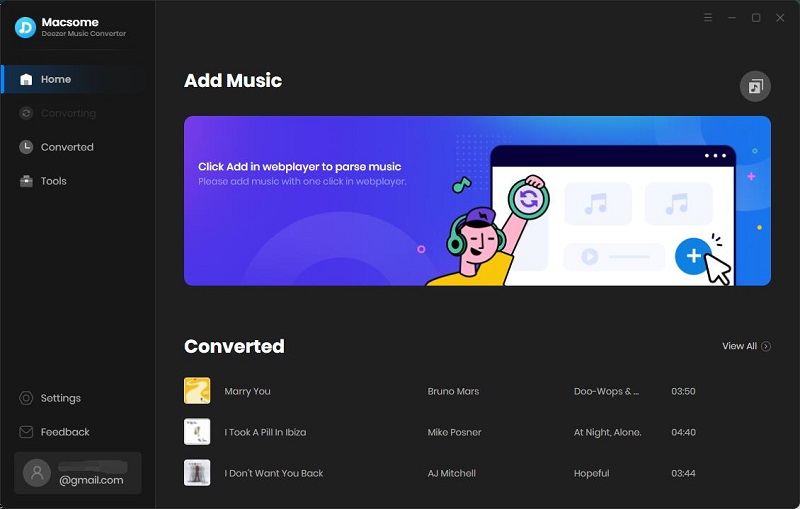
Step 1: Download and Install Macsome Deezer Music Converter
To get started, you will need to download and install Macsome Deezer Music Converter on your computer. The software is available for both Windows and Mac operating systems, so make sure to choose the appropriate version for your device. Once the installation is complete, launch the program to begin the conversion process.

Step 2: Add Deezer Music to the Converter
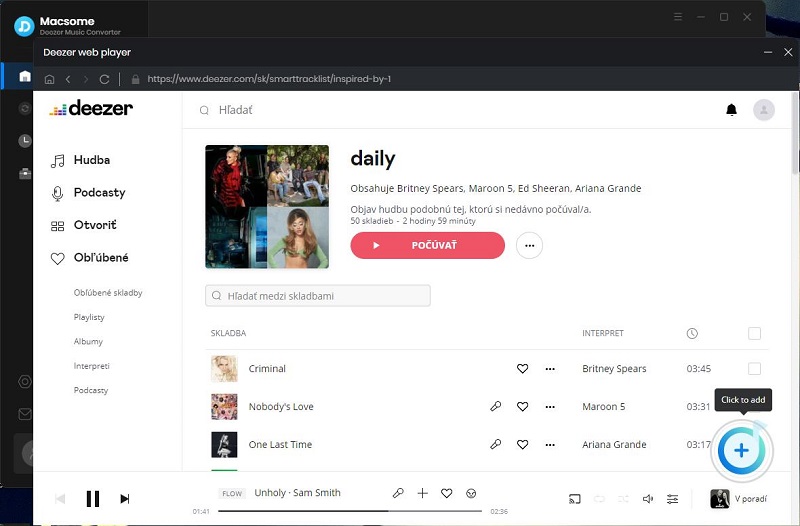
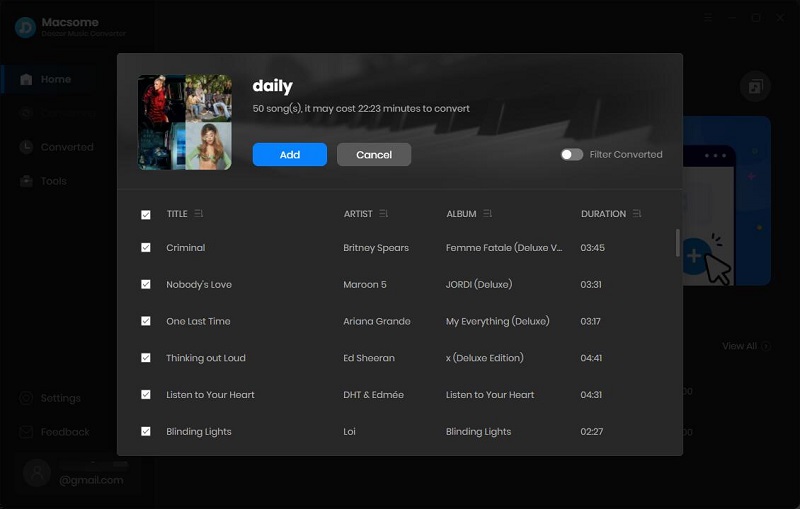
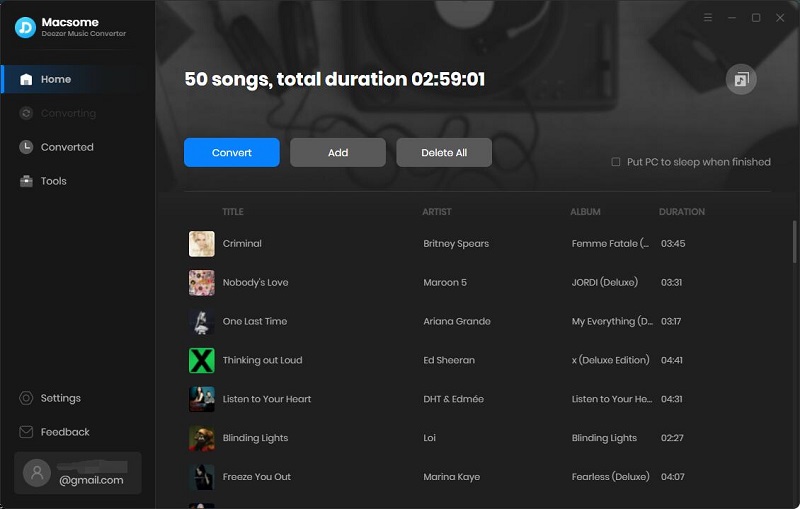
After launching Macsome Deezer Music Converter, you can add the Deezer music that you want to convert to MP3. To do this, simply click on the "Click to add" button and select the desired tracks from your Deezer library. You can also drag and drop the files directly into the program for added convenience.
Step 3: Choose MP3 as the Output Format
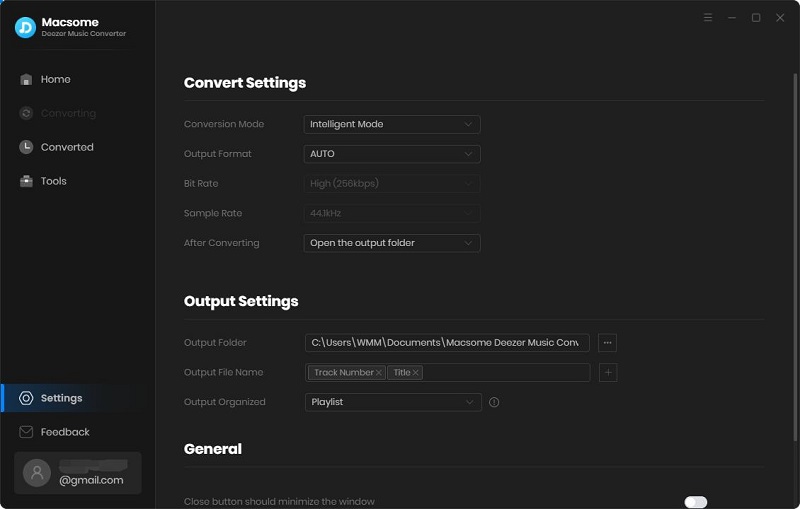
Next, you will need to specify MP3 as the output format for the converted Deezer music. Macsome Deezer Music Converter supports a variety of output formats, but for our purposes, we will focus on MP3. Simply navigate to the "Settings" section in the lower left of the program and select MP3 as the desired format.

If you want to further customize the output settings for your MP3 files, Macsome Deezer Music Converter offers a range of options to choose from. You can adjust parameters such as audio quality, bitrate, and more to tailor the converted files to your preferences. This step is optional, but it allows you to fine-tune the output to suit your needs.
Step 4: Start the Deezer to MP3 Conversion Process
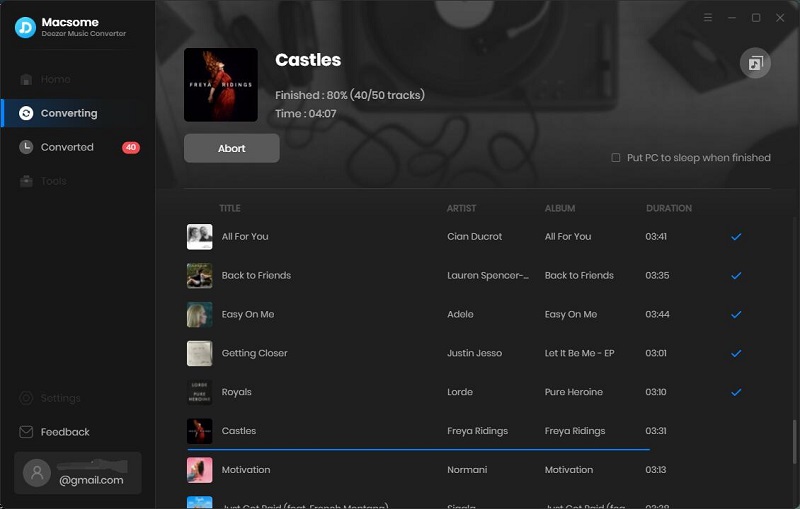
Once you have added your Deezer music and configured the output settings, you can proceed to start the conversion process. Simply click on the "Convert" button within the program, and Macsome Deezer Music Converter will begin converting your selected tracks to MP3. The software is designed to work quickly and efficiently, so you can expect the process to be completed in a timely manner.
Step 5: Enjoy Your Converted MP3 Files
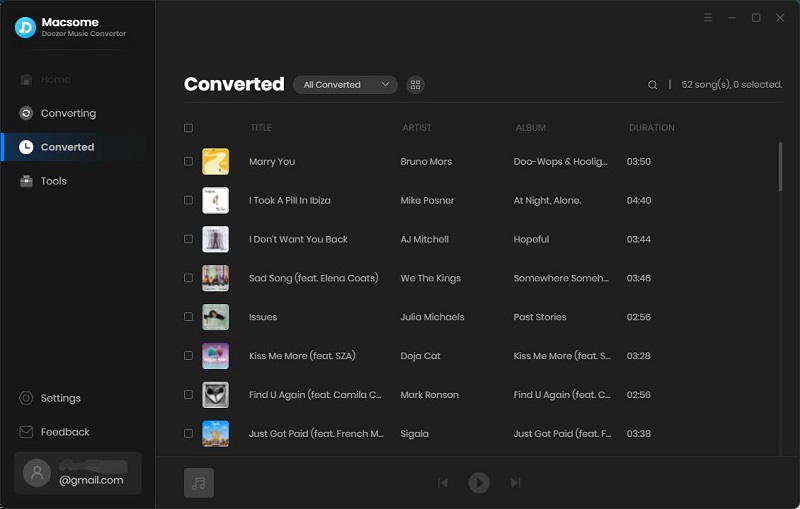
After the conversion process is complete, you will be able to locate the converted MP3 files within the designated output folder.
From here, you can enjoy your Deezer music in MP3 format on any device of your choosing. Whether you want to listen to your favorite tracks offline or share them with friends, Macsome Deezer Music Converter makes it easy to access your music in a convenient and versatile format.
Conclusion
In conclusion, Macsome Deezer Music Converter provides a straightforward and effective solution for converting Deezer music to MP3.
By following the simple steps outlined in this article, you can quickly and easily enjoy your favorite Deezer tracks in MP3 format. Whether you are a music enthusiast looking to expand your offline collection or simply want more flexibility with your Deezer library, Macsome Deezer Music Converter offers a user-friendly and reliable way to achieve your goals.