Monday, November 9, 2015

Audiobook Converter for Win Version 1.3.0 has been released

audio-book-converter-win-smallIt is a long time from Macsome Audiobook Converter Version 1.2.0 to Version 1.3.0. Now we are glad to tell Windows users that: Audiobook Converter for Win Version 1.3.0 has been released on Nov 06, 2015 with more attractive features and more stable functions.
If you are a fresh man to Macsome Audiobook Converter for Win, you can download the latest version 1.3.0 of Macsome Audiobook Converter from the download button. If you have installed the former version of Macsome Audiobook Converter for Win, the software will check for update automatically. There is no need to go to the webpage to find the new version.

The changes of Audiobook Converter for Win Version 1.3.0

Fix the error that the program can't run on iTunes for 64bit.
Add tips to check "Share iTunes Music Library xml" for iTunes. For iTunes 12.3 or later, you need to check it through "iTunes - Preference - Advanced".
iTunes Preferences Settings

With Audiobook Converter, you can

Convert any Audiobooks on iTunes
Whatever your Audiobooks are, if you can use iTunes to play them normally, you can use this Audiobook Converter to convert all the Audiobooks to MP3 / AAC or other audio format as you like.
Remove DRM from purchased Audiobooks
All the purchased Audiobooks are DRM protected, and then you can't play the Audiobooks freely.
Split big Audiobook files by time interval
After Audiobook conversion, you can split the converted Audiobooks by setting the time interval. But the program doesn't support splitting .wav files temporarily.
Support converting kinds of Audio formats
With the Windows Audiobook Converter, you can drag .aa, .aax, .m4a, m4b files to filelist directly. And you can also add other's library audio file like Music, Genius and so on.
Support various output formats
You can choose Same as source, For spoken word, For streaming music and Custom as the output file format (including MP3, AAC(M4A/M4B), WAV).
More info about Audiobook Converter for Win, you can view from http://www.macsome.com/audio-book-converter-win/index.html

Monday, November 2, 2015

How to upload Apple music files to Google Drive and listen to them on Google Drive

Apple Music is compatible with iOS devices running version 8.4 or later, iTunes version 12.2 or later (OS X Mavericks or later; Windows 7 or later), and the Apple Watch.
Google Drive starts you off with 15 GB of free Google online storage, so you can keep photos, stories, designs, drawings, recordings, videos – anything. And you can use Google Drive on your smartphone, tablet or computer. So wherever you go, your files follow.
Apple Music from iTunes are DRM protected, and you can’t freely upload the Apple Music files to Google Drive directly unless you remove the DRM from Apple Music and convert Apple Music M4P to MP3.
apple-music-to-google-drive
Here recommend you a powerful iTunes music DRM Removal - Macsome iTunes Converter, which does well in removing DRM from Apple Music and iTunes Match and convert Apple Music to MP3 for Google Drive.
There are 1-2-3-4 steps to convert Apple Music to MP3, and then you can enjoy the MP3 files on your Google Drive as you like.
  1. Go to download the free trial version of Macsome iTunes Converter, install and launch it.
.Tips: Download iTunesConverter.dmg by clicking http://www.macsome.com/iTunesConverter.dmg.
  1. Click Add button and choose the Music library – playlist and add the files you want to convert.
Add Apple Music to convert
  1. Click Macsome iTunes Converter Menu, and in the drop-down list, choose Preferences, turn to Advanced to set the output format.
Apple Music to MP3
4.: Click Convert button to start removing DRM from Apple Music and converting Apple Music to MP3.
Converting Apple Music to MP3

When the conversion is completed, all the converted music files are free without DRM, and you can play them anywhere as you like.
Warning: Macsome iTunes Converter is a shareware, which supports a trial version, which can only convert 3 minutes each file. If you want to remove the limitation, purchase a full version of Macsome iTunes Converter. You will Love it.


Thursday, October 29, 2015

How to convert Audiobook AAX to MP3 on Mac

You know that all purchased Audiobooks are AA or AAX protected formats. There are full with limitations that you can’t play or listen to Audiobooks on any devices as you like.
If you want to listen to them on a new audio player, you will find it won’t work unless you can authorize them at first.
Have you ever thought of converting these AAX audiobooks to MP3 format, and then you can play these converted MP3 audiobooks without limitation any longer?
If you want to know how to convert AAX to MP3, here recommend you Macsome Audio Book Converter (http://www.macsome.com/audio-book-converter-mac/index.html), which can convert kinds of iTunes AA / AAX AudioBooks to MP3, AAC format, and split these big audiobooks to small pieces with chapter kept.
Step-by-step guide to convert Welcome to Night Vale to MP3 format.
If you have purchased Welcome to Night Vale, make sure that you have authorized it to your computer.
Step 1, go to download Macsome Audio Book Converter, install and run it. The Audio Book Converter loads all playable audiobooks from the iTunes Books library automatically.
Load iTunes audiobooks
Step 2. Click Profile button and select the required profile in Output File Format drop-down list.
Convert AAX to MP3
Step 3. Click the Macsome AudioBook Converter menu and select Preferences to customize the Output Settings by clicking Choose... to set the destination.
Step 4. Click the Convert button and then the selected files will be listed in the window that pops up. And the Status will keep updating the status of the files until that the conversion finished.
Converting AAX to MP3 on Mac
After the conversion is done, you can play  .
Want to know more about AudioBook AAX to MP3 Converter for Mac, go to
About Audiobooks
Audiobooks are distributed on any audio format available, but primarily these are records, cassette tapes, CDs, MP3 CDs, downloadable digital formats (e.g., MP3 (.mp3), Windows Media Audio (.wma), Advanced Audio Coding (.aac)), and solid state preloaded digital devices in which the audio content is preloaded and sold together with a hardware device.

Monday, October 26, 2015

Wednesday, October 21, 2015

How to play Welcome to Night Vale: A Novel on MP3 player

Welcome to Night Vale is now the top and hottest Audio Book file on the iTunes Store, which is Performed by Welcome to Night Vale podcast narrator Cecil Baldwin and special guests Dylan Marron, Retta, Thérèse Plummer, and Dan Bittner, with music by Disparition. From the creators of the wildly popular Welcome to Night Vale podcast comes an imaginative mystery of appearances and disappearances that is also a poignant look at the ways in which we all struggle to find ourselves.
You can purchase it through https://itunes.apple.com/us/audiobook/welcome-to-night-vale-novel/id1046988053, or through iTunes App to purchase it.
1
You know that the purchased Welcome to Night Vale Audio Books are DRM protected and you can only play them on your Apple products with Apple ID authorized. And it can’t be playable on MP3 player devices and other audio player. How to solve this?
Here recommend you Macsome Audio Book Converter (http://www.macsome.com/audio-book-converter-mac/index.html), which can convert kinds of iTunes Audio Books to MP3, AAC format, and you can also split these big files with chapter kept.
There are three ways to split your big audio books by by the duration, file size or chapter of files. And the splitting and converting process has removed DRM as well.
Steps to convert Welcome to Night Vale to MP3 format.
If you have purchased Welcome to Night Vale, make sure that you have authorized it to your computer.
Step 1, go to download Macsome Audio Book Converter
(http://www.macsome.com/AudiobookConverter.dmg), install and run it. The Audio Book Converter loads all playable audiobooks from the iTunes Books library automatically, including Welcome to Night Vale.
Step 2. Click Profile button and select the required profile in Output File Format drop-down list.
Step 3. Click the Macsome AudioBook Converter menu and select Preferences to customize the Output Settings by clicking Choose... to set the destination.
Step 4. Click the Convert button and then the selected files will be listed in the window that pops up. And the Status will keep updating the status of the files until that the conversion finished.
After the conversion is done, the Stop button will change to the Close button. Click the Play button shown behind the completed file to play the output files.
Want to know more about Audio Book Converter, go to http://www.macsome.com/audio-book-converter-mac/index.html


Tuesday, October 20, 2015

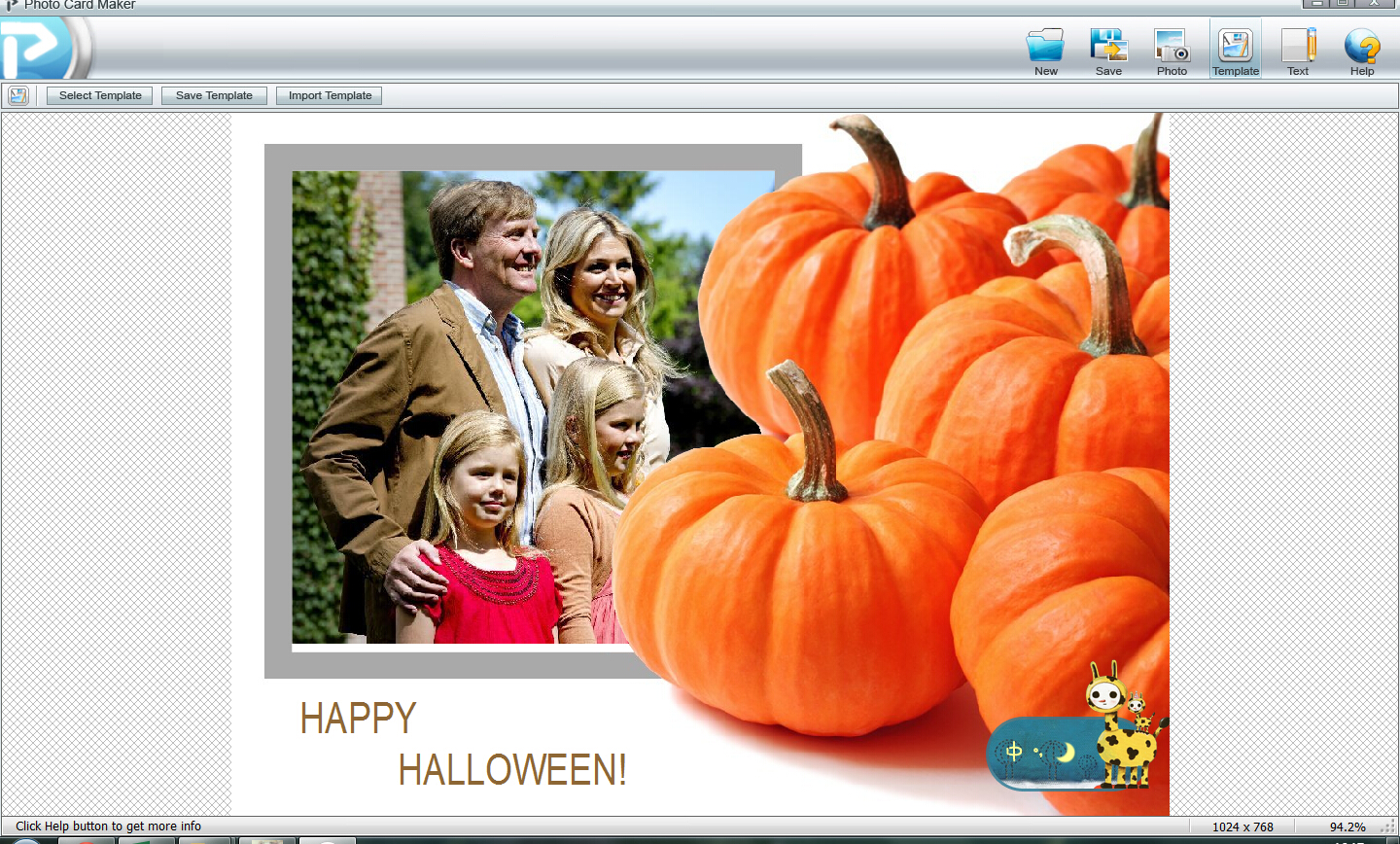
The easiest, Fastest and free way to make a Halloween Greeting Card by yourself

Don't worry, Even you are a fresh man, you can use it to make your own Halloween Greeting Card.
  1. Click the http://photo-card-maker.com/PhotoCardMaker.exe  to download the free Photo Card Maker, and you will see the follow one on your desktop. Or you can go to http://photo-card-maker.com/download.html to download it. 
  2. .1
  3. Click the exe file, follow the next - next -next to install the free card editor.2
  4. When you finish the installation, the Photo Card Maker will auto open,3
4. Here we click “Template”
4
there are very few templates to choose, don't say that you need the Halloween card template. Don't worry, you can go to the templates page to download more as you need.
5
5. Now import the downloaded Halloween templates to the Photo Card Maker.
6
6. Choose one template you like to make your own Halloween Greeting Card. And click "Photo" to import the photo so as to make the Greeting Card with your own mark.
7
7. You can still edit the text, or rewrite what you like to say.
9
8. Click Save, now you can get one your own Halloween greeting card, you can send it to your friends by email or print it out as you like.
9
So easy, why not take a try by yourself.

Wednesday, October 14, 2015

The easiest way to burn an Audio book to CD using iTunes on PC or Mac


  1. Launch iTunes.
  2. Click the Book icon, then My Audiobooks.

  3. Note:If you don't see the Book icon, you may need to click the ellipsis menu (…) to locate it.

  4. Right-click on the title you wish to burn.
  5. Click New Playlist from Selection.
  6. Note:You must create a new playlist for each Audiobook you burn.
  7. Right click the playlist >l select Burn Playlist to Disc.
  8. Adjust your Burn Settings.
To minimize the probability of errors, we suggest the following:
  • Preferred Speed: 8x
  • Disc Format: Audio CD
  • Gap Between Songs: None
  • Click Burn.
If your Audiobook is longer than 74-80 mins, iTunes will prompt when you need to insert a new disc. Follow the prompts as they appear to successfully complete the burn.
If you want to convert Apple Music to MP3, Macsome iTunes Converter may help you.
If you want to convert Audio Books to MP3 and remove DRM, Macsome Audio Book Converter can help you. 
If you want to split your Audio Books or other audios, Free Audio Splitter can help you.