Monday, November 28, 2022

How to Download Deezer Podcasts to Listen Offline

If you are looking for a way to download Deezer podcasts on your computer, you have come to the right place. In this article, we will introduce the two different approaches for Deezer subscribers to download podcasts from Deezer to listen to Deezer podcasts offline.

 Macsome Deezer Music Converter is a reliable Deezer Podcasts Downloader. With it, you can download Deezer music tracks, playlists, albums, and podcasts as local files so that you can play them on as many devices without any restrictions.

Step-by-step Guide to Download Deezer Podcasts on Computer

In the tutorial that follows, we are going to show you how to download podcasts from Deezer with Macsome Deezer Music Converter. If you are interested in this program, please read the steps below to see how it works.

Step 1. Login Deezer Music Web Player

First, please make sure you have installed Macsome Deezer Music Converter on your computer. Once done, launch it by double-clicking on it. Once it is completely opened, you will see the "Open Deezer Web Player" button on the main interface. The button is for the anchor that goes to the login page. Please use your account to log in to Deezer Web Player.

Interface of macsome deezer music converter

Step 2. Customize the Output Parameters

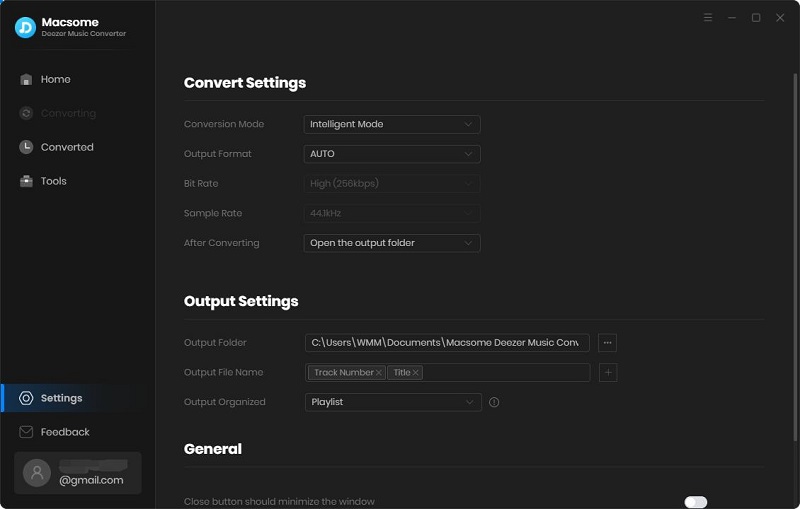
Click on the Settings icon in the upper right-hand corner of the interface, if you choose "AUTO" from the output format list, the songs will be saved with the best audio quality. You can also set MP3, AAC, WAV, FLAC, AIFF, and ALAC as the output format. 

Besides, you can also change the output folder you preferred to save the downloaded Deezer podcasts.

Set output format

Step 3. Browse and Select Podcasts You'd Like to Download

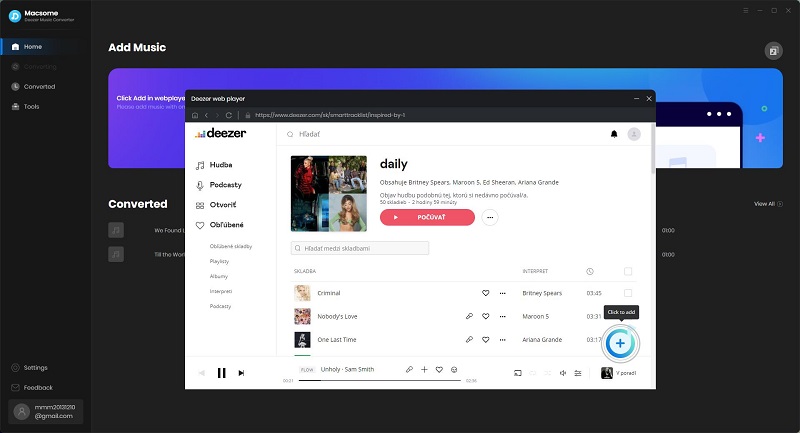
You can find a podcast using the Search box or you can browse podcasts in the Podcasts tab list on the left side. Select an episode you want to download and click the blue "Add to list" button to add the selected podcast to the conversion panel.

Add Deezer music

Step 4. Start to Download Deezer Music Podcasts

Click the "Convert" button, and Macsome will start downloading the Deezer podcasts you want.

start to download deezer music

When the downloading is finished, your favorite podcasts would be downloaded to local files on your computer successfully. To find them on your computer, you can click the history icon beside the settings. Hit the "folder" icon, and you will see the Deezer podcasts stored locally. And you are free to play Deezer podcasts offline whenever and wherever possible.

find the downloaded Deezer music

Monday, November 21, 2022

Black Friday Deals & Thanksgiving Day Sales – Get Macsome Products Up to 35% Off

Macsome Inc. launched 2022 Black Friday as well as Thanksgiving Day special sales. You can save up to 35% off on Macsome featured programs, including Spotify Downloader, iTunes Converter, Amazon Music Converter, Tidal Music Downloader, Deezer Music Converter, and Audiobook Converter. This promotion is valid till 30, Nov 2022.

More Details of Macsome Black Friday Sale at http://bit.ly/3Ew9pbI

Get 35% Off on Macsome Streaming Music Tools:

Macsome Spotify Music Downloader (1-MONTH PLAN)

Was: $14.95

Black Friday Price: $9.95

Macsome Spotify Downloader is well designed for Spotify users to batch download Spotify tracks, playlists, albums, radios, and podcasts to lossless MP3, AAC, WAV, AIFF, FLAC, and ALAC formats at 10X speed, and with ID3 tags. Besides, it applies to Spotify Premium and Free users, who can download music from Spotify to their local computer for playback offline by using this tool. 

Macsome iTunes Converter (1-MONTH PLAN)

Was: $14.95

Black Friday Price: $9.95

Macsome iTunes Converter is specially developed to record Apple Music streams while converting the songs from M4P to MP3, FLAC, AAC, AIFF, WAV, or ALAC format at 10X speed. Plus, it is capable of downloading Apple Music tracks without damaging the original streaming audio quality.  

Macsome Amazon Music Downloader(1-MONTH PLAN)

Was: $14.95

Black Friday Price: $9.95

Macsome Amazon Music Downloader is a brilliant yet easy-to-use tool to download songs, playlists, albums, and podcasts from Amazon Music Unlimited & Prime Music with the highest output quality at faster speeds. And it supports most generic output formats, including MP3, AAC, FLAC, WAV, AIFF, and ALAC. 

Macsome Tidal Music Downloader(1-MONTH PLAN)

Was: $14.95

Black Friday Price: $9.95

Macsome Tidal Music Downloader is dedicated to downloading Tidal music, album, and playlist to plain MP3, AAC, FLAC, WAV, AIFF, and ALAC formats, while preserving 100% original HiFi/MQA sound quality output. Of course, it also has built-in valuable tools, like an ID3 tags editor, music format converter, etc. 

Macsome Deezer Music Converter(1-MONTH PLAN)

Was: $14.95

Black Friday Price: $9.95

Macsome Deezer Music Converter works perfectly in converting and downloading songs, playlists, albums, or podcasts from Deezer to lossless audio formats, including MP3, AAC, WAV, FLAC, AIFF, and ALAC. Additionally, there is no need to install an extra Deezer Music app. You can easily download music from Deezer in batches with the embedded Deezer Web Player. 

Macsome Audiobook Converter(1-MONTH PLAN)

Was: $19.95

Black Friday Price: $12.96

Macsome Audiobook Converter enables users to download Audible AA/AAX audiobooks to Mac with keeping lossless streaming music quality. It also performs almost 60X faster in converting audiobooks to MP3, M4A, and M4B. Of course, free technical support and software upgrades are also provided, as other music converters do. 

Note: Macsome.com has the best Black Friday deal on streaming tools. However, please keep in mind the expiration date. The Black Friday Sale at Macsome is valid from November 22 to November 30. Cherish this chance, and grab your preferred tool with the best price now! 

Macsome 2022 Black Friday Deals Promotion Page: http://bit.ly/3Ew9pbI

About Macsome Inc

Macsome Inc is a software development company which established in 2008. It is devoted to providing ultimate multimedia solutions to customers worldwide. Main products include Spotify Downloader, Amazon Music Downloader, Tidal Music Downloader, Audiobook Converter, Apple Music Converter, and the newly launched Deezer Music Converter. 

Email: support@macsome.com

Promotion Page: https://www.macsome.com/promotion/2022-black-friday-deals.html

Tuesday, November 8, 2022

Macsome Products Now Compatible with macOS 13 Ventura

Macsome is pleased to announce that all their products including Spotify Downloader, iTunes Music Converter, Tidal Downloader, Amazon Downloader, and more are now compatible with the macOS 13 Ventura. http://bit.ly/3hrhI0X

As a professional software developer, Macsome is the first brand to announce compatibility with the latest macOS 13, prior to all other competitors. All its streaming music tools, including Macsome Spotify Downloader, iTunes Music Converter, Tidal Music Downloader, Amazon Music Downloader, Deezer Music Downloader, YouTube Music Downloader, and Pandora Music Downloader fully support the macOS 13 Ventura.


macOS Ventura is available as a free software update on Macs with Apple silicon and Intel-based Macs. If Mac users can upgrade to the macOS 13 Ventura, they can easily download music from Spotify, Apple Music, Tidal, Amazon Music, YouTube Music, and Pandora to MP3, AAC, WAV, FLAC, AIFF, and ALAC formats with the latest version of streaming music tools on macOS 13 Ventura. 

macOS 13 Ventura: Continuity Makes Apple Devices Work Magically Together

macOS Ventura includes new productivity tools and Continuity features that make the Mac experience better than ever.

New features like Continuity Camera enable users to seamlessly work across their Apple devices, and productivity tools including Stage Manager help users stay focused and easily move between tasks. Safari ushers in a passwordless future with passkeys and big updates come to popular apps including Mail and Messages. 

Hot Products Introduction 

Macsome Spotify Downloader: As a powerful Spotify Music Converter, it allows both Spotify Premium and Free users to download songs, playlists, and albums from the Spotify app to the local computer. It can convert Spotify music to MP3, AAC, WAV, FLAC, AIFF, and ALAC with 100% original quality. It also keeps ID3 tags after conversion. Besides, users can use it to convert their local music to MP3/M4A/AAC/WAV/ OGG/AIFF and edit ID3 tags. 

Macsome iTunes Music Converter: It is a combination of Apple Music Converter, iTunes music downloader, and audiobook recorder. With it, users are capable of converting any audio that can be played in iTunes, including Apple Music files, audiobooks, iTunes music, or other downloaded music, to MP3, AAC, FLAC, AIFF, WAV, or ALAC format with high-quality. 

Macsome Deezer Music Converter: This professional Deezer Music Converter works on both Mac and Windows platforms, and aims to help Deezer subscribers to convert Deezer Music, podcasts, albums, and playlists to plain MP3, AAC, WAV, FLAC, AIFF, and ALAC with HiFi sound quality. 

Macsome Tidal Music Downloader: It is an all-in-one Tidal Music Converter. With it, you can download Tidal tracks, playlists, albums, and podcasts on your computer. Besides, you can also save any Tidal audio files to MP3, AAC, WAV, FLAC, AIFF, and ALAC formats. Therefore, you can enjoy Tidal music on any device you have. 

Macsome Amazon Music Downloader: Macsome Amazon Music Downloader allows Amazon Music users to download songs, playlists, albums, and podcasts from Amazon Music Unlimited & Prime Music. Moreover, it also supports converting Amazon Music to AIFF, MP3, AAC, FLAC, ALAC,  and WAV with high output quality. 

If you are running macOS 10.11 or newer, you can use all Macsome Mac products. For more info, you can find http://bit.ly/3hrhI0X

About Macsome Inc

Macsome Inc is a software development company that was established in 2008. It is devoted to providing ultimate multimedia solutions to customers worldwide. Main products include Spotify Downloader, Apple Music Converter, Amazon Music Downloader, Tidal Music Downloader, Audiobook Converter, Deezer Music Converter, YouTube Music Downloader, and Pandora Music Downloader. 

Press Contact

Name: Leo Fan

Email: support@macsome.com

Website: https://www.macsome.com

Facebook: https://www.facebook.com/Macsome-108827811251133 

Order: https://www.macsome.com/order.html


Tuesday, October 25, 2022

How to Download Deezer Music to MP3

Deezer Premium and HiFi subscribers can download tracks, albums, playlists and podcasts for offline listening. Premium streams in MP3 format, while Deezer HiFi uses FLAC. However, the streams are not real songs. They are protected by national and international copyright and related rights, which prevent you from downloading and listening to offline streams without a subscription.

Therefore, many users wonder if there are any practical alternatives to download and convert Deezer Music to MP3 so that they are able to transfer Deezer Music to an MP3 player or other devices for offline listening.

download and convert Deezer music to mp3

Step 1. Login Deezer Music Web Player

Macsome has a built-in Deezer Music Web Player, so you don't have to install Deezer client on your computer. Just use your account to log in Deezer Music Web Player.

Interface of macsome deezer music converter

Step 2. Set the Output Formats and Other Parameters

Click on the  icon at the top right corner of interface, the Settings window will pop up. Here we need to set MP3 as the output format. Macsome also offers the audio quality settings (128kbps, 192kbps, 256kbps, 320kbps), you can adjust the bit rate to get the audio quality. Or change the output folder as you like.

Set MP3 as the output format

Step 3. Add Music and Playlists from Deezer Music

Browse a track, an album or a playlist, then you will see the blue "Add to list" button.

Add Deezer music

Click it, and all the selected songs will be loaded.

Add Deezer music

Step 4. Start to Convert Deezer Music to MP3

Select the songs you'd like to download, and then hit the "Convert" button to start downloading Deezer music to MP3.

start to download deezer music to mp3

After the conversion, you can find the downloaded Deezer music files in MP3 from the  history option.

find the downloaded Deezer music


Monday, September 26, 2022

How to Set Deezer Music as Ringtones for iPhone and Android

If you have a Deezer subscription, you can download songs and listen offline. However, this does not mean that you can download these tracks as native music files or set them as your ringtones on a smartphone. There is no official solution yet. This can be tricky if you have a specific song that you like a lot and wish to set it as a ringtone. Take it easy. Please read the complete guide below to discover how to set Deezer Music as a ringtone for your iPhone or Android phone.
set Deezer Music as ringtone

Part 1. Best Tool to Download Deezer Music for Making as Ringtone

As indicated above, the downloaded Deezer songs are not available to set as ringtones. But you can choose to download Deezer Music as common formats like MP3 so that you can set the audio from Deezer as a ringtone for your phone. Converting Deezer Music to MP3 is quite simple. Macsome Deezer Music Converter is such a tool that can help you.

This program is a comprehensive music converter for Deezer Music subscribers. With it, you are able to download tracks, playlists, albums, and podcasts from Deezer. Moreover, you can also convert Deezer Music to MP3, AAC, WAV, FLAC, AIFF, and ALAC with Hi-Fi output sound quality. Therefore, you can set Deezer tunes as your ringtone on your iPhone or Android phone.

Guide: How to Convert Deezer Music to MP3 as Ringtone

Here is a simple step-by-step guide on how to convert Deezer Music to MP3 as a ringtone by using Macsome Deezer Music Converter. Before starting, please make sure you have downloaded the latest version of the program on your computer.

Step 1. Login Deezer Music Web Player

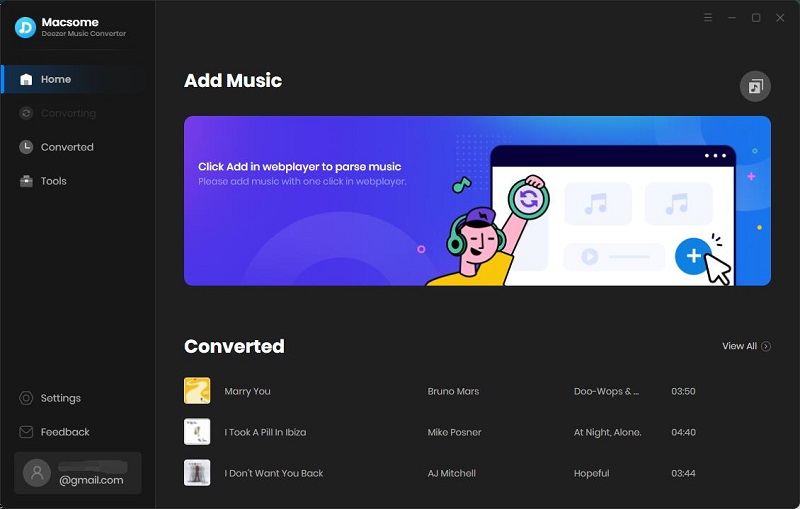
Launch the program, click the "Open Deezer Web Player" button on the main interface. Tap the "LOG IN" button, and use your account to log in Deezer Music web player to get access to your music library. If you do not have an existing account, you can as well create one. Either Deezer Premium or HiFi is OK.
Interface of Macsome Deezer music converter

Step 2. Set the Output Formats and Output Parameters

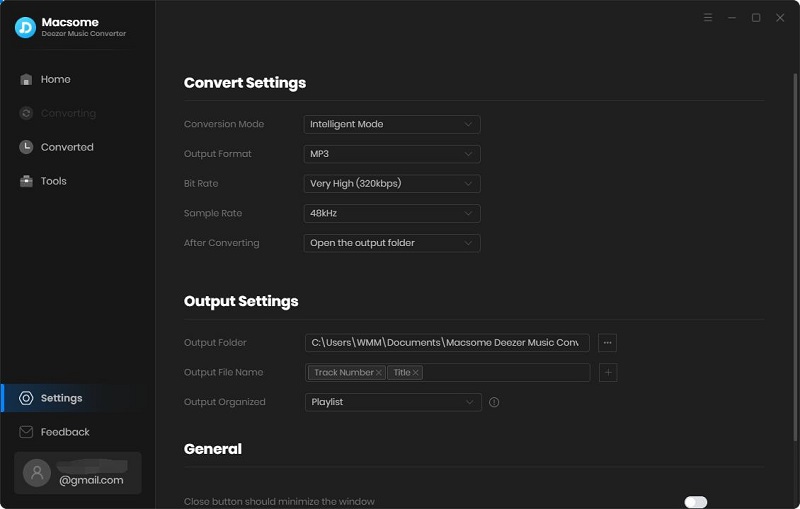
Click on the  icon in the top right corner of the interface to customize the output settings. In the pop-up Settings window, you are allowed to set the output format as MP3, AAC, WAV, FLAC, AIFF, and ALAC. To set Deezer songs as ringtones, we suggest you choose MP3 as the output format, as MP3 is the most common audio file, and it works on most devices.
Set MP3 as the output format

Step 3. Add Deezer Music and Playlists You'd Like to Download

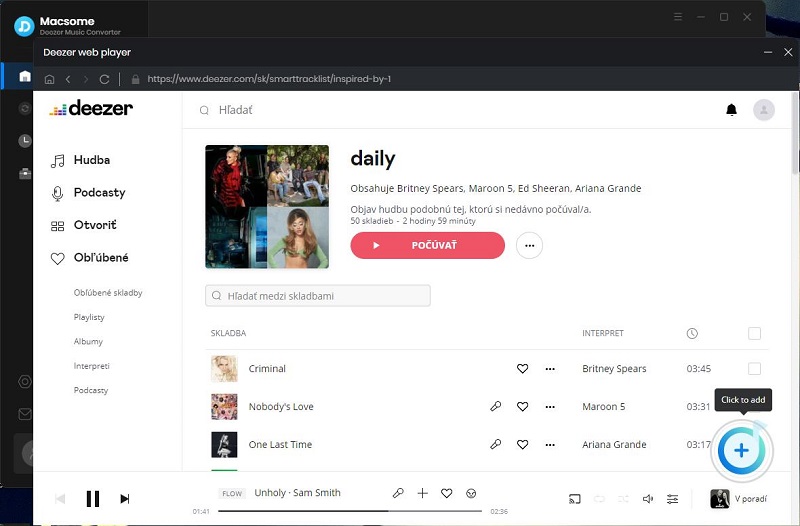
Navigate and open a playlist, then you will see the blue "Add to list" button. Click it, and all the selected songs will be selected.
Add Deezer music

Step 4. Start to Convert Deezer Music to MP3

After you have selected your songs, click the "Convert" button to start converting Deezer to MP3 process.
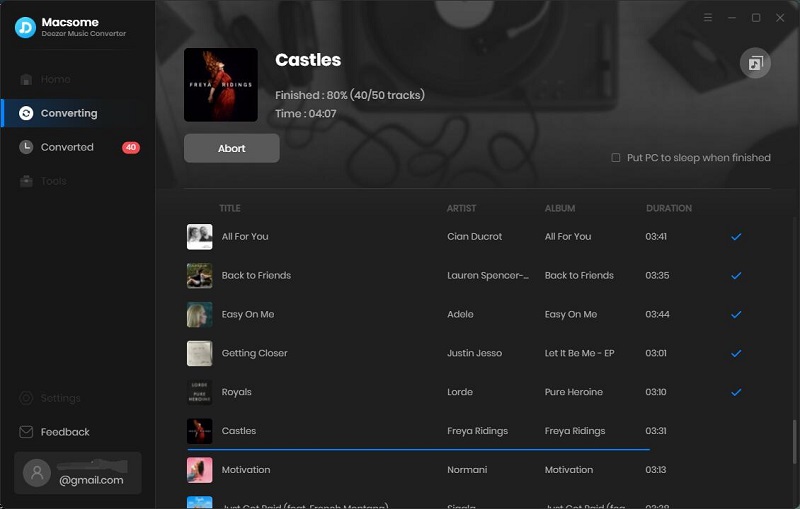
start to download Deezer music to mp3

When the conversion is done, you can click the history  icon on the top of the interface, then hit the folder icon, you will find all the converted tracks on your computer. Now it would be easier to set Deezer Music song as a ringtone on your phone.
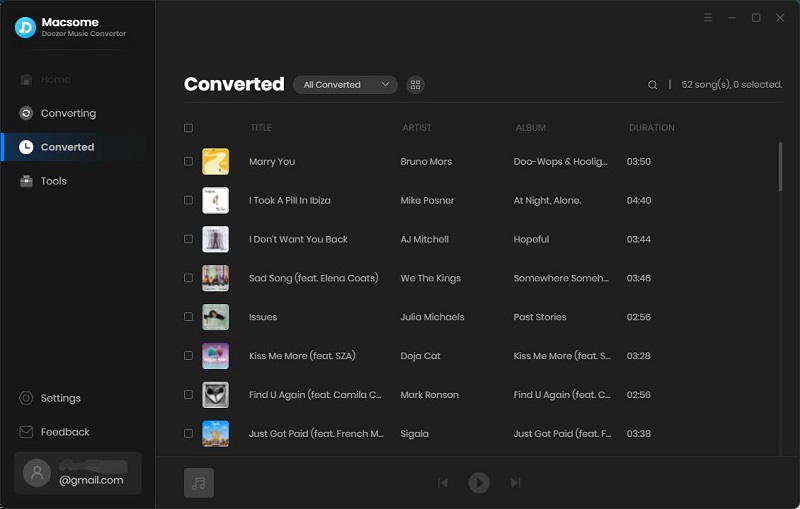
find the converted Deezer music

Part 2. Make Your Ringtone from Deezer Music on iPhone

Since you have downloaded Deezer Music on your local computer, here are two ways to set a song from Deezer music as a ringtone for your iPhone.

1. Set a Deezer Track as iPhone Ringtone with Syncios Mobile Manager

There are several free ringtone apps that can do this, but for this tutorial, we'll be using an all-in-one free iPhone Ringtone Maker- Syncios Mobile Manager. With it, you can cut a select segment from your favorite Deezer track and make it into an iPhone ringtone. There is no need to buy ringtones for iPhones, and now you can turn a Deezer song into a ringtone for iPhone via the following step-by-step tutorial.

Step 1. First, download, install and start Syncios on your computer (Mac version). Then connect your iPhone via USB cable to your PC. Click the Toolkit menu on the top of the window, and you will find Ringtone Maker on the left.

Step 2. Click on the "Choose" button, then add the Deezer track you would like to use as a ringtone from the local folder. Or drag and drop the converted Deezer music file to the panel directly.

Step 3. Choose a specific part of the Deezer track and make it your iPhone ringtone. Just start playing the track, then click "Set start" button and "Set End" button to adjust the tone length.
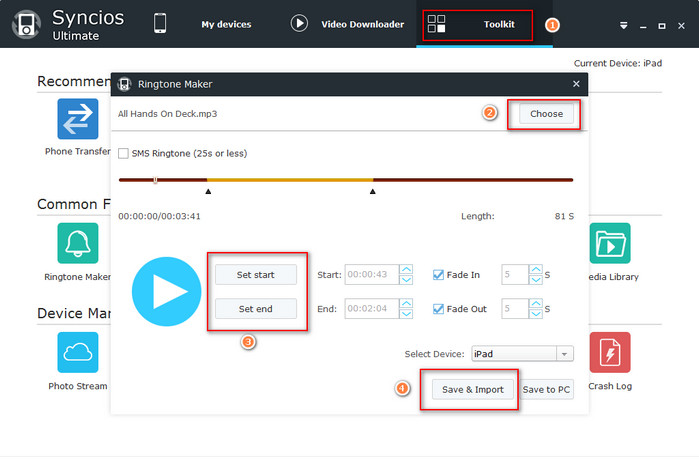
Syncios Free iPhone Ringtone Maker

Step 4. You can export the track segment to your iPhone directly by clicking the "Save & Import" button.

Step 5. When it's done, you can head into the settings and select the Deezer track to make it a ringtone for your iPhone. On your iPhone, click "Settings" - "Sounds" - "Ringtone", then you would find the ringtone file you currently imported and set it as your ringtone.

2. Create Deezer Music as an iPhone Ringtone using iTunes

To create a Deezer track as a ringtone for iPhone using iTunes, you need to import the converted Deezer music files to iTunes or Apple Music first, then you can set it as your own iPhone ringtone. First, please make sure that you have installed the latest version of iTunes or Apple Music. Now let's get started.

Step 1. Import the converted Deezer music to iTunes.

Launch iTunes on your PC, choose "File" - "Add File to Library" or "Add Folder to Library". Locate the converted Deezer music files, then click "Open".

Step 2. Shorten the song within 30 seconds.

Pick the song you want to use as your new iPhone ringtone, right-click it and select "Song info". Turn the "Options" tab on the pop-up window. Now you can adjust the "start time" and "finish time" of the song. Keep it under 30 seconds. You can play it back to make sure it's the part of the song you want. Then click "OK" at the right bottom.
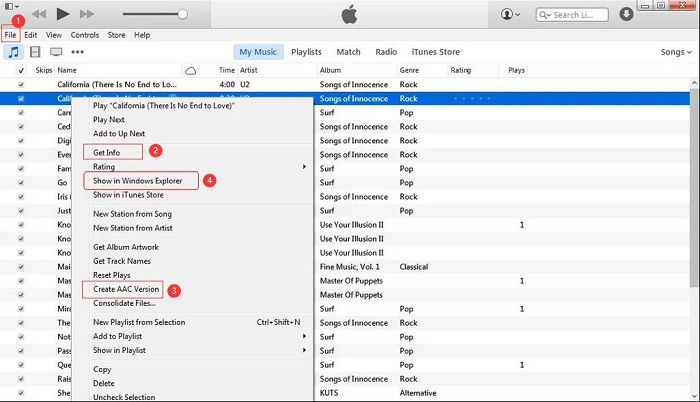
Make Deezer track as iPhone ringtone

Step 3. Create AAC version.

Select the song again by clicking once on it. Then go to the "File" menu, choose "Convert", then select "Create AAC Version" in the drop-down menu. iTunes will immediately convert the 30-second audio clip you just chose to create.

Step 4. Find the AAC version in the iTunes folder.

After creating the AAC version of the song, you will find the songs you created in the iTunes library. Right-click the song and choose "Show in Windows Explorer".

Step 5. Change the track extension into .m4r.

After locating the file in the iTunes folder, you will find that the song is an M4A file. You should right-click the file and rename the file extension into .m4r.

Step 6. Import and sync the ringtone to iPhone.

Connect your iPhone to your computer with its USB cable, you will see your iPhone in the left-hand column under "Devices". Click on it and the list should expand, so you can see a Tones section. Click on that and you'll see any custom tones appear on the right. Click "Sync" at the right bottom.
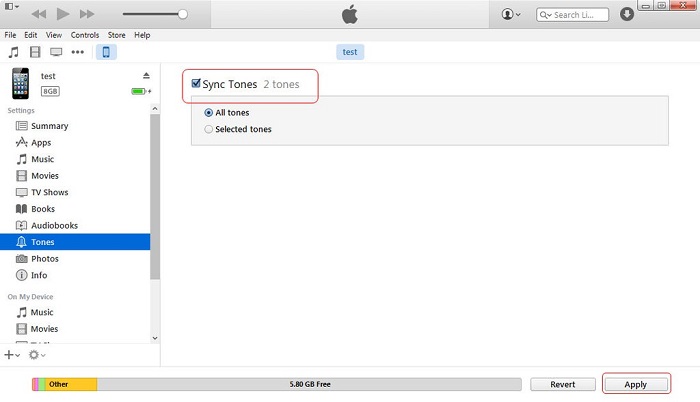
sync the convert Deezer Music to iPhone tone

Now that the new tone is on your phone, open the "Settings" app on your iPhone, then tap "Sounds" (also called "Sounds & Haptics"), then "Ringtone". Your new added tones will appear at the top of the list, above the default Ringtones. Just tap on one to make it your ringtone.

Part 3. How to Set a Song from Deezer as a Ringtone on an Android

Changing your ringtone on Android phones is particularly easy. Now you can refer to the detailed guide to use a song from Deezer Music as a custom ringtone on your Android phone. The steps will vary according to what your manufacturer pre-loads onto your phone model.

Step 1. Connect your Android to your PC using a USB cable. Select the converted Deezer music files from your computer. Drag the files into the Music or ringtone folder on your Android phone.

Step 2. Open the Settings app on your Android mobile phone. Tap on "Sounds and vibration."

Step 3. Tab the "Ringtone" option. From here, you will see a list of ringtones or a list of ringtone categories available on your phone.

Step 4. Scroll down to the bottom and tap on "Add Ringtone" or tap on the "+" plus icon. Then you can select the converted Deezer track to use as the default ringtone on your phone. Your new ringtone will be saved as soon as you exit the Settings app.
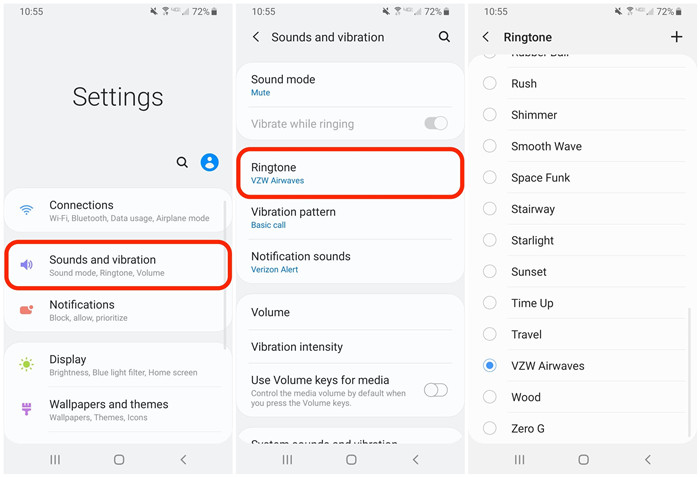
Make Deezer Music as ringtone on Android

Monday, September 12, 2022

How to Play Spotify Music on MP3 Player

Spotify is available across a range of devices that have a supported Spotify application, including computers, phones, tablets, speakers, TVs, cars, etc.  Spotify Premium members can download and listen to tracks offline on their devices with the Spotify app. 

However, it's not easy to play Spotify music on an MP3 player. That's mainly because most MP3 players aren't integrated with Spotify.

download Spotify music to MP3 player

On the other hand, most MP3 players only support plain audio file types, such as MP3, WAV, WMA, OGG, AAC, M4A, and FLAC, while Spotify uses Ogg Vorbis format with encryption protection. So most MP3 players can't recognize Spotify music. Due to the encryption protection, you can't transfer music from Spotify to MP3 players or other devices directly, either.

So, is it possible to enjoy Spotify music on MP3 players? Please don't worry. In this tutorial, we will show you how to download music from Spotify to MP3 players for offline listening freely. Let's check the detailed guide on how to make it below.

Part 1. Best Tool to Download Spotify Music to MP3

If you still wish to play Spotify songs to a generic MP3 player, you will need to convert Spotify OGG Vorbis files to MP3 or other formats that are supported by most MP3 players. As a professional Spotify to MP3 Converter, Macsome Spotify Downloader is strongly recommended for you. 

With the help of this program, you are able to download Spotify songs, playlists, albums, and podcasts to MP3, AAC, and more without losing the original audio quality. Therefore, you can transfer Spotify music to any device like MP3 players, car stereo systems, game consoles, etc.

Significantly, Macsome Spotify Downloader applies to all Spotify users. That is, both Spotify Premium and free users can download Spotify music for offline listening by using this tool. 

Part 2. Guide to Download Spotify Music to MP3 Player

The following is a detailed guide about how to download Spotify music to MP3 and then transfer Spotify songs to MP3 players.

Step 1. Download Macsome Spotify Downloader.

First, please download and install Macsome Spotify Downloader on your computer.

interface of Macsome Spotify Downloader

Step 2. Set MP3 as the Output Format.

This is a major step for downloading songs from Spotify music to MP3 players. Click the "Settings" icon in the upper right corner of the program, and you will see the pop-up settings window. There are multiple formats available, including MP3, AAC, WAV, FLAC, AIFF, and ALAC. Here you can choose MP3 as the output format. Besides, you can also set the bit rate to 320 kbps.

Output settings

Step 3. Import Spotify Playlists, Albums, or Podcasts.

Click the "+" button, and you will see a pop-up window that indicates you to add the Spotify songs or playlist here.

Search any content you would like to download from the Spotify app, then drag them to the adding window. Moreover, you can also copy and paste the link to the song or playlist. Then hit the "OK" button, and the tracks will be loaded to the main window.

Add Spotify songs to Macsome Spotify Downloader

Step 4. Start to Download Spotify Music to MP3.

After all the settings, simply hit the "Convert" button, and the Spotify music to MP3 downloading process will begin.

start to download spotify songs to MP3

Once completed, hit on the "Converted" tab, and you will find all the downloaded Spotify songs here. Click the "folder" icon, and you can locate the downloaded Spotify MP3 music files on your computer.

check the downloaded Spotify MP3 files

Step 5. Transfer Spotify Music to MP3 Player for Playback.

First and foremost, connect your MP3 player to your computer via a USB cable. Next, go to the destination file location that contains the downloaded Spotify songs. Then drag and drop these songs into the drive on your computer just like any other external drive.

Conclusion

It could be easier to download music from Spotify to an MP3 player by using Macsome Spotify Downloader, no matter whether you are a Free or Premium user. It can help you download Spotify music songs to MP3 with high quality so that you can play your Spotify music on any MP3 player, such as Sony Walkman, SanDisk MP3 player, iPod Shuffle, iPod Nano, and Creative Zen which is not compatible with Spotify.

Tuesday, August 16, 2022

How to Keep Audible Plus books after Cancelling Premium Plus Membership

What is Audible Plus?

Audible Plus is a real unlimited audiobook subscription. If you have an active Audible Plus subscription, you have unlimited access to the Audible Plus catalog now, and download them for offline listening. 

Do I lose books if I cancel Audible Plus?

If you cancel your Audible Plus or Audible Premium Plus membership, you can keep your books.  But you will lose access to the Plus Catalog. It'll have a locked icon next to it and it'll only be accessible if you re-subscribe.

Plus Catalog titles you added to your library (these titles have not been purchased and are no longer available without an active membership. ) will have a lock icon next to them and you will not be able to listen to them after canceling.


Is it possible to keep playing Audible Plus books after Cancelling Premium Plus?

Yes. 

Macsome Audiobook Converter is a professional Audible Converter, which allows you to download thousands of audiobooks, podcasts, and Audible Originals from the Audible Plus catalog on your local computer.

In this way, you can keep Audible Plus audiobooks as long as you like. 

Besides, it also supports batch conversion of Audible audiobooks at 60x faster speed and with ID3 tags kept, including Title, Artist, Author, Genre, Comments, etc.

Here are the tips:

Step 1. Access to the Audible Library

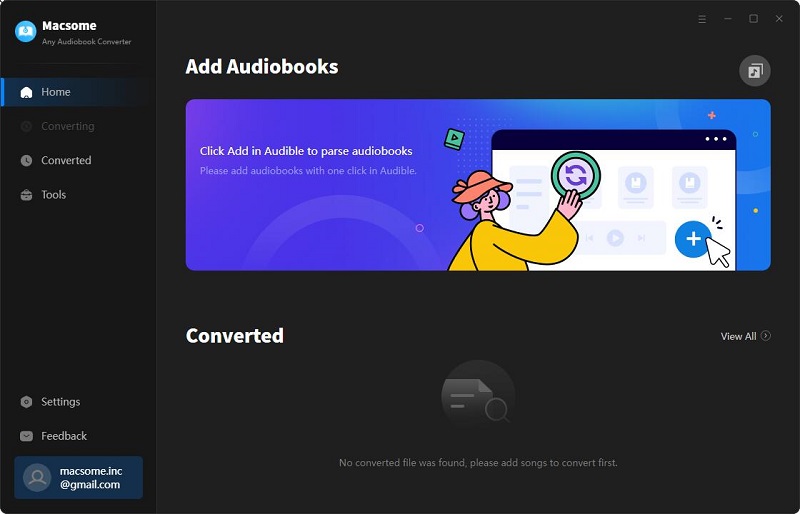
interface

Click "Add from Audible library", and you will be directed to the Audible website.

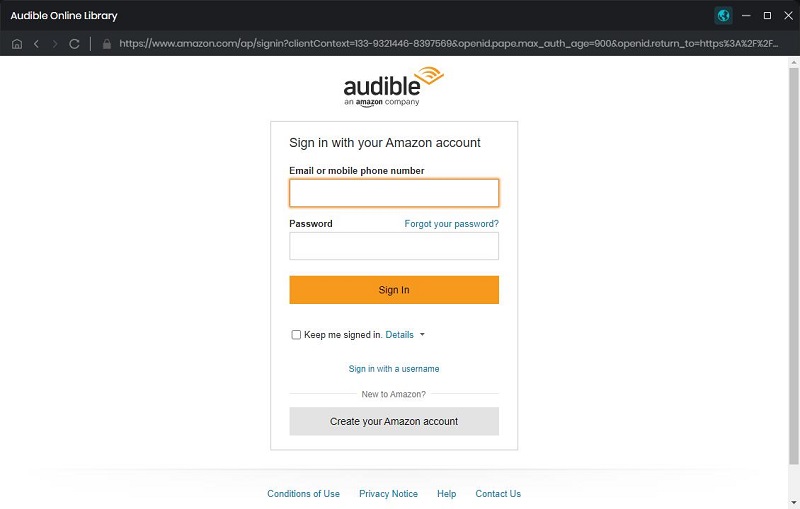
login interface

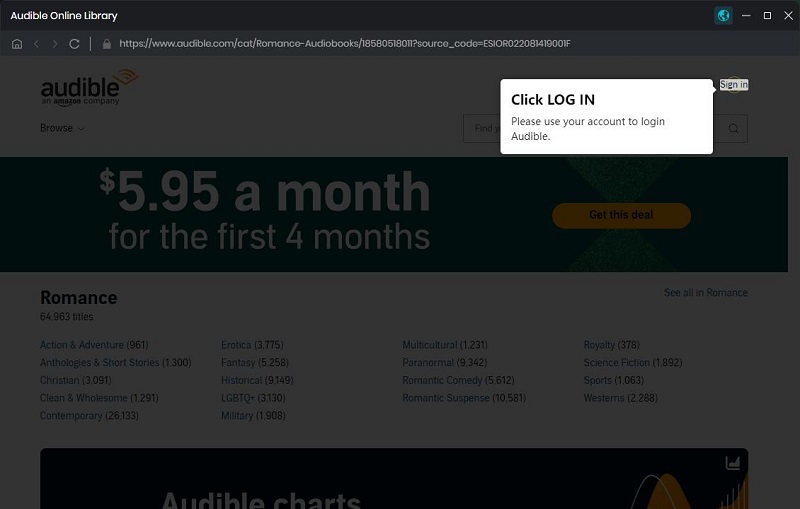
Hit on the "Sign in" button, then use your Audible account to log in.

sign in interface

Step 2. Set the Output Format

Click on the icon, and you can customize the output format, output quality, and output folder.
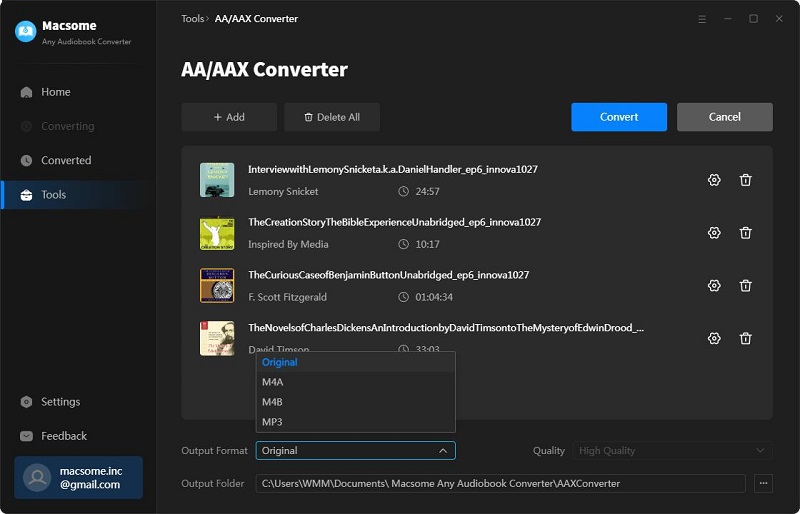
settings

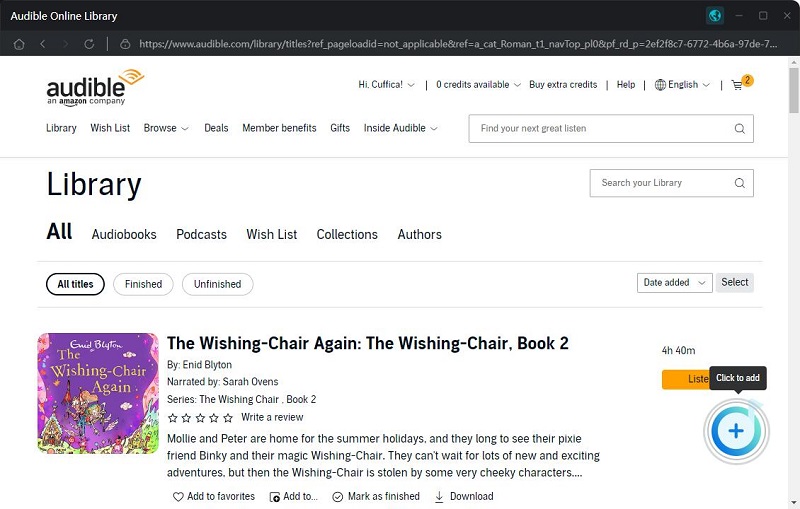
Step 3. Add Audiobooks or Podcasts from the Audible Library
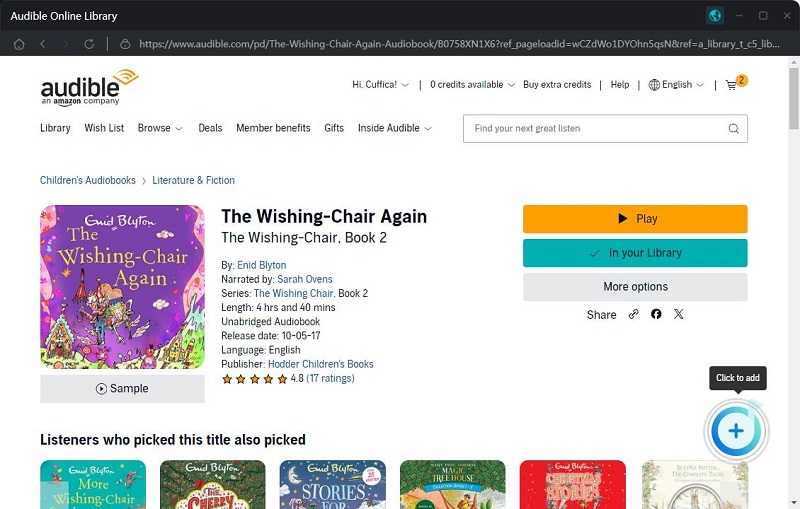
In your Audible library, you can select the audiobooks or podcasts you'd like to convert.

add audiobooks from Audible

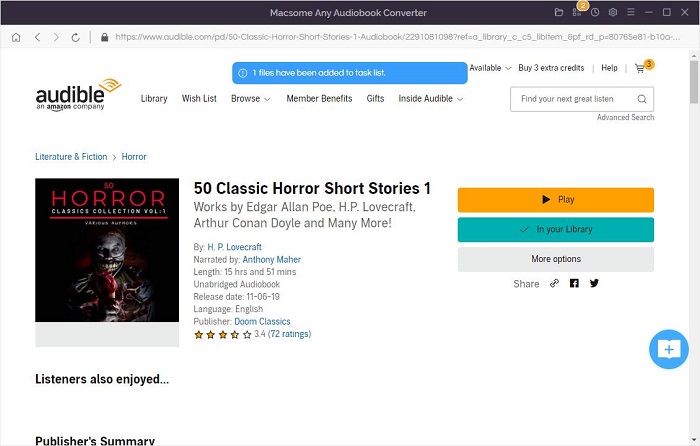
Click the "Add to list" button, and the selected audiobooks will be loaded to the window.

add Audible audiobooks

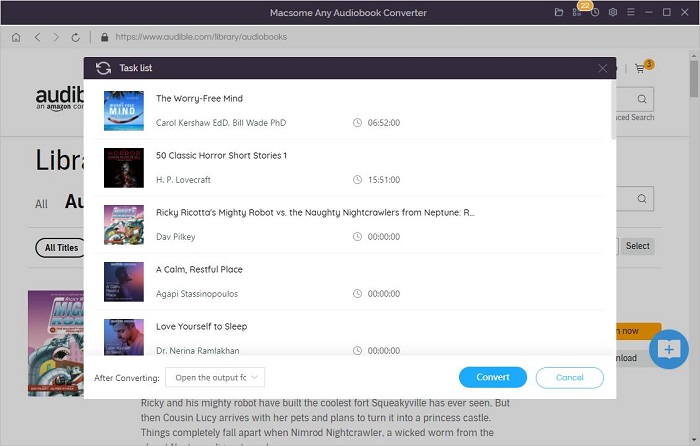
(Optional) If you want to convert other audiobooks or podcasts at the same time, you can click the "Save to list" button. The selected audiobooks will be added to the task list. Then repeat the same step to add other audiobooks. Finally, click the "task list" icon in the upper right corner to check all the added songs.

add Audible audiobooks to task list

check task list

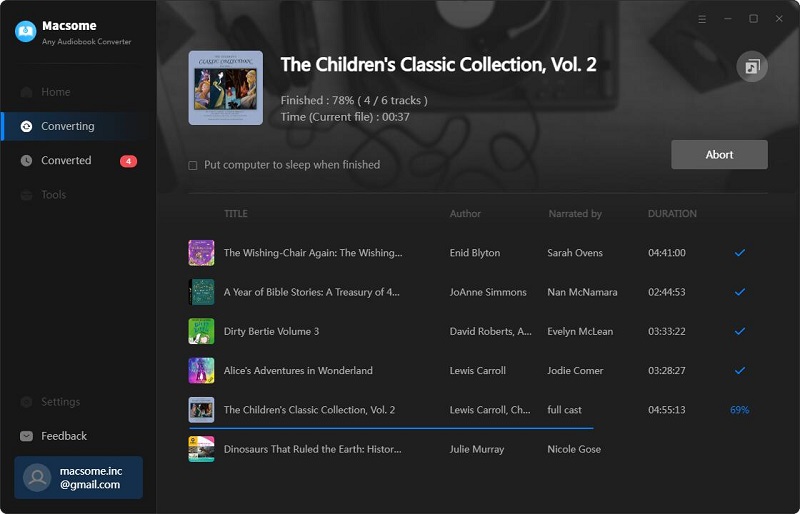
Step 4. Start to Download Audible Audiobooks.
Now you can click the "Convert" button, and the Audible audiobooks conversion will begin. 

convert audiobooks from Audible

When the conversion is completed, you can find the downloaded Audible Plus audiobooks from the history option in the upper right-hand corner.
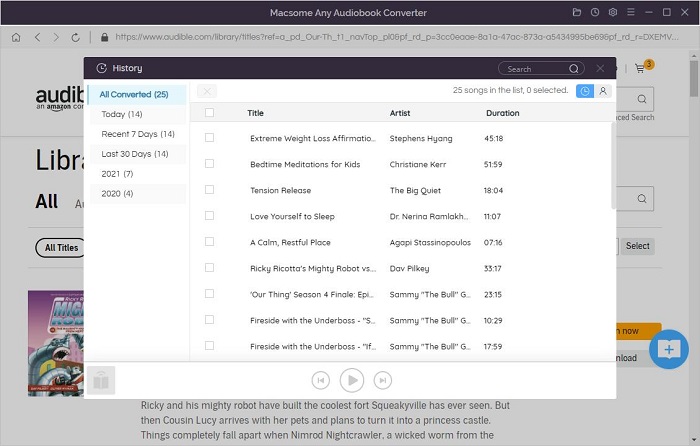
Click the "folder" icon, and you can locate the Audible audiobooks in your local folder.

locate the converted audiobooks
Now you keep the Audible audiobooks for playback even if you cancel your Audible Plus subscription. 
Macsome Audiobook Converter has a free trial version, which lets you convert 1/3 parts of the books, please download and have a free trial.