 Audible.com best-sellers for
Fiction
1. The President is Missing by Bill Clinton and James Patterson, narrated by Dennis Quaid and a full cast (Hachette Audio)
2. Brief Cases by Jim Butcher, narrated by a full cast (Penguin Audio)
3. Something in the Water by Catherine Steadman, narrated by the author (Random House Audio)
4. The Singularity Trap by Dennis E. Taylor, narrated by Ray Porter (Audible Studios)
5. The Outsider by Stephen King, narrated by Wil Patton (Simon & Schuster Audio)
6. Frankenstein: Prodigal Son by Dean Koontz, narrated by Christopher Lane (Brilliance Audio)
7. Red Sister by Mark Lawrence, narrated by Heather O'Neill (Recorded Books)
8. Little Fires Everywhere by Celeste Ng, narrated by Jennifer Lim (Penguin Audio)
9. Shelter in Place by Nora Roberts, narrated by January LaVoy (Brilliance Audio)
10. Harry Potter and the Sorcerer's Stone by J.K. Rowling, narrated by Jim Dale (Pottermore from J.K. Rowling)
Nonfiction
1. Kitchen Confidential by Anthony Bourdain, narrated by the author (Random House Audio)
2. Calypso by David Sedaris, narrated by the author (Hachette Audio)
3. The Subtle Art of Not Giving a F(asterisk)ck: A Counterintuitive Approach to Living a Good Life by Mark Manson, narrated by Roger Wayne (HarperAudio)
4. Girl, Wash Your Face by Rachel Hollis, narrated by the author (Thomas Nelson Publishers)
5. You do You by Sarah Knight, narrated by the author (Hachette Audio)
6. Kick A(asterisk)(asterisk) with Mel Robbins by Mel Robbins, narrated by the author (Audible Studios)
7. How to Change Your Mind by Michael Pollan, narrated by the author (Penguin Audio)
8. Deep by James Nestor, narrated by the author (Audible Studios)
9. Unfu(asterisk)k Yourself by Gary John Bishop, narrated by the author (HarperAudio)
10. I'll be Gone in the Dark by Michelle McNamara, narrated by Gabra Zackman, Gillian Flynn, and Patton Oswalt (HarperAudio)
Source from http://www.kansascity.com/entertainment/article213029264.html
More Audiobook & Apple Music Tips:
How to play purchased Audible AA on MP3 player
Tips to use Kindle to play iTunes Audiobooks
How to convert AA / AAX Audiobooks to MP3 format
How to Transfer iTunes Playlists to Huawei Mate 10
How to get rid of DRM from paid Amazon Audiobook
Wednesday, June 13, 2018
The top 10 audiobooks on Audible.com since June 8

Thursday, May 24, 2018
Fast way to convert Apple Music to FLAC format on PC
How to convert Apple Music to FLAC format with Macsome iTunes Converter. http://www.macsome.com/itunes-convert...
Thursday, May 17, 2018
How to get Apple Music at 320kbps High Quality
Tips to get Apple Music at 320kbps High Quality
Sometimes when you need 320kbps Highest Quality to edit your videos or upload some music clips and so on, here we will talk that how to get Apple Music at 320kbps Highest Quality.
At first, please make sure that you have subscribed Apple Music and download some songs you want to convert. In the following you can turn to Macsome iTunes Converter for help.
Macsome iTunes Converter supports a wonderful solution to help users who want to to get 320kbps MP3 songs from Apple Music tracks. Moreover, it also help users convert Apple Music to other unprotected audio formats like MP3, AAC, FLAC, WAV with up to 20x conversion speed and so on with ID tags kept.
Monday, May 14, 2018
Yes, you can Stream Apple Music to Amazon Echo
Apple has its online music streaming service - Apple Music, and Amazon has its own online music streaming service - Amazon Music unlimited. Generally speaking, if you have most Apple products, you will choose Apple Music, or else you will choose other corresponding music streaming service.
You may encounter with the situation that: you have purchased an Amazon Echo, but you are an Apple Music subscriber, how to stream Apple on Amazon Echo easily?
Generally speaking, if users want to use Alexa voice control to control Amazon Echo to play Apple Music, this is impossible and unrealizable, you know that Apple Music is not the built-in App of Amazon Echo. If you want to play Apple Music on Amazon Echo with your iPhone or other device which supports Apple Music App, just follow the Method 1. Or else, if you want to upload Apple Music to Amazon so as to use lexa voice control to play the music files, follow the Method 2.
In the next example, we take iPhone setting as an example.
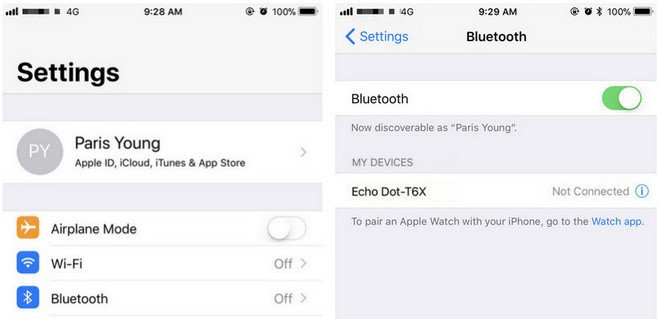
Click Settings icon > tap on Bluetooth. Then you will see Amazon Echo device after searching and just pair it with iPhone.
Similarly, you can't upload these downloaded Apple Music songs to Amazon as well. If you can remove the annoying DRM, and then you can upload them to Amazon without limitation any longer.
Macsome iTunes Converter is the tool which you are looking for. It supports an ideal solution for converting protected iTunes Audio files, including downloaded Apple Music files, and purchased music and Audiobooks from Audible.com and so on.
First of all, free download the Apple Music files you want.
Open your iTunes, and find your whole Apple Music category. And then select the Apple Music files, click "..." to add them to "Playlist". After this, you can choose the Playlist and click the cloud icon to download it to play offline.
Second, free download the latest version of Macsome Apple Music Converter, install and run it.
Windows Version Download
Mac Version Download
Third, when you click "+" button, all the music files including the downloaded Apple Music files will be listed, now select them and click "OK", and all the music files has been added. Batch conversion is also supported.
Forth, after you add these music files, now you can click the setting icon to set the output format and output folder. Here are MP3, AAC, FLAC, WAV for kinds of users.
Fifth, you can click "CONVERT" button and start conversion.
Amazon.inc supports free users up to 250 songs storage to My Music.
Now Run Amazon Music app on your PC or Mac and log in your ID, then drag and drop files from your computer into the Upload selection in the right sidebar under Actions.
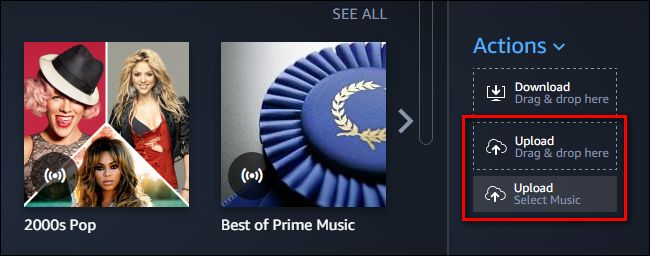
And then Select My Music > Songs > choose Offline filter in the right navigation sidebar and click the upload icon to choose the converted Apple Music files or folder to upload. And now you can start uploading.

After the above steps, you can use Alexa to play these songs on your Amazon Echo and so on.
More you want to visit:
You may encounter with the situation that: you have purchased an Amazon Echo, but you are an Apple Music subscriber, how to stream Apple on Amazon Echo easily?
Generally speaking, if users want to use Alexa voice control to control Amazon Echo to play Apple Music, this is impossible and unrealizable, you know that Apple Music is not the built-in App of Amazon Echo. If you want to play Apple Music on Amazon Echo with your iPhone or other device which supports Apple Music App, just follow the Method 1. Or else, if you want to upload Apple Music to Amazon so as to use lexa voice control to play the music files, follow the Method 2.
Method 1: Stream Apple Music on Amazon Echo via Bluetooth
Yes, this method is very simple, what you need is just one setting steps. However this needs your devices which supports Apple Music playing working as well.In the next example, we take iPhone setting as an example.
Click Settings icon > tap on Bluetooth. Then you will see Amazon Echo device after searching and just pair it with iPhone.
Method 2: Upload your downloaded Apple Music to Amazon so as to play them directly
Apple Music supports streaming music like Amazon Music Unlimited, which are DRM protected. That is to say, you can't freely transfer them to other audio players even you have "downloaded" for playing offlineSimilarly, you can't upload these downloaded Apple Music songs to Amazon as well. If you can remove the annoying DRM, and then you can upload them to Amazon without limitation any longer.
Macsome iTunes Converter is the tool which you are looking for. It supports an ideal solution for converting protected iTunes Audio files, including downloaded Apple Music files, and purchased music and Audiobooks from Audible.com and so on.
First of all, free download the Apple Music files you want.
Open your iTunes, and find your whole Apple Music category. And then select the Apple Music files, click "..." to add them to "Playlist". After this, you can choose the Playlist and click the cloud icon to download it to play offline.
Second, free download the latest version of Macsome Apple Music Converter, install and run it.
Windows Version Download
Mac Version Download
Third, when you click "+" button, all the music files including the downloaded Apple Music files will be listed, now select them and click "OK", and all the music files has been added. Batch conversion is also supported.
Forth, after you add these music files, now you can click the setting icon to set the output format and output folder. Here are MP3, AAC, FLAC, WAV for kinds of users.
Fifth, you can click "CONVERT" button and start conversion.
Upload the Converted Apple Music Songs to Amazon
After the conversion, you can upload the converted Apple Music songs to My Music on Amazon from your computer. And then you can control the music playing via your Alexa device.Amazon.inc supports free users up to 250 songs storage to My Music.
Now Run Amazon Music app on your PC or Mac and log in your ID, then drag and drop files from your computer into the Upload selection in the right sidebar under Actions.
And then Select My Music > Songs > choose Offline filter in the right navigation sidebar and click the upload icon to choose the converted Apple Music files or folder to upload. And now you can start uploading.
After the above steps, you can use Alexa to play these songs on your Amazon Echo and so on.
More you want to visit:
Tuesday, May 8, 2018
How to Move iTunes / Apple Music Playlists to Huawei P20 & P20 Pro
Generally speaking, Huawei P20 or P20 Pro are Android phones, if you want to stream Apple Music songs, you can download Apple Music for Android App, and then stream your Apple Music songs with the APP, but this need your Apple Music subscription.
If you want to transfer the downloaded Apple Music songs from your computer to the Huawei P20 or P20 pro via a USB cable, you may find that you can transfer only some audio files in iTunes Media Folder, but you can't transfer the downloaded Apple Music files or even you can transfer them, you can't play them normally.
As a streaming Music service, all the Apple Music files are DRM protected. With the subscription, you can play, enjoy and download these music tracks with the Apple account, but you can't transfer them to other non-Apple Music player and devices.
So what can we do to remove the DRM and then transfer the downloaded Apple Music playlist to Huawei P20 or P20 Pro, the following guide will help you deal with problem.
Macsome iTunes Converter is an ideal solution to remove DRM from protected iTunes audio files including Apple Music files, purchased Audiobooks and so on. After the conversion, the converted audio files can easily be played on Sony PSP, Sony Walkman, iRiver, Android Phones and Tables and so on.
Windows Version Download
Mac Version Download
Step 1, Double click to install the trial version of iTunes Music Converter on your PC, and then run it.
Step 2, click the Add button and select audio files from iTunes library.
After you choose the music files, click "OK", and then all the audio tracks files you selected would be listed on the main window.
Step 3, Set the output format by clicking the Setting icon, here we choose MP3 format. And in the same way, you can set the output path and conversion speed (here we choose 10X) before the conversion as your need.
Step 4, click the Convert button to start converting.
After the conversion, you get the unprotected MP3 music files from protected Apple Music files. Now connect Huawei P20 or P20 Pro to PC via a USB cable and open the output Folder to choose the converted Audio files and then copy them to your phone.
You May Want to Read:
If you want to transfer the downloaded Apple Music songs from your computer to the Huawei P20 or P20 pro via a USB cable, you may find that you can transfer only some audio files in iTunes Media Folder, but you can't transfer the downloaded Apple Music files or even you can transfer them, you can't play them normally.
As a streaming Music service, all the Apple Music files are DRM protected. With the subscription, you can play, enjoy and download these music tracks with the Apple account, but you can't transfer them to other non-Apple Music player and devices.
So what can we do to remove the DRM and then transfer the downloaded Apple Music playlist to Huawei P20 or P20 Pro, the following guide will help you deal with problem.
Remove DRM from Apple Music and transfer to Huawei P20 and P20 Pro
To deal with the problem well, you need to free download Macsome iTunes Converter at first.Macsome iTunes Converter is an ideal solution to remove DRM from protected iTunes audio files including Apple Music files, purchased Audiobooks and so on. After the conversion, the converted audio files can easily be played on Sony PSP, Sony Walkman, iRiver, Android Phones and Tables and so on.
Windows Version Download
Mac Version Download
Step 1, Double click to install the trial version of iTunes Music Converter on your PC, and then run it.
Step 2, click the Add button and select audio files from iTunes library.
After you choose the music files, click "OK", and then all the audio tracks files you selected would be listed on the main window.
Step 3, Set the output format by clicking the Setting icon, here we choose MP3 format. And in the same way, you can set the output path and conversion speed (here we choose 10X) before the conversion as your need.
Step 4, click the Convert button to start converting.
After the conversion, you get the unprotected MP3 music files from protected Apple Music files. Now connect Huawei P20 or P20 Pro to PC via a USB cable and open the output Folder to choose the converted Audio files and then copy them to your phone.
You May Want to Read:
Thursday, April 26, 2018
How to Transfer Apple Music to External Hard Drive
It is known that Apple Music is a streaming Music service. Users can listen to all of Apple Music files online or download them so as to play them offline. But you can’t transfer the streaming Music to other devices.
Moreover, if you cancel your Apple Music subsctiption, all the files including the downloaded Music from Apple Music can’t be played any more?
It is necessary to backup the downloaded Apple Music file to External Hard Drive, and then you can play them anywhere with External Hard Drive.
Steps to remove DRM from Apple Music and move to External Hard Drive
Step 1, free download the latest version of iTunes Music Converter, install and run it.
Please make sure that you have downloaded the Apple Music files you want to convert and they can work normally on your iTunes.
Step 2. Click “+” to import the downloaded Apple Music files.

Step 3. Click the setting icon to set the output format and output folder. There are MP3, AAC, FLAC and WAV – 4 output format for you to choose. If necessary, you can also reset the related audio parameters.
Moreover, you can reset the conversion speed, the default one is 20X. If you want to get a high audio quality, you can choose a low conversion speed.

Step 4. Click the “CONVERT” button to start your iTunes music converting.

After the conversion, you can transfer the DRM-free music files to your External Hard Drive as you like.
More you may like:
Thursday, April 19, 2018
How to add Apple Music to PPT backgroud music
PPT is very important for you to show others, if you want to make an amazing PPT, it is very helpful to add background music to it, which will make your PPT unique.
The background music sources are various. If you have some favorite Apple Music files, you want to add them to PPT, but you can't add, for the streaming music service can be played with limitations.
Here we will talk about converting Apple Music to MP3 and adding the converted to PPT.
With its help, It is extremely simple to convert your favorite Apple Music to MP3, and then you can add MP3 files to PowerPoint as background music.
Windows Version Download
Mac Version Download
Please make sure that you have downloaded the Apple Music files you want to convert and they can work normally on your iTunes.
Step 2. Click "+" to import the downloaded Apple Music files.
Step 3. Click the setting icon to set the output format and output folder. If it is necessary, you can also reset the related audio parameters.
Now the output formats include MP3, AAC, FLAC and WAV, you can just to choose a suitable one and set the other parameters according to your need.
Step 4. Click the "CONVERT" button to start your iTunes music converting.
Step 5. Add MP3 to PPT background music
After the conversion, now please open the PowerPoint you are editing, then click the Insert tab and click Audio icon to select the converted MP3 from the pop-up window.
And then click Playback and you can set the start point here you like to play in the background of the presentation, loop until you stop the audio, tart automatically or when clicked, fade in and out or play across all slides.
Referral links :
The background music sources are various. If you have some favorite Apple Music files, you want to add them to PPT, but you can't add, for the streaming music service can be played with limitations.
Here we will talk about converting Apple Music to MP3 and adding the converted to PPT.
All-in-one Apple Music Converter – Macsome iTunes Converter
Macsome iTunes Converter is used to convert downloaded Apple Music files, purchased audio tracks including audiobooks from Audible and iBook store to MP3, AAC, FLAC, WAV and remove DRM from the protected audio files with fast speed and lossless quality.With its help, It is extremely simple to convert your favorite Apple Music to MP3, and then you can add MP3 files to PowerPoint as background music.
Steps to convert Apple Music to MP3 and add to PPT
Step 1, free download the latest version of iTunes Music Converter, install and run it.Windows Version Download
Mac Version Download
Please make sure that you have downloaded the Apple Music files you want to convert and they can work normally on your iTunes.
Step 2. Click "+" to import the downloaded Apple Music files.
Step 3. Click the setting icon to set the output format and output folder. If it is necessary, you can also reset the related audio parameters.
Now the output formats include MP3, AAC, FLAC and WAV, you can just to choose a suitable one and set the other parameters according to your need.
Step 4. Click the "CONVERT" button to start your iTunes music converting.
Step 5. Add MP3 to PPT background music
After the conversion, now please open the PowerPoint you are editing, then click the Insert tab and click Audio icon to select the converted MP3 from the pop-up window.
And then click Playback and you can set the start point here you like to play in the background of the presentation, loop until you stop the audio, tart automatically or when clicked, fade in and out or play across all slides.
Referral links :
Subscribe to:
Posts (Atom)