Tuesday, August 11, 2015

How to backup iTunes music files before you subscribe Apple Music

Some ones said that when they subscribed Apple Music, their primary music files are lost and can’t find back any more, even several files are what they purchased from iTunes Store previously.
Now if you are the one which haven’t subscribed Apple Music and want to get one, why not try to backup your iTunes music files just in case.
Macsome iTunes Converter can backup all your iTunes music files (DRM protected or not). What you can play on iTunes, you can use iTunes Converter to convert it.
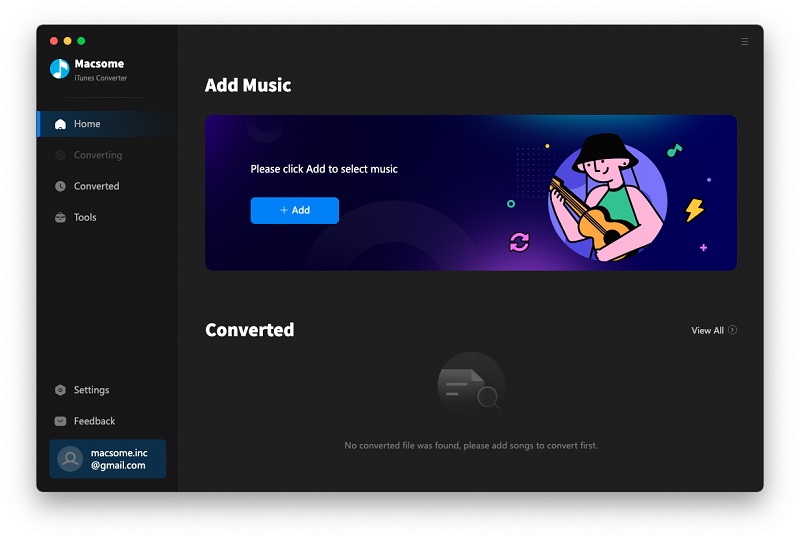
Install and run the iTunes music converter.
User interface of iTunes Converter
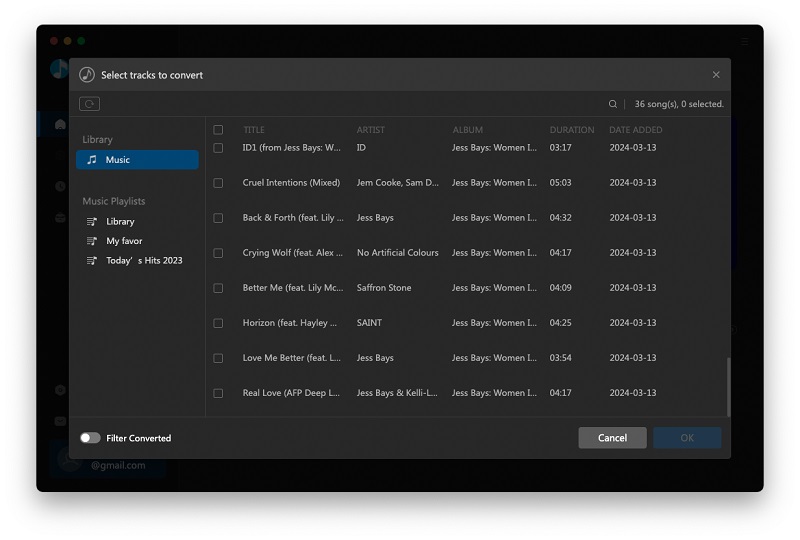
Click Add button to load all the playlist or audio books and so on to iTunes Converter and be ready to convert.
Add iTunes Music to Convert
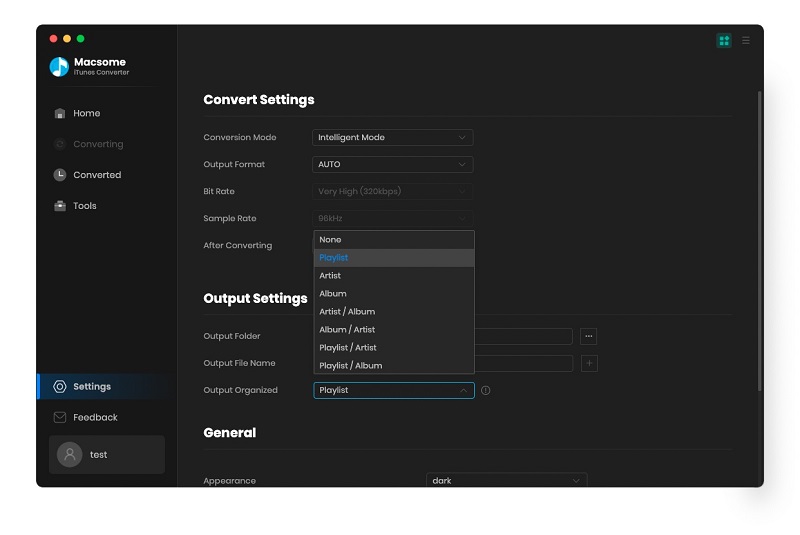
Go to Menu – Preferences – Advanced to set the output audio format. Here we can just choose Same as source.
Convert M4P to MP3
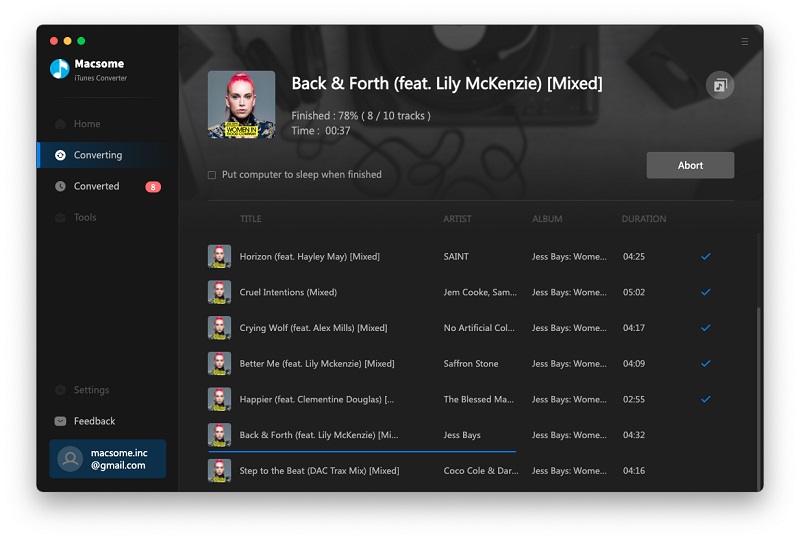
Click Convert to start iTunes music conversion.
Convert iTunes Music
After the conversion, you will find all your iTunes music files whether protected or unprotected files are in the format of MP3, and you have backup to your computer already.
More detailed info about iTunes Converter, go to http://www.macsome.com/itunes-converter-mac/index.html know more/

Thursday, August 6, 2015

2015/08 Top 10 songs of iTunes Store

1.Glitterball (feat. Ella Henderson) -   Sigma
2. Black Magic - Little Mix
3. Shine
4. How Deep is Your Love
5. Are You With Me - Lost Frequencies
6. Wings (Acoustic) - Birdy
7. Body Talk - Foxes
8. Come and Get It - John Newman
9. Show Me Love (feat. Kimberly Anne) - Sam Feldt
10. House Every Weekend (Radio Edit) - David Zowie
If you purchased these music songs and want to have MP3 format, iTunes Converter can help you. Have a nice day!
Source from : https://www.apple.com/uk/itunes/charts/songs/


Tuesday, August 4, 2015

M4P VS MP3 & How to convert M4P to MP3 on Mac

What is M4P
M4P is a file extension for a protected audio file encoded with advanced audio codec (AAC), which is a lossy compression generally intended as the successor to MP3, which had not been originally designed for audio only but was Layer III in an MPEG 1 or 2 video files.
M4P stands for MPEG 4 Protected (audio). The M4P file extension is seen in an Apple iTunes purchased song which uses Apples “Fairplay” DRM (digital rights management). Unprotected AAC  files have an M4A extension.
M4P files can usually only be opened with iTunes and the computer must be authorized prior to playing transferring from an iPod or burning the file. An iTunes account can be authorized on five computers and an iPod may contain the content from a maximum of five accounts.
How to convert M4P to MP3
What is MP3
MP3 (MPEG-1 Audio Layer-3) is a standard technology and format for compressing a sound sequence into a very small file (about one-twelfth the size of the original file) while preserving the original level of sound quality when it is played.
MP3 provides near CD quality audio. It is one of the most common music file types. It is not an MPEG 3 but uses the audio compression found in layer III in MPEG 1 or 2 video files, the audio stream layer.

How to convert M4P to MP3
To convert M4P to MP3 on Mac, you need a helper – Macsome iTunes Converter, which works well on removing DRM from protected M4P and convert M4P to MP3 format with lossless quality and super faster conversion speed.
Step 1: Free download the latest version of iTunes Converter, install and run it.
For iTunes 12.2 or later users, you need to allow iTunes to share the xml file to make it work well on iTunes 12.2.
Screenshot of iTunes Converter
Step 2. Click Add button to import the music files from Music library of iTunes.
Add Apple Music  songs
Step 3. Click iTunes Converter Menu – Preferences – Advanced to set the output audio format, here we use the default one: Same as source.
Set output format
Step 4. Click Convert button to start conversion.
Converting M4P to MP3
After the conversion, you have converted your M4P to MP3 with ease, now you can enjoy the free MP3 files anywhere.

More detailed info about Macsome iTunes Converter, please view:

Thursday, July 30, 2015

What is AAC, how to use it

Advanced Audio Coding (also called MPEG-4); a standard way of compressing and encoding digital audio. AAC files can be played using iPod, iPhone, iPad, and apps that support QuickTime.
AAC-encoded files rival the quality of audio CDs, and sound as good as or better than MP3 files encoded at the same or even higher bit rate. For example, a 128 Kbps AAC file should sound as good as or better than a 160 Kbps MP3 file. Because the bit rate is lower, the AAC file will also be smaller than the MP3 file.
AAC files enable you to store the most music on your hard disk or device. At the High Quality setting, AAC files use approximately 1 MB of disk space per minute.
And if you want to convert AAC files to MP3 format, Macsome iTunes Converter will be a wise choice.

How to copy Apple Music to MP3 player & Play Appe Music on MP3 player

Apple Music supports streaming music songs with DRM protected, if you like some Apple Music songs and want to play them on your general MP3 player, what to do?
First you need a tool to convert the DRM Apple Music songs to MP3 format and then transfer them to MP3 player. Two steps, you can enjoy the Apple Music songs on MP3 player freely.
Here recommend the tool – Macsome iTunesConverter (http://www.macsome.com/itunes-converter-mac/index.html), which also supports a free trial version to free download. The trial version is almost like the full version, except the limitation of converting 3 minutes each file.
Macsome iTunes Converter is all-in-one iTunes audio converter to convert iTunes Music, iTunes Match, Apple Music, Audio Books, and so on, and support removing DRM from protected audio files.
Any audios you can play on your iTunes, iTunes Converter can convert it. It is so cool.

Quick Guide to convert Apple Music songs to MP3
Step 1: Free download the latest version ofiTunes Converter, install and run it.

For iTunes 12.2 or later users, you need to allow iTunes to share the xml file to make it work well on iTunes 12.2.
Step 2. Click Add button to import the music files from Music library of iTunes.

Step 3. Click iTunes Converter Menu – Preferences – Advanced to set the output audio format, here we use the default one: Same as source.

Step 4. Click Convert button to start conversion.

After the conversion is completed, you can transfer the converted MP3 files to your MP3 player and enjoy them anywhere and anytime.


Tuesday, July 28, 2015

How to burn Apple Music to CD easily and quickly

Apple Music supplies streaming music, that is to say, Apple Music can listen to the tens of millions of tracks in the Apple Music library, download them to enjoy offline, and share with your family, but you can’t burn these Apple Music files to CD, for all of Apple Music have DRM limited, and when you cancel the Apple Music subscription, all of them can’t work any more.
But how to burn these Apple Music files to CD so that users have no need of the DRM limitations.
Let Macsome iTunes Converter (http://www.macsome.com/itunes-converter-mac/index.html) help you.
With it, you can
Remove DRM from Apple Music Store
Backup your Apple Music
Convert Apple Music to MP3
Convert iTunes Match Music to MP3
Remove DRM from purchased Audio Books

Steps to convert Apple Music so as to burn to CD
Apple Music files are DRM protected, so it is difficult to convert and burn to CD with the general audio converter or free mp3 converter and like this. But Macsome iTunes Converter does well in removing DRM of Apple Music and convert to MP3 so as to burn to CD easily with lossless quality
Step 1: Install and run the trial version of iTunes Converter.
Step 2: Click Add to choose the music files on the Music library, and click OK to import them.
Add Apple Music to Convert
Step 3: Click Menu – Preferences…- Advanced to set the output format.
Convert Apple Music to MP3
Step 4: Click Convert to start conversion.
After the conversion, all the Apple Music files are converted to MP3 so as be burnt to CD easily.
Search a free MP3 to CD burner, now you can burn MP3 to CD quickly. And you have burnt your Apple Music files to CD successfully.

Tuesday, July 21, 2015

How to convert Apple Music M4P to MP3 so as to backup Apple Music

Apple Music is a revolutionary streaming service and app that puts the entire Apple Music catalog at your fingertips across your favorite devices. Starting with the music you already know — whether from the iTunes Store or ripped CDs — your music now lives in one place alongside the Apple Music catalog with over 30 million songs. You can stream any song, album or playlist you choose.
Apple Music gives users more freedom to enjoy the music by themselves. If you subscribe Apple Music service, and you can enjoy the music without any limitations, when you cancel the service, all the playlist and music songs will be removed, what a pity.
Would you like to remove the limitation and keep Apple Music longer as you like?
Would you like to convert Apple Music to MP3 player in order to play them on MP3 player?
Macsome iTunes Converter makes the problem easy and fast to deal with. As an all-in-one Apple MusicConverter and iTunes music Converter, iTunes Converter uses 5X recording and encoding to MP3 / AAC technology, during the process, the DRM has been removed, and Apple Music files have been converted to MP3.
The Apple Music M4P to MP3 conversion is very simple, just follow the next steps, you can get your MP3 files from Apple Music as you like.
Step 1: Go to the webpage and free download the latest version of iTunes Converter, install and run it.

Step 2: Click Add button and choose the library and add the files you want to convert.
Step 3: Click Menu – Preferences – Advance to set the output format.
Step 4: Click Convert button to start M4P to MP3 conversion.
Batch conversion is also supported by iTunes Converter. And there is no need to convert files one by one.  
A few minutes later, the conversion will be finished, and right click to find the folder to go to the converted files directly.
It is so cool, why not free download the trial version and take a try. More info from: http://www.macsome.com/itunes-converter-mac/index.html