Showing posts with label itunes mp3 converter. Show all posts

Wednesday, March 8, 2017

Howto transfer downloaded Apple Music to iPod Nano

Later days earlier, Michael asked that he can download Apple Music to his iTunes, but he can’t sync them to his iPod Nano, why?
You can listen the millions of songs from Apple Music, and even download them so as to listen offline on iPhone, iPad or iPod Touch. But all the iTunes Apple Music are streaming, in other words, you can play and transfer the downloaded Apple Music files on iPod Nano and Shuffle. And Apple.com said that Apple Music is not available on iPod nano and iPod shuffle.
Here we will talk how to make Apple Music available on iPod nano and iPod shuffle.
First you need to free download Apple Music Converter Mac Version and Windows Version on your computer.
You know, for the streaming music service – Apple Music with DRM limited, the whole Apple Music playlist can’t be transferred correctly. We need Apple Music converter to remove Apple Music’s DRM and convert to MP3, AAC, FLAC and other audio format, and then users can transfer converted local music files to iPod Nano and iPod Shuffle easily and quickly.
Second, Double click to install the Apple Music Converter, and run it. Here we take the Mac version for example.
 add1
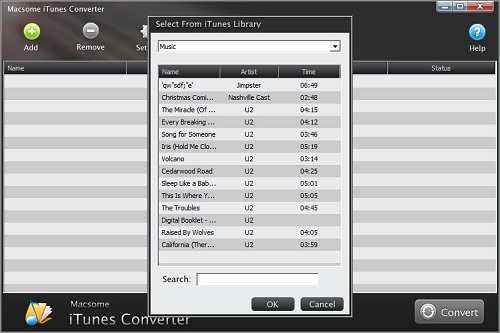
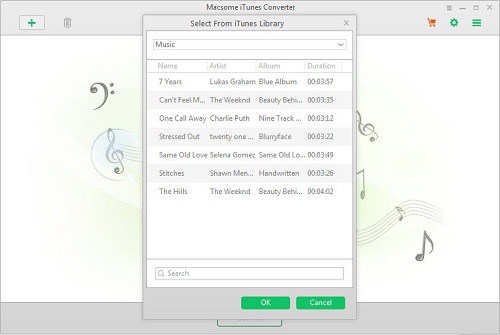
Third, click the Add button, and then choose the downloaded Apple Music files to the filelist to convert.
And select the file you want to convert, click OK, and then all files you selected will be listed on the main window.
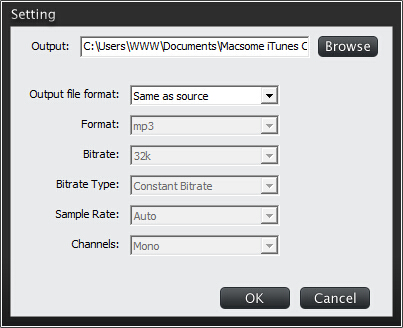
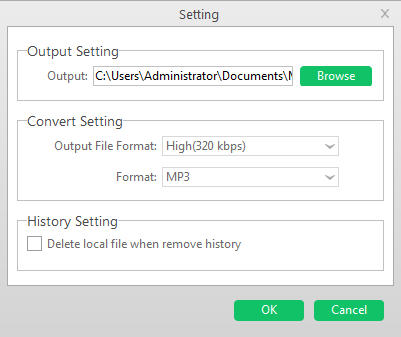
Moreover, click Setting button to set the output format and output path before the conversion as your need.
setting
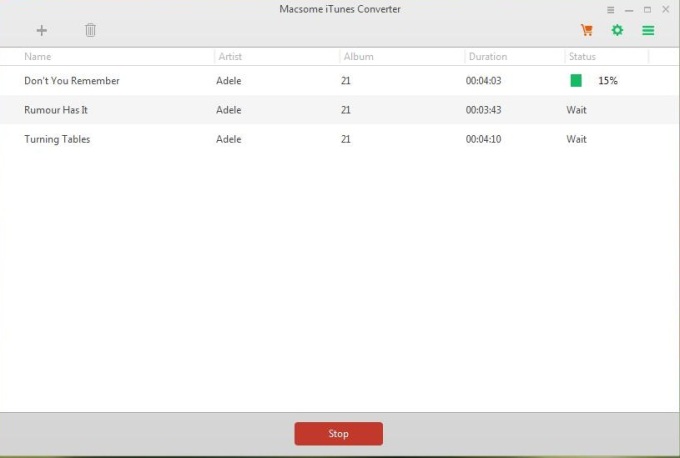
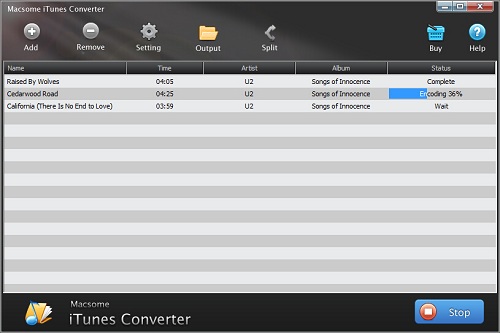
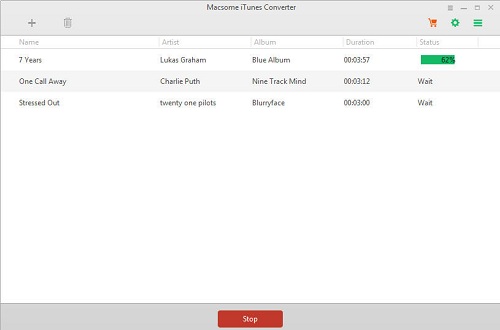
Finally, click the Convert button to start converting.
converting
After the conversion, you can find the converted files through show in the Finder, and then use iTunes to sync the converted music files to your iPod Nano or Shuffle as you like.
You may like to read:

Thursday, February 23, 2017

How to convert iTunes M4P to MP3 without iTunes

You know that even you can convert your iTunes music files to MP3 format with iTunes, would you like to try to convert audio tracks to MP3 without iTunes.
Just one third tool makes the conversion simple and fast. 
Macsome iTunes Music Converter is the third tool to help you deal with the whole iTunes playlist including the protected downloaded ones from Apple Music and purchased Audiobooks from iBook or Audible.com. Macsome iTunes Converter can convert them.
Now follow the next guide to feel the easy and fast conversion process.
Step 1, free download the trial version of Macsome iTunes Converter, install it by following the explanations.
Step 2, Run the iTunes Converter, and click "+" or the middle of interface to load the audio files you want to convert.
Step 3. Click setting icon to set the output format, output folder. If necessary, you can also reset the related audio parameters.
There are 3 more output audio formats for you to choose except MP3, you can also convert iTunes music to AAC, FLAC and WAV as you like.
Step 4. Click Convert button to start converting M4P to MP3.
When the conversion is completed, all the M4P files are converted to the MP3 format without DRM any longer, and now you can enjoy the converted MP3 files anywhere as you wish.  
More information about iTunes Converter, go to http://www.macsome.com/itunes-converter-mac/

Thursday, June 23, 2016

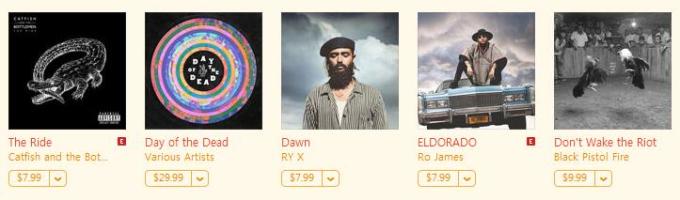
Top 10 Albums you must hear from iTunes 2016/06

top10
All the top 10 albums are this month’s best sellers, whatever you like, you may find one album to fit you.

Play the purchased Albums on MP3 player

After you purchase these albums, you can also play them on your MP3 player with the help of Macsome iTunes Converter.
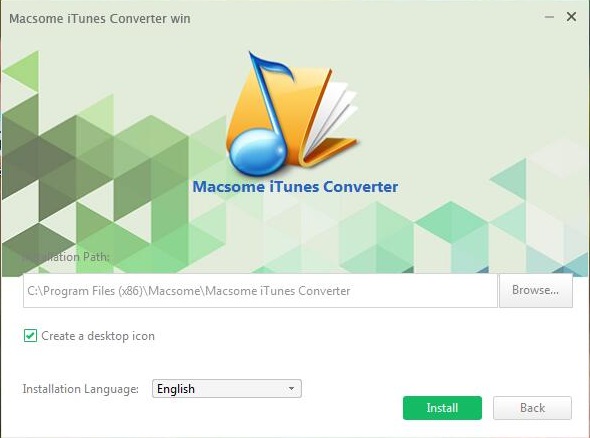
Step 1, Free download the latest version of Macsome iTunes Converter, and install it.
Here we took the iTunes Music Converter for Windows for example.
install1
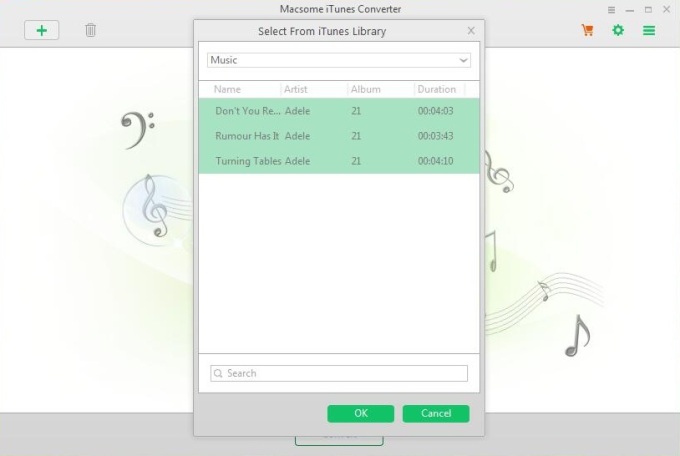
Step 2, After the installation, run the software.
Click Add button to load the music of the album you have purchased.
2
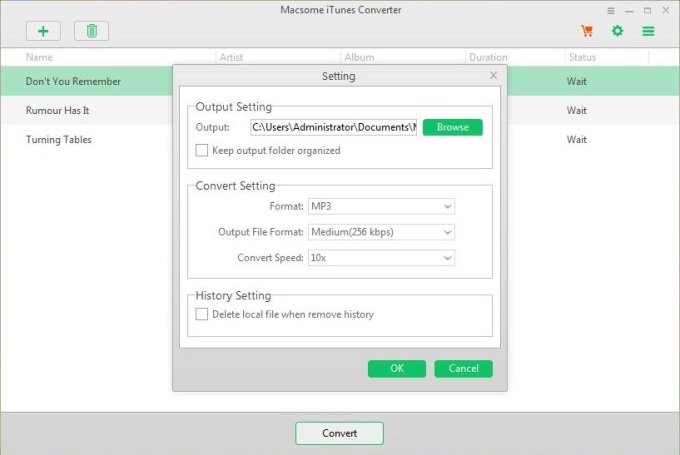
Step 3. Click the setting icon to set the output format and output folder.
3
Step 4. After the settings, you can click “Convert” to start conversion.
6
Step 5. After conversion, you can use the history to find the converted files.
8
Now you can play the converted MP3 music songs anywhere you like without limitations of iTunes.

Wednesday, January 20, 2016

How to convert iTunes hottest music like Somewhere on a Beach to MP3 format

music-cut
Beginning on Jan. 29, Apple will be discontinuing its ad-supported iTunes Radio station service. Moving forward, Beats 1 will take over as Apple’s only free station. All other stations that were formerly free – those based on music genres and artists -- will require a paid Apple Music subscription.
What a bad news, what I can do is just to listen to the music on iTunes Store. If I want to play these iTunes hottest music on my MP3 player, how to do? Any conversion solution?
With this tool - iTunes Converter, the conversion gets simple and fast, what you have to do is just download the latest version of the iTunes Converter, install and run it.
Take a quick view of the online guide and now import the music files you want to convert by clicking the Add button.
add1
And select the file you want to convert, click OK, and then all files you selected will be listed on the main window.
Click Setting button to set the output format and output path before the conversion as your need.
setting
Click the Convert button to start converting.
converting

After the conversion, you have converted MP3 music files now, and you can play them anywhere you like.
More detailed information about iTunes Music Converter for Win

More detailed information about iTunes Music Converter for Win