Thursday, November 30, 2023

How to Download Spotify Wrapped’s Most Streamed Tracks of 2023

Spotify unveiled its 2023 Wrapped results for users of the streaming service on Wednesday (Nov. 29), and provided insight into fans' listening data over the past year. Which is your favorite song from Spotify Wrapped's most streamed tracks of 2023?

In this article, we are going to introduce a professional tool that can help you to download Spotify Wrapped playlists, as well as list the top artists, songs, albums, and podcasts of 2023. 


Best Tool to Download Spotify Wrapped 2023

Macsome Spotify Downloader is specifically developed for Spotify users to facilitate the downloading of Spotify tracks, playlists, albums, radios, audiobooks, and podcasts for offline listening without the need for Premium. With it, you can not only download Spotify music on your computer for offline listening but also convert Spotify Wrapped playlist to MP3, AAC, or other audio formats, even if you don't subscribe to the Premium subscription.

Steps to Download Spotify Wrapped with Macsome Spotify Downloader

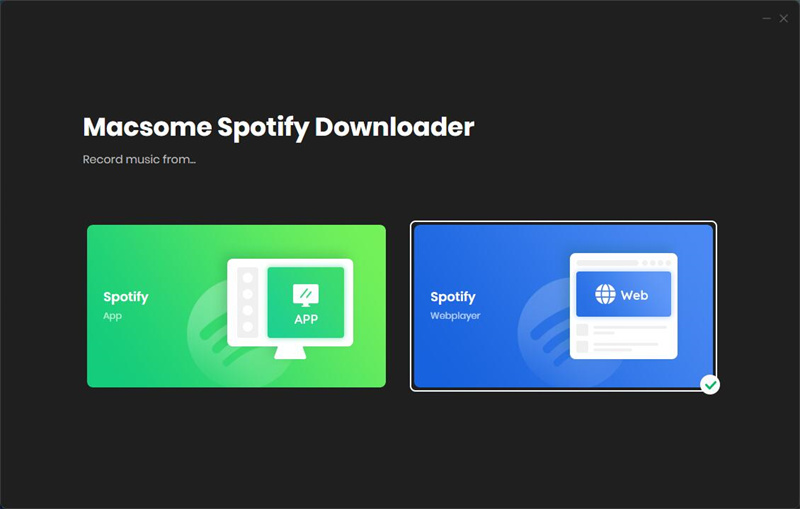
Step 1. Open Macsome Spotify Downloader and either choose the Spotify app mode or the Spotify web player mode.


Step 2. Go to the Settings to choose the output format, output quality, output path, etc.


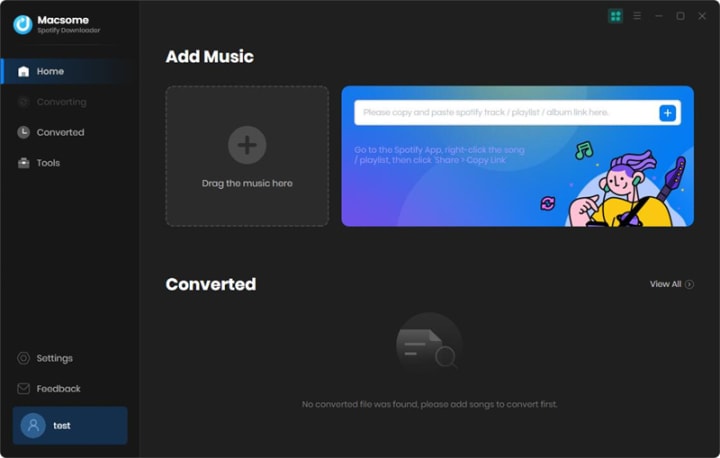
Step 3. Select the Spotify Wrapped playlist, or your top artist, top podcasts, etc. from the Spotify web player, then press the "Click to add", all the select songs will be added to the main window. Step 4. Click the "Convert" button, and the program will start to download Spotify music.

The top global artists of 2023

Reimagined rereleases, record-breaking world tours, and colorful friendship bracelets—fans everywhere will be thrilled to see Taylor Swift as this year's top artist, with more than 26.1 billion global streams since January 1. In the 48 hours leading up to this crowning moment, Spotify revealed 21 puzzle pieces with Taylor Swift-themed easter eggs in billboards from Sao Paulo to Jakarta.


The top global songs of 2023

The top song of the year, Miley Cyrus's record-breaking "Flowers," had incredible momentum from the day of its debut through the summer months and now counts more than 1.6 billion streams globally.

In the second and third spots are "Kill Bill" by SZA and "As It Was" by Harry Styles. The fourth and fifth spots come from Jung Kook with "Seven (feat. Latto)," and Eslabon Armado and Peso Pluma with "Ella Baila Sola."


The top global albums of 2023 

The most-streamed album of the year for the second year in a row was Un Verano Sin Ti by Bad Bunny, with more than 4.5 billion streams globally, followed by Taylor Swift's album Midnights. SZA takes the third spot with SOS. And in the fourth and fifth spots are Starboy by The Weeknd and MAÑANA SERÁ BONITO by KAROL G


The top global podcasts of 2023

Spotify is the most-used audio podcast platform in many key markets around the world and is also the number-one podcast publisher in the U.S., according to the most recent Edison Research data. 

And for the fourth time in a row, The Joe Rogan Experience takes the honor of top podcast of the year globally. In second place for the second year is Call Her Daddy, and in third, Huberman Lab, followed by anything goes with emma chamberlain and On Purpose with Jay Shetty. Eight of the top 25 podcasts on the global top lists are Spotify Owned & Licensed podcasts, and nine of the top 25 podcasts in the U.S. are as well. 


Thursday, November 16, 2023

Macsome Launches Super Black Friday Campaign - Save up to $60 OFF

Macsome Inc. has recently released a big Black Friday Campaign. Users can save up to $60 on Macsome’s products. The event will be concluded on Nov. 30, 2023. Don't miss out on the year's biggest promotion. 

Macsome Inc., an industry-leading software developer, has launched its Black Fridaybig sales event. During this promotion, users can enjoy at up to 25% off discount for Macsome’s yearly subscriptions, save up to $40 off on Macsome’s lifetime version, and up to $60 off for all-in-one music downloader - Music One. 

Starting from November 16, Macsome Black Friday & Cyber Monday sale is in progress. Here is the landing page for this campaign:


Macsome 2023 Black Friday Sales Quick Overview

  • Macsome is offering up to 25% off on their yearly subscription streaming music conversion tools for Black Friday (original price: $59.95, now: $44.95, Coupon code: 2023-MS-15Y-B5) , including Macsome Spotify Downloader, Macsome Apple Music Converter, Macsome YouTube Music Downloader, Macsome Amazon Music Downloader, Macsome Deezer Music Converter, and Macsome Tidal Music Downloaders.
  • Macsome is offering up to $40 off on their lifetime version of music downloading software (original price: $129.90, now: $89.90, Coupon code: 2023-MS-40L-B5), allowing you to download music from Spotify, Apple Music, YouTube Music, Amazon Music, Tidal, or Deezer without any limitations.
  • Users can also get an All-in-one Music Downloader at up to $60 off. This Music One program can let you download music from Spotify, Apple Music, Amazon Music, Tidal, Deezer, YouTube Music, Line Music, and Pandora Music. Besides, it also lets you record audio files from popular sites, such as YouTube, Dailymotion, Veoh, Vimeo, SoundCloud, etc. This product with an intuitive interface that's perfect for beginners and professionals alike.
 
A brief introduction to the product featured in the promotion of Macsome

Spotify Music Downloader - Download Spotify music songs, playlists, albums, and podcasts to MP3, AAC, WAV, FLAC, AIFF, and ALAC.


Apple Music Converter - Convert Apple Music, iTunes purchased songs, and iTunes/ Audible audiobooks to MP3, AAC, WAV, FLAC, AIFF, and ALAC.

YouTube Music Converter - Available for both YouTube Free and Premium users to download YouTube Music to MP3, AAC, WAV, FLAC, AIFF, and ALAC.

Deezer Music Converter - Convert Deezer Music to MP3, AAC, etc with Hi-Fi audio quality.

Pandora Music Converter - Download Pandora Music songs, albums, playlists, and podcasts to MP3, AAC, WAV, FLAC, etc.

Tidal Music Downloader - Download music from Tidal to MP3, AAC, WAV, FLAC, AIFF, and ALAC with high output quality.

Amazon Music Downloader - Download Amazon Songs to MP3, AAC, WAV, FLAC, AIFF, and ALAC with ID3 tags.

"To shows our sincere gratitude to all customers, we have offered the biggest discounts during the Black Friday Campaign, and this would be the lowest price of the year," said Leo Fan, marketing manager of Macsome.

For more details about Macsome Black Friday sales, please visit the official promotion page from: https://www.macsome.com/promotion/2023-black-friday-sales/

Pricing and Availability

This promotion is valid until November 30th, 2023. Anyone who visits Macsome official website can enjoy this special discount. Now you can get Annual Plan for Macsome at up to 25% off. This plan now costs $44.95 (original price: $59.95) per year, and save up to $40 on Macsome lifetime versions, giving you access to all the features and updates of Macsome.

For more promotion information, please go to:

https://www.macsome.com/promotion/2023-black-friday-sales/

About Macsome Inc
Macsome Inc is a software development company that was established in 2008. It is devoted to providing ultimate multimedia solutions to customers worldwide. Main products include Spotify Downloader, Apple Music Converter, YouTube Music Downloader, Amazon Music Downloader, Tidal Music Downloader, Deezer Music Converter, Pandora Music Downloader, and the new upgrade of Audible Audiobook Converter. 

Press Contact

Name: Leo Fan

Email: market@macsome.com

Website: https://www.macsome.com

Facebook: https://www.facebook.com/MacsomeOfficial

Black Friday Promotion page: https://www.macsome.com/promotion/2023-black-friday-sales/

Sunday, October 29, 2023

Download Full Album Taylor Swift - 1989 (Taylor's Version) MP3 for Free

 1989 (Taylor's Version) is the fourth re-recorded album by American singer-songwriter Taylor Swift, released on October 27, 2023. 


Would you like to play 1989 (Taylor's Version)  on MP3 player? Want to use 1989 (Taylor's Version) in your wedding? Looking for a way to play 1989 (Taylor's Version)  in your car?

You can purchase the full album 1989 (Taylor's Version) from Amazon Music or other online digital store. After that, you can download MP3 zip files on your computer. But this method cost cost you a lot more. 

In this article, we will show you how to download Full Album Taylor Swift - 1989 (Taylor's Version)  MP3 for Free. 

Macsome Spotify Downloader is a professional Spotify to MP3 downloader. With it, you can download Spotify albums with a Spotify Free account. 

It allows you to download Spotify tracks, playlists, albums, radios, audiobooks, and podcasts for offline listening without the need for Premium.  It can also remove ads from Spotify music, so you can listen to Spotify music smoothly. With Macsome Spotify Downloader, you can transfer Spotify songs to any of your devices for streaming offline. 

The following is a step-by-step guide to download Taylor Swift - 1989 (Taylor's Version) to MP3. 

Step 1. Launch Macsome Spotify Downloader

Download, install, and launch the latest version of Macsome Spotify Downloader on your computer.

startup page of Spotify Downloader

Step 2. Import Taylor Swift 1989 from Spotify to Macsome

Here we choose to download music from the Spotify web player. 

Go to the Spotify web player, search for Taylor Swift 1989, and then click the "Click to add" button to parse this playlist, then all the tracks of this playlist will list on the panel.


Then check the songs you want to download and click the "Add" button.

Step 3. Choose MP3 as Output Format

Click on the  icon at the bottom left to choose MP3 as the Output Format, the conversion mode (Intelligent Mode, Spotify Record, or YouTube Download), the Bit Rate (320kbps, 256kbps, 192kbps, 128kbps), and Sample Rate (44.1kHz, 48kHz, 96kHz, 192kHz).


Step 4. Start to Download Taylor Swift 1989 from Spotify to MP3 Without Premium

Click the "Convert" button to start downloading Taylor Swift 1989 from Spotify to MP3 with a free account. 


After the conversion is completed, you can click "Converted" to find the converted music. Now you can listen to 1989 (Taylor's Version) MP3 anytime and anywhere.


Here is the tracklist of 1989 (Taylor’s Version) in full:


1. Welcome to New York (Taylor’s Version)

2. Blank Space (Taylor’s Version)

3. Style (Taylor’s Version)

4. Out of the Woods (Taylor’s Version)

5. All You Had To Do Was Stay (Taylor’s Version)

6. Shake It Off (Taylor’s Version)

7. I Wish You Would (Taylor’s Version)

8. Bad Blood (Taylor’s Version)

9. Wildest Dreams (Taylor’s Version)

10. How You Get the Girl (Taylor’s Version)

11. This Love (Taylor’s Version)

12. I Know Places (Taylor’s Version)

13. Clean (Taylor’s Version)

14. Wonderland (Taylor’s Version)

15. You Are In Love (Taylor’s Version)

16. New Romantics (Taylor’s Version)

17. “Slut!”(Taylor’s Version)

18. Say Don’t Go (Taylor’s Version)

19. Now That We Don’t Talk (Taylor’s Version)

20. Suburban Legends (Taylor’s Version)

21. Is it Over Now? (Taylor’s Version)

Why has Taylor Swift released a new version of 1989?


This is the latest part of an ongoing campaign to regain control of her work after Braun bought her former label Big Machine.

At the time, she accused him of "bullying" and attempting to "dismantle" her "musical legacy", adding: "This is my worst case scenario."

He then sold her master tapes on to an investment fund.

She has been re-recording and re-releasing her first six albums one by one as "Taylor's Versions".

Re-recording them means that under the term of her new record deal, Swift owns the rights to these recordings.

The first three, Fearless, Red and Speak Now, all went to the top of the UK album chart, with the latter arriving in July. Now, only two others are still to be re-released - Taylor Swift and Reputation.

Wednesday, October 25, 2023

How to Download Apple Music Without Subscription

Can I download songs on Apple Music without subscription?

If you subscribe to Apple Music, you can stream lossless songs, get personalized recommendations, watch exclusive video content, create your own playlists, and more. 

If you don't have a paid subscription, Apple Music still lets you listen to music you've purchased, ripped, or uploaded to your device but you won't get access to all the features Apple Music offers, such as offline listening.

Is it possible to download Apple Music without subscription? In this guide, we are going to show you how to download Apple Music for offline listening without Apple Music subscription. 

Macsome iTunes Converter is a powerful Apple Music Downloader for you. It is an all-in-one Apple Music Converter that lets you download Apple Music songs, playlists, and albums on your local drive. In this way, you can listen to Apple Music offline after you canceling subscription. Besides, it also allows you to convert Apple Music to MP3, AAC, FLAC, WAV, AIFF, and ALAC, so you can enjoy Apple Music on your iPhone 15, iPod, Google Home, MP3 Player, Amazon Echo, Roku TV, etc. 

Mac and PC users will need to download the latest version of Macsome iTunes Converter and refer to the following steps to learn how to download Apple Music on your computer

How to Download Apple Music Without Subscription with Macsome iTunes Converter

Step 1. Launch Macsome iTunes Converter on your computer.

Launch the Macsome iTunes Converter on your computer. You will see the intuitive interface of the program. If you use the program for the first time, you'll need to choose to download Apple Music from the iTunes (Apple Music) app or web player. Here we'll use the Apple Music web player for an example. 


Step 2. Add Apple Music to Macsome.

Tap the Apple Music web player option, and you'll get the Apple Music web player opened as well. Please use your Apple Music account to log in. Browse your favorite Apple Music playlists and open it, Macsome will parse the link.

Select the tracks you'd like to download, and hit the "Add" button, then all the tracks will be loaded into the main window.


Step 3. Customize the output parameters.

Directly click the Settings button in the lower-left corner of the program interface, you can set output format, change the output folder, or set other parameters as you like.


Step 4. Start to Download Apple Music on your computer.

Click the "Convert" button to start downloading Apple Music. 


Step 5. Listen Apple Music anytime and anywhere.

After the conversion is finished, you can find the downloaded Apple Music in the Converted tab. Click the folder icon, you'll find the Apple Music songs saved on your computer. 

Look,  you've downloaded Apple Music successfully. Now you can enjoy Apple Music offline even your Apple Music subscription expired. 

Additional Tips: How to Listen to Apple Music Offline 

Listen offline: 

Apple Music lets you download copies of any available songs, albums, or playlists you want to your devices.

It's helpful if you're going to be out of range. Just go to a song or album, then tap the arrow or three-dot button to see more options, and select the download button to download it to your device (and library). There's no limit to what you can keep offline or for how long. You can also tap the "+" to add a song to your library and then tap it again to download it.

Monday, October 9, 2023

Two Ways to Download Apple Music on iPhone 15 for Offline Listening

Why can't I play Apple Music on my iPhone 15? Can I listen to Apple Music on my iPhone offline? Can I play Apple Music on my iPhone 15 without Apple Music?

The iPhone 15 is a great package starting at $800, even with its slightly underpowered USB-C port.  The iPhone 15 is now the right mix of size, features, and performance. This iPhone strikes a nice balance between price and cutting-edge features.

If you have a new iPhone 15 and want to play Apple Music on your new phone, you've come to the right place. 

This tutorial will show you how to play Apple Music on iPhone 15 offline using two different solutions.  

How to Transfer Apple Music to iPhone 15 for Offline Playback with Macsome iTunes Converter

Macsome iTunes Converter is a comprehensive Apple Music conversion tool that is capable of converting both iTunes music collections and Apple Music songs, playlists, albums, and podcasts to plain output formats compatible with various devices, including MP3, AAC, FLAC, WAV, AIFF, and ALAC, so you can enjoy Apple Music on your iPhone 15, iPod, Google Home, MP3 Player, Amazon Echo, Roku TV, etc. 

It is the best Apple Music to MP3 Converter and stands out for its excellent functionality. Here are the steps to download Apple Music with Macsome iTunes Converter and transfer Apple Music to iPhone 15

Step 1. Launch Macsome iTunes Converter on your computer.

Launch the Macsome iTunes Converter on your computer. You will see the intuitive interface of the program. If you use the program for the first time, you'll need to choose to download Apple Music from the iTunes (Apple Music) app or web player. Here we'll use the Apple Music web player. 

Step 2. Add Apple Music to Macsome.

Tap the Apple Music web player option, and you'll get the Apple Music web player opened as well. Please use your Apple Music account to log in. Browse your favorite Apple Music playlists and open it, Macsome will parse the link.

Select the tracks you'd like to download, and hit the "Add" button, then all the tracks will be loaded into the main window.


Step 3. Set the proper output format for the iPhone.

Directly click the Settings button in the lower-left corner of the program interface, you can set MP3 as the output format. In the output settings, you can also change the output folder as you like.

Step 4. Start to Download Apple Music to MP3.

Click the "Convert" button to start downloading Apple Music. 

Step 5. Sync Apple Music to iPhone 15.

After the conversion is finished, you can find the downloaded Apple Music in the Converted tab.

Launch iTunes, click "File", and "Add File to Library" to add Apple Music to iTunes.

In the iTunes app on your PC, click the Device button near the top left of the iTunes window. Click Music in the sidebar on the left, below On My Device. Click the Autofill From the pop-up menu at the bottom of the Music pane, then choose which songs you want to sync.

After sync, you can play Apple Music on iPhone 15 offline at will.

How to Download Apple Music for Offline Listening 

How to Play Music on Apple Music 

1. Open the Music app and search for what you want. 

2. When you tap a song, it starts playing immediately. When you tap an album, all the songs on the album are displayed, and you choose one to play.

How to Save Apple Music Songs for Offline Listening

1. Go through the steps to add a song, playlist, or album to your music library.

2. Tap the Library tab and locate an entry you want to download to your device for offline listening. If it's a song, you can find it in the Songs list. In the case of an album or playlist, tap it to open the screen that lists all the tracks; you can download some or all of an album or playlist.

3. Tap the three-dot icon next to the song you want to download.

4. In the menu that opens, select Download. A downward-facing arrow appears next to the song indicating it has been downloaded to your device.


With the above two solutions, you can play Apple Music on your iPhone 15 at will, even without an Internet connection. 

Sunday, September 24, 2023

How to Download Spotify with Lyrics Preserved for Offline Use

Spotify is empowering millions of fans around the world to sing louder and more confidently than ever with the launch of Lyrics. Spotify claimed that lyrics would be a feature for Premium users later.

How do I download lyrics from Spotify? Can I use Spotify's lyrics offline? Is it possible to download lyrics from Spotify without Premium?


In this guide, we'll show you how to download lyrics from Spotify for offline use with a free Spotify account.


Save Lyrics from Spotify with Macsome Spotify Downloader

Macsome Spotify Downloader is specifically developed for Spotify users to facilitate the downloading of Spotify tracks, playlists, albums, radios, audiobooks, and podcasts for offline listening without the need for Premium. With it, you can not only download Spotify music on your computer for offline listening but also save songs' lyrics for offline use, even if you don't subscribe to the Premium subscription. Macsome Spotify Downloader allows you to download music from the Spotify App and Spotify Web player. If you choose to record music from the Spotify app, you can get the best output quality. If you choose to record music from the Spotify web player, you are able to download Spotify music on your Mac at 10x faster speed.

How to Download Lyrics from Spotify with Macsome Spotify Downloader

Step 1. Open Macsome Spotify Downloader and either choose the Spotify app mode or the Spotify web player mode.


Step 2. Go to the Settings. Please make sure the Save Lyrics option is checked.


Step 3. Add the Spotify music you want to download. Step 4. Click the "Convert" button, and the program will start to download Spotify music. And the lyrics will be preserved at the same time. Reddit users claimed that the lyrics feature of Spotify is only available for Premium users. If you want to get lyrics from Spotify, you can use Macsome Spotify Downloader or try musixmatch. Spotify gets its lyrics from musixmatch. They have a fine standalone app. It syncs with Spotify. But musixmatch doesn't have 70% of songs in it.

Here's how to find Lyrics on Spotify.

On the Spotify mobile app

  1. Tap on the “Now Playing View” on a song.
  2. While listening, swipe up from the bottom of the screen.
  3. You’ll see track lyrics that scroll in real time as the song is playing!
  4. To share, simply tap the “Share” button at the bottom of the lyrics screen and then select the lyrics you want to share—and where you want to share it—via third-party platforms.  


On the Spotify desktop app

  1. From the “Now Playing” bar, click on the microphone icon while a song is playing.
  2. Voila! You’ll see track lyrics that scroll in real time while the song plays.

On the SpotifyTV app

  1. Open the “Now Playing View” on a song.
  2. Navigate to the right corner to the “lyrics button” and select if you want to enable Lyrics. 
  3. Once enabled, you’ll see the lyrics in the “Now Playing” View.

Tuesday, September 12, 2023

How to Play Spotify Music on iPhone 15

 How can I play Spotify Music on iPhone 15? This tutorial will tell you how to transfer Spotify music to new iPhone 15 models.

Apple has just announced its new iPhone 15 models, and the big news is USB-C, a camera upgrade, the addition of the Dynamic Island, and even some improvements to the display. Would you like to buy a new iPhone 15?

If you are an Android user and switch to an iPhone, Apple Music is the default music app you can use. If you want to play Spotify on the new iPhone 15, what should you do?

In this article, we will introduce two ways to help you play Spotify music on iPhone 15.


Solution 1. Transfer Spotify to iPhone 15 with Macsome Spotify Downloader

If you try to transfer music from Spotify, you may fail.

Spotify is a music streaming service. You can only play music within the Spotify app and can't get the music files out of the app. If you'd like to transfer Spotify music without the Spotify app installed, you can try to download music from Spotify to the local songs in a common audio format such as MP3. Thus, without the Spotify app, you can also save your Spotify Music files and easily sync them to your iPhone. Macsome Spotify Downloader is a professional Spotify Converter recommended for you.

With it, you are able to convert Spotify songs, albums, playlists, audiobooks, and podcasts to MP3, WAV, AAC, FLAC, AIFF, and ALAC with original quality and ID3 tags preserved. Moreover, it also allows you to download Spotify music as local files for offline listening with a Spotify Free account. In this way, you can transfer the downloaded Spotify music to a new iPhone 15.

This guide shows you how to convert Spotify songs to iPhone 15 by using Macsome Spotify Downloader.

Step 1. Download, install and run Spotify Downloader on your computer.

Macsome Spotify Downloader offers two download options, which let you either download music from the Spotify app or through the Spotify web player. Here we'll take the Spotify App mode as an example.

Step 2. Import Spotify Music or Playlists.

Go to Spotify, search for the songs or playlists you would like to convert, and then drag them to the adding window. Moreover, you can also copy and paste the link to a song or playlist.

Step 3. Set the proper output format for iPhone.

Directly click the Settings button in the lower-left corner of the program interface, you can set MP3 as the output format. In the output settings, you can also change the output folder as you like.

Step 4. Start to Convert Spotify Songs to MP3.

Click the Convert button to start the Spotify songs to MP3 conversion process.

Step 5. Sync the downloaded Spotify songs to the iPhone.

After the conversion is finished, you can find the converted Spotify songs in the Converted tab.

When you find the downloaded Spotify songs, launch iTunes, and click "File", and "Add File to Library" to import Spotify songs to iTunes.

Next, connect your iPhone to your computer, and select the "Music" section in the sidebar. Check "Sync Music" to select the Spotify songs you'd like to sync and click "Apply". Then you'll find the downloaded Spotify songs on your iPhone.

Once the sync process is completed, you can play these Spotify songs on your iPhone 15 offline.

Solution 2. Official Way to Play Spotify Music on iPhone 15

If you want to use the Spotify service rather than Apple Music on your iPhone you have a number of options. The first and most obvious option is to download the Spotify app, which is available on the iOS App Store.

1. You can download Spotify from the iOS App Store.

2. Open the Spotify app on your iPhone and interact with Spotify there.

Spotify is a free service, you can listen to Spotify music online with a Spotify Free account.

Either solution you choose, you can listen to Spotify music on your iPhone 15 with ease.