Thursday, July 13, 2023

Macsome Announces New User Interface for Its Music Streaming Tools

 Macomse brings a new user interface for its music streaming tools, making them easier to use,  more intuitive, and visually pleasing. 

Macsome announced new user Interface for its music streaming tools. The company's flagship product, a series of two products: the web player series and the comprehensive series. The web player series let you download streaming music from web player, including Amazon Music, Tidal, Deezer, YouTube Music, and Pandora. And the comprehensive series supports downloading from the app and web player, such as Apple Music and Spotify.

And after the new upgrade of this version, Macsome not only brings a new look to the products but new features as well, including Format Converter, CD Burner, and the ability to edit important ID3 tags within the tool (already available within the comprehensive series for a long time).


Each product offers a free trial version, which let you download 1 minute of each track.

How to Download Streaming Music from Web Player

Macsome web player series included Macsome Tidal Music Downloader, Macsome YouTube Music Downloader, Macsome Deezer Music Converter, and Macsome Pandora Music Downloader. Here we will take Macsome You Music as an example to show how it works.

Step 1. Login YouTube Music Web Player

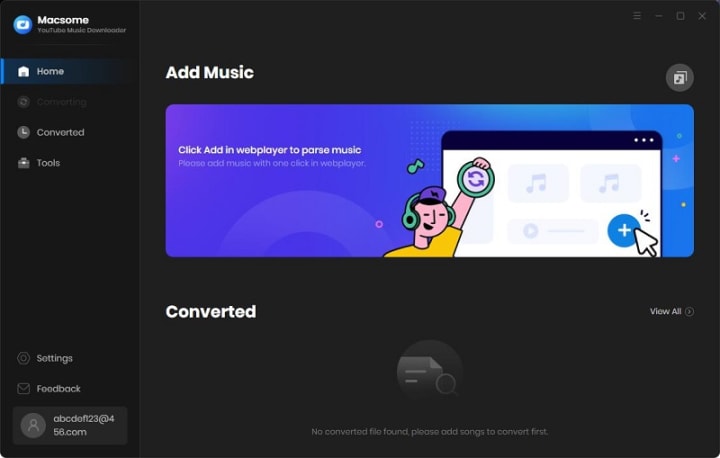
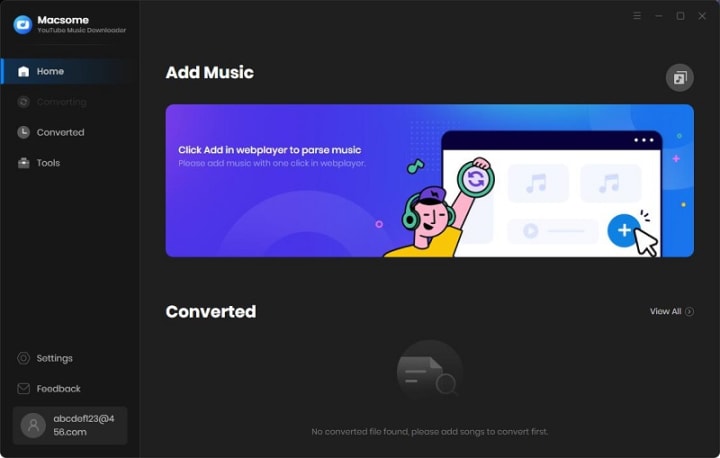
Start Macsome YouTube Music Downloader on your PC, and the YouTube Music web player will open simultaneously. Then log in to your account, the YouTube Music free account is also available.

If the web player doesn't appear automatically, you can manually open it by clicking on the blue section of the main interface or using the "Open the webplayer window" button.
Add a caption (optional)

Step 2. Set the Output Formats and Other Parameters

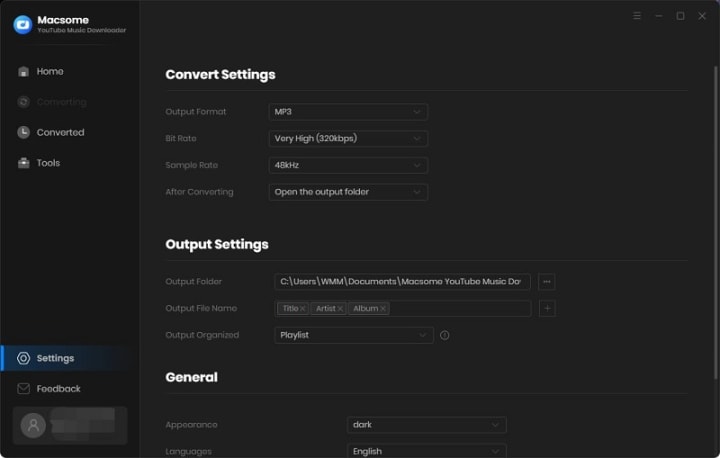
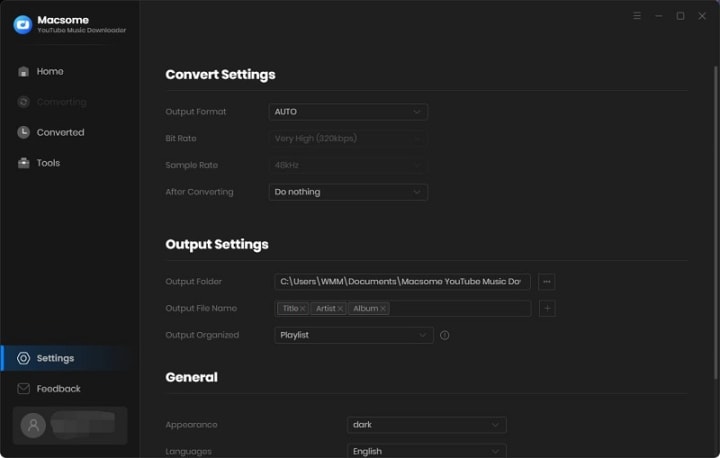
Click on the "Settings" icon on the left, or select the "Settings" option from the drop-down list. Now you can choose the output format, output quality, or output folder as you need.

For better organization of your downloaded YouTube Music files, you can save the output audio files into folders sorted out by artist, album, or playlist. In addition, Macsome allows you to customize the name of the output files and save the output audio files in the same order as the original playlist.
Add a caption (optional)

Step 3. Add Music, Playlists, or Albums from YouTube to Macsome

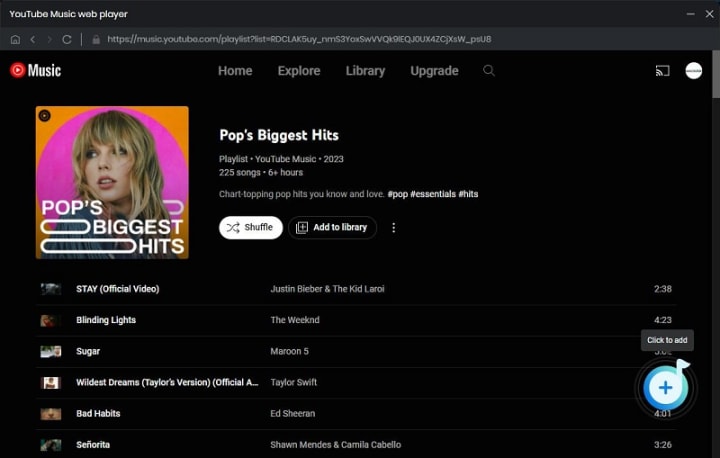
Open a track, album, or playlist, then you can click the "Click to add" button to add the music you want to convert.
Add a caption (optional)

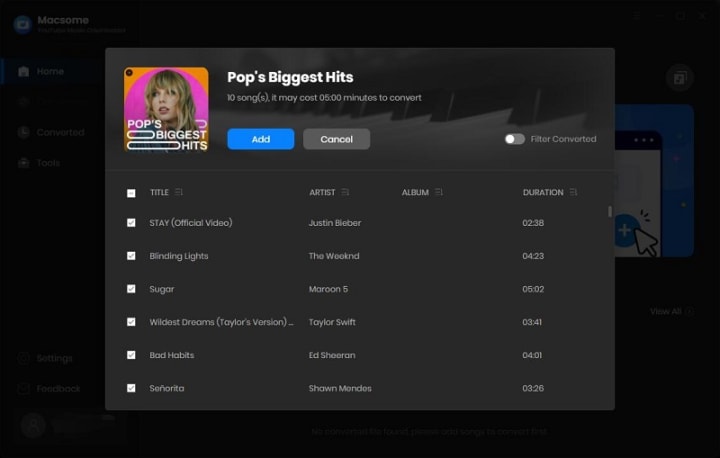
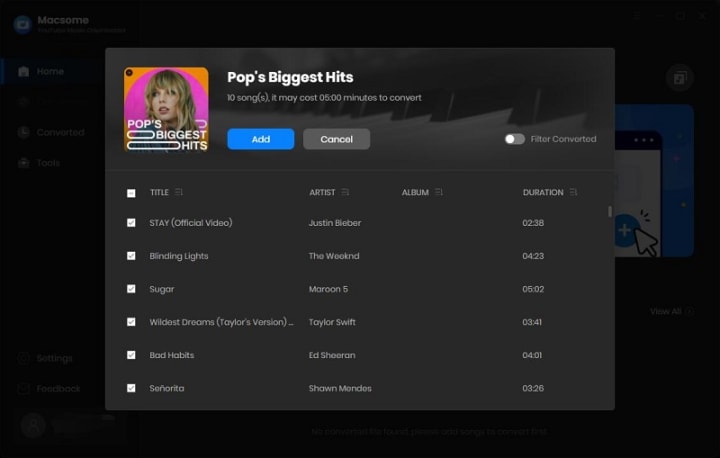
Macsome YouTube Music Downloader will parse the selected playlist and display them in a pop-up window. By default, all items are selected, but you can manually select the songs you want.
Add a caption (optional)

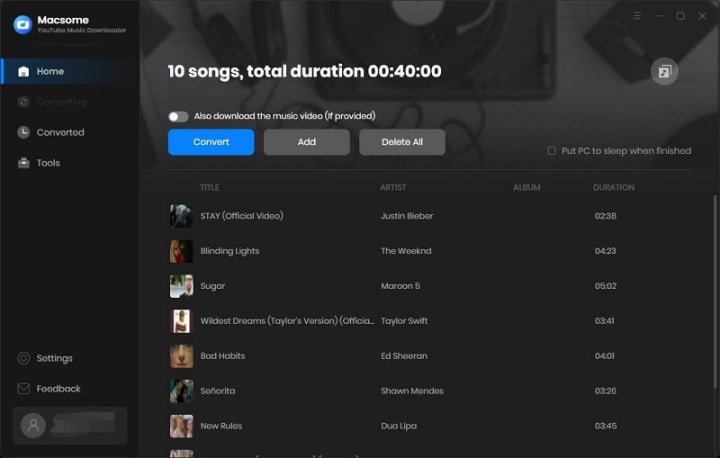
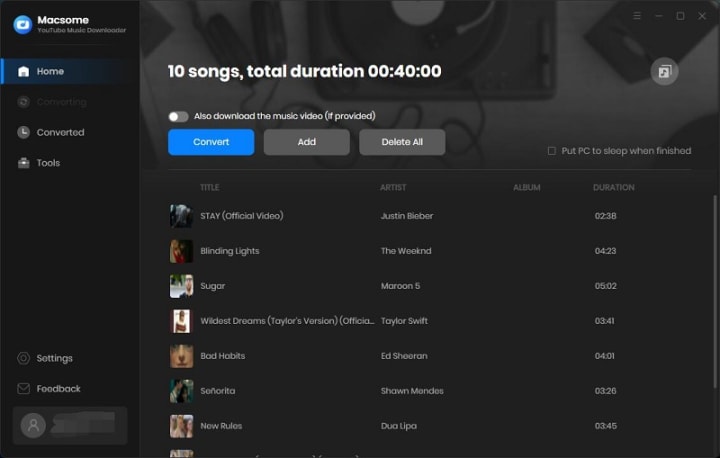
Then, click the "Add" button, all the songs will be listed on the main window. You can click the "Add" button to continue choosing songs from other playlists or albums.
Add a caption (optional)

Tips to Download YouTube Music videos: If YouTube Music includes the Music video, please switch on the "Also download the music video (If provided)" option, and then the YouTube Music tracks as well as the Music videos will be downloaded together.

Step 4. Start to Download YouTube Music

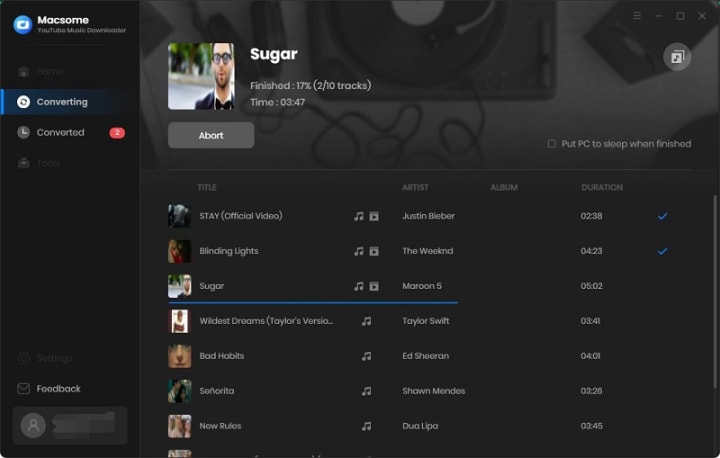
Click the "Convert" button to start downloading music from YouTube.
Add a caption (optional)

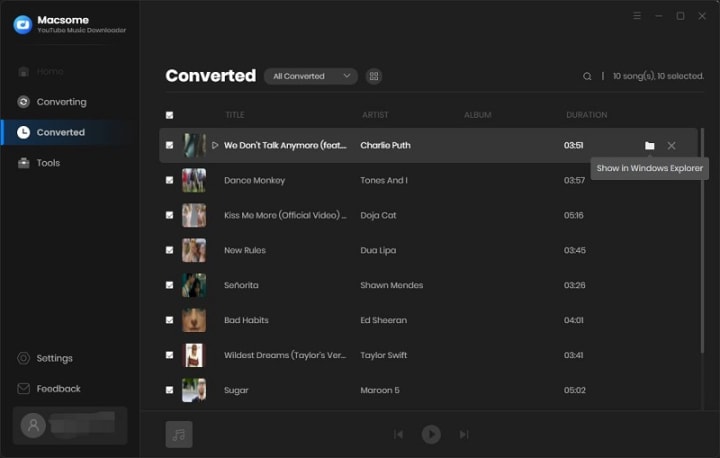
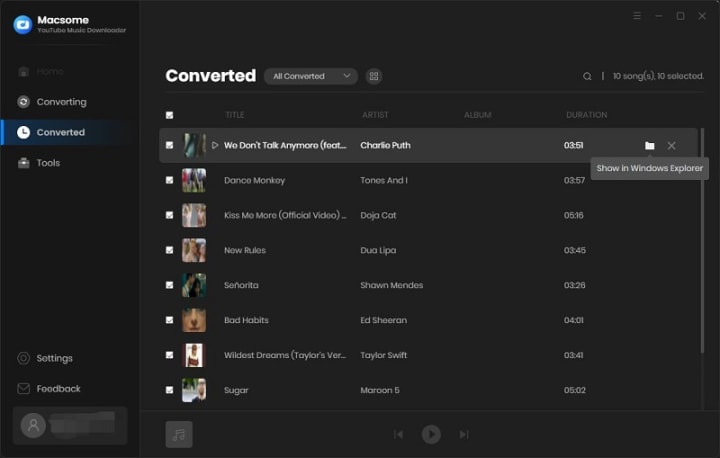
After the conversion, you can find the downloading history from the "Converted" tab, hover the mouse over the folder icon, you will find the downloaded YouTube Music files in your local folder. If YouTube Music provided the video, turn on the tab, music videos are downloaded along with the tracks.
Add a caption (optional)

Select all the downloaded songs, you can directly export the downloaded YouTube Music songs to Apple Music, burn YouTube Music to CD, or edit tag information with one click.

How to Download Streaming Music from Web Player and App

Macsome iTunes Music Converter and Macsome Spotify Downloader are comprehensive products, which support downloading Apple Music and Spotify music from the app and web player. We'll show you how it works using Macsome Spotify Downloader.

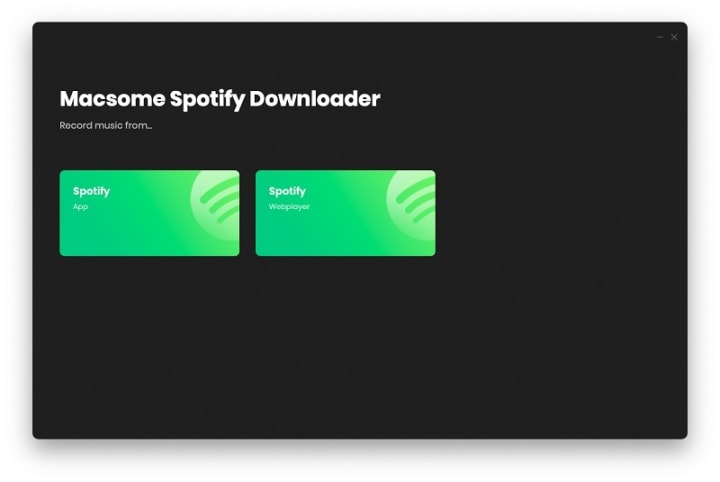
Step 1. Launch Macsome Spotify Downloader on Mac.
Add a caption (optional)

Step 2. Choose to Record Spotify Music from App or Web Player.

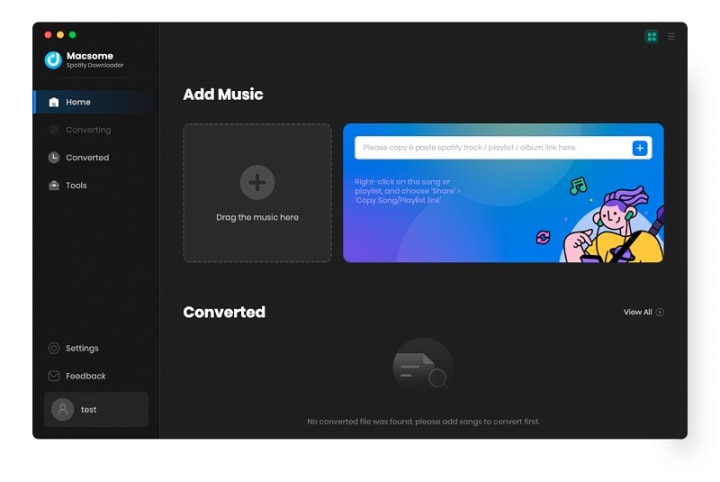
If you select the Spotify App, please make sure you have installed the latest version of Spotify app. When you choose the Spotify App, the Spotify app will open at the same time. Now you can drag the playlist you want to download to the dotted box directly. Plus, you can also copy the link of the playlist to the blue banner, and Macsome will parse the link.
Add a caption (optional)

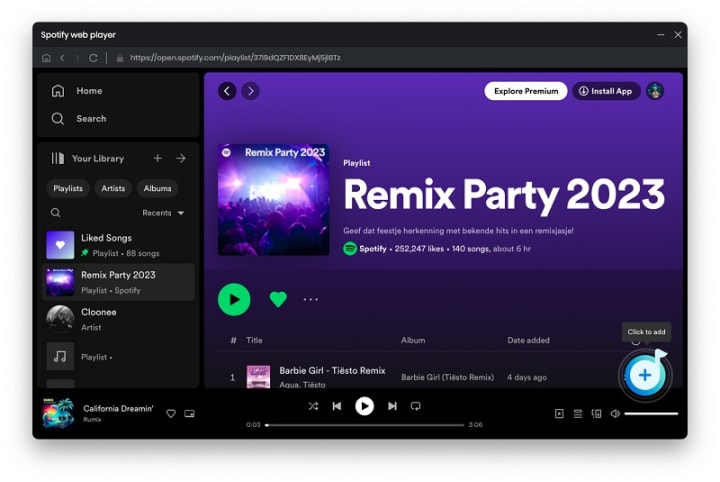
If you choose to record music from the Spotify web player, the web player will start simultaneously. Please use your Spotify account to log in to the Spotify web player.

Please Note: You'll need to log into your Spotify account before conversion, but don't worry, we won't gain access to your account information other than the songs.
Add a caption (optional)

You can directly open a playlist, an album, or an artist, and tap the "Click to add" icon.

Step 3. Select Spotify Songs to the Macsome.

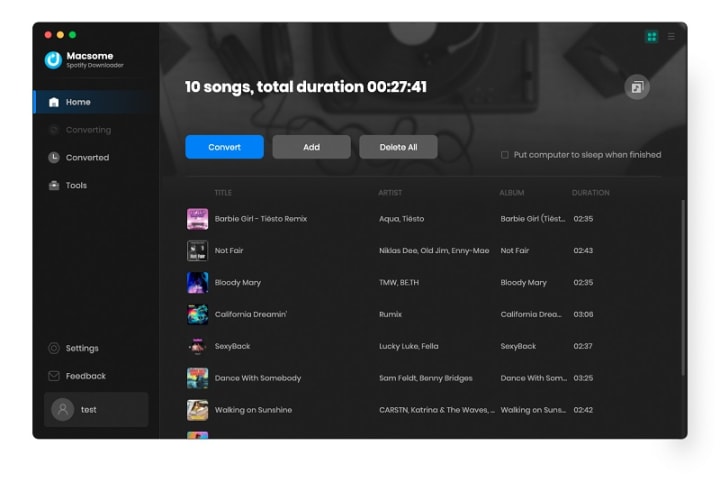
Then the selected playlist will be recognized and shown in a new window.

Select the songs you want, then click the "Add" button, all the selected songs will be listed in the panel.
Add a caption (optional)

Step 4. Choose Output Format or Other Parameters.

Click on the Setting in the bottom-left corner, you can choose the Output Format (AUTO / MP3 / AAC / FLAC / WAV / AIFF / ALAC), the Bit Rate (320kbps, 256kbps, 192kbps, 128kbps), Sample Rate and the Output Folder. For better organizing your music library, you can save the output audio files into organized folder like Playlist, Artist, Album, Artist/Album, Album/Artist, Playlist/Artist, or Playlist/Album.
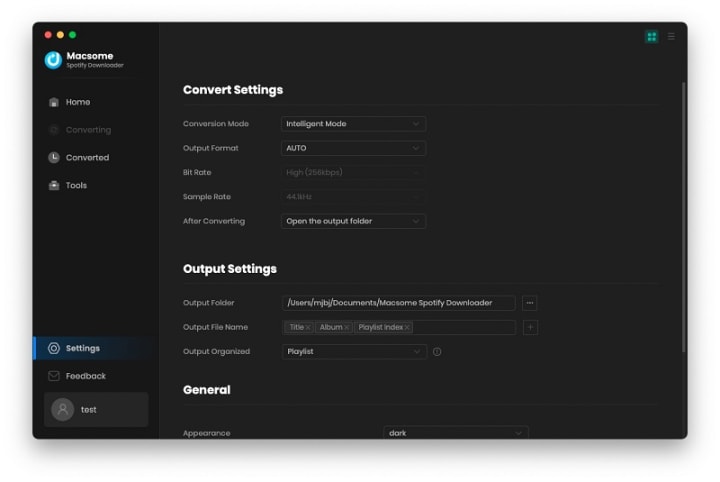
Add a caption (optional)

Step 5. Start to Download Spotify Music and Playlists.

After all the settings, you can click on the "Convert" button to start downloading the Spotify songs to the common format you have chosen.
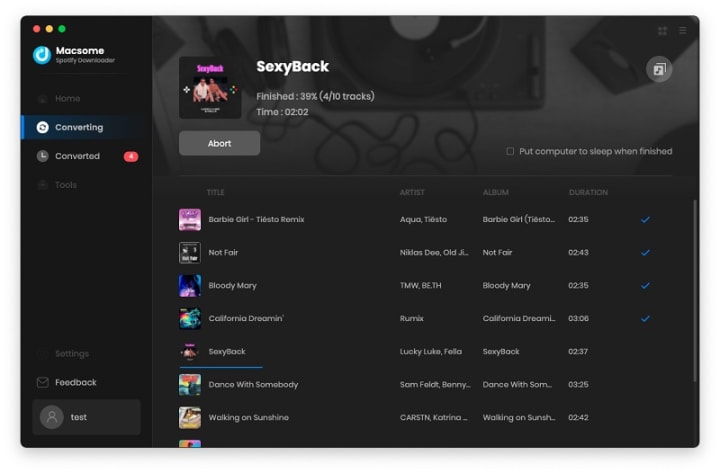
Add a caption (optional)

When the downloading is complete, you can click the "Converted" panel to find the downloaded history. Select the converted songs, you can choose to export Spotify music to iTunes directly.
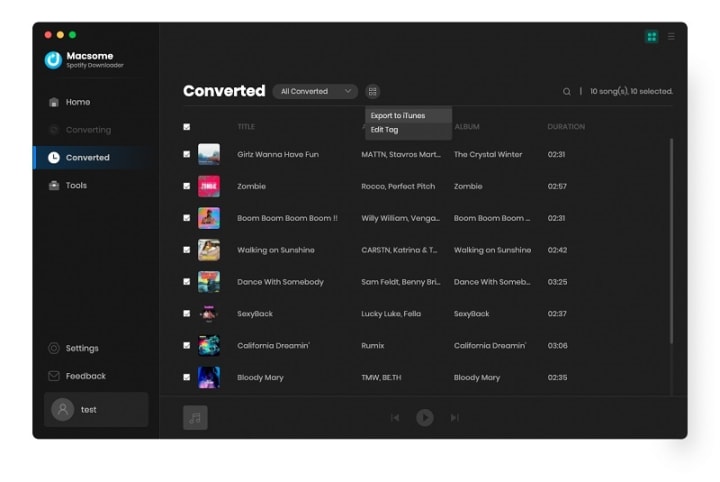
Add a caption (optional)

Hovering over the music list, and click the "folder" icon, you'll find the downloaded Spotify songs in your local folder.
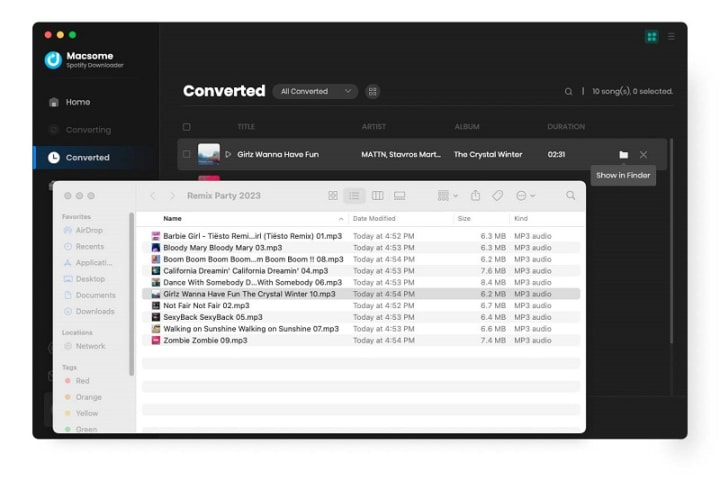
Add a caption (optional)

Friday, June 30, 2023

How to Play YouTube Music on PS4 / PS5 While Playing Games

Why there is no YouTube Music on PlayStation PS4/PS5? Can I play YouTube Music on PS5? I was just wondering if there was a way for me to play YouTube music on my PS5, it's because I don't listen to Spotify.

Reading this article, you will learn how to download YouTube Music by using Macsome YouTube Music Downloader, and then transfer YouTube Music songs to a USB drive so that you can play YouTube Music on PS4 or PS5 while playing games.


Can I Play YouTube Music on PS4 / PS5?


You can't play YouTube Music on your PS4 or PS5, but you are able to play music from a USB flash drive on the PS4. If you could download YouTube Music to PS4/ PS5 compatible formats like MP3, AAC, or FLAC, then you can import YouTube Music to a USB drive for Ps4 / PS5.

YouTube Music is a music streaming service, which streams music in encrypted AAC format. In order to download YouTube Music to a USB drive, Macsome YouTube Music Downloader is strongly recommended for you. It is specially designed for both YouTube Music free users and Premium subscribers and lets them download songs, playlists, and albums from YouTube Music.

In addition to the above, it is a professional YouTube Music Converter, which can convert songs from YouTube Music to MP3, AAC, WAV, FLAC, AIFF, and ALAC with original quality. So, you can play the converted YouTube Music songs on PS4 / PS5 from the USB drive easily.

How to Download YouTube Music to PS4 / PS5


With Macsome YouTube Music Downloader, you can download YouTube Music to PS4 / PS5 compatible audio formats. Below, we will show you how to use it to download YouTube Music. After that, you can listen to YouTube Music via USB on PlayStation.

Step 1. Access the YouTube Music Library

First, download, install, and launch Macsome YouTube Music Downloader on your computer. And the YouTube Music web player will start at the same time.

Step 2. Set the Output Formats for PS4 / PS5

Click on the Settings icon on the left, and you can select the output format available for PS4 / PS5. If you want to play music from USB drives on PS4 / PS5, you can select the PS4 / PS5 console compatible file formats, like MP3, AAC, and FLAC from the Output Format drop-down list.

Besides, you could personalize the audio parameters, like bit rate and sample rate, as you like. If you want to arrange files in a better way, you can customize the output file name and output organized way.

Step 3. Add YouTube Music Playlists

Navigate to the music library through the web player, then select and open a playlist you'd like to play on PS4 / PS5. Tap the "Click to add" button.

Tick off the tracks you want to download. Click the "Add" button to load all the songs of this playlist to the conversion pane.

Step 4. Start to Download YouTube Music for PS4 / PS5

Press the "Convert" button to start the YouTube Music to PS4 / PS5 downloading process.

Once the downloading is finished, all the downloaded YouTube Music files will be saved to your computer locally.

Play YouTube Music from a USB Drive on PS4 / PS5 Consoles

Since you have downloaded YouTube Music to PS4 / PS5 supported file types on your computer. Now you can transfer YouTube Music to a USB drive, then you can listen to the music from a USB drive on PS5 consoles.

Step 1. Plug a USB drive into your computer, and create a folder called "Music" on the USB. Then copy the downloaded YouTube Music files to the "Music" folder.

Step 2. Connect the USB drive to your PS4 or PS5 console. Select Music in the control center. USB Drive appears in your playlist.

Step 3. Select USB Drive. Now you can select a YouTube Music track to play it.

Thursday, June 29, 2023

How to Download Tidal Music on Mac

Can I use Tidal Music on Mac offline? How do I play Tidal music offline on my Mac? Can I download Tidal music to my Mac?

Similar to Spotify, Apple Music, and other platforms, Tidal also lets you download files for offline listening, but the difference is that offline Tidal is only available on mobile phones or tablets using the Tidal app. It is not available to download music from Tidal to your computer. If you're using a Mac, is it possible to download Tidal Music on Mac? 

Don't worry. The following part will show you how to download songs from Tidal on your Mac.

Since Tidal is a music streaming service, in order to play Tidal Music on Mac, you can just get the Tidal app downloaded on your Mac. However, we cannot directly download music from the Tidal app on Mac. To do this, the easiest way is to use a third-party tool.


Macsome Tidal Music Downloader is a professional Tidal Music Converter for Mac and it is highly recommended for you. It is the best tool that gives you the ability to download Tidal music, tracks, and playlist on your Mac. What's more, it is also a very easy-to-use Tidal Music Converter, which enables you to convert Tidal Music to MP3, AAC, WAV, FLAC, AIFF, and ALAC with HiFi quality.

Thanks to its built-in Tidal Web Player, you don't have to install the Tidal app on your Mac. Just log in to your Tidal account, and you can save Tidal music on your Mac freely. Therefore, you are able to play the downloaded Tidal songs offline when your Tidal subscription expires.

How to Download Tidal Music on Mac with Macsome Tidal Music Downloader

This step-by-step tutorial will show you how to download music from Tidal on your Mac by using Macsome Tidal Music Downloader. Before starting, please download and install the latest version of the program. Then, launch it on your Mac, and the Tidal web player will open at the same time.

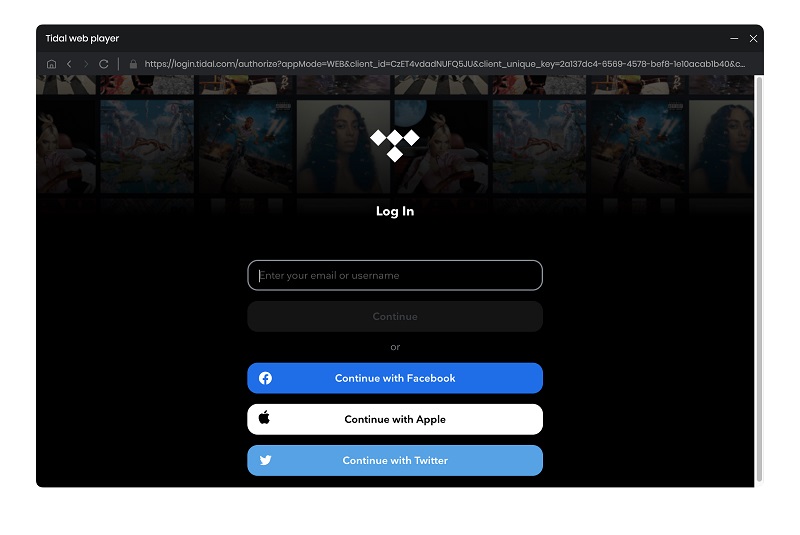
Step 1. Log into your Tidal account

sign in to tidal web player

Step 2. Set the Output Formats and Other Parameters

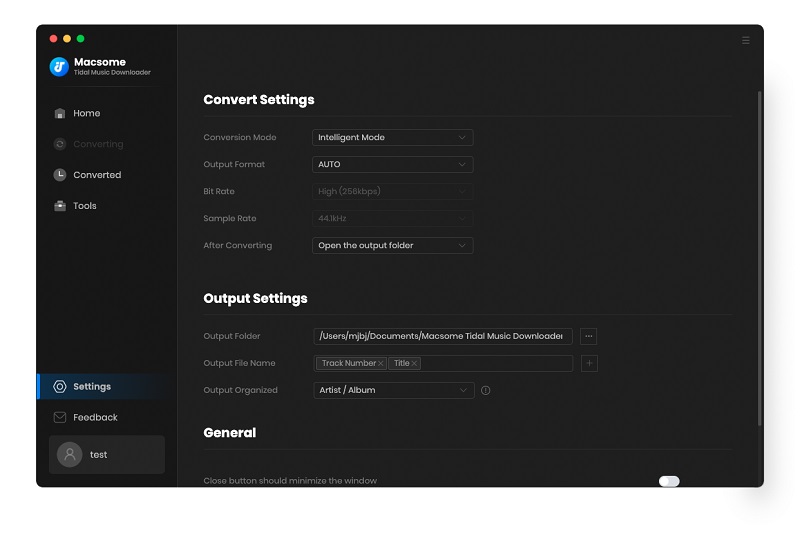
Click on "Settings" in the lower-left corner of the window. There you can change the Output Format (MP3/AAC/WAV/FLAC/AIFF/ALAC), Bit Rate (320kbps, 256kbps, 192kbps, 128kbps), Sample Rate, and output path, and more as your requirements. The Output File Name section allows you to rename the output files with a series of options, while the Output Organized section gives you options to sort the output files into folders, such as Playlist, Album, and Artist.

Please Note: If you wish to export Tidal music with the original sound quality, including HiFi, please select "AUTO" from the Output Format.

Set the output format

Step 3. Add Tidal Music and Playlists

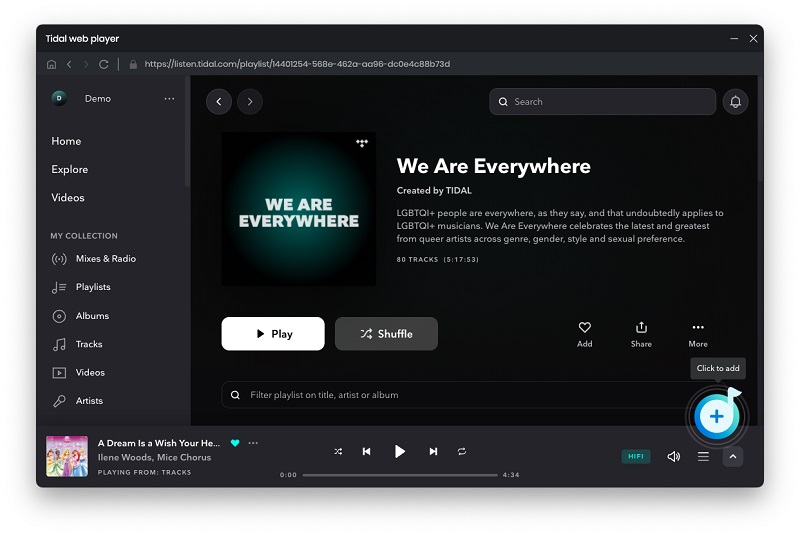
Search for your favorite Tidal songs on the Tidal web player, open a playlist you'd like to download, and click the "Click to add" button.

Add Tidal music

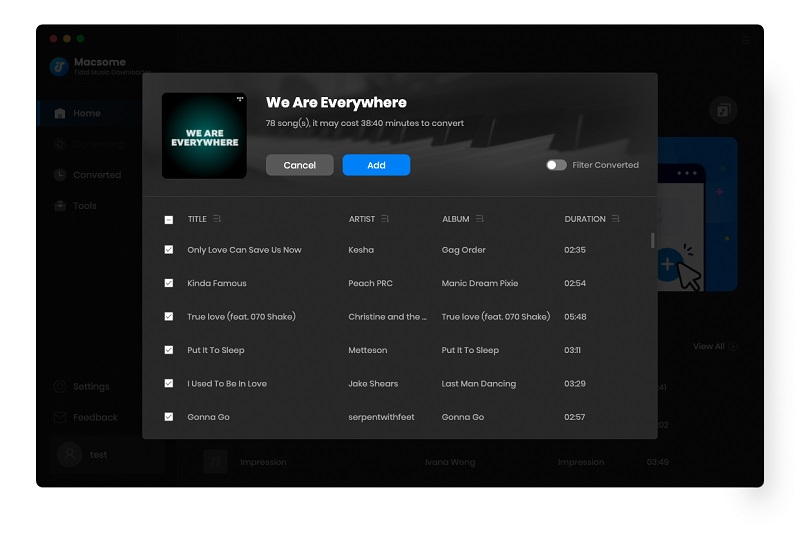
Macsome will parse the playlist link.

Add Tidal music to download in batch

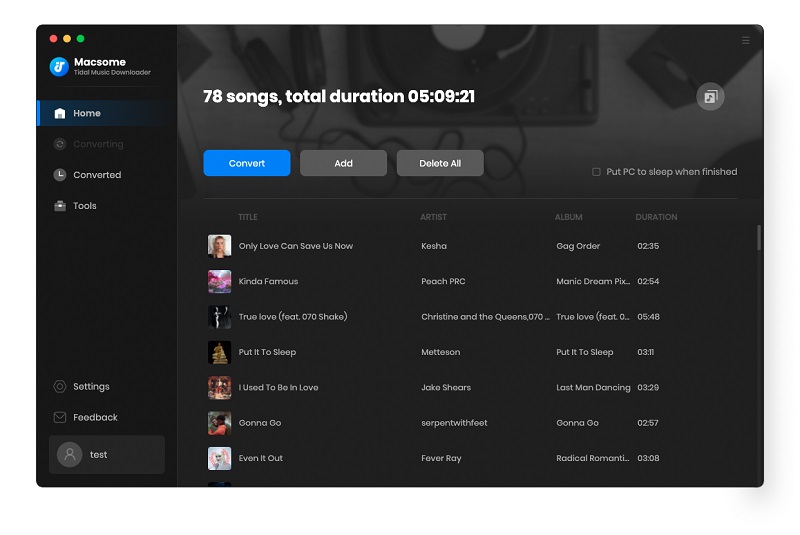
Click the "Add" button to import the whole playlist into Macsome directly. If you want to add more songs, choose the "Add" button and repeat the adding step.

Add Tidal music to download in batch

Step 4. Start to Download Tidal Music on Your Mac

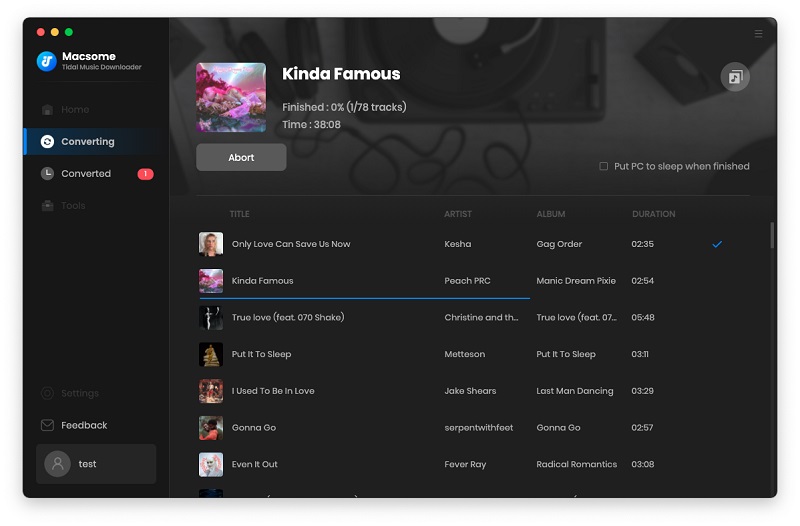
Click the "Convert" button to start converting the Tidal music to the output format you have chosen.

convert tidal music to mp3

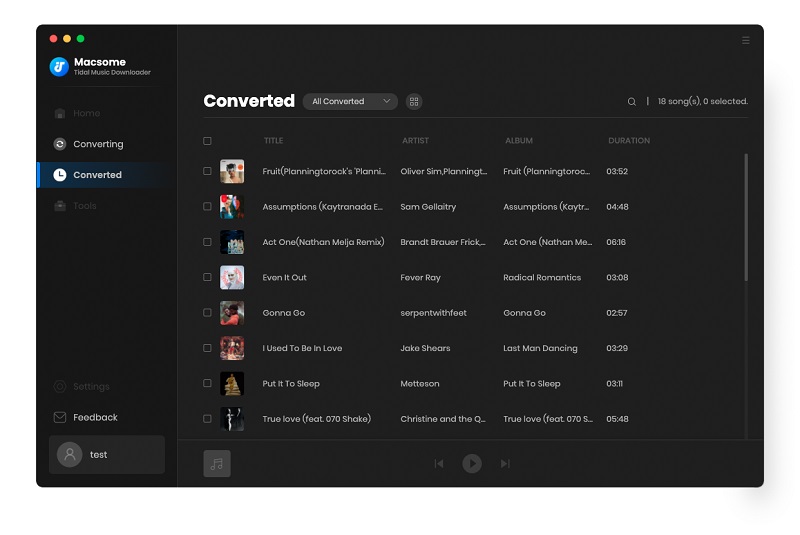
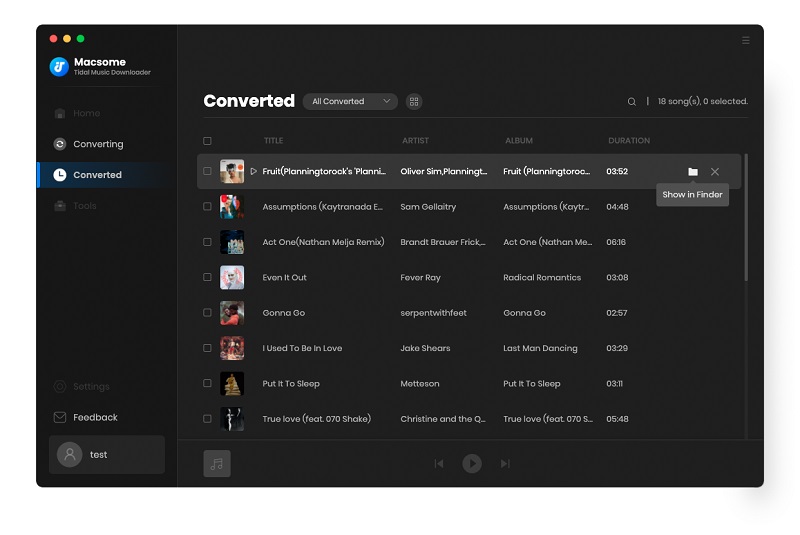
When the conversion is finished, you can find the converted Tidal songs from the "Converted" tab.

find the converted tidal music

The cursor then moves to the list and hit the "folder" icon to locate the songs on your Mac.

Now you can play the songs within the Tidal Music Downloader or other media players on your Mac with ease.

find the converted tidal music locally