Thursday, January 31, 2019

American Airlines will be able to stream Apple Music over in-flight Wi-Fi for free

apple-music-takes-flight-on-american-airlines-playlist-a
Apple Music is taking flight in more ways than one.
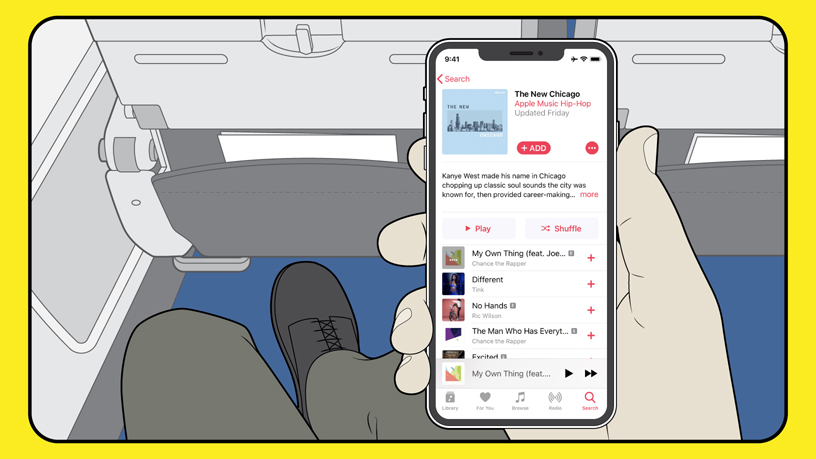
The company announced Tuesday a partnership with American Airlines that will allow Apple Music subscribers to stream songs, playlists and music videos on any domestic flight equipped with ViaSat satellite Wi-Fi for free. This makes American the first commercial airline to provide exclusive access to Apple Music through complimentary Wi-Fi.
 
"For most travelers, having music to listen to on the plane is just as important as anything they pack in their suitcases," said Oliver Schusser, vice president of Apple Music in a press release. "With the addition of Apple Music on American flights, we are excited that customers can now enjoy their music in even more places."
Those who subscribe to Apple Music will be able to access the service on Apple devices equipped with the platform, including iPhones, iPads, Macs and Android phones. Those who don't have a subscription, however, could sign up for a free three-month trial once on board. The new deal begins Friday.
"Our guests want to make the most of their time when flying us. That's why we're investing in faster Wi-Fi, a variety of entertainment options, and why we're so excited to introduce Apple Music to more of our customers," said Janelle Anderson, vice president of global marketing at American, in the press release.
Apple Music's partnership with American comes months after integrating the service with the Amazon Echo. Earlier in January, Verizon announced its plans to include Apple Music subscriptions in some of its top-tier U.S. data plans.
Apple Music's subscriber count still lags behind Spotify's 87 million subscribers recorded last November. While Spotify has a free version of their service, Apple Music only has a three-month free trial.
 
During the company's most recent earnings call, CEO Tim Cook said iTunes reached its highest quarterly revenue thanks to Apple Music, which now has over 50 million paid subscribers. The app helped Apple's services revenue reach $10.9 billion in the December quarter, which is up 19 percent from the previous year.
"We not only generated our highest global services revenue ever, but we also had all-time records across multiple categories of services including the App Store, Apple Pay, cloud services and our App Store search ad business and we had a December quarter record for AppleCare," Cook said during the call.
Source from https://www.cnbc.com/2019/01/30/american-airlines-to-offer-free-apple-music-streaming-on-flights.html

Wednesday, January 23, 2019

Users will be able to Block Bands on Spotify

industry-insider---spotify
Go ahead and get the “Thank U, Next” joke out of your system. I’ll wait. Because that’s exactly what you’ll be doing with Spotify’s latest feature: telling various bands you can’t stand that you no longer want them to pop up on the curated playlists you otherwise enjoy.
And this isn’t just about annoying music. There are very legitimate reasons why you might have a moral objection to certain artists—known serial abusers, for example—and you’d rather they just go away for good. If you’re lucky, you might even be able to boot them out of your Spotify life right now.
As Thurrott reported yesterday, Spotify appears to be testing the new artist-blocking feature “with a smaller group of users.” I’m not running any alpha or betas of the Spotify app, but I noticed that I have the feature. You should check, too, as turning it on for any artist you dislike will ensure you don’t have to hear them on Spotify ever again. As Mehedi Hassan describes:
“This means it will block music from that artist on your personal library, playlists, automatically curated playlists, charts, radios, and everything else. In fact, you won’t be able to manually play music from an artist you’ve blocked even if you wanted to — and you’d have to unblock an artist before you can play a certain track from them. Blocking an artist doesn’t block tracks they have featured on, however.”
You would think that it would be easy to block an artist the minute one of their songs pops up, but the process is a bit more involved than that. When you tap on the triple-dot icon next to a song’s name in the Spotify app, the context menu doesn’t give you a way to block the artist outright.
Instead, you’ll have to scroll down a bit and tap on “View artist,” or just visit an artist’s Spotify page directly in the app. (Though I can access artist-blocking features on my iOS Spotify app, I didn’t see them on the web-based player or the Android app when I wrote this article.)
Once there, you’ll have to tap the same triple-dot icon in the upper-right corner of the app to access the contextual menu for the artist in question. If you have access to Spotify’s blocking feature, you’ll see a new option that reads, “Don’t play this artist.” Tap that, and you’ll be (almost entirely) free from them on Spotify—or, at least, until you have a change of heart (or become obsessed with a new single). If that happens, you’ll have to visit the artist’s page again to remove your block.
And it’s important to note that this “block” isn’t like to a Facebook block, where you’ll never see that which you block on the service. When I blocked Abba on Spotify, for example, they still appeared on Jonathan Van Ness’ (incredible) playlists. However, when I ran through the playlist, Spotify automatically skipped any and all Abba songs. (Sorry, Jonathan!)
There’s no word on when Spotify might roll this feature out to more users, so keep checking the app if you don’t have the blocking ability. You could also try enrolling in the service’s alpha or beta tests, if you want speedier access to whatever the company is working on.
Source from https://lifehacker.com/how-to-block-bands-on-spotify-1831951659

Thursday, January 17, 2019

How to play iTunes Audiobooks on Kindle

Apple Music for Student Plan
When you transfer your Audiobooks from iTunes to Kindle, you find that you can't do this. All the purchased audiobooks from iTunes Store are by the name suffix ".m4b are protected with DRM. In other words, you can move these DRM audiobooks, unless you remove DRM limitations from these Audiobook files, and then you can easily and freely move the DRM-free audiobooks as you like.
In the following, we will show you the tips to decrypt DRM from iTunes Audiobooks and then play them on Kindle devices.
First of all, we need a DRM removal to help us deal with DRM Audiobooks from iTunes. Macsome iTunes Converter is the tool which you need.
To decrypt DRM from iTunes Audiobooks, users need to free download Macsome iTunes Converter at first.
Windows Version Download
Mac Version Download
Step 1, Double click to install the trial version of iTunes Converter on your PC, and then run it.
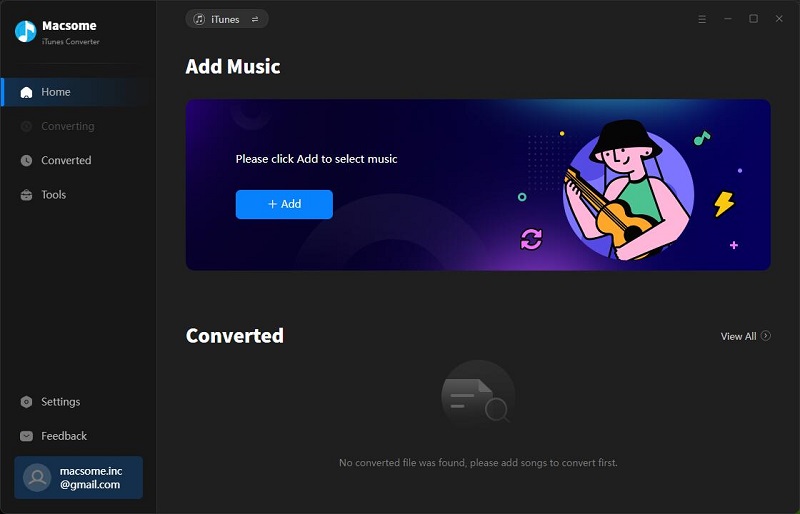
User Interface
Step 2, click the Add button and select the audiobook files you want to convert from iTunes library.
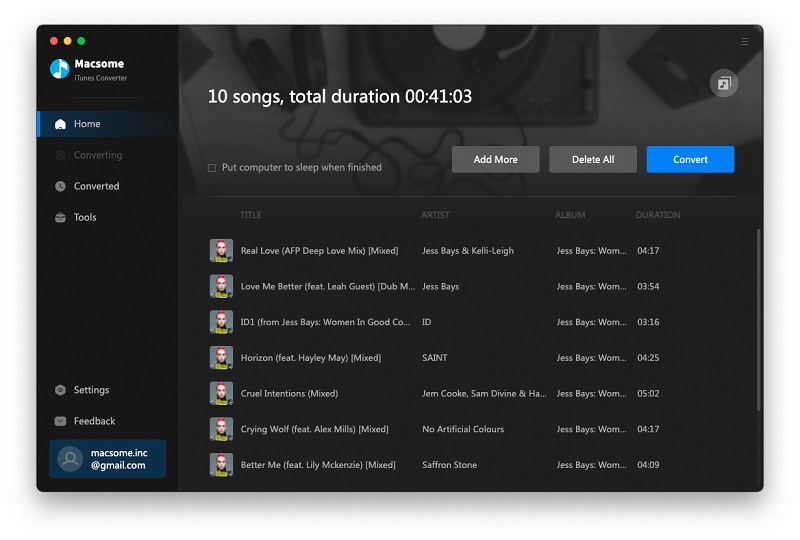
After you choose the Audiobook files you would like to convert, click "OK", and then all the audiobook tracks files you selected would be listed on the main window.
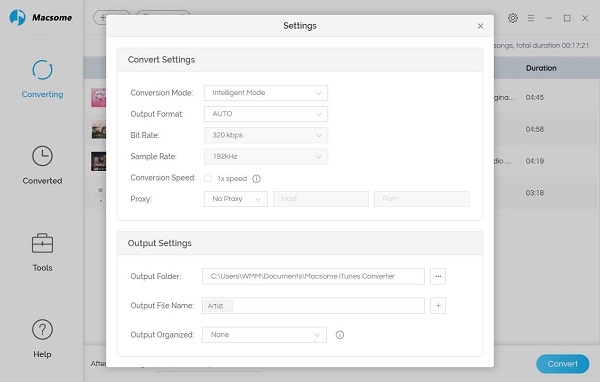
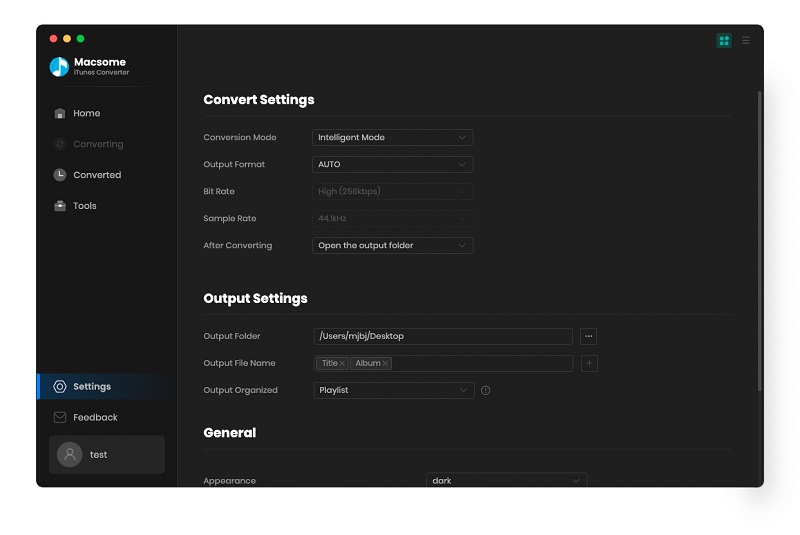
Step 3, Set the output format by clicking the Setting icon, here we choose MP3 format. After iTunes Converter V3.0.0, the default conversion speed is super fast. There is no need to set the conversion speed.
Set MP3 as the output format
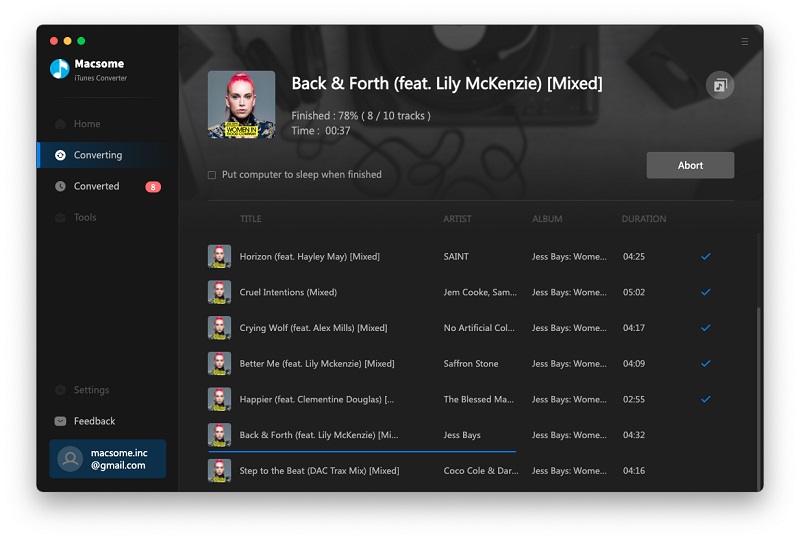
Step 4, click the Convert button to start converting.
Step 5, transfer the Converted Audiobooks to Kindle Devices
Now connect your devices like Kindle Fire to your computer with the USB cable, then open the Kindle Fire folder on your computer, and then open the Internal storage folder, and then drag and drop the converted Audiobook files into the applicable folder.
All the process is very simple, even you are a new user, you can easily use the program to convert your audio files quickly. Why not free download it and take a try.

Wednesday, January 9, 2019

How to get free trial Apple Music longer than 3 months

video.yahoofinance.com@10d815b5-1cb5-35b6-9887-406d226c4c9e_FULL
Everyone knows that if you want to play Apple Music songs, you need to subscribe Apple Music service. How to play Apple Music freely?
If you are a new user for Apple Music service, visit Apple's website, and choose "Free Trial" in the top right corner, or click "Try it free for three months" on the relevant plan, and you'll be able to get three months absolutely free of charge.
If you want to to get an extra three months of Apple Music, the family plan will be a choice.
If you're happy to use Family Sharing, you could get another member of your family to sign up for the free trial of the Apple Music Family Sharing plan, and then share that with you. You’ll then be able to take advantage of an extra three months for free.
Following the above methods, you have 6 months or more free trial date, but this is troublesome. Not everyone like to try this, in the following, we will show how to keep these Apple Music songs forever after your 3-months free trial.
You know, Apple doesn't offer a free version of Apple Music. After you cancel the Apple Music subscription, all the songs even you have downloaded on your computer can't work and be playable any longer, not to say that, you'll no longer be able to search through the streaming catalog or play custom playlists, because of DRM.
DRM protections limits users to get more freedom from Apple Music. Have you thought of removing DRM from Apple Music songs and then you get unprotected Apple Music songs and play them without limitation and backup them as you like.
Macsome iTunes Converter is the tool to help users get more freedom from Apple Music songs. What you only need to do, just download the favorite Apple Music songs during your 3-month free trial time, and convert them to unprotected AAC, MP3, FLAC and WAV audio formats, and then you can play or keep them according to your need.

Online guide to remove DRM from Apple Music and play them freely

Follow the next step-by-step guide to delete your Apple Music files' DRM
Step 1, Go to download the latest version of iTunes Music Converter by clicking the next download button according to your system, and then install and run it.
In the next, all the conversion are working with Macsome iTunes Converter for Mac.
Windows Version Download
Mac Version Download
Step 2. Just click "+" to import the downloaded Apple Music files.
Please make sure that you have downloaded the Apple Music files you want to convert and they can work normally on your iTunes.
Add downloaded Apple Music songs
Step 3. Click the setting icon to set the output format and output folder.
Preferences output Settings
There are four output formats including MP3, AAC, FLAC and WAV for users to choose. If necessary, you can also reset the related audio parameters.
Step 4. Click the "CONVERT" button to start your iTunes music converting.
DRM removing from Apple Music
After the conversion, all the Apple Music files' DRM have been removed. You can keep these music or transfter them to PSP, iRiver, Spotify, Pandora and so on.
More Apple Music Tips:

Wednesday, December 26, 2018

How to save 25% to get Macsome products


Myntra_SBI_Bank_Coupon_Code_Flat_25_off_on_Rs_1299

Macsome Inc. is a software development company which established in 2008 with expertise and experience in converting protected audios and videos on iTunes and Spotify.


The whole product lists on Macsome is as following,
Macsome iTunes Converter for Win / Mac
Spotify Audio Converter Platinum for Win / Mac
iTunes Video Converter for Win / Mac
Whether users want to convert from iTunes music songs and audiobooks or to MP3, AAC, FLAC, WAV and from iTunes videos to MP4, AVI, FLV, and so on , or users want to download Spotify Audio files and playlists and save them to MP3, FLAC, AAC and WAV format, you can find the right solution from macsome.com.
You can also download some free audio tools like Macsome Audio Editor and Audio Splitter, whatever you want to download audio files, converting Audio files, edit audios, you can find one program for you.
In order to thanks for the users’ support in the past 12 months, Macsome. Inc offers special offers and the biggest sales for Christmas 2018 – all products on macsome.com are now 25% off. There is no need to input the discount code any more, just go to the promotion website page, you can get the discount sales directly.
This promotion will begin from December 15, 2018 and expired on January 15, 2019. During the promotion time, customers can save 25% to purchase all the macsome products, no coupon codes required.

Wednesday, December 19, 2018

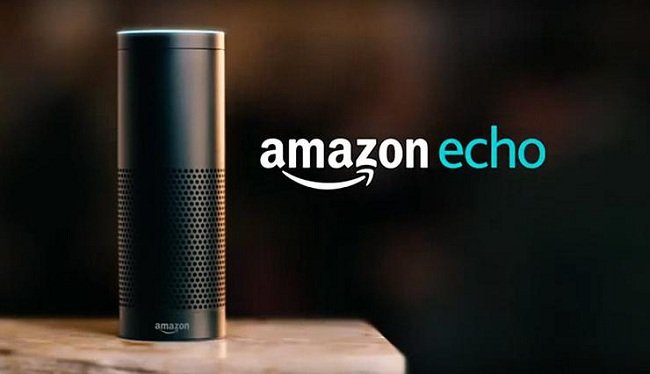
Apple Music is now available on the Amazon Echo

Stream Apple Music to Amazon Echo
You can now ask your Amazon Echo to play tunes from Apple Music. It’s a significant step, because the Echo has long supported Apple Music’s rivals, like Spotify, allowing users to request songs and playlists from Alexa by voice.
As Apple continues to focus more on services — it reported $9.98 billion in services revenue in the fourth quarter, up 27 percent from the prior year — it’s more important than ever for those services to be available when and where Apple fans want them.
 
Before the Echo update, Apple Music users had to either connect to the device with Bluetooth or shell out $350 for an Apple HomePod.
Activating Apple Music on an Amazon Echo is really easy. It took me about 30 seconds from my iPhone in the office. Here’s how you do it:
  • Open the Alexa app on your phone (you can use Android, too).
  • Tap the menu button on the top left.
  • Choose “Settings.”
  • Select “Music.”
  • Tap “Apple Music.”
  • Choose “Settings” again from the Apple Music page.
  • Tap “Link Account.”
  • Log-in with your Apple ID
  • Enter in your two-factor authentication code (if you have this enabled.)
  • Tap “Allow” to let Alexa access your Apple Music library (“non-personal” information like age, gender and listening activity may be shared with Amazon, according to Apple’s terms.)
  • Tap “Done.”
Once you’ve connected your account, it’s time to make it the default service so that Alexa is set to play music from Apple Music rather than Amazon’s own service.
  • Open the Alexa App on your phone.
  • Tap the menu button on the top left
  • Tap “Settings.”
  • Choose “Music.”
  • Scroll down to the bottom under “Account Settings” and tap “Default Services.”
  • Select “Apple Music.”
That’s it. Now you can ask Alexa to play tunes right from Apple Music.
Related Reading:
The other method to play Apple Music on Amazon Echo.
Play Spotify on Amazon Echo

Tuesday, December 18, 2018

All products on Macsome now 25% OFF


Merry Christmas and Happy New Year!
As known that Christmas is coming, to thanks for the users’ support in the past 12 months, Macsome. Inc offers special offers and the biggest sales for Christmas 2018 – all products on macsome.com are now 25% off. There is no need to input the discount code any more, just go to the promotion website page, you can get the discount sales directly.

This promotion will begin from December 15, 2018 and expired on January 15, 2019. During the promotion time, customers can save 25% to purchase all the macsome products, no coupon codes required.

Macsome provides with three key products, including iTunes Music Converter, Spotify Audio Converter Platinum, iTunes Video Converter. All the products supports both Mac and Windows version.
Whether users want to convert from iTunes music songs and audiobooks or to MP3, AAC, FLAC, WAV and from iTunes videos to MP4, AVI, FLV, and so on , or users want to download Spotify Audio files and playlists and save them to MP3, FLAC, AAC and WAV format, you can find the right solution from macsome.com.
With iTunes Converter, users can:
  • Convert iTunes Audios and Audiobooks to MP3 AAC WAV FLAC with fast speed.
  • Decrypt limitations from Apple Music and Audiobooks.
  • Keep ID3 Tags and all metadata.
  • Free Lifetime Upgrade and Priority Support.


With Spotify Audio Converter, users can:
  • Download Spotify music songs and playlists with Free account.
  • Remove limitations from Spotify.
  • Burn Spotify to CD.
  • Backup Spotify to computer or devices.
  • Send your Spotify playlist to your friends.
  • Free Lifetime Upgrade and Priority Support.


About Macsome
Macsome Inc. is a software development company which established in 2008 with expertise and experience in converting audio books and iTunes music, transferring iPod files and recording audio. It develops products such as iTunes Music Converter, Spotify Audio Converter Platinum, Audio Recorder and so on for personal computers and mobile devices.
Visit here http://www.macsome.com to know more about Macsome Inc.
Contact Info:
Name: Leo Fan
Address: No. 62, Jiao Da Dong Lu, Haidian, Beijing, China
Phone: 86-10-62234491
Email: market@macsome.com