Thursday, February 26, 2015

How to remove DRM from iTunes music album

Music is a huge part of the daily life. Apple Inc. Makers of the Mac/Apple computers are the biggest online music seller. But DRM prevents you from sharing your files purchased from iTunes Store. And Macsome iTunes Converter can help you.
Steps

1. Download Macsome iTunes Converter and install it on your Mac, then run it.

2. Add the purchased music. Click the Add button to open the adding window. Then select a purchased music in the Music Sources list and click the OK button to add.

3. Set the output format. Click the Macsome iTunes Converter menu to open the Preferences window and click the Output File Format drop-down list to set the output format Same as source on the Advanced tab. The output format will be same as the format of the protected file.

4. Start the converting. Click the Convert button to start converting. After the converting is done, you can get the iTunes purchased music songs without the DRM protection to play on any mp3 player.
Tips:
·         You can know more about Macsome iTunes Converter to convert audio via http://www.macsome.com/itunes-converter-mac/index.html
·         You can keep chapters of iTunes audiobooks files.
·         You can edit the converted file tags info in the Inspector.
·         You can also convert unprotected audio files to different formats.
Warnings:

Please don't do anything with iTunes during the converting, or the conversion may fail by occurring an error.

Monday, February 9, 2015

How to record audios or sound from iTunes


How to record iTunes radio on Mac with Macsome Audio Recorder, How to record any sound you hear on Mac. http://www.macsome.com/audio-recorder-mac/index.html

How to edit audio of MP4 videos

If you want to edit audio from video, you can edit audio directly with Macsome Audio Editor and no need to extract audio from the video. Macsome Audio Editor can not only edit the common formats audios and can edit videos with MP4, M4V, 3gp, 3g2 etc. It really sounds very cool!
Macsome Audio Editor is very simple yet useful. You can crop the audio and save as a audio clip, fade in/ fade out the audio to make sounds special, and you can arrange the audio clips by copying, cutting and pasting. In addition, Macsome Audio Editor can produce an iPhone ring tone quickly. And here is the tutorial to edit audio from MP4 video.
Step 1: Add a MP4 video
Click the Open Audio button to open the adding window, and then select a MP4 video and click the Open button to add.


Step 2: Select a region
Click the playback menu to playing audio and click the button StartSel and EndSel to select the region on the waveform during the playing.
Step 3: Edit the audio
With the selected region, click the Delete option by right-click to remove the clip waveform.
And select another region and click the FadeOut button to save the clip.
Step 4: Save the edited audio
After editing audio, click the Save File button and open the save window. You can keep the default output name and path. And click the Save button to save the edited audio as the common MP3 format.
Masome Audio Editor is really easy to use and provides basic effects that can meet most your needs to edit audio. With Masome Audio Editor, you can edit the audio following your talent to make the special and amazing sounds.
And the good news is Macsome Audio Editor is totally free. Free, simple and useful, Masome Audio Editor is waiting for you to know more.

Monday, February 2, 2015

Wednesday, January 21, 2015

How to remove DRM from protected Audiobooks and convert to MP3 / AAC

Audiobooks you purchased from iTunes Store are often protected by DRM protection that only allows you to listen to these audio books on your iPhone, iPad or iPod. If you want to play them on mp3 players such as PSP, Blackberry, Creative Zen and mobile phones, you have to remove DRM from audiobooks and convert the DRM protected audiobooks to MP3. Strongly recommend this Audiobook DRM Removal software – Macsome Audiobook Converter for Mac.
Macsome Audiobook Converter works sound recording technology to convert audiobooks from iTunes Store. So it keeps the users on the legal side. It can convert purchased audiobooks to MP3 or AAC to play anywhere. The conversion is 5X speed fast, and the output could be CD quality.
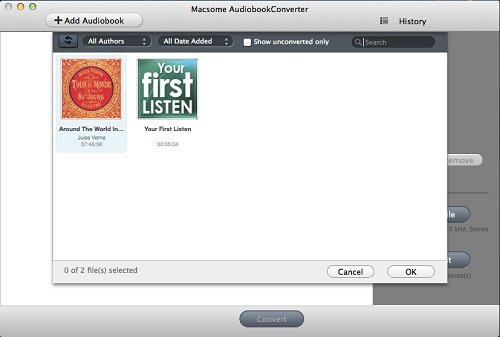
If you play the audiobooks on iTunes, Macsome Audiobook Converter can load the audiobooks automatically from the iTunes Books library on the list. You just select what you want to convert on the Audiobooks.

In addition, you can drag the DRM protected audiobooks to the list.
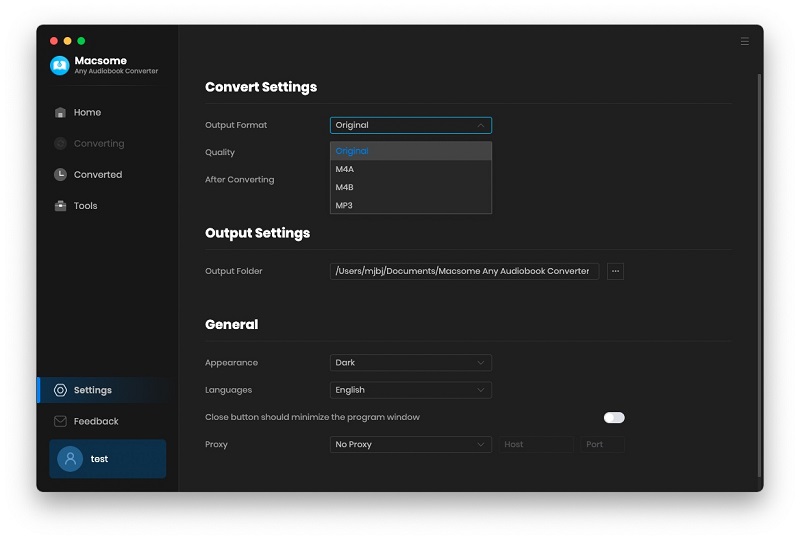
Before the conversion, you can click Profile button to customize MP3 as the output format from the drop-down list.

Then you can click the Convert button to start the audiobooks conversion with the default output path.

With the 5X fast than playback speed, you can get the output file easily. After the conversion, the converted audiobooks without DRM protection can be transferred to portable devices.
Removing DRM protection with MasomeAudiobook Converter is one of the most important functions. And Masome Audiobook Converter can keep the chapters of audiobooks. If you want to split the big audiobooks, it also supports splitting audiobooks with 3 methods.
Want to know more about Macsome Audiobook Converter, view:

http://www.macsome.com/audio-book-converter-mac/index.html

Sunday, January 4, 2015

How to burn recorded audio files to CDs

Description: Macsome Audio Recorder can record any audios from Mac, microphone and applications. With Macsome Audio Recorder, You can record audios to MP3, AAC and burn the audios directly to CDs.
Sometimes you’re in the mood for slow love ballads. Other times, you want to listen to some hard rock songs. To meet your different needs quickly, you can burn your favorite music to CDs according to the music styles. With the abundance of audio technology available today, burning your own CDs is a cinch. With Macsome Audio Recorder, you can burn CDs with the recorded music conveniently.
Macsome Audio Recorder can record any audios from applications like iTunes.app, Skype.app, Google Chrome.app, etc. You can record unlimited free music from YouTube, BBC Radio Audio, iTunes Radio and burn the recorded music to CDs. And how to use Macsome Audio Recorder? Now, take iTunes.app for example. Let’s see the detailed steps on how to burn recorded audio files to CDs.
Section 1: Record music from iTunes Radio
Step 1: Add iTunes application
Click the Add Application button to open the Applications window and choose the iTunes.app, and click Open to add it.
Step 2: Load iTunes
Click the  button to load iTunes. If the application has already launched before Macsome Audio Recorder started, the application need to be restarted.
Step 3: Customize the output format
Select iTunes and click the Inspector button. Then select Recording tab in the Setting window.
Click the Output Format drop-down list and select the format For streamingmusic which is appropriate to record iTunes Raido. And the format For streaming music with the fixed value don’t support customizing the parameters. You can also select Custom to customize the output format and parameters.
Step 4: Start the recording
Click the button to start the recording. The app iTunes will show the state Record On unless audio has been detected.
Step 5: Play iTunes Radio
Select iTunes Music library and play the station you want to record on the Radio tab. Then Macsome Audio Recorder will show the iTunes starting to record and show the duration / size info when audio has been detected.
 
In the recording process, you can click the  button to start a new recording for the next music. But when the recording is Record On or paused, it doesn’t work.
Step 6: Finish the recording
Click the button to finish the recording and the state will change from Record On to Record Off. And check the recorded file on Record Bin tab.
Section 2: Burn the recorded music as CDs
Step 1: Select files and click the Burn button. Then burn settings window pops up.
Step 2: Click the Burn Disc In drop-down list to select burning device. And make sure burning device with inserted disc is ready to burn.
Step 3: Click the button to set the burning settings.
Step 4: Click the Burn button to start burning. You can click the Stop button to cancel the burning.
Step 5: When burning process finished, the window close automatically. Then you can enjoy the recorded files in your CDs.
No matter which kind of the music or where the music comes from, as long as you can play them on Mac, you will get the amazing music by recording with Macsome Audio Recorder. Then you can burn the music to CDs. With Macsome Audio Recorder, you can add multiple applications and devices synchronously.
More info about Macsome Audio Recorder, please visit:

Tuesday, December 30, 2014

Play iTunes purchased music songs on MP3 player

All of the iTunes purchased music songs are limited using proprietary software called Digital Restrictions Management. DRM allows Apple to track how many computers the file you downloaded has been decoded, which is why you must authorized your music every time you format your hard drive or change computers.
If you want to play your iTunes purchased music songs on any iPod, iPod Touch, iPhone, Zune, PSP, Creative Zen and other MP3 players, this article gives you a solution. The only and helpful tool is Macsome iTunes Converter. It can legally convert iTunes purchased music song and remove all your DRM protected from them including iTunes music, audiobooks and podcasts to MP3, AAC, or WAV format. In the next guide, it will show you how to convert iTunes music to unprotected MP3 steps by step.

1. Add the iTunes purchased music song. Click the Add button to open the adding window. Then select one purchased music song in the Music Sources list and click the OK button to add.
2. Customize the output format. Click the Macsome iTunes Converter Menu to open the Preferences window and customize the output format in the Advance tab. Click the Output File Format drop-down list to select Custom. Keep the default format MP3 as the output format.
3. Start the converting. Click the Convert button to start converting. And please don't do anything with iTunes during converting, or the conversion may fail when occurring an error.
After the converting finished, the DRM protection will be removed from the iTunes purchased music songs. And you can select the complete file and click the Inspector button to add Artwork.
Actually, no matter what format the audio file is, if it could be played on iTunes, Macsome iTunes Converter will convert it to MP3 or AAC format for you.
So it's also a M4P to MP3 Converter, AA to MP3 Converter. During the converting, Macsome iTunes Converter plays music tracks silently in the background and records audio files with top digital quality at speeds up to 5x. So the conversion process is really fast!
Know more about Macsome iTunes Converter to visit the website http://www.macsome.com/itunes-converter-mac/index.html