Thursday, June 29, 2023

How to Download Tidal Music on Mac

Can I use Tidal Music on Mac offline? How do I play Tidal music offline on my Mac? Can I download Tidal music to my Mac?

Similar to Spotify, Apple Music, and other platforms, Tidal also lets you download files for offline listening, but the difference is that offline Tidal is only available on mobile phones or tablets using the Tidal app. It is not available to download music from Tidal to your computer. If you're using a Mac, is it possible to download Tidal Music on Mac? 

Don't worry. The following part will show you how to download songs from Tidal on your Mac.

Since Tidal is a music streaming service, in order to play Tidal Music on Mac, you can just get the Tidal app downloaded on your Mac. However, we cannot directly download music from the Tidal app on Mac. To do this, the easiest way is to use a third-party tool.


Macsome Tidal Music Downloader is a professional Tidal Music Converter for Mac and it is highly recommended for you. It is the best tool that gives you the ability to download Tidal music, tracks, and playlist on your Mac. What's more, it is also a very easy-to-use Tidal Music Converter, which enables you to convert Tidal Music to MP3, AAC, WAV, FLAC, AIFF, and ALAC with HiFi quality.

Thanks to its built-in Tidal Web Player, you don't have to install the Tidal app on your Mac. Just log in to your Tidal account, and you can save Tidal music on your Mac freely. Therefore, you are able to play the downloaded Tidal songs offline when your Tidal subscription expires.

How to Download Tidal Music on Mac with Macsome Tidal Music Downloader

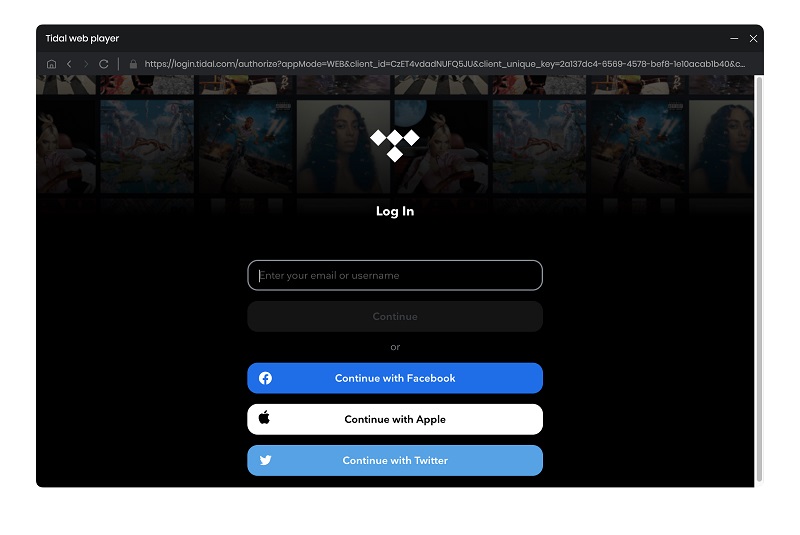
This step-by-step tutorial will show you how to download music from Tidal on your Mac by using Macsome Tidal Music Downloader. Before starting, please download and install the latest version of the program. Then, launch it on your Mac, and the Tidal web player will open at the same time.

Step 1. Log into your Tidal account

sign in to tidal web player

Step 2. Set the Output Formats and Other Parameters

Click on "Settings" in the lower-left corner of the window. There you can change the Output Format (MP3/AAC/WAV/FLAC/AIFF/ALAC), Bit Rate (320kbps, 256kbps, 192kbps, 128kbps), Sample Rate, and output path, and more as your requirements. The Output File Name section allows you to rename the output files with a series of options, while the Output Organized section gives you options to sort the output files into folders, such as Playlist, Album, and Artist.
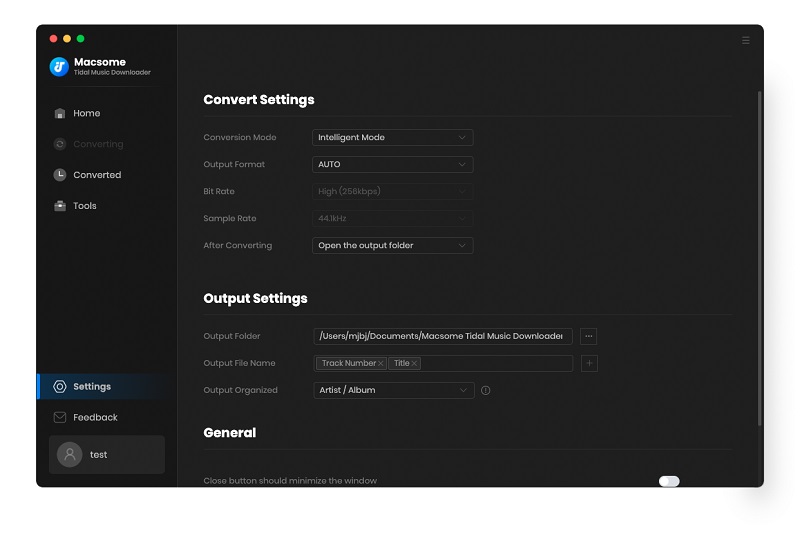
Please Note: If you wish to export Tidal music with the original sound quality, including HiFi, please select "AUTO" from the Output Format.

Set the output format

Step 3. Add Tidal Music and Playlists

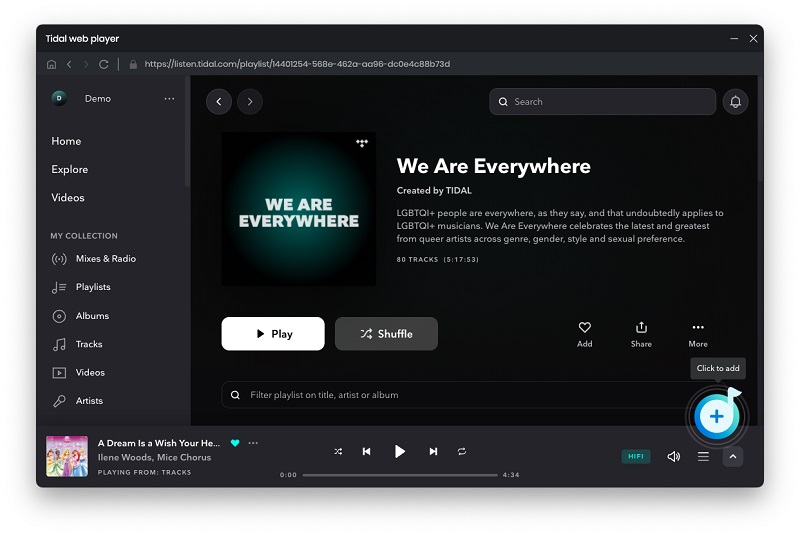
Search for your favorite Tidal songs on the Tidal web player, open a playlist you'd like to download, and click the "Click to add" button.

Add Tidal music

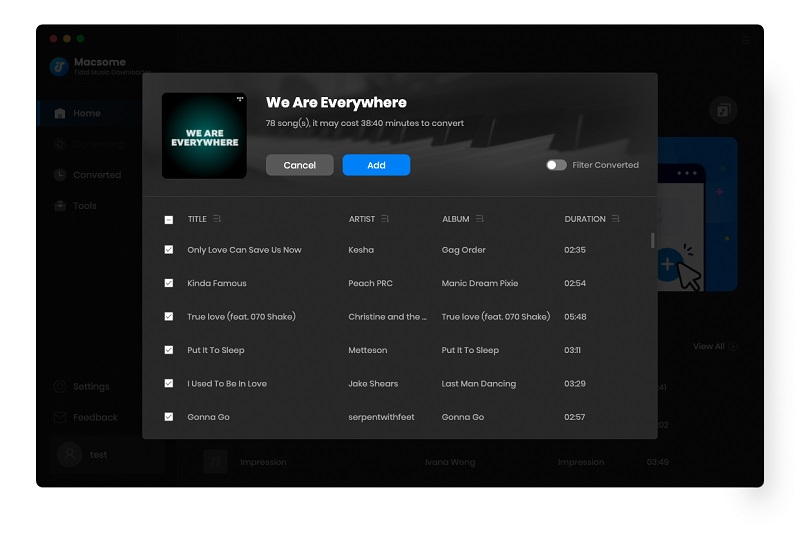
Macsome will parse the playlist link.

Add Tidal music to download in batch

Click the "Add" button to import the whole playlist into Macsome directly. If you want to add more songs, choose the "Add" button and repeat the adding step.

Add Tidal music to download in batch

Step 4. Start to Download Tidal Music on Your Mac

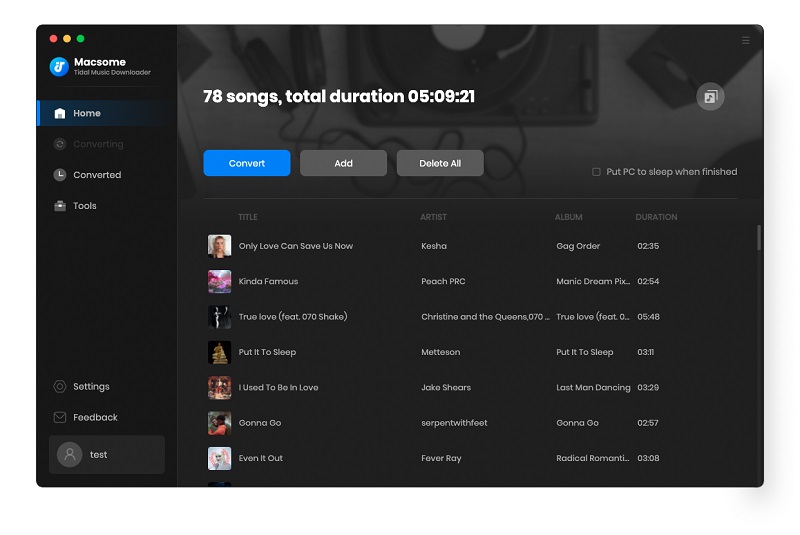
Click the "Convert" button to start converting the Tidal music to the output format you have chosen.
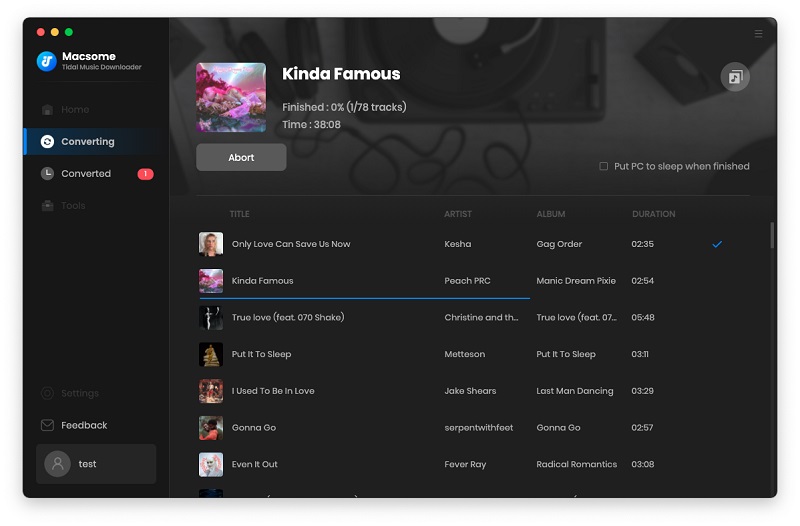
convert tidal music to mp3

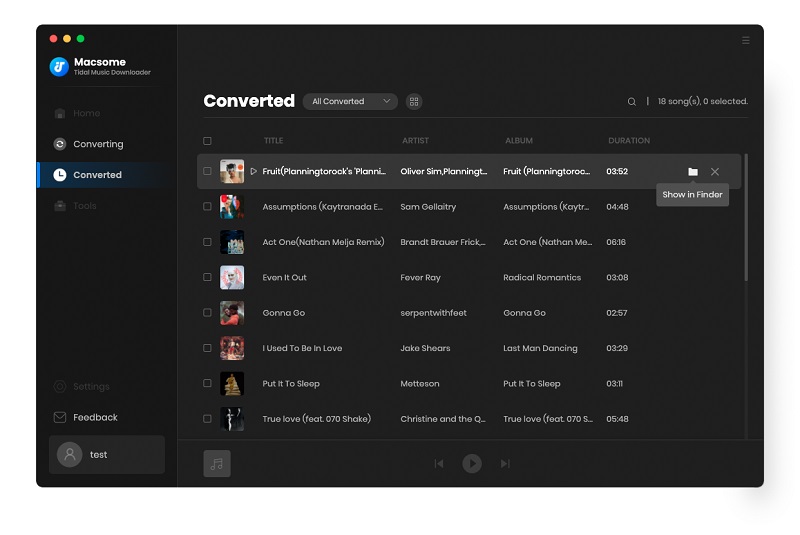
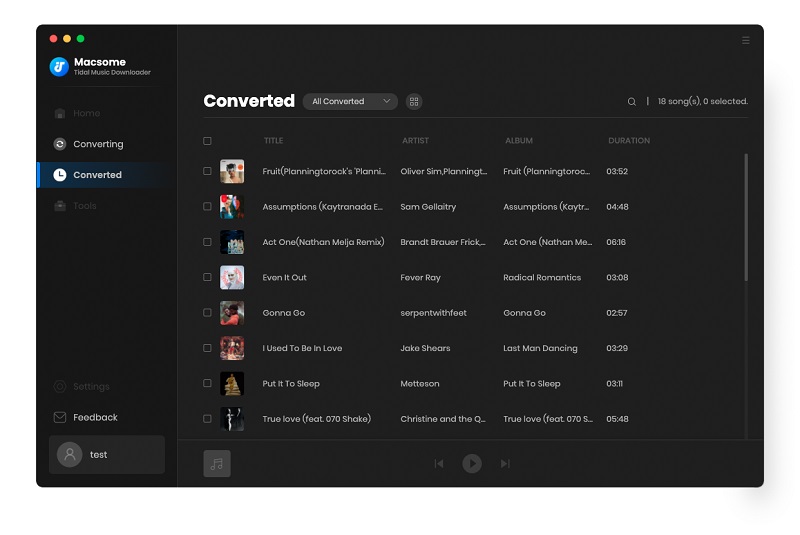
When the conversion is finished, you can find the converted Tidal songs from the "Converted" tab.

find the converted tidal music

The cursor then moves to the list and hit the "folder" icon to locate the songs on your Mac.

Now you can play the songs within the Tidal Music Downloader or other media players on your Mac with ease.

find the converted tidal music locally

Wednesday, June 21, 2023

How to Download BTS Take Two from Spotify to MP3 for Free

 "Take Two" is a song by South Korean boy band BTS, released as a single on June 9, 2023, through Big Hit Music. Its release is part of the celebrations commemorating the band's 10th anniversary as a group. The song was co-written by members RM and J-Hope, and produced by Suga.

BTS “Take Two” bounds in at No. 1 on both the Billboard Global 200 and Billboard Global Excl. U.S. charts (dated June 24).

You can find the BTS“Take Two" on Spotify. If you have a Premium account, you are able to listen to Spotify offline.


Can you Download Spotify Music to MP3?

Spotify offers Ogg Vorbis for their streaming music format. If you "downloaded" (stored offline) the songs from Spotify with a Premium subscription, you can only play them offline, but you have no actual physical access to the file and can not move it to another application to play them there, let alone save the downloaded Spotify songs to MP3 format. So is there any way to download music from Spotify to MP3?

Macsome Spotify Downloader is such a tool highly recommended for you. With it, you can not only download Spotify single tracks, full albums, playlists, and podcasts easily but also convert Spotify music to MP3 format. This program applies to both Spotify Premium and free users. That's to say, you can use it to download BTS “Take Two” on Spotify to MP3 easily even if you have a Spotify Free account.

The following tutorials show how to use Macsome Spotify Music Converter to download BTS Take Two" on Spotify to MP3.

How to Download BTS“Take Two”on Spotify to MP3

Step 1. Download, install, and launch Macsome Spotify Downloader on your computer.

Step 2. Import the song or playlist from Spotify to the program.

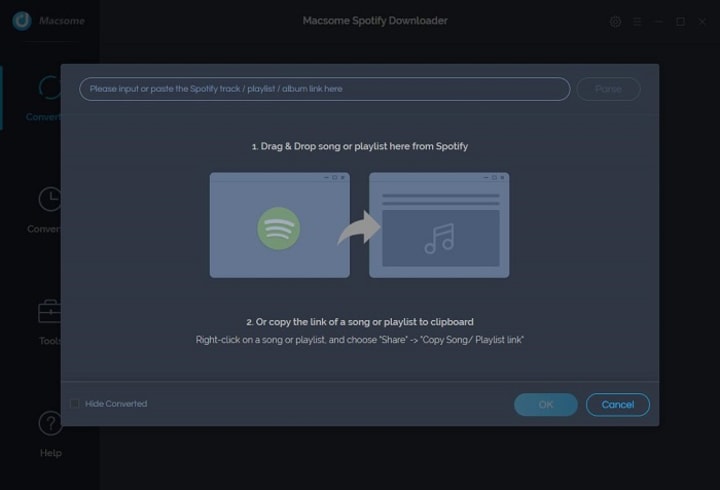
Click the "+" button, then you will see a pop-up window that indicates you to drag and drop the songs or playlist here. Open the Spotify application, search the BTS "Take Two", then drag and drop the track to add the window.

Plus, you can also directly copy and paste the link of a song or playlist to the clipboard.

Step 3. Set MP3 as the Output Format.

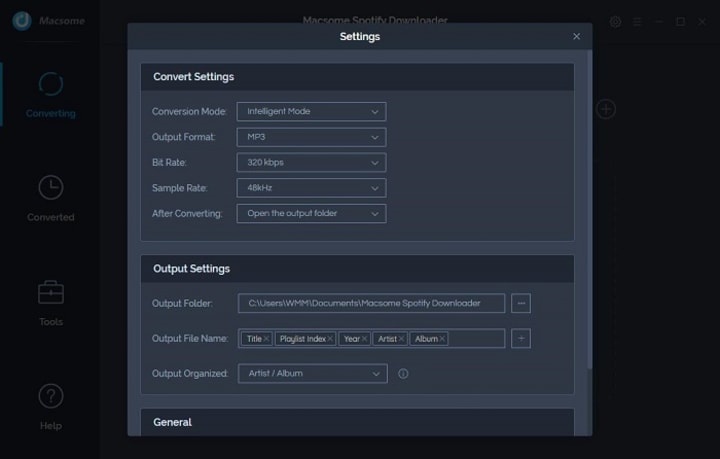
Now move to the upper right corner of the interface and click the Settings button. Now you can customize your output parameters as you like. Here we choose MP3 as the output format.

Step 4. Start to download Spotify playlist to MP3.

Finally, you can click the "Convert" button to start converting BTS Take Two from Spotify to MP3 format.


[방탄소년단 "Take Two" 가사]

[Verse 1: Jung Kook, Jimin]

Will you stay?

흘러가는 저 시간

잡아두고 싶어 with me

Will you go? (Will you go?)

어떤 얼굴을 하고 서 있을까? (Ah-ah)

이젠 기억나지 않는 새벽들

[Pre-Chorus: V, Jin]

Say

Oh, I'm runnin' round in a daze

We been walkin' so many ways

가슴이 터질 것 같아

Can't you see the take two?

Stories unfoldin' just for you

너와 함께하는 청춘

지금 내 손을 잡아

[Chorus: Jung Kook, V]

Yeah, we never felt so young

When together sing the song

서로의 눈 맞추며

어둠 속에도

Yeah, we never felt so right

When I got you by my side

함께 걷던 길 따라

Oh, we young forever

You might also like

BTS - Take Two (English Translation)

Genius English Translations

Jimin - 편지 (Letter) (Dear. ARMY) (English Translation)

Genius English Translations

BTS - Take Two (Romanized)

[Verse 2: j-hope, RM]

사막도 바다가 돼서 we swim forever

외로워했던 고래도 이젠 singin' together

함께니깐, 영원을 바래도 무섭지 않아

내 믿음은 너고 하나뿐인 이유니깐

You're my silver lining

You the one who just light me up

Oh, I can always feel you beside me

노을이 빌딩에 부딪쳐

우린 이렇게 서로에 주어져

[Pre-Chorus: Jung Kook, Jin]

Say

Oh, I'm runnin' round in a daze

We been walkin' so many ways

널 품에 터질 듯 안아

Can't you see the take two?

Lеtters I didn't send to you

너와 함께하는 청춘

시작일지도 몰라

[Chorus: V, Jin]

Yeah, wе never felt so young

When together sing the song

서로의 눈 맞추며

어둠 속에도

Yeah, we never felt so right

When I got you by my side

함께 걷던 길 따라

Oh, we young forever

[Bridge: SUGA, RM, j-hope]

당신과 함께해서 가능했고

당신과 함께여서 행복했어

당신의 목소리에 숨을 쉬고

당신의 눈물들로 일어섰어

당신들의 과분한 사랑을 내가 받을 자격 있을까

수년간 우리가 만든 영혼의 교집합

함께여서 너무 고맙고 행복합니다

부디 앞으로도 행복합시다

[Chorus: Jimin, V]

Yeah, we never felt so young

When together sing the song

서로의 눈 맞추며

비가 내려도

Yeah, we never felt so right

When I got you by my side (My side)

함께 맞던 별 따라

Oh, we young forever

[Outro: Jin, Jimin, Jung Kook, V]

이렇게 노래해 (We ain't never felt so young)

Won't you hold my hand? (Yeah, we never felt so right)

Need you here tonight (We ain't never felt so young)

Oh, we young forever (Never felt so young)

Yeah, never felt, never felt so young

Wednesday, May 31, 2023

How to Download Deezer Music on Your Computer

Macsome Deezer Music Converter is a professional Deezer Music Converter, which enables you to convert Deezer music to MP3, AAC, WAV, or other common audio formats with HiFi quality. What's more, you can also download Deezer tracks, playlists, albums, or podcasts to your local computer at a 10x faster speed. Therefore, you can enjoy the downloaded Deezer music on your computer anytime. 

Now Macsome Deezer Music Converter upgraded its user interface. Besides, it also added a free toolkit to the new version. 

This article is mainly to tell you how to download Deezer music on your computer by using Macsome Deezer Music Converter. 

How to Use Macsome Deezer Music Converter to Download Deezer Music on Computer?

Step 1. Launch Macsome Deezer Music Converter

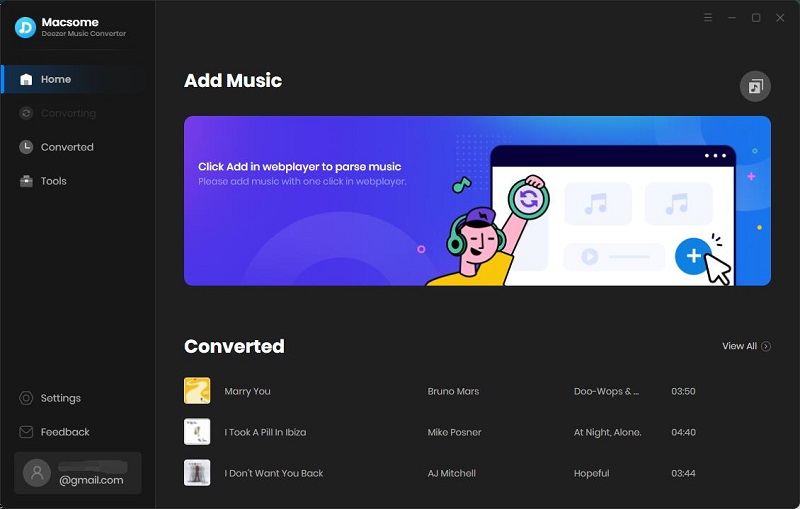
Launch the program, and the Deezer web player will open at the same time. Log in to your Deezer account.

Interface of macsome deezer music converter

Step 2. Set the Output Formats and Other Parameters

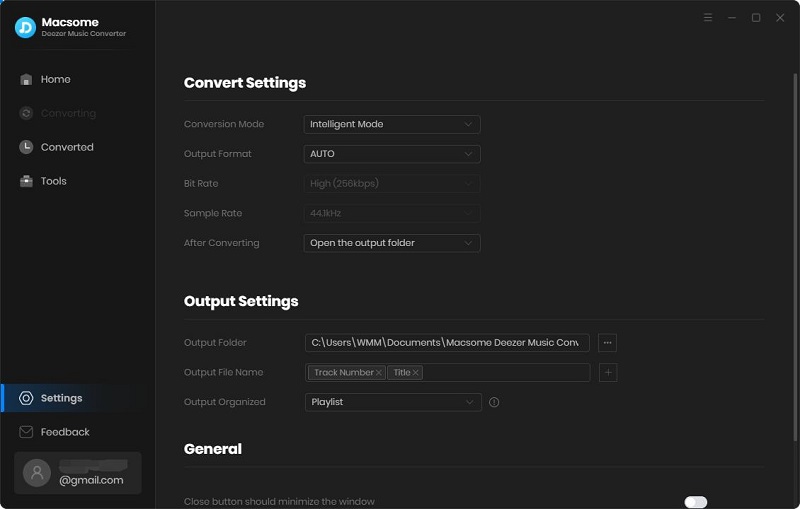
Click on the "Settings" tab at the bottom left, and you will see the Settings pop-up window. Now you can select the output format, bit rate, or output folder as you need.

Output Format: MP3, AAC, FLAC, WAV, AIFF, ALAC. Auto means that the audio format is consistent with the source file.
Bit Rate: Low(128kbps), Medium(192kbps), High(256kbps), Very High(320kbps)
Output Folder: you can use the default path, or choose any folder on your PC
Output Name: {Track Number}, {Title}, {Artist}, {Album}, {Playlist Index}
Output Organized: None, Playlist, Artist, Album, Artist/Album, Album/Artist, Playlist/Artist, Playlist/Album
After Converting: You can choose to Do nothing, Put the system to sleep or Open the output folder after downloading.

Set the output format

Step 3. Add Music and Playlists from Deezer Music

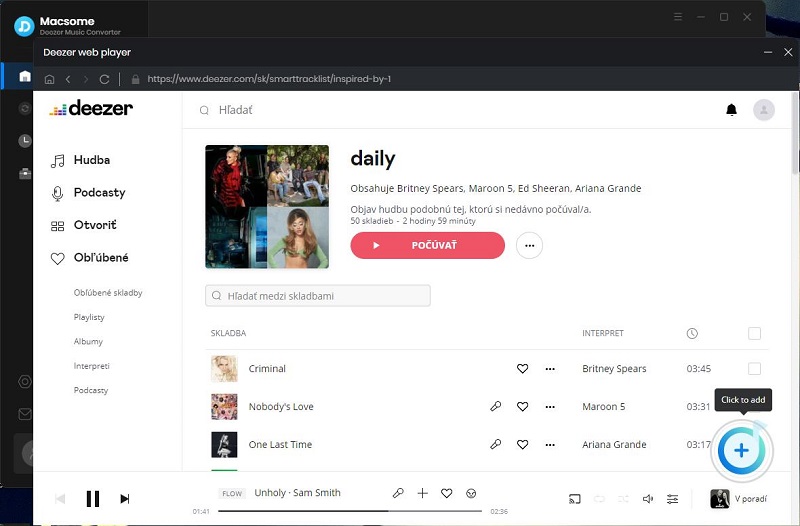
Open a playlist in the Deezer web player, then you can click the "Click to add" button to import the full playlist to Macsome.

Add Deezer music

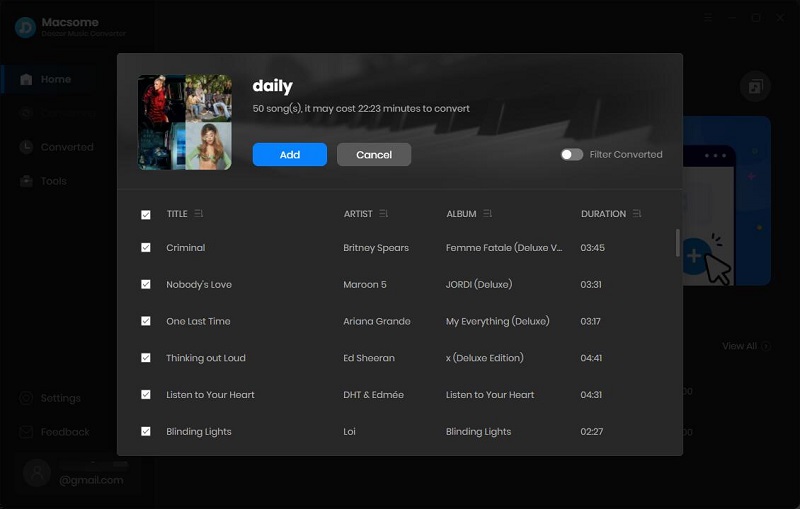
Then all the tracks in this playlist will be loaded to the adding panel, select the tracks you want to download.

add

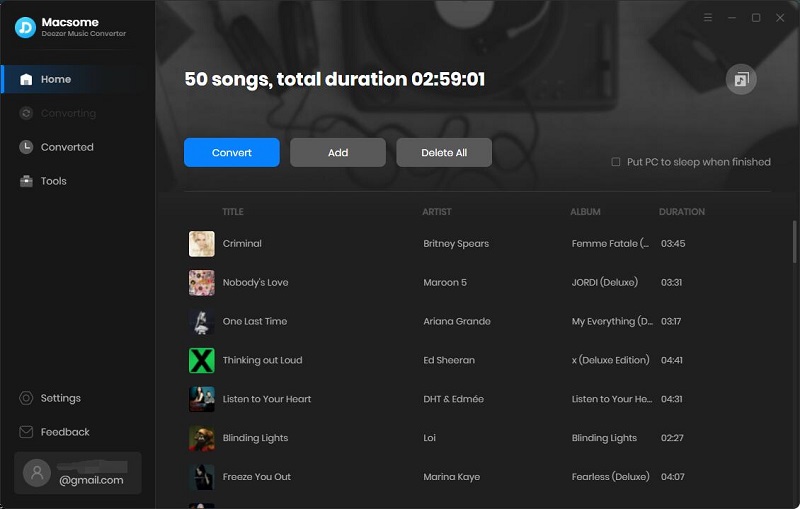
Hit on the "Add" button, all the selected tracks are loaded to the main window and waited for the download.

add Deezer songs to the main window

Step 4. Start to Download Deezer Music

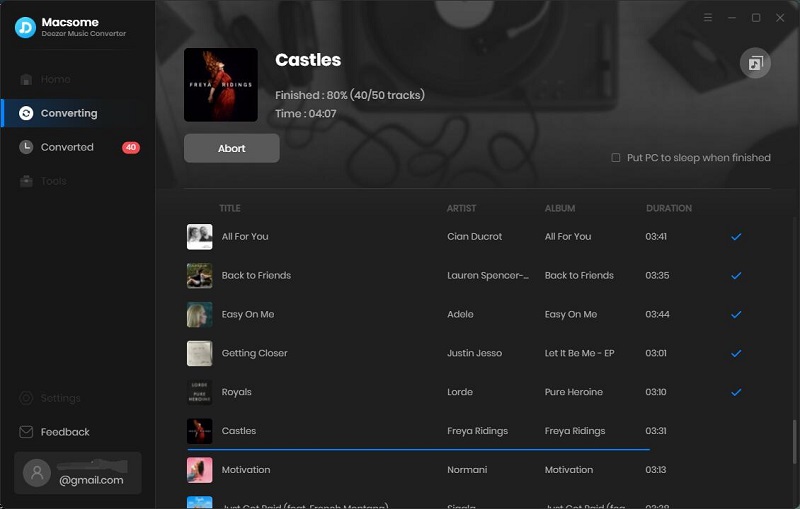
Click the "Convert" button to start downloading Deezer music.

start to download deezer music to mp3

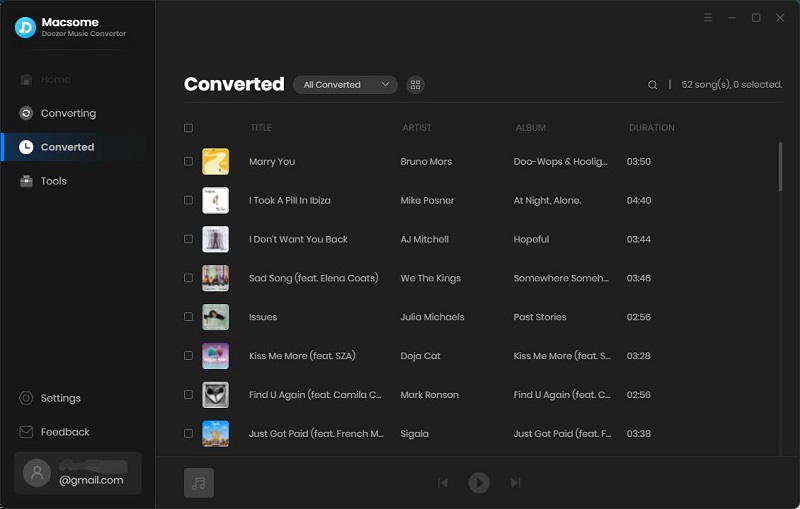
Once the downloading is finished, you can find the downloaded Deezer music files from the  "Converted" tab.

find the downloaded Deezer music

Click the "folder" icon, and you will locate the downloaded Deezer music on your computer. Now you can listen to Deezer songs offline on your computer, mobile phone, and other devices, even if you cancel your Deezer subscription.