Thursday, February 8, 2018
How to convert Apple Music to MP3 format on Windows
You can also view the text online guide from
http://www.macsome.com/itunes-converter-win/online-tutorial.html

Wednesday, February 7, 2018
Tuesday, January 23, 2018
Wednesday, December 6, 2017
How to transfer Apple music files from iCloud to Google Drive
When iTunes users can upload their purchased Music files to iCloud, and then play these DRM-free music files on other player devices. To the DRM Music files of Apple Music & iTunes Match, it won't work any more when users stop paying for the services. And you can't transfer them to Google Drive.
And then how to remove DRM from the protected music of iCloud and then transfer the unprotected files to your Google Drive and other audio player as you like.
To remove the DRM from protected music of iCloud, we need a helper - Macsome iTunes Converter, take Mac version for example (Windows version is also supported.).
Windows Version Download
Mac Version Download
Step 1, Go to download the latest version of iTunes Music Converter, follow the instruction to install and then run it.
Please make sure that if you want to convert the DRM protected music files of iCloud, you need to download them to your iTunes from iCloud at first.
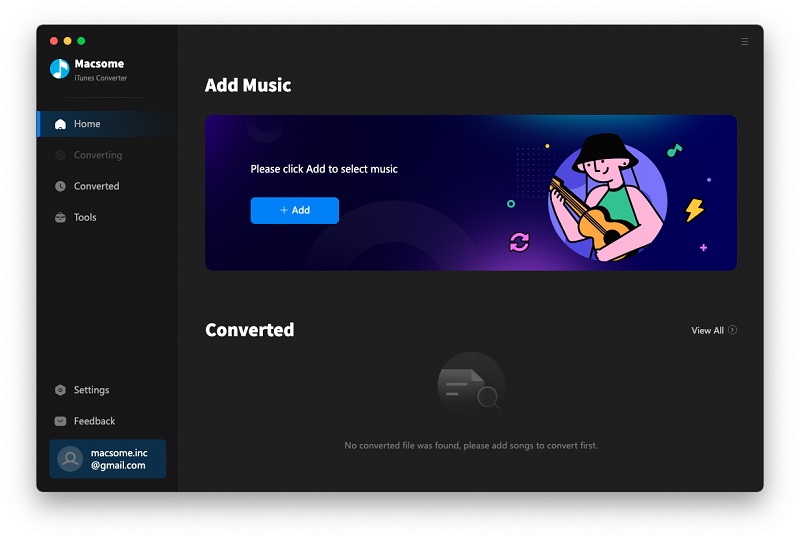
Step 2, Click "+" to import the music files you want to convert.
And you will find all the music files are in the Music library including Apple Music files and iTunes Match music files.
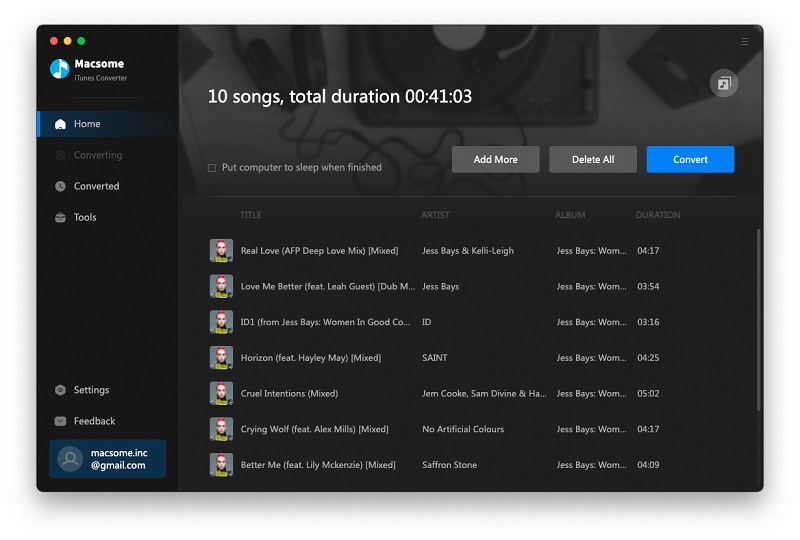
Step 3, Set the output format and output folder by clicking the set icon. If necessary, you can also reset the related audio parameters.
Now the output formats have MP3 and AAC two choices, you can just to choose a suitable one and set the other parameters according to your need.
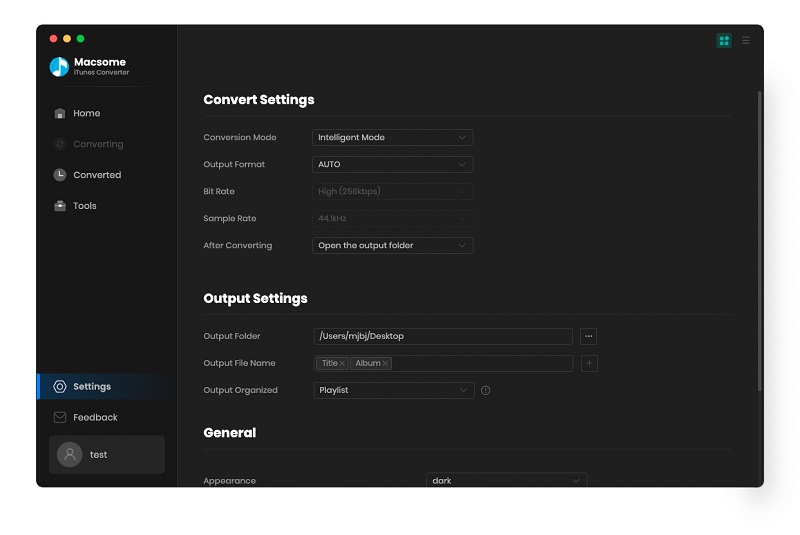
Moreover, you can reset the conversion speed, the default one is 20X. If you want to get a high audio quality, you can choose a low conversion speed.
Step 4, Now click the "CONVERT" button to start your iTunes music converting.
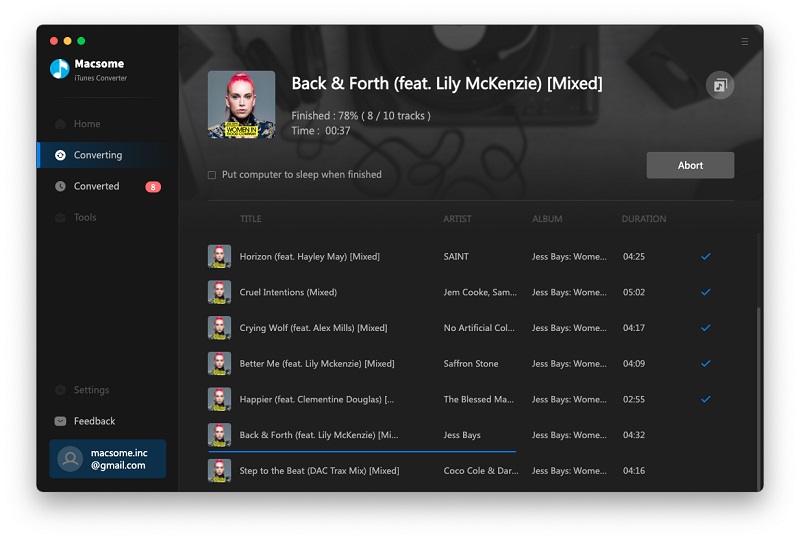
After the conversion, all the DRM protected music files are now DRM-free, and go to find the converted files to transfer them to your Google Drive to enjoy them.
Google Drive is a file storage and synchronization service created by Google. It allows users to store files in the cloud, share files, and edit documents, spreadsheets, and presentations with collaborators. Google Drive encompasses Google Docs, Sheets, and Slides, an office suite that permits collaborative editing of documents, spreadsheets, presentations, drawings, forms, and more.
And then how to remove DRM from the protected music of iCloud and then transfer the unprotected files to your Google Drive and other audio player as you like.
To remove the DRM from protected music of iCloud, we need a helper - Macsome iTunes Converter, take Mac version for example (Windows version is also supported.).
Windows Version Download
Mac Version Download
Step 1, Go to download the latest version of iTunes Music Converter, follow the instruction to install and then run it.
Please make sure that if you want to convert the DRM protected music files of iCloud, you need to download them to your iTunes from iCloud at first.
Step 2, Click "+" to import the music files you want to convert.
And you will find all the music files are in the Music library including Apple Music files and iTunes Match music files.
Step 3, Set the output format and output folder by clicking the set icon. If necessary, you can also reset the related audio parameters.
Now the output formats have MP3 and AAC two choices, you can just to choose a suitable one and set the other parameters according to your need.
Moreover, you can reset the conversion speed, the default one is 20X. If you want to get a high audio quality, you can choose a low conversion speed.
Step 4, Now click the "CONVERT" button to start your iTunes music converting.
After the conversion, all the DRM protected music files are now DRM-free, and go to find the converted files to transfer them to your Google Drive to enjoy them.
About iCloud and Google Drive
iCloud is a cloud storage and cloud computing service from Apple Inc. launched on October 12, 2011. As of July 2013, the service had 320 million users. The service provides its users with means to store data such as documents, photos, and music on remote servers for download to iOS, Macintosh or Windows devices, to share and send data to other users, and to manage their Apple devices if lost or stolen.Google Drive is a file storage and synchronization service created by Google. It allows users to store files in the cloud, share files, and edit documents, spreadsheets, and presentations with collaborators. Google Drive encompasses Google Docs, Sheets, and Slides, an office suite that permits collaborative editing of documents, spreadsheets, presentations, drawings, forms, and more.
Sunday, November 19, 2017
Apple Music’s Major Lazer documentary is streaming now

A new music documentary begins streaming today on Apple Music. Give Me Future chronicles Major Lazer's 2016 concert in Havana, Cuba -- the first to be put on by major American artists since the US restored diplomatic ties to the country in 2015. The group, made up of Diplo, Walshy Fire and Jillionaire, performed for 400,000 people in the country's capital, the planning for which and the performance were documented by director Austin Peters.
Give Me Future adds to Apple's growing stock of exclusive music-focused documentaries, which include features on artists like Taylor Swift, Pink, Harry Styles and Niall Horan. It has also released films on producer Clive Davis, the Cash Money record label, songwriter Bert Berns and the history of the iconic 808 drum machine.
Along with the film, which made its premiere at Sundance, Apple is also releasing a companion album featuring music from Major Lazer and each of its artists, Cuban artists that appear in the documentary and others including Herizen Guardiola and Sean Paul. The album, Major Lazer Presents: Give Me Future - Music From and Inspired by the Film, is available on Spotify, Apple Music, YouTube, iTunes, Soundcloud and Google Play. Give Me Future is available to Apple Music subscribers today -- you can check out the trailer below and stream it here.
Sponsor link:
Along with the film, which made its premiere at Sundance, Apple is also releasing a companion album featuring music from Major Lazer and each of its artists, Cuban artists that appear in the documentary and others including Herizen Guardiola and Sean Paul. The album, Major Lazer Presents: Give Me Future - Music From and Inspired by the Film, is available on Spotify, Apple Music, YouTube, iTunes, Soundcloud and Google Play. Give Me Future is available to Apple Music subscribers today -- you can check out the trailer below and stream it here.
Sponsor link:
- How to Transfer iTunes Playlists to Huawei Mate 10
- How to play Apple Music on iPod Nano
- How to play Apple Music on iPhone X after you unsubscribe
- How to transfer playlists from Spotify to Apple Music
- How to choose among iPhone 8 VS iPhone 8 Plus VS iPhone X
Monday, November 6, 2017
Super fast way to convert AAX to M4A on Mac
Audiobook and podcast files, which also contain metadata including chapter markers, images, and hyperlinks, can use the extension .m4a, but more commonly use the .m4b extension. An .m4a audio file cannot "bookmark" (remember the last listening spot), whereas .m4b extension files can.
Some time, you need to convert AAX to M4A and remove DRM so as to play them on most Audio Player and devices.
The latest version of Macsome iTunes Audio Converter now supports Audiobook fast conversion, if you have a 25h Audiobook file, you only need 30s to finish the Audiobook conversion, including converting AAX to unprotected M4A with super fast speed.
Windows Version Download
Mac Version Download
Step 1. Click Add button to import the AAX files from iBook library of iTunes.
Macsome iTunes Converter supports not only converting Audiobooks to MP3 or M4A format, you can also use it to convert downloaded Apple Music files, purchased Music files and so on to MP3, AAC, FLAC and WAV format as you like.
Step 2. Click the setting icon to set the output format and output folder.
If you are converting the general music files, here are four output audio formats for users to choose. But now if you want to convert AAX files, there will no output formats options for you to choose, M4A is the default output format. We are try every best to make it support more audio formats in the future.
Step 3. Click CONVERT button to start AAX to M4A conversion.
All the conversion will be finished quickly. And then users can play the MP3 Audiobook on any Audio Player as you like.
Some time, you need to convert AAX to M4A and remove DRM so as to play them on most Audio Player and devices.
The latest version of Macsome iTunes Audio Converter now supports Audiobook fast conversion, if you have a 25h Audiobook file, you only need 30s to finish the Audiobook conversion, including converting AAX to unprotected M4A with super fast speed.
How to convert AAX to M4A with iTunes Music Converter.
First of all, free download the latest version of iTunes Music Converter, and follow the instruction to install and launch it.Windows Version Download
Mac Version Download
Step 1. Click Add button to import the AAX files from iBook library of iTunes.
Macsome iTunes Converter supports not only converting Audiobooks to MP3 or M4A format, you can also use it to convert downloaded Apple Music files, purchased Music files and so on to MP3, AAC, FLAC and WAV format as you like.
Step 2. Click the setting icon to set the output format and output folder.
If you are converting the general music files, here are four output audio formats for users to choose. But now if you want to convert AAX files, there will no output formats options for you to choose, M4A is the default output format. We are try every best to make it support more audio formats in the future.
Step 3. Click CONVERT button to start AAX to M4A conversion.
All the conversion will be finished quickly. And then users can play the MP3 Audiobook on any Audio Player as you like.
Subscribe to:
Posts (Atom)