Showing posts with label itunes drm removal. Show all posts

Monday, February 1, 2016

How to break up DRM from iTunes / Apple Music

Most time, you may like to purchase hot album or music songs from iTunes Store. However all the purchased Music songs are DRM protected.
All the music songs of Apple Music can only work during the time you subscribe the Apple Music.
After you cancel the Apple Music subscription, even you have downloaded the music songs, you can’t play them any more because of the DRM.
Here the article will tell you how to break up the DRM of iTunes / Apple Music with the help of iTunes Music Converter
First, go to download and install the iTunes Converter on your PC, run it.
If you are a Mac user, please download the iTunes Converter for Mac version.
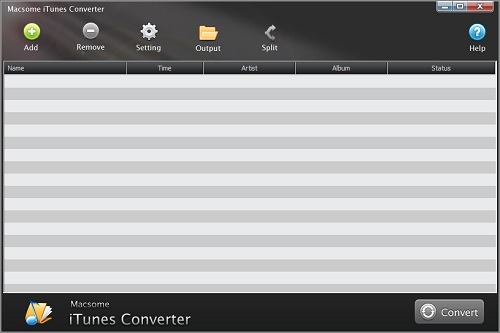
interface
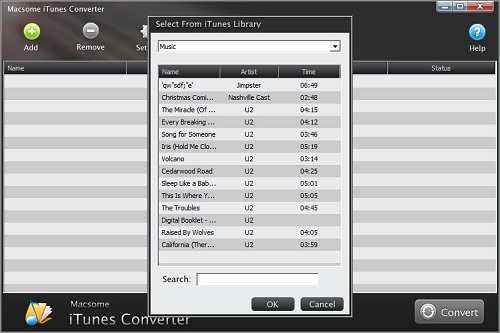
Second, click the button Add, you can choose the different iTunes library to add the audio files to convert.
add1
And select the file you want to convert, click OK, and then all files you selected will be listed on the main window.
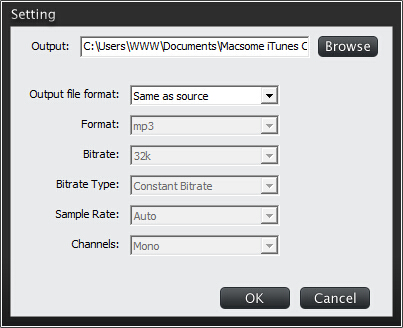
Third, click Setting button to set the output format and output path before the conversion as your need.
setting
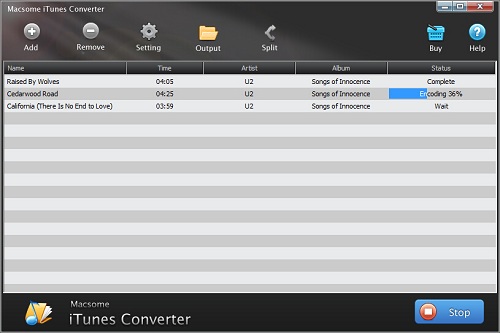
Finally, click the Convert button to start converting.
 converting
Now when it finished the conversion, you can play the unprotected MP3 / AAC music songs wherever as you like.
You May also be interested: 

How to convert M4P to MP3 from Apple Music Store

How to still play Apple Music songs after you cancel Apple Music subscription


Tuesday, September 8, 2015

Two ways to remove DRM from the old iTunes purchased music files

 i
Before 2009, most iTunes music files need to pay for it. Someone may purchase a large number of music songs at one time. And even the iTunes Music is free, what you have purchased are still with DRM protected, here we talk about the solutions to remove the DRM from purchased music songs from iTunes Store.
There are two ways to remove DRM from iTunes purchased music. In the following, you can know how to remove DRM only with iTunes & iCloud or with the help of Macsome iTunes Converter.
Method 1. Delete them and redownload it.
First of all, click iTunes Menu –Preferences, turn to Store tab, check “Show iTunes in the Cloud purchases”. Close Preferences.
Let’s make sure those protected songs are ready for download. Click on the Cloud icon in the list view of your music.
Second, Click “Kind” to list all the files by the type of file it is, and you can find all the “Protected AAC audio file.” music in iTunes, just select them and delete them.
Third, select the cloud icon again and download the songs you have deleted.
After you download them, all the music songs are without DRM any longer. And you can play the music anywhere and anytime as you like.   
With Method 1, it seems very simple and fast to remove DRM, but sometimes, you can’t get the same audio quality as what you have purchased. What a pity.
Method 2 will tell you how to remove DRM from the purchased music of iTunes and keep CD quality as your primary purchased ones.
Method 2 – Use Macsome iTunes Converter to remove DRM from iTunes purchased music songs.
Here we need an audio converter to help us – Macsome iTunes Converter , which gives users simple and fast solution to convert DRM iTunes files including Apple Music, iTunes Match Music, Audio iBooks, Audio Books and so on to MP3, AAC and remove the DRM at the same time.
All the DRM removal from iTunes purchased music files are very simple, you can get it even you are a fresh man.
First, you need to go to download iTunesConverter.dmg by clicking http://www.macsome.com/iTunesConverter.dmg
Install it on your computer and launch it.
Second, click Add button and choose the Music library and add the files you want to convert.
You can also choose the whole list of Music to convert them in batch.
Add iTunes Music
Third, Go to the iTunes Converter Menu - Preferences - Advanced to set the output format.
At last, click Convert button to start the conversion.
After conversion, all the DRM has been removed from protected AA files and so on. And now you can play all your iTunes music on any devices as you like. More tutorials about iTunes Converter, go to http://www.macsome.com/itunes-converter-mac/online-tutorial.html