
When iTunes Match users can upload their purchased Music files to iCloud, and then play these DRM-free music files on other player devices. To the DRM Music files of Apple Music & iTunes Match, it won’t work any more when users stop paying for the services. And you can’t transfer them to Google Drive.
Here we talked how to remove DRM from the protected music of iCloud and then transfer the unprotected files to your Google Drive and other audio player as you like.
To remove the DRM from protected music of iCloud, we need a helper – Macsome iTunes Converter, take Mac version for example (Windows version is also supported.).
Go to download the latest version of iTunes Music Converter, install and run it.
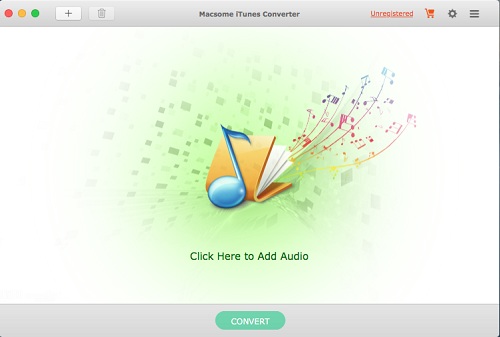
Please make sure that if you want to convert the DRM protected music files of iCloud, you need to download them to your iTunes from iCloud at first.
- Click "+" to import the music files you want to convert.
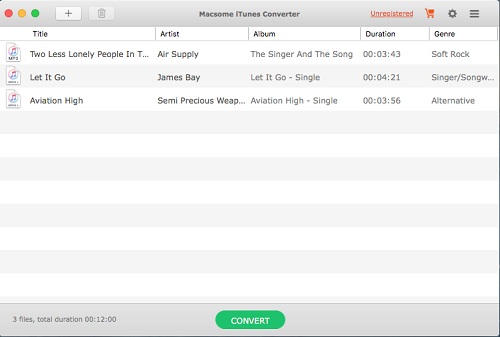
And you will find all the music files are in the Music library including Apple Music files and iTunes Match music files.
- Set the output format and output folder by clicking the set icon. If necessary, you can also reset the related audio parameters.
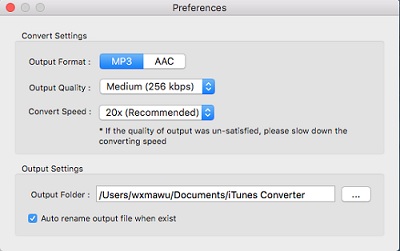
Now the output formats have MP3 and AAC two choices, you can just to choose a suitable one and set the other parameters according to your need.
Moreover, you can reset the conversion speed, the default one is 20X. If you want to get a high audio quality, you can choose a low conversion speed.
- Now click the "Convert" button to start your iTunes music converting.
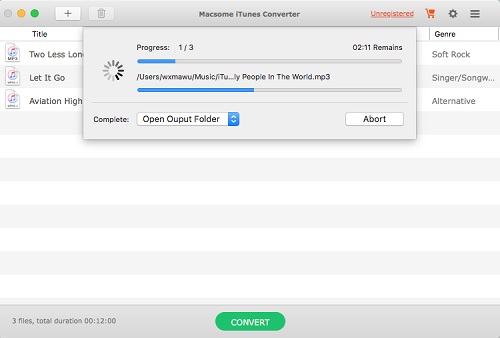
After the conversion, all the DRM protected music files are now DRM-free, and go to find the converted files to transfer your Google Drive to enjoy them.
More detailed info go to view the online tutorial of iTunes Music Converter.
About iCloud and Google Drive
iCloud is a cloud storage and cloud computing service from Apple Inc. launched on October 12, 2011. As of July 2013, the service had 320 million users. The service provides its users with means to store data such as documents, photos, and music on remote servers for download to iOS, Macintosh or Windows devices, to share and send data to other users, and to manage their Apple devices if lost or stolen.
Google Drive is a file storage and synchronization service created by Google. It allows users to store files in the cloud, share files, and edit documents, spreadsheets, and presentations with collaborators. Google Drive encompasses Google Docs, Sheets, and Slides, an office suite that permits collaborative editing of documents, spreadsheets, presentations, drawings, forms, and more.


